If the resolution is incorrect after connecting a phone to a monitor via HDMI, how can I adjust it?
Welcome to Blackview (Which offers rugged smartphone, such as rugged phone with projector, and more) blog. Hope the guide helps.
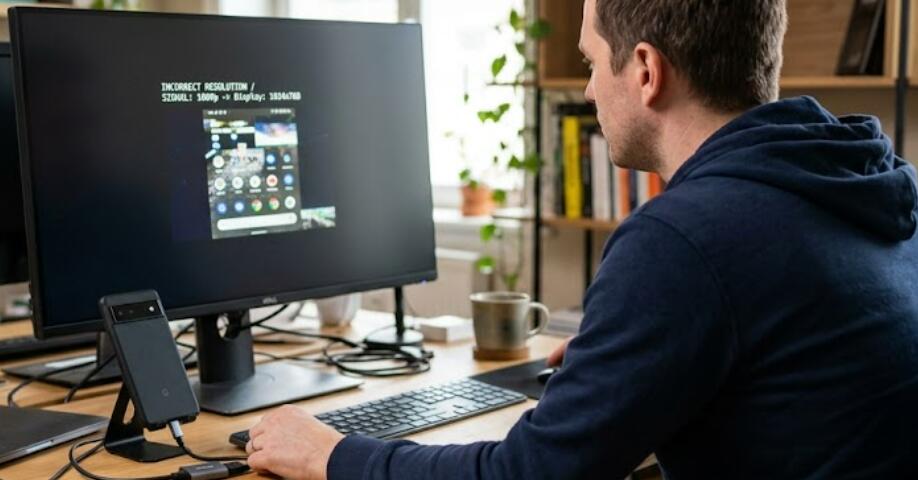
Connecting a mobile phone to an external monitor through HDMI (eg. using a laptop screen extender) is a convenient way to enjoy videos, presentations, games, and productivity tasks on a larger screen. However, users sometimes encounter resolution issues such as blurry images, stretched displays, black borders, or screens that do not fit properly. These problems can occur due to incompatible display settings, unsupported resolutions, incorrect aspect ratios, or hardware limitations.
- Read also: How do I fix a "No Signal" issue on my TV after connecting a smartphone via HDMI?
- How to connect phone to TV with USB without HDMI?
- How to hook up phone to TV with HDMI?
- What should I do if I have sound but no picture after connecting my phone to an HDMI TV?
Fortunately, most HDMI resolution problems between a smartphone and a monitor can be solved with a few simple adjustments. By checking the phone’s display output settings, monitor configuration, HDMI adapter compatibility, and refresh rate options, users can quickly improve image quality and achieve the correct screen resolution. The following guide explains the common causes and provides detailed step-by-step solutions.
Check the Phone Display Output Settings
Many Android phones and some tablets include external display settings that allow users to manually adjust screen resolution or display mode when connected through HDMI.
Steps to Adjust Display Settings on the Phone
Follow these steps to verify the output resolution settings:
- Open the Settings application on the mobile phone.
- Go to Display or Connected Devices.
- Select HDMI Settings, Screen Casting, or External Display depending on the device model.
- Choose a supported resolution such as 1920×1080 (1080p).
- Change the display mode from “Stretch” to “Fit to Screen” if necessary.
- Reconnect the HDMI cable after applying the settings.
Some phones automatically detect the monitor’s supported resolution, while others require manual configuration. Restarting the device after changing settings may also help apply the new resolution properly.
Adjust the Monitor Resolution and Aspect Ratio
In some cases, the monitor itself may use incorrect scaling or aspect ratio settings, causing the image from the phone to appear distorted.
How to Configure the Monitor Properly
Use the monitor’s built-in menu to optimize the display:
- Press the monitor’s Menu button.
- Navigate to Display Settings or Image Settings.
- Locate the Aspect Ratio option.
- Select 16:9 for most modern smartphones.
- Enable Auto Adjust if available.
- Set the monitor resolution to its native resolution.
- Disable overscan settings if the image appears zoomed in.
Using the monitor’s native resolution typically provides the clearest image quality. Incorrect aspect ratio settings often lead to stretched or compressed visuals.
Verify HDMI Adapter and Cable Compatibility
Not all HDMI adapters and USB-C hubs support high-resolution video output. Low-quality or outdated accessories can limit display resolution or create connection instability.
Tips for Checking HDMI Hardware
Inspect the adapter and cable carefully using these recommendations:
- Use a certified USB-C to HDMI adapter that supports 1080p or 4K output.
- Replace damaged or low-quality HDMI cables.
- Ensure the adapter supports video output standards such as DisplayPort Alt Mode.
- Test the cable with another monitor or television.
- Avoid using excessively long HDMI cables if possible.
- Reconnect all cables securely before testing again.
Some inexpensive adapters only support lower resolutions, which may explain blurry or incorrect screen output.
Change the Refresh Rate
Resolution issues may also be related to an unsupported refresh rate between the phone and monitor.
Steps to Modify Refresh Rate Settings
Try adjusting the refresh rate using the following process:
- Open the phone’s display settings.
- Locate the Refresh Rate option.
- Select 60Hz, which is widely supported by most monitors.
- Reconnect the HDMI connection afterward.
- Restart the monitor if necessary.
Higher refresh rates may not function correctly on certain external displays, especially older monitors.
Update the Phone Software
Software bugs and outdated firmware can occasionally cause HDMI display problems.
How to Update the Device
Keep the operating system updated by following these steps:
- Open Settings.
- Select Software Update or System Update.
- Check for available updates.
- Download and install the latest firmware.
- Restart the device after installation.
Manufacturers frequently release updates that improve compatibility with external monitors and HDMI accessories.
Incorrect HDMI resolution between a mobile phone and a monitor is usually caused by mismatched display settings, incompatible accessories, or unsupported aspect ratios. By carefully adjusting the phone’s output resolution, configuring the monitor correctly, and verifying cable compatibility, users can significantly improve display quality and eliminate scaling problems.
Maintaining updated software and using reliable HDMI adapters are also important for achieving stable and clear video output. After applying the troubleshooting steps above, most users can successfully enjoy a properly scaled and high-resolution display experience when connecting their smartphone to an external monitor.