Why Is There Sound but No Picture When Connecting a Phone to an HDMI TV?
Welcome to Blackview (Which offers rugged smartphone, such as phone with projector and thermal camera phone, and more) blog. Hope the guide helps.
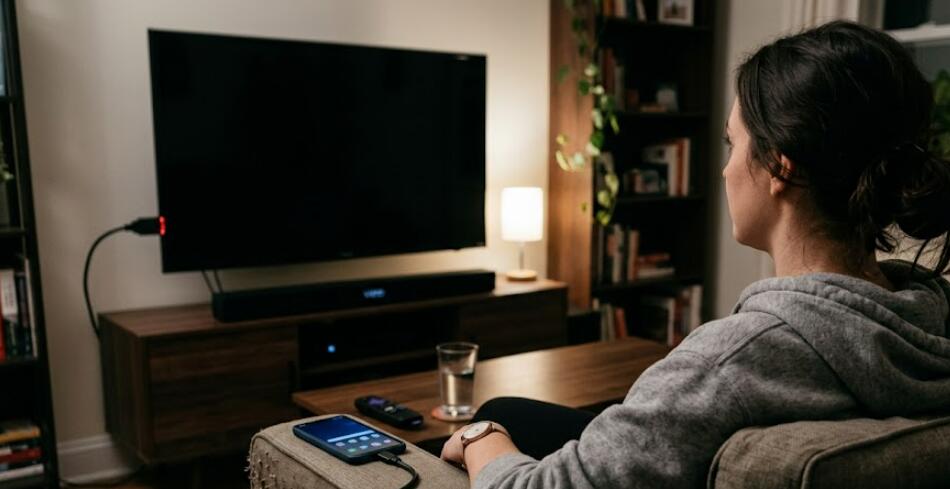
Connecting a smartphone to a TV through HDMI is a convenient way to enjoy videos, games, presentations, and photos on a larger screen. However, many users encounter a frustrating issue: the TV plays sound normally, but the screen remains black or shows no image at all. This problem can occur on both Android phones and iPhones, and it is usually related to compatibility settings, cable issues, or incorrect display configurations. Understanding the root causes is the key to solving the issue quickly and effectively.
- Read also: How to connect phone to TV with USB without HDMI?
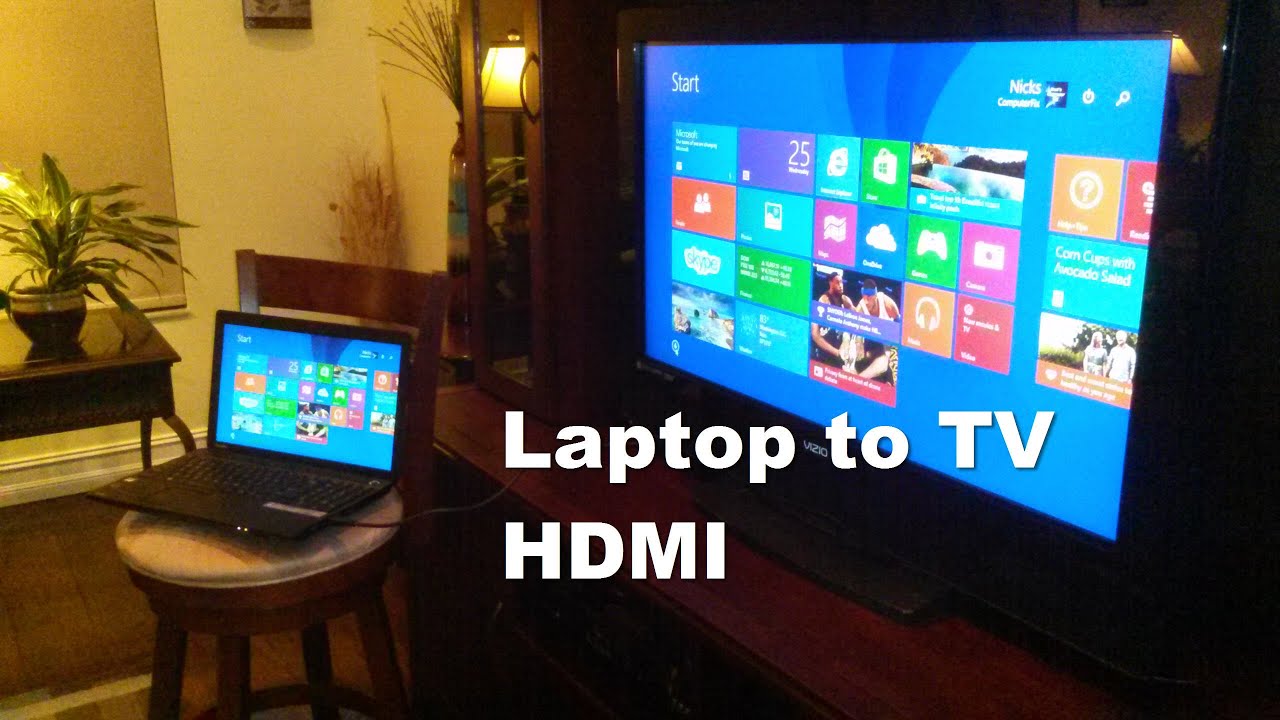
- How to connect laptop to TV with HDMI?
- How to connect laptop to TV without HDMI?
In most cases, the audio signal successfully reaches the TV while the video signal fails due to unsupported resolutions, damaged HDMI adapters, outdated software, or incorrect input settings. Sometimes the phone recognizes the TV incorrectly, while in other situations the HDMI cable itself may not fully support video transmission. Below is a detailed explanation of the possible reasons, followed by step-by-step troubleshooting methods that can help restore the video display.
Common Reasons Why HDMI Has Sound but No Video
Before attempting repairs, it is important to understand what may be causing the issue. Identifying the exact reason can save time and prevent unnecessary hardware replacement.
Faulty HDMI Cable or Adapter
A damaged HDMI cable or incompatible adapter is one of the most common causes. Some low-quality adapters can transmit audio but fail to send video signals properly. Bent connectors, internal wire damage, or unstable connections may also interrupt image transmission.
Unsupported Screen Resolution
Some TVs cannot display certain smartphone resolutions or refresh rates. If the phone outputs a resolution unsupported by the TV, the screen may remain black while audio continues to work normally.
Incorrect TV Input Source
Modern TVs often have multiple HDMI ports. Selecting the wrong HDMI input can result in no picture display even though the sound system detects audio signals.
Software or System Glitches
Temporary software bugs on either the phone or the TV may interfere with HDMI video output. Outdated firmware or operating system versions can also create compatibility issues.
HDCP Compatibility Problems
HDCP (High-bandwidth Digital Content Protection) is used to protect copyrighted content. If the phone, adapter, and TV fail to complete HDCP authentication correctly, the TV may only output sound without showing video.
How to Fix HDMI Sound but No Picture on TV
Follow the troubleshooting steps below in order. These solutions are organized from the simplest to the more advanced methods for easier reading and faster problem resolution.
Check the HDMI Cable and Adapter
- Disconnect and reconnect the HDMI cable securely on both ends.
- Inspect the cable for visible damage or bent connectors.
- Try using another HDMI cable to test whether the original cable is faulty.
- Replace low-quality or unofficial HDMI adapters with certified models.
- Ensure the adapter supports video output and not audio-only transmission.
Select the Correct HDMI Input on the TV
- Use the TV remote to open the input or source menu.
- Switch to the exact HDMI port connected to the phone.
- Test different HDMI ports on the TV if available.
- Restart the TV after changing the input source.
Restart Both Devices
- Turn off the TV completely and unplug it for several minutes.
- Restart the smartphone to refresh system processes.
- Reconnect the HDMI setup after both devices reboot.
- Check whether the image appears normally after restarting.
Adjust Phone Display Settings
- Open the phone’s display or connected devices settings.
- Lower the screen resolution if adjustable.
- Disable high refresh rate options temporarily.
- Enable screen mirroring or HDMI output mode if required.
- Rotate the phone screen to test compatibility.
Update Software and Firmware
- Install the latest operating system updates on the smartphone.
- Check the TV manufacturer’s website for firmware updates.
- Update streaming apps or display-related applications.
- Restart all devices after completing updates.
Test Another TV or Monitor
- Connect the phone to a different TV or external monitor.
- If the video works elsewhere, the original TV may have compatibility issues.
- If the issue persists everywhere, the phone adapter or cable is likely defective.
Disable HDCP-Related Problems
- Avoid using unsupported splitters or converters.
- Use direct HDMI connections whenever possible.
- Disconnect additional HDMI devices temporarily.
- Try playing non-protected content to test whether HDCP is the issue.
Additional Tips for Stable HDMI Connections
Maintaining a stable HDMI connection requires proper accessories and compatible hardware. Cheap third-party adapters often cause unstable signal transmission. Using certified cables and official adapters can greatly reduce connection problems. Keeping both the TV firmware and smartphone software updated also improves compatibility with modern display technologies.
Use High-Quality Accessories
Certified HDMI cables and branded adapters are usually more reliable than generic products. Poor shielding or weak internal wiring may cause intermittent video failures.
Avoid Excessive Cable Length
Very long HDMI cables can weaken signal quality, especially when used with mobile devices. Shorter cables generally provide more stable video output.
Keep Device Ports Clean
Dust or debris inside HDMI ports may interrupt signal transmission. Carefully cleaning the ports can sometimes restore normal video functionality.
In conclusion, a phone connected to a TV through HDMI may produce sound without video due to cable problems, unsupported resolutions, software glitches, or HDCP compatibility issues. Fortunately, most of these problems can be fixed through simple troubleshooting steps such as replacing cables, adjusting display settings, or updating firmware. Following the methods above systematically can help identify the exact cause and restore normal picture output.
Although HDMI connection problems can seem complicated at first, they are usually manageable without professional repair. Using high-quality accessories, maintaining updated software, and ensuring proper device compatibility can prevent similar issues in the future. With the correct setup, users can enjoy smooth audio and video playback from their smartphones directly on their TV screens.