Step-by-step to make your phone as a TV remote control
Welcome to Blackview (Which offers rugged smartphone, such as phone with projector and thermal camera phone, and more) blog. Hope the guide helps.
Turning your smartphone into a TV remote control is easier than many people think. With the right tools and a stable connection, you can replace your traditional remote in just a few minutes. Whether you’ve misplaced your remote or simply prefer the convenience of your phone, following a clear step-by-step process will help you get started quickly and efficiently.
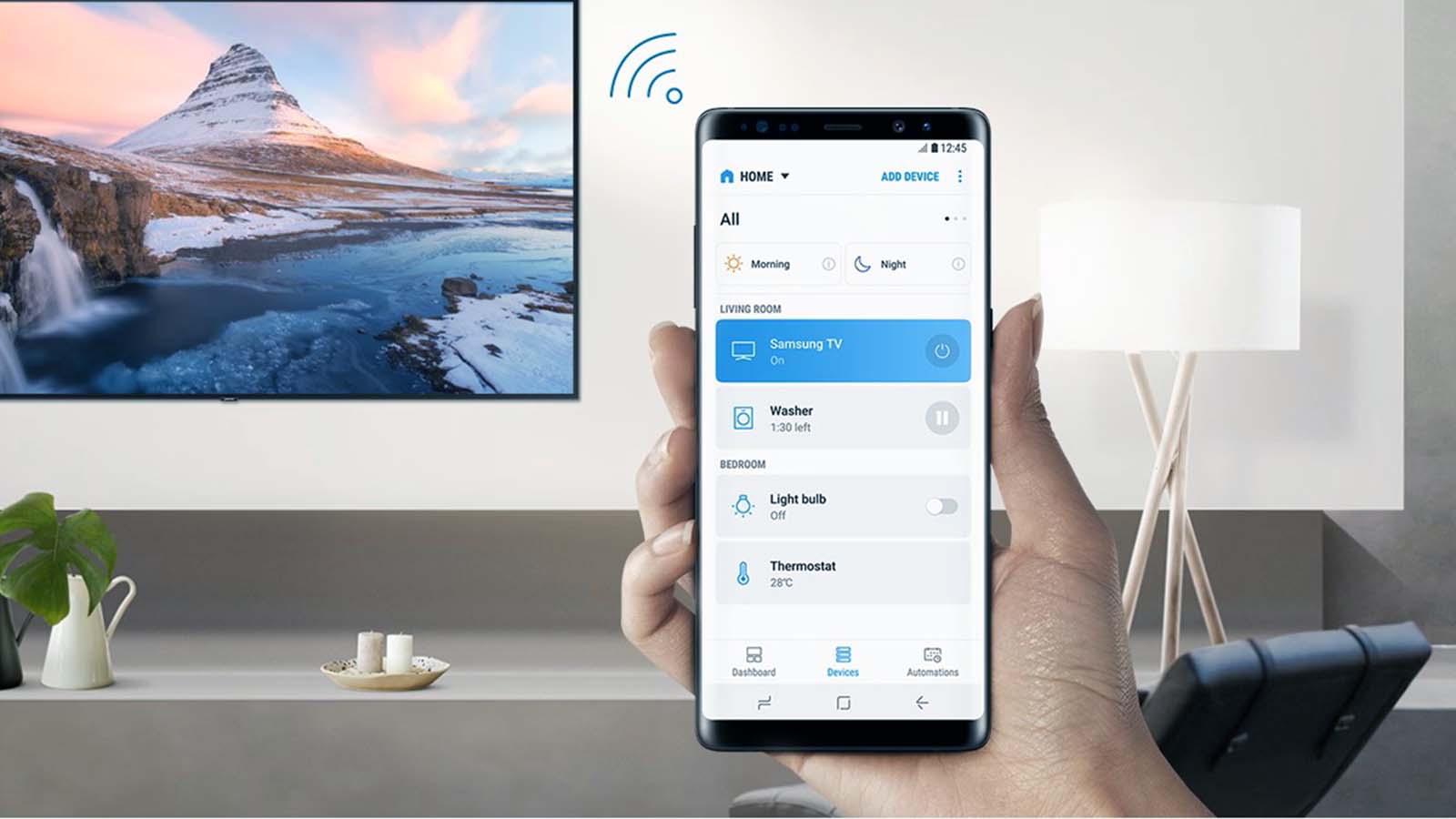
Modern TV boxes and smart TVs are designed to work seamlessly with mobile devices. By downloading the correct app and ensuring both devices are connected to the same network, you can unlock powerful features such as voice control, keyboard input, and advanced navigation. Understanding each step of the setup process ensures a smooth connection without unnecessary frustration.
In this guide, we will walk through the essential steps required to make your phone function as a TV remote control. From checking compatibility and installing the right application to pairing and testing the connection, each stage plays an important role in achieving reliable and convenient control over your home entertainment system.
Step 1: Check Your Phone and TV Compatibility
Before you start, make sure:
- Your phone has infrared (IR) or supports Wi-Fi for smart TVs.
- Your TV is either a smart TV with Wi-Fi or has an infrared receiver.
- If your phone doesn't have IR, don't worry! You can still control many smart TVs using Wi-Fi.
Step 2: Download a TV Remote App
Go to your phone's app store (Google Play or Apple App Store) and search for a TV remote app. Here are some popular options:
- Google Home (for Chromecast or Google-enabled TVs)
- Peel Smart Remote (for phones with IR blasters)
- Roku (if you have a Roku TV or device)
- Samsung SmartThings (for Samsung TVs)
- LG TV Plus (for LG TVs)
Step 3: Connect Your Phone to the TV
Depending on your TV type, follow these steps:
For Smart TVs (Wi-Fi Connection):
- Ensure your phone and TV are on the same Wi-Fi network.
- Open the remote app on your phone.
- Find your TV on the app: The app will scan and detect your TV automatically.
- Connect: Once your TV shows up in the app, tap it to connect.
For TVs with IR (Infrared Connection):
If your phone has an IR blaster:
- Open the app you downloaded.
- Choose your TV brand from the app's list.
- Point your phone at the TV and start using it like a remote.
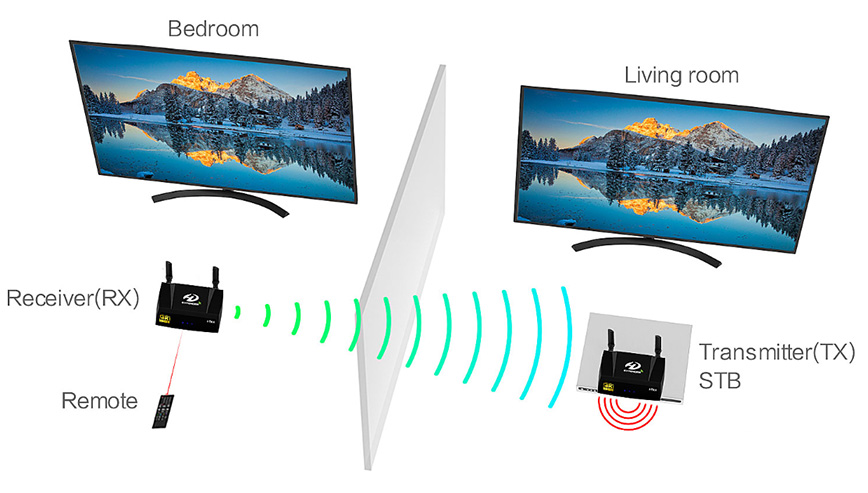
Read also: How to transmit cable TV wireless?
Step 4: Use Your Phone as a Remote
Once connected, your phone should now work like a regular remote control. Depending on the app and TV, you can:
- Change channels
- Adjust volume
- Turn the TV on/off
- Switch inputs
- Use your phone's keyboard for typing (for smart TVs)
Step 5: Customize (Optional)
Many remote apps let you:
- Create shortcuts for your favorite channels or apps.
- Use voice commands if supported (like Google Assistant).
- Control other devices (like a soundbar or streaming device).
See also: How to share my data with another phone?
Troubleshooting Tips
- Can't find the TV? Make sure both your phone and TV are connected to the same Wi-Fi network.
- App not working? Try restarting the app or your devices.
- IR not working? Ensure you're pointing the phone's IR blaster directly at the TV.
Conclusion
Using your phone as a TV remote is a convenient way to control your TV without hunting for the remote! Whether you have a smart TV or an older model with an infrared receiver, following these simple steps can make your phone the perfect TV companion.