How to use the phone keyboard on a smart TV?
Welcome to Blackview (Well-known brand of rugged phone, offers such as rugged phone with projector, and more) blog. Hope the guide helps.
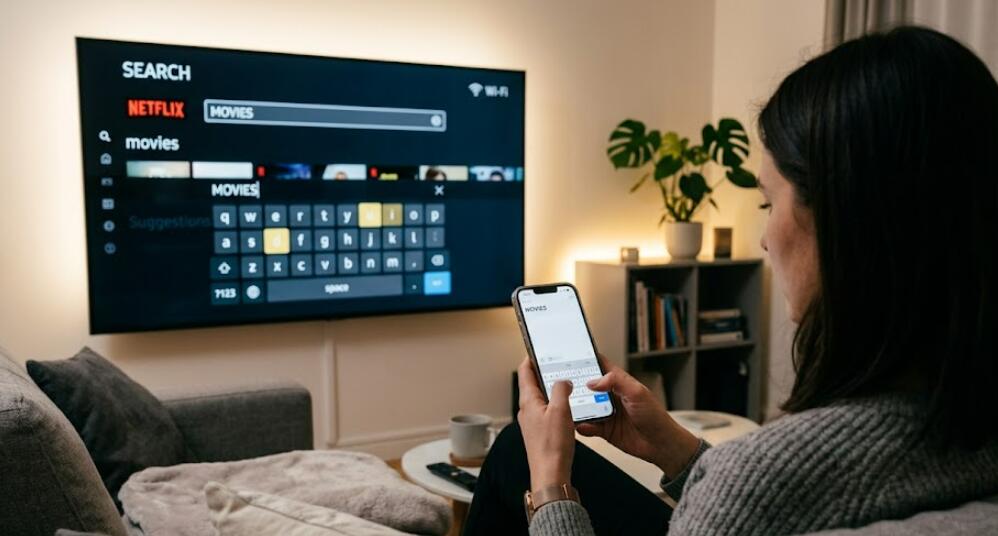
Smart TVs have become an important part of modern entertainment, allowing users to stream movies, browse the internet, and install applications directly from their television screens. However, typing on a smart TV using a traditional remote control can often feel slow and inconvenient. Many users prefer to use their smartphone keyboard because it offers faster typing, better accuracy, and a more familiar experience. Fortunately, most modern smart TVs support this feature through official apps, wireless connections, or built-in casting technologies.
- Read also: How to connect a phone to TV with HDMI?
- How to connect a phone to TV with USB without HDMI?
- How to use a phone as remote for smart TV without an app?
- How to make your phone as a TV remote control?
Using a phone keyboard with a smart TV is especially useful when searching for videos, entering passwords, logging into streaming platforms, or browsing websites. Whether you own an Android TV, Samsung Smart TV, LG Smart TV, Roku TV, or Fire TV, there are several easy ways to connect your smartphone and start typing directly from your mobile device. In this guide, you will learn detailed methods, setup instructions, troubleshooting tips, and the advantages of using a phone keyboard on a smart TV.
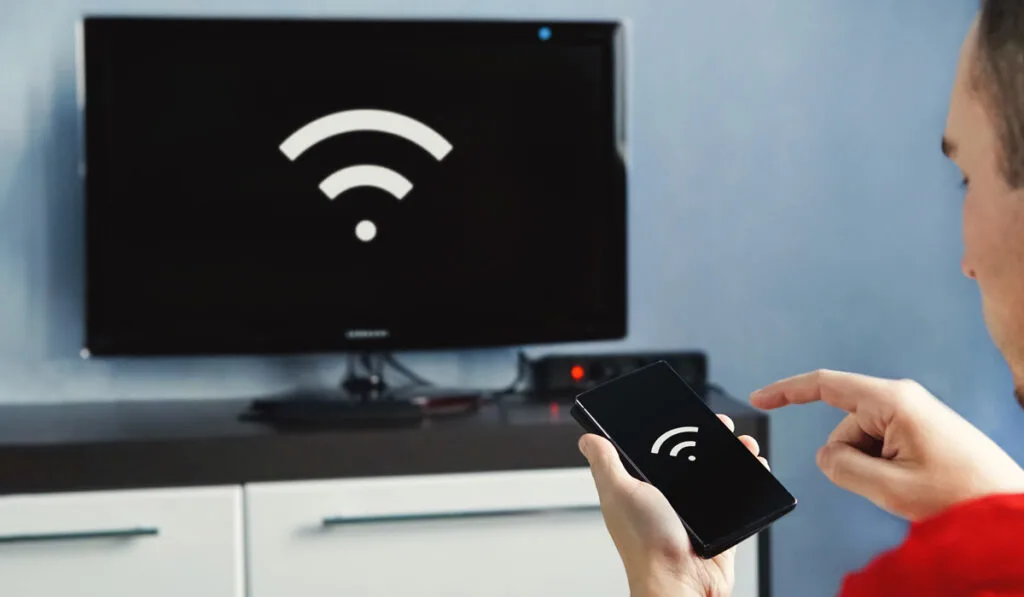
Before starting the setup process, make sure that both your smartphone and smart TV are connected to the same Wi-Fi network. This is essential because most smart TV remote applications rely on a local wireless connection to communicate with the television. You should also update your TV software and smartphone apps to ensure compatibility and smooth performance.
Methods to Use a Phone Keyboard on a Smart TV
There are multiple ways to connect your smartphone keyboard to a smart TV. The exact method depends on your TV brand and operating system. Below are the most common and effective options available today.
Using the Official Smart TV Remote App
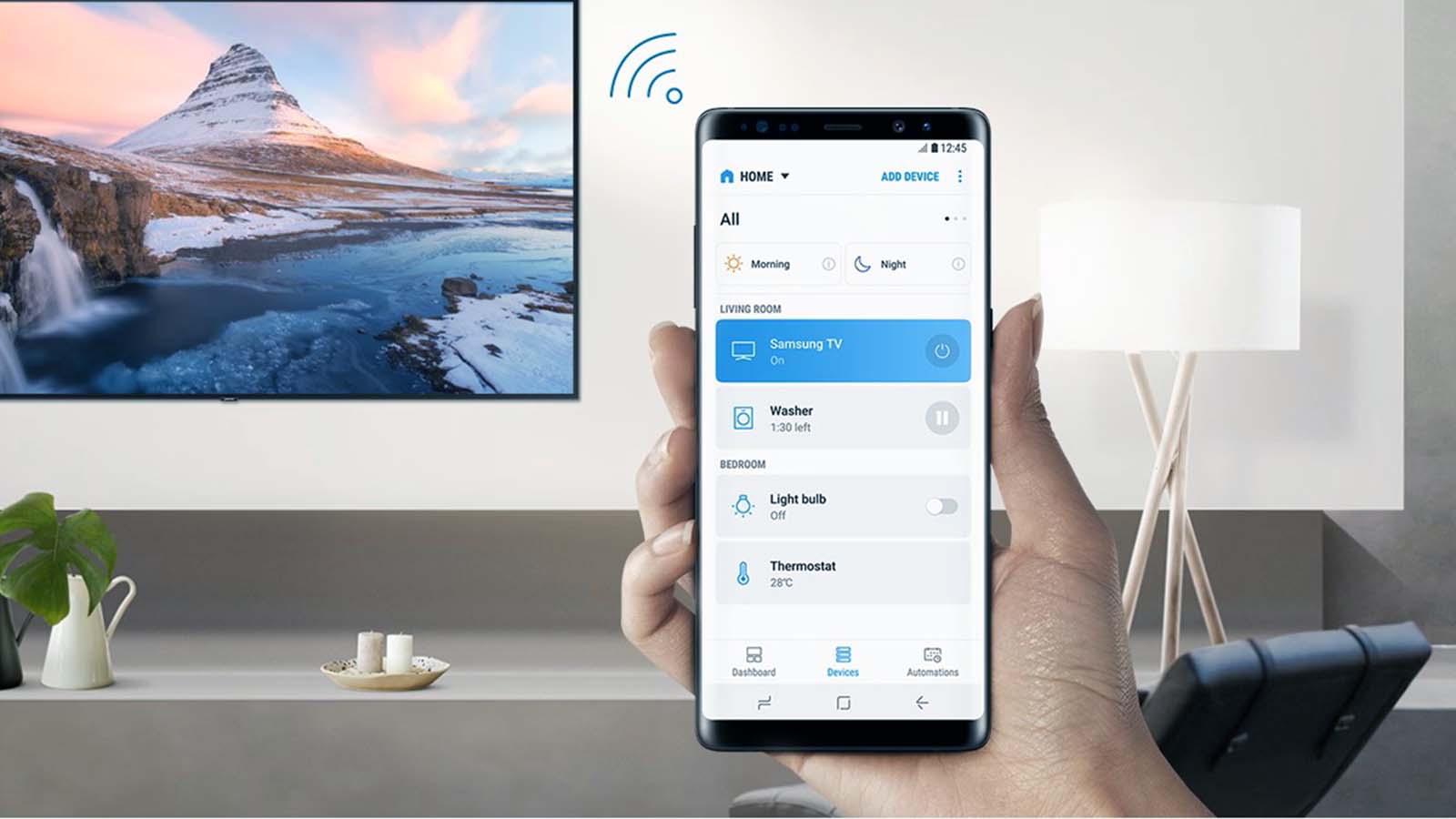
Most smart TV manufacturers provide official mobile applications that allow users to control the TV and type using their phone keyboard.
- Download the official TV remote app from the App Store or Google Play Store.
- Connect your smartphone and smart TV to the same Wi-Fi network.
- Open the app and search for available smart TVs.
- Select your TV from the device list.
- Enter the pairing code displayed on the TV screen if required.
- Open any search bar or text field on the TV.
- The smartphone keyboard should automatically appear for typing.
Using Google TV or Android TV Features
Android TV and Google TV devices often include built-in support for smartphone keyboards through Google services.
- Install the Google TV app on your smartphone.
- Sign in using the same Google account connected to the TV.
- Tap the remote control icon inside the app.
- Select your Android TV or Google TV device.
- Use the virtual keyboard when prompted on the TV screen.
- Type directly from your smartphone for faster input.
Using Apple AirPlay and iPhone Features
Apple users can also interact with compatible smart TVs through AirPlay and related smart TV applications.
- Ensure AirPlay is enabled on the smart TV.
- Connect the iPhone and TV to the same Wi-Fi network.
- Open the compatible remote control application.
- Select the television device.
- Access any typing field on the TV.
- Use the iPhone keyboard to enter text instantly.
Benefits of Using a Phone Keyboard on a Smart TV
Using a smartphone keyboard with a smart TV offers several advantages compared to typing with a standard remote control.
Faster Text Input
Typing on a phone keyboard is significantly quicker than selecting letters one by one using a TV remote. This saves time when searching for content or entering login information.
Improved Accuracy
Smartphone keyboards reduce typing mistakes because users are already familiar with mobile typing layouts and autocorrect functions.
Voice Typing Support
Many smartphone keyboards support voice typing features, allowing users to speak instead of typing manually.
Better Convenience
Users can control navigation, volume, and text input from one device without needing additional accessories.
Troubleshooting Common Connection Problems
Sometimes the phone keyboard may not connect properly to the smart TV. In most cases, the issue can be fixed with simple troubleshooting steps.
- Verify that both devices are connected to the same Wi-Fi network.
- Restart the smart TV and smartphone.
- Update the TV firmware and mobile applications.
- Reconnect the TV inside the remote control app.
- Disable VPN services that may interrupt local network communication.
- Check whether the TV supports smartphone keyboard functionality.
Alternative Options for Smart TV Typing
If smartphone keyboard functionality is unavailable, users can still improve typing performance through alternative methods.
Wireless Keyboard Connection
Many smart TVs support Bluetooth or USB wireless keyboards for easier text input.
Voice Assistant Features
Built-in assistants such as Google Assistant, Alexa, or Siri can help users search content using voice commands.
Remote Controls with Touchpads
Some premium TV remotes include touchpads or mini keyboards for easier navigation and typing.
Using a phone keyboard on a smart TV is one of the easiest ways to improve the overall viewing and browsing experience. Instead of struggling with slow remote control typing, users can enjoy fast, accurate, and comfortable text input directly from their smartphones. Most modern televisions already support this feature through official apps and wireless connectivity options.
Whether you use Android, iPhone, Google TV, Samsung Smart TV, or another platform, setting up smartphone keyboard functionality usually takes only a few minutes. By following the methods and troubleshooting tips explained above, you can quickly transform your smartphone into a convenient smart TV typing tool and enjoy a smoother entertainment experience.