How to use my phone to remote smart TV without an app?
Welcome to Blackview (Which offers rugged smartphone, such as phone with projector and thermal camera phone, and more) blog. Hope the guide helps.
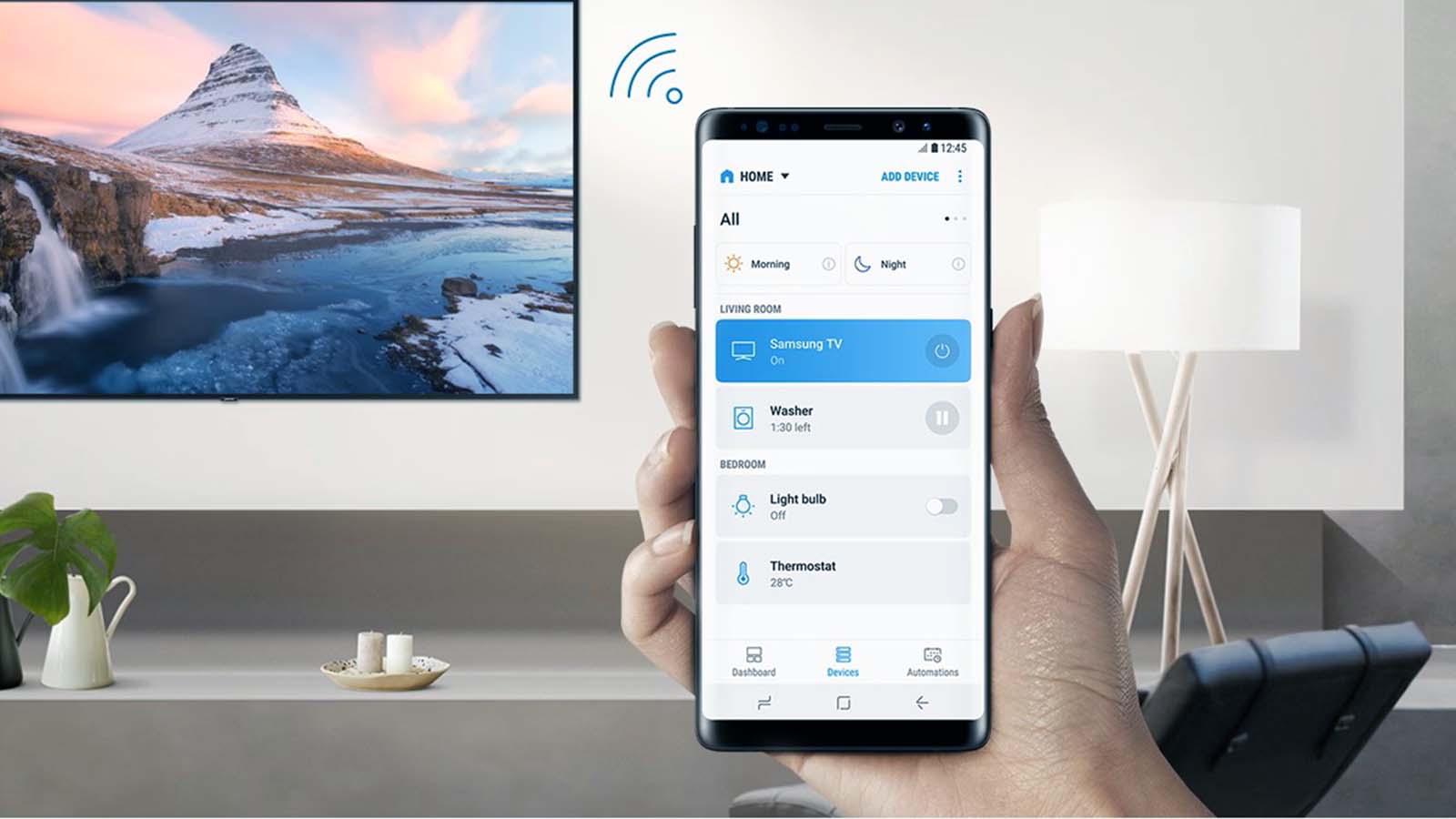
In today’s connected world, smartphones have become the control center for almost everything in our homes. From adjusting thermostats to managing security cameras, we rely heavily on our mobile devices. One common and frustrating situation many people face, however, is losing or breaking their Smart TV remote. When that happens, the first instinct is often to download a dedicated app. But what if you want to use your phone as a remote for your Smart TV without installing any app at all?
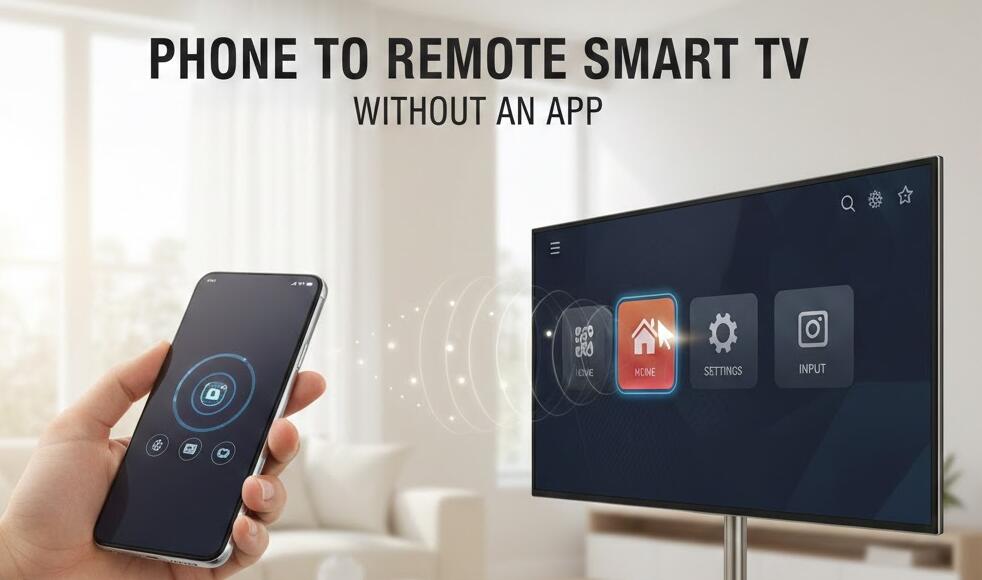
Fortunately, there are several practical and effective methods that allow you to control your Smart TV directly from your phone without downloading additional applications. Whether your TV supports built-in casting features, HDMI-CEC, infrared (IR), or browser-based controls, you can still navigate menus, adjust volume, and even power the TV on or off. In this guide, we will explore multiple techniques step by step, so you can regain full control of your television with minimal effort.
Understanding Built-In TV Features
Before trying advanced solutions, it’s important to understand that many modern Smart TVs already include built-in features that allow external device control. These features often work seamlessly with smartphones through native system capabilities, eliminating the need for third-party apps.
Use HDMI-CEC to Control Your TV
HDMI-CEC (Consumer Electronics Control) allows devices connected through HDMI to control each other. If your phone supports screen mirroring via an HDMI adapter, you can indirectly control TV functions through this feature.
- Connect your phone to the TV using a compatible HDMI adapter.
- Enable HDMI-CEC in your TV settings (names vary by brand, such as Anynet+, Bravia Sync, or Simplink).
- Use your phone’s interface to navigate content displayed on the TV.
This method is particularly useful when streaming videos or presentations directly from your device. While it may not replicate every remote button, it gives you reliable navigation and playback control.
Use Screen Mirroring or Casting Features
Most Smart TVs support built-in casting technologies like Chromecast, Miracast, or AirPlay. These features are integrated into modern smartphones and operating systems, meaning no extra app installation is required.
- Ensure both your phone and TV are connected to the same Wi-Fi network.
- Open your phone’s quick settings panel and select “Screen Cast” or “Screen Mirroring.”
- Choose your TV from the list of available devices.
Once connected, your phone essentially becomes a visual and functional extension of your television. You can play media, browse content, and adjust playback directly from your device.
Use Infrared (IR) Blaster if Available
Some Android smartphones come equipped with an infrared (IR) blaster, which allows them to function like traditional remote controls. If your phone has this hardware feature, you can control your TV without relying on Wi-Fi or apps in many cases.
- Check your phone specifications for an IR blaster.
- Access the built-in remote control function in your phone’s system tools.
- Select your TV brand and follow the pairing instructions.
This method works similarly to a physical remote and does not depend on internet connectivity, making it highly reliable.
Access TV Controls Through a Web Browser
Some Smart TVs allow remote control access through a local IP address. If your TV provides this feature, you can control it directly from your phone’s browser.
- Find your TV’s IP address in the network settings menu.
- Enter the IP address into your phone’s browser.
- Log in if prompted and access the control panel interface.
This approach varies depending on TV brand and model, but it can offer full remote functionality without any app downloads.
Use Bluetooth Keyboard or Accessibility Features
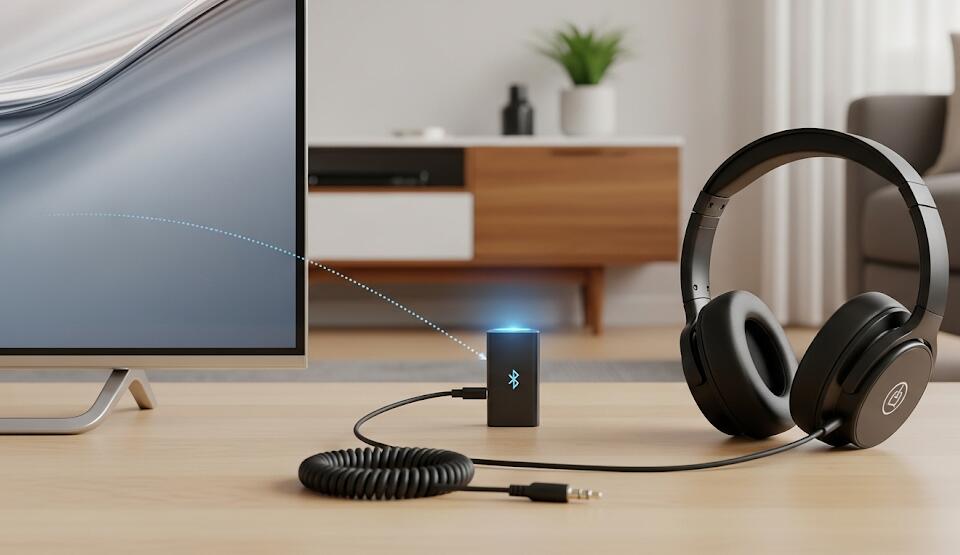
If your Smart TV supports Bluetooth peripherals, you can use your phone’s built-in Bluetooth capabilities to assist with navigation indirectly.
- Enable Bluetooth on both devices.
- Pair your phone if the TV allows direct input recognition.
- Use text input and navigation tools available on your device.
While this method may not provide full remote control capabilities, it significantly improves navigation, especially when entering passwords or searching for content.
Common Troubleshooting Tips
If you experience connection issues, start by ensuring both devices are on the same Wi-Fi network. Restarting your TV and phone often resolves minor connectivity problems. Additionally, confirm that remote access, casting, or CEC features are enabled in your TV’s settings menu.
Conclusion: Practical Solutions Without Extra Apps
Using your phone as a remote for your Smart TV without installing an app is entirely possible thanks to modern built-in technologies. From HDMI-CEC and screen mirroring to IR blasters and browser-based interfaces, multiple solutions exist depending on your device capabilities. The key is understanding which features your TV and phone already support.
By exploring these methods, you can quickly regain control of your television without cluttering your phone with additional downloads. Whether you prefer wired connections, wireless casting, or hardware-based infrared control, there is a convenient option available. With the right setup, your smartphone can easily double as a reliable Smart TV remote whenever you need it.