How to fix a TV Box not connecting to the TV?
Welcome to Blackview (Which offers phone with projector, and tablet with projector, and more) blog. Hope the guide helps.
When your TV box refuses to connect to your television, it can quickly turn a relaxing evening into a frustrating experience. Whether you are trying to stream your favorite shows, watch live sports, or access apps, a failed connection disrupts your entertainment. Fortunately, most TV box connection problems are caused by simple issues that can be diagnosed and resolved without professional help.
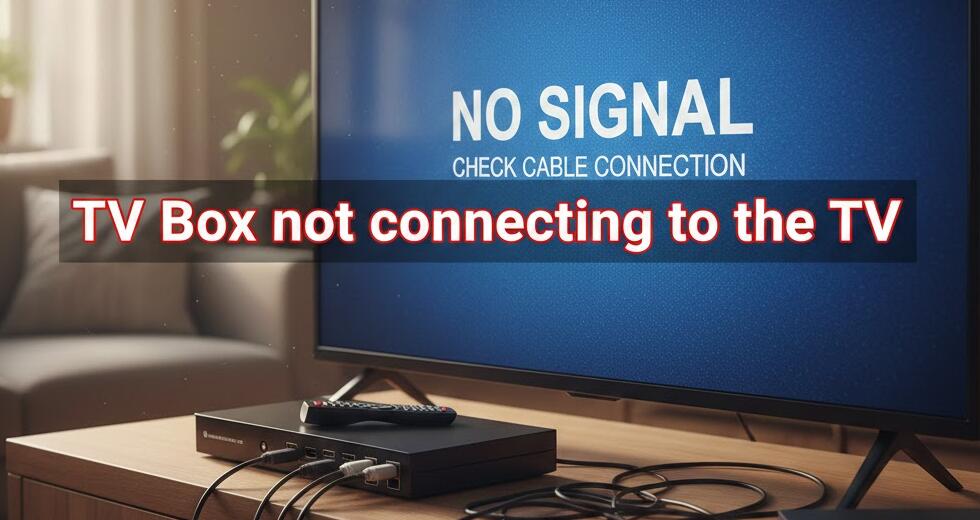
Understanding the possible causes behind the connection failure is the first step toward fixing it. Problems may stem from loose cables, incorrect input settings, outdated software, or even hardware malfunctions. By systematically checking each potential cause, you can often restore your TV box connection in just a few minutes.
Check Physical Connections First
Inspect HDMI Cables and Ports
Start by examining the HDMI cable connecting your TV box to the television. Ensure the cable is securely plugged into both devices. Even a slightly loose connection can prevent the signal from transmitting properly. If possible, unplug the HDMI cable and reconnect it firmly. You may also want to try a different HDMI cable to rule out cable damage.
- Test another HDMI port on your TV.
- Replace the HDMI cable with a new one.
- Check for visible damage on cable connectors.
Verify Power Supply
A TV box that is not properly powered will not connect to the TV. Make sure the power adapter is securely plugged into both the outlet and the device. Look for indicator lights on the TV box. If there are no lights, try using a different power outlet or adapter to determine whether the issue is power-related.
Confirm TV Input Settings
Select the Correct Input Source
Sometimes the issue is not with the TV box itself but with the TV’s input selection. Use your television remote to cycle through available HDMI inputs. Ensure that the input you select matches the HDMI port where the TV box is connected. Many TVs label inputs as HDMI1, HDMI2, or HDMI3.
Adjust Resolution Settings
If your TV box is set to a resolution unsupported by your television, the screen may appear blank. If possible, connect the TV box to another TV and lower the resolution in the display settings. After adjusting it to a standard resolution like 1080p, reconnect it to the original television.
Restart and Reset Devices
Perform a Simple Restart
Restarting both your TV and TV box can often fix temporary glitches. Turn off both devices, unplug them from power for at least 30 seconds, and then plug them back in. Power them on again and check if the connection is restored.
- Turn off TV and TV box.
- Unplug both devices for 30–60 seconds.
- Reconnect and power on.
Factory Reset as a Last Resort
If restarting does not work, consider performing a factory reset on your TV box. Keep in mind that this will erase all apps and settings. Navigate to the settings menu, locate the reset option, and follow on-screen instructions. After resetting, reconnect the device and reconfigure your setup.
Check for Software or Firmware Updates
Update TV Box Software
Outdated software can sometimes cause compatibility issues. If your TV box connects intermittently or displays errors, check for available system updates in the settings menu. Installing the latest firmware may resolve bugs affecting the HDMI output.
Update TV Firmware
Similarly, some smart TVs require firmware updates to maintain compatibility with external devices. Visit your TV manufacturer’s website or access the TV settings menu to check for updates. Keeping both devices updated helps ensure smooth communication between them.
When to Consider Hardware Problems
Test with Another TV
If none of the previous steps solve the issue, try connecting the TV box to a different television. If it works on another TV, the problem may lie with the original television’s HDMI port or internal components.
Contact Customer Support
If the TV box fails to connect to multiple televisions, there may be an internal hardware fault. In this case, contact the manufacturer’s customer support team for further assistance. If your device is still under warranty, you may qualify for repair or replacement.
In conclusion, a TV box not connecting to your TV can result from various factors, ranging from loose cables to outdated firmware. By carefully checking physical connections, confirming input settings, restarting devices, and updating software, most problems can be resolved quickly at home without technical expertise.
Taking a systematic approach saves time and prevents unnecessary expenses. Before assuming the device is defective, follow each troubleshooting step methodically. With patience and attention to detail, you can restore your TV box connection and get back to enjoying seamless entertainment.