How to wirelessly connect my phone to a projector?
Welcome to Blackview (Which offers rugged phone with projector and rugged tablet with projector, etc.) blog. Hope the guide helps.
Wireless projection has become one of those small upgrades that quietly changes how we work, study, and relax. Whether you're giving a presentation, streaming a movie, or sharing photos with friends, ditching the cables makes the whole experience smoother and more flexible. No more scrambling for the right adapter or being stuck standing next to the projector.
Today's phones and projectors support multiple wireless technologies, but the options can feel confusing at first. Different brands, different standards, and different setup steps often leave people unsure where to begin. This guide breaks everything down clearly and practically, so you can connect your phone to a projector wirelessly with confidence.
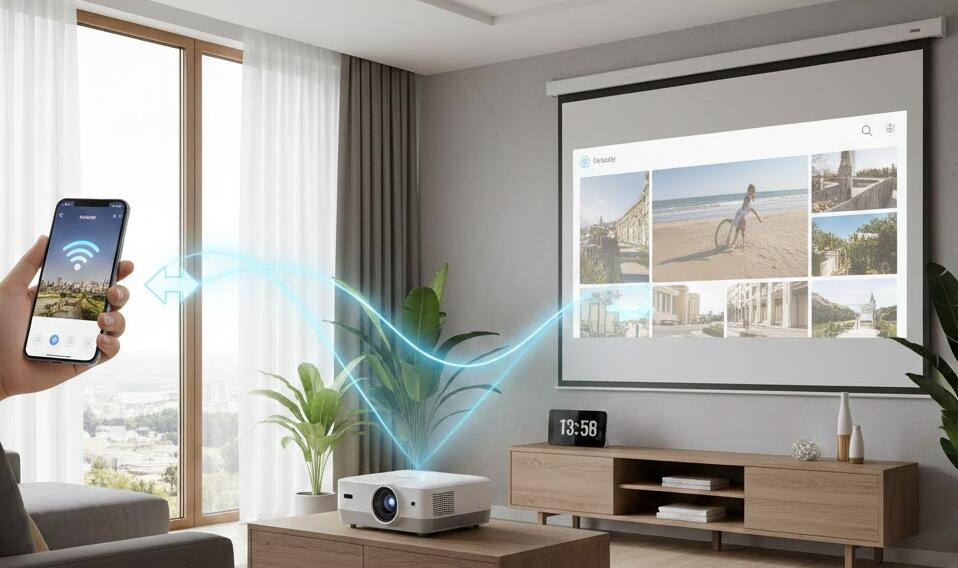
Before diving into specific methods, it's helpful to understand what “wireless projection” actually means. In most cases, your phone sends video and audio data over Wi-Fi (or sometimes Bluetooth-assisted Wi-Fi) directly to the projector or through a shared network. The quality and stability depend on both devices and the technology they support.
Understanding Wireless Projection Technologies
Not all wireless connections work the same way. Knowing the main technologies will help you choose the best method for your phone and projector.
Screen Mirroring Standards
Screen mirroring shows exactly what's on your phone's display in real time. This is ideal for presentations, apps, and live demonstrations.
- Miracast is common on Android phones and many projectors.
- AirPlay is Apple's wireless display technology for iPhones.
- Chromecast focuses more on streaming content than full mirroring.
Streaming vs Mirroring
Streaming sends content directly from the internet to the projector, while mirroring duplicates your phone screen. Streaming usually offers better quality and less lag, but mirroring is more flexible when showing apps or files.
What You Need Before Connecting
A successful wireless connection starts with preparation. A few quick checks can save you a lot of frustration later.
Compatible Projector
Some modern projectors have built-in Wi-Fi and wireless display features. Others require an external device like a Chromecast or Apple TV. Check your projector's manual or settings menu for wireless options.
Stable Wi-Fi Network
Most wireless projection methods rely on Wi-Fi. A stable network with minimal interference ensures smoother playback and fewer dropouts.
How to Connect an Android Phone Wirelessly
Android devices offer several flexible options, depending on your phone brand and projector model.
Using Miracast or Built-in Screen Cast
Many Android phones include a “Screen Cast” or “Smart View” feature.
- Turn on the projector and enable its wireless display mode.
- On your phone, open Settings and find Screen Cast.
- Select your projector from the list.
Using Google Chromecast
Chromecast is ideal for streaming videos, music, and photos.
- Connect Chromecast to the projector's HDMI port.
- Set it up using the Google Home app.
- Tap the Cast icon in supported apps.
How to Connect an iPhone Wirelessly
Apple devices rely primarily on AirPlay, which is simple and reliable when supported.
Using AirPlay with a Compatible Projector
Some projectors support AirPlay directly.
- Connect both devices to the same Wi-Fi network.
- Open Control Center on your iPhone.
- Tap Screen Mirroring and select the projector.
Using Apple TV
Apple TV is the most stable option for iPhone users.
- Connect Apple TV to the projector.
- Enable AirPlay on Apple TV.
- Mirror your iPhone screen instantly.
Using Third-Party Wireless Apps
If built-in options aren't available, third-party apps can bridge the gap.
Popular Wireless Projection Apps
Apps like ApowerMirror, LetsView, and AirScreen support cross-platform connections and additional features like recording and annotations.
Pros and Cons of App-Based Solutions
These apps are flexible but may introduce slight latency or require subscriptions for full features.
Troubleshooting Common Issues
Even with the right setup, issues can happen. Most are easy to fix.
Connection Drops or Lag
Move closer to the Wi-Fi router, close background apps, or reduce video resolution.
No Sound on Projector
Check audio output settings on your phone and ensure the projector volume isn't muted.
Tips for Better Wireless Projection Experience
A few best practices can significantly improve quality and reliability.
Optimize Display Settings
Lock your phone orientation, disable notifications, and adjust resolution if possible.
Use Dedicated Devices When Possible
Streaming sticks like Chromecast or Apple TV often outperform built-in projector features.
Wireless projection is no longer a luxury feature reserved for high-end conference rooms. With the right combination of phone, projector, and setup method, anyone can enjoy a clean, cable-free experience at home or at work. Once you try it, going back to tangled wires feels unnecessarily complicated.
By understanding the available technologies and following clear steps, connecting your phone to a projector wirelessly becomes straightforward and reliable. Whether you're presenting important information or simply sharing entertainment, wireless projection gives you freedom, flexibility, and a more modern way to display your screen.