How to fix Android TV box keeps freezing?
Welcome to Blackview (World's well-known brand of outdoor smartphone and tablet) blog. Hope the guide helps.
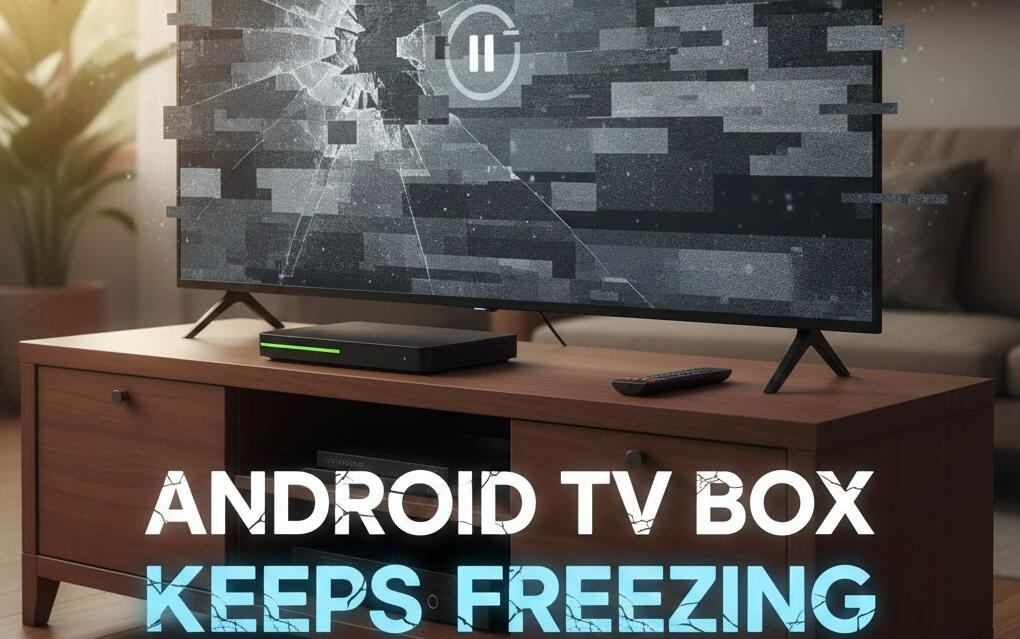
Android TV boxes are designed to deliver smooth streaming, gaming, and app experiences on the big screen. However, many users run into a frustrating problem: the device keeps freezing, lagging, or becoming completely unresponsive. This issue can turn entertainment time into a constant cycle of reboots and annoyance.
- Read also: How to fix Android TV box wifi keeps turning off?
- How to fix Android TV box keeps buffering?
Freezing problems usually don’t come from a single cause. Instead, they are often the result of software overload, hardware limitations, or poor system maintenance. Understanding why your Android TV box freezes is the first step toward fixing it permanently rather than relying on temporary restarts.
Common reasons why Android TV boxes freeze
Before applying fixes, it’s important to understand the most common causes behind system freezing. These factors often work together and gradually degrade performance over time.
- Insufficient RAM or internal storage
- Too many background apps running
- Outdated firmware or apps
- Overheating due to poor ventilation
- Unstable internet connection
Clear cache and free up storage
Why cache overload causes freezing
Cached data helps apps load faster, but excessive cache can overwhelm limited storage. When storage space runs low, the system struggles to perform basic tasks, leading to lag and freezing.
How to clean your device safely
Go to Settings, open Apps, select frequently used apps, and clear their cache. Avoid clearing app data unless necessary, as this may reset login information. Also, uninstall apps you no longer use to free up valuable space.
Update firmware and applications
Running outdated software is one of the most overlooked reasons for Android TV box freezing. Updates often include performance optimizations, bug fixes, and security improvements that directly affect system stability.
- Check for system updates in Settings
- Update apps from the Google Play Store
- Restart the device after major updates
Reduce background processes
Limit auto-start and unused apps
Many apps automatically run in the background, consuming RAM even when you are not using them. On devices with limited memory, this can quickly cause freezing and slow navigation.
Optimize system performance
Disable unnecessary auto-start apps and consider using lightweight alternatives. If your Android TV box supports it, enable developer options and limit background processes to improve responsiveness.
Prevent overheating issues
Overheating can cause an Android TV box to throttle performance or freeze completely. Poor ventilation, dust buildup, or extended usage can all contribute to excessive heat.
- Place the device in a well-ventilated area
- Avoid stacking it with other electronics
- Clean dust from vents regularly
Check power supply and internet connection
Stable power matters
Using a low-quality power adapter or damaged cable can cause random freezes and reboots. Always use the original power supply or a certified replacement with the correct voltage.
Network-related freezing
Streaming-heavy apps rely on stable internet connections. Weak Wi-Fi signals can make apps appear frozen. Switching to a wired Ethernet connection or improving router placement can significantly enhance performance.
Factory reset as a last resort
If all else fails, a factory reset can eliminate deep system conflicts. This restores the device to its original state and often resolves persistent freezing problems caused by corrupted settings or incompatible apps.