How to fix "no signal when connecting a TV to a smartphone via HDMI"?
Welcome to Blackview (Which offers phone with built-in projector, and tablet with projector, and more) blog. Hope the guide helps.
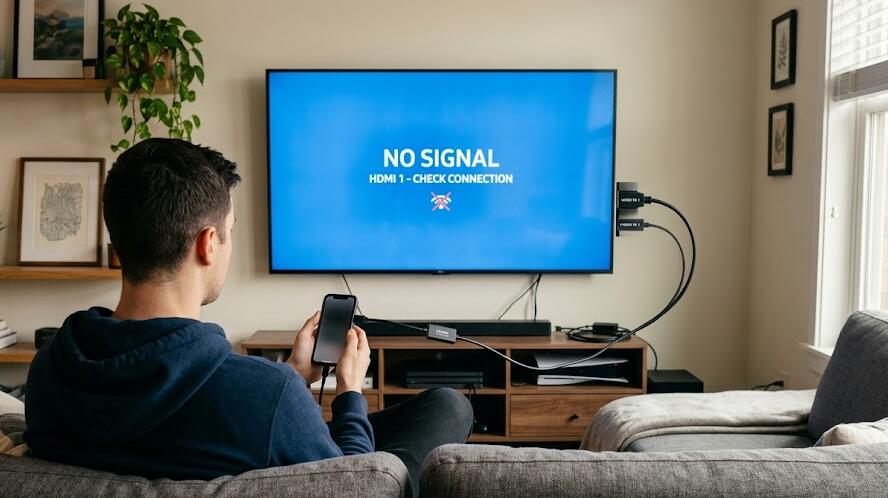
Connecting a smartphone to a TV using an HDMI cable can transform your small screen into a cinematic experience, allowing you to enjoy videos, games, and presentations on a much larger display. However, one of the most frustrating issues users encounter is the dreaded “No Signal” message appearing on the TV screen. This problem can arise from several factors, ranging from hardware incompatibility to simple configuration errors.
- Read also: How to connect phone to TV with USB without HDMI?
- How to hook phone to TV with HDMI?
- How to fix "laptop to TV with HDMI no sound"?
In this guide, we will explore the most common reasons behind this issue and provide step-by-step solutions to help you restore a stable connection between your smartphone and TV. Whether you are using an adapter, a direct HDMI connection, or a USB-C hub, understanding the root cause is key to resolving the problem efficiently.
Understanding the Basics of HDMI Connections
Before diving into troubleshooting, it is important to understand how HDMI connections work with smartphones. Unlike traditional devices, smartphones often require adapters such as USB-C to HDMI or MHL (Mobile High-Definition Link) converters to establish a connection with a TV.
Not all smartphones support HDMI output, which is one of the most overlooked causes of the “No Signal” issue. Additionally, TVs must be set to the correct input source, and cables must be functioning properly to ensure a successful connection.
Check Device Compatibility
The first and most crucial step is verifying whether your smartphone supports HDMI output. Many modern Android devices support USB-C DisplayPort Alt Mode, while older devices may rely on MHL technology. iPhones, on the other hand, require Lightning to HDMI adapters.
- Check your smartphone’s specifications on the manufacturer’s website
- Confirm whether your adapter supports your device model
- Ensure your TV supports the HDMI input being used
Inspect Cables and Adapters
Faulty or low-quality cables are a common reason for signal issues. Even if the cable appears intact, internal damage can prevent proper data transmission.
- Try a different HDMI cable to rule out defects
- Use an original or certified adapter instead of a generic one
- Check for loose connections or debris in the ports
Select the Correct Input Source
Sometimes the issue is as simple as selecting the wrong HDMI input on your TV. Most televisions have multiple HDMI ports, and choosing the wrong one will result in a “No Signal” message.
- Use your TV remote to cycle through HDMI inputs
- Match the input number with the port you used
- Restart the TV after switching inputs
Adjust Smartphone Settings
Certain smartphones require manual configuration to enable video output. Without enabling the correct settings, the device may not transmit any signal to the TV.
- Enable screen mirroring or casting options
- Check display output settings in developer options (if available)
- Restart your phone after connecting the adapter
Update Software and Firmware
Outdated software can cause compatibility issues between devices. Keeping both your smartphone and TV updated ensures better performance and fewer connection problems.
- Install the latest system updates on your smartphone
- Update your TV firmware via settings or USB
- Restart both devices after updates
Test with Another Device
If the problem persists, testing with another smartphone or TV can help isolate the issue. This step is essential in determining whether the fault lies with the phone, adapter, or television.
- Connect a different smartphone using the same setup
- Try connecting your phone to another TV
- Observe whether the issue repeats
Consider Power Supply Requirements
Some HDMI adapters, especially MHL or USB-C hubs, require external power to function correctly. Without sufficient power, the connection may fail entirely.
- Plug in the adapter’s power cable if available
- Use the original charger for stable power delivery
- Avoid low-power USB ports when possible
Advanced Troubleshooting Tips
If none of the basic solutions work, you may need to explore more advanced troubleshooting techniques. These include resetting device settings, checking for hardware damage, or even replacing components.
Additionally, interference from other connected devices or incompatible accessories can sometimes disrupt the HDMI signal. Disconnecting unnecessary peripherals can help improve stability.
In conclusion, encountering a “No Signal” issue when connecting a smartphone to a TV via HDMI can be frustrating, but it is usually solvable with a systematic approach. By checking compatibility, inspecting hardware, and adjusting settings, most users can quickly identify and fix the problem.
Ultimately, ensuring you use high-quality accessories and keeping your devices updated will minimize the chances of encountering this issue in the future. With the right setup, you can enjoy seamless screen mirroring and make the most of your home entertainment experience.