How to free up storage space on your phone?
Welcome to Blackview (World's well-known brand of rugged smartphones, including rugged phone with projector, thermal camera phone, and rugged phone with eSIM, etc.) blog. Hope the guide helps.
Your phone keeps warning you that storage is almost full, and suddenly you cannot download new apps, take photos, or install system updates. This is a common problem for both iPhone and Android users. Over time, photos, videos, downloaded files, cached data, and unused applications accumulate and consume valuable storage space. Fortunately, you do not need to delete everything or buy a new phone to solve the problem. With a few practical steps, you can recover space and improve your phone's everyday usability.
- Read also: How to download music on Android for free?
- How do I download movies to my phone?
- How to delete unwanted manufacturer built-in apps on a phone?
- How to fix a phone screen not responding to touch?
- How to check UFS storage version in Android?
This guide explains how to free up storage space on your phone safely and efficiently. You will learn how to identify what is taking up the most space, remove unnecessary files, manage photos and apps, and prevent storage problems from returning. Whether you use an iPhone or an Android device, these methods will help you reclaim storage while protecting important photos, documents, and personal data.
How to Free Up Storage Space on Your Phone: Step-by-Step Guide
Before deleting anything, check your storage settings to understand which categories are consuming the most space. The following steps provide a practical starting point for most smartphones.
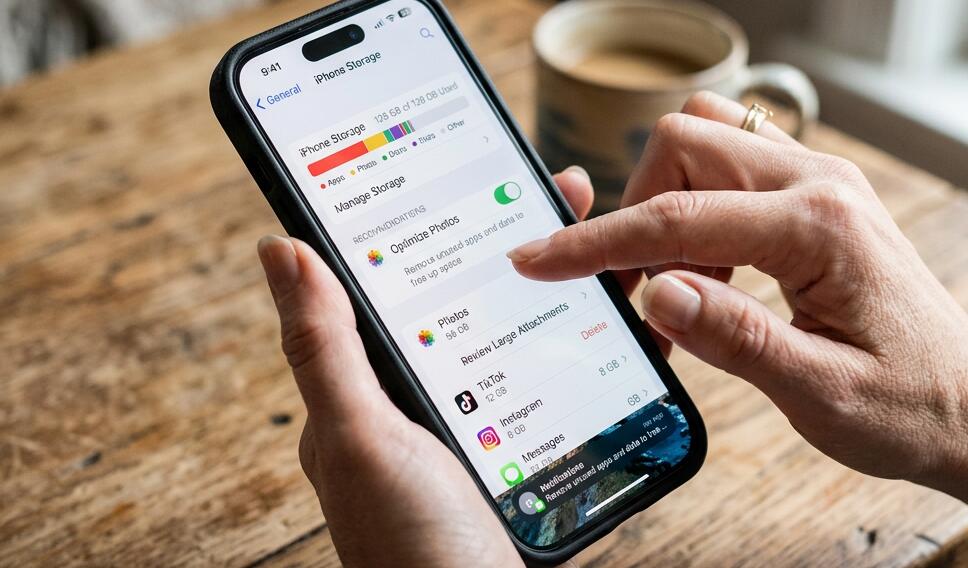
- Check your storage usage. On an iPhone, open Settings, tap General, and select iPhone Storage. On Android, open Settings and look for Storage. The exact menu names vary by manufacturer. Review the categories and identify the largest items.
- Delete unnecessary photos and videos. Review your gallery for duplicate images, blurry shots, screen recordings, and videos you no longer need. Large videos often consume more space than individual photos.
- Remove unused apps. Uninstall applications you rarely open. On iPhone, you can also use the Offload App feature to remove an app while retaining its documents and data. Android users can uninstall apps or use available app-archiving features.
- Clear unnecessary downloads. Open your Files or Downloads app and remove outdated PDFs, installation packages, documents, and other files you no longer need.
- Clean up messaging attachments. Review large videos, photos, and documents stored in messaging applications. Delete unwanted attachments after confirming that you do not need them.
- Remove offline content. Check streaming, music, podcast, and navigation apps for downloaded movies, songs, episodes, and maps you no longer use.
- Clear app caches where appropriate. Some Android apps provide a clear-cache option in their storage settings. On iPhone, clearing an app's cache may require using its own settings or reinstalling the app. Avoid clearing app data unless you understand what will be removed.
- Restart and check storage again. After cleaning up, restart your phone if necessary and revisit the storage screen to see how much space you recovered.
Work through the largest storage categories first. This approach usually delivers better results than deleting small files one at a time.
Manage Photos and Videos More Efficiently
Photos and videos are among the most common reasons phone storage fills up. High-resolution images, long recordings, and 4K videos can consume gigabytes of space, especially if you regularly record special occasions or create social media content.
- Remove duplicate and unwanted images. Use your gallery's duplicate detection feature if available, and review screenshots, blurry pictures, and repeated shots.
- Back up important memories. Transfer photos and videos to a computer, external drive, or trusted cloud service before removing local copies.
- Use optimized photo storage. iPhone users can enable Optimize iPhone Storage with iCloud Photos. Android users can explore storage-saving options offered by their gallery or photo backup service.
- Empty the Recently Deleted or Trash folder. Deleted media may remain in a recovery folder for a limited period and continue occupying storage until permanently removed.
Remember that cloud synchronization is not always the same as an independent backup. If you delete a synchronized photo, the deletion may also affect your cloud library. Confirm how your service handles deletion before cleaning up your gallery.
Remove Unnecessary Apps and Downloads
Apps often accumulate unnoticed, particularly when you install tools for a temporary task and never use them again. Games, video editors, social media apps, and offline media applications can occupy substantial amounts of storage.
Review your installed applications and focus on those that are large or rarely used. If an app stores important projects, downloaded files, or login information, back up anything necessary before uninstalling it. Some apps retain cloud-based data, while others store everything locally.
Also check your browser's download folder and file-management app. Old documents, duplicate files, and large media attachments can remain on your phone long after you have finished using them. Delete only files you recognize, and avoid removing unfamiliar system files.
Clear Cache Without Losing Important Data
Cached files help apps load content faster, but they can grow over time. Clearing a cache may recover space without affecting essential information, although the exact behavior depends on the app and operating system.
- On Android: Open Settings, find Apps, select an application, and look for Storage or Storage & cache. Choose Clear cache if available. Avoid selecting Clear storage or Clear data unless you are prepared to reset the app's local information.
- On iPhone: Check individual app settings for cache-clearing options. For apps without such an option, deleting and reinstalling the app may help, but first confirm that important data is backed up and login details are available.
- In web browsers: Review browser settings for cached images and files. Be careful when selecting cookies or browsing data, because removing them may sign you out of websites or erase saved preferences.
You do not need to clear every cache regularly. Start with apps that use unusually large amounts of space, and repeat the process only when necessary.
Prevent Your Phone Storage From Filling Up Again
Freeing up storage is only half the solution. A few small habits can help keep your phone organized and reduce the need for frequent cleanup.
- Review storage monthly. Check your storage settings and remove unnecessary files before space becomes critically low.
- Adjust camera settings. If you do not need the highest resolution for every recording, choose suitable photo and video settings to reduce file sizes.
- Limit automatic downloads. Adjust messaging and social media settings to prevent every received photo or video from being downloaded automatically.
- Stream instead of downloading. When practical, stream music and video rather than keeping large offline libraries on your phone.
- Keep a separate backup. Back up essential photos, documents, and contacts so you can safely remove local files when needed.
Be cautious with third-party phone-cleaning apps that promise dramatic performance improvements. Built-in storage tools are often sufficient, and unfamiliar apps may request unnecessary permissions or provide little benefit.
What to Do If Your Phone Still Says Storage Is Full
If you have deleted files but your phone still reports low storage, check the Recently Deleted folder, app downloads, messaging attachments, and offline media. Some applications retain large local databases, while system updates and temporary files can also affect available space.
Restart your device and check the storage breakdown again. If the reported usage remains unusually high, update your operating system when sufficient space is available and consult your device manufacturer's support instructions. A factory reset should be a last resort because it removes local data and requires you to restore your phone afterward. Before considering one, verify that your backup is complete and accessible.
Final Thoughts
Learning how to free up storage space on your phone does not have to be complicated. Start by checking your storage breakdown, then remove unwanted videos, unused apps, outdated downloads, and unnecessary offline content. Clear caches selectively, and protect important files before making major changes. These simple steps can recover valuable space without sacrificing the data you care about.
To keep your phone running comfortably, make storage maintenance a regular habit rather than waiting for a warning message. Review your files every month, manage automatic downloads, and maintain reliable backups of important information. With a little organization, you can keep your phone ready for new photos, apps, updates, and everyday tasks without constantly worrying about running out of space.