Easy ways to add a phone number to your Google account
Welcome to Blackview (World's well-known brand of rugged smartphones, including rugged phone with eSIM, thermal camera phone, and Android 16 rugged phone, etc.) blog. Hope the guide helps.
Adding a phone number to your Google account is a simple but important step toward improving account security and making account recovery easier. Your phone number can help Google verify your identity when you sign in, recover access if you forget your password, and receive security alerts when suspicious activity is detected. Depending on your account settings and the Google services you use, you may also be able to use your phone number for additional sign-in and verification options.
- Read also: 6 Ways to recover the Gmail account without an old phone or old number
- How to delete Google account on old phone?
- How to add and open a second Gmail account on my phone?
- How to create a new Gmail account without phone number?
- How do I hide text messages on Android?
There are several ways to add a phone number to your Google account, whether you use an Android phone, an iPhone, or a computer. The exact steps may vary slightly depending on your device, account type, and current Google settings. This guide explains the main methods, provides step-by-step instructions, and shares practical tips to help you add, verify, and manage your phone number safely.
How to Add a Phone Number Through Google Account Settings
The most direct method is to update your personal information through your Google Account settings. This approach works on most smartphones and computers using a web browser.
- Open your browser and visit Google Account.
- Sign in using the Google account you want to update.
- Select Personal info from the navigation menu.
- Scroll to the contact information section and select Phone. Depending on your account, you may see an option to add a phone number or manage an existing one.
- Choose the option to add or update your phone number.
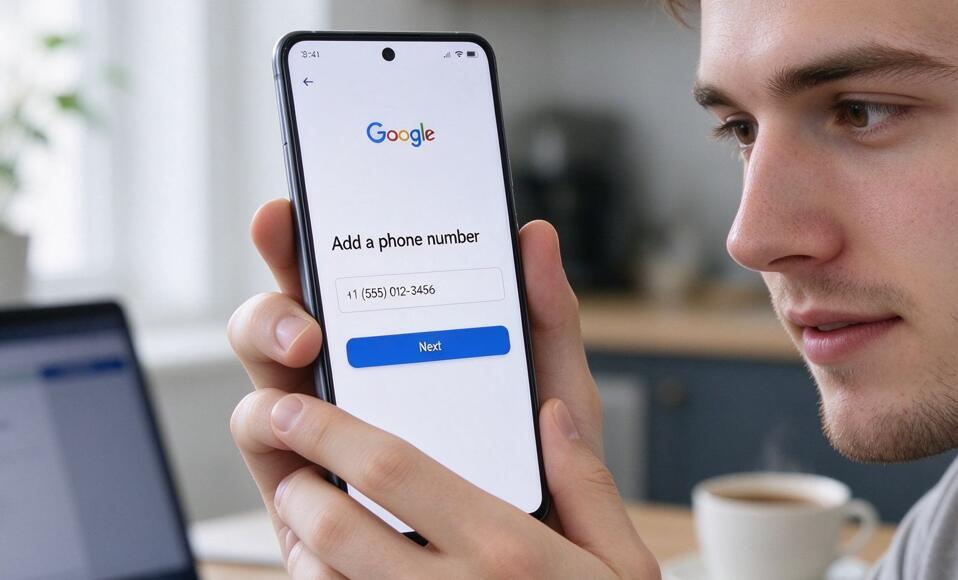
- Enter your phone number, including the correct country code if requested.
- Follow the on-screen instructions. Google may ask you to verify your identity or confirm ownership of the number using a verification code.
- Enter the verification code if prompted, then complete the process.
- Return to your account settings and check whether the number appears correctly.
Adding a phone number to your personal information does not necessarily mean it will automatically become your recovery number or two-step verification method. Review the relevant security settings separately to ensure the number is configured for the purpose you want.
How to Add a Phone Number on an Android Phone
Android users can access Google Account settings directly through their device's Settings app. The menu names may differ slightly between manufacturers and Android versions.
- Open the Settings app on your Android phone.
- Find and select Google.
- Tap your Google account name or select Manage your Google Account.
- Open the Personal info tab.
- Locate the Phone section under contact information.
- Tap the option to add or update your phone number.
- Enter your number and follow any identity verification instructions.
- Complete the verification process if required, then confirm that your account information has been updated.
If you use multiple Google accounts on the same Android phone, double-check the account displayed at the top of the screen before making changes. This prevents you from adding the number to the wrong account.
How to Add a Phone Number on an iPhone or iPad
You can add a phone number to your Google account on an iPhone or iPad through a browser or a Google app that provides account management access.
- Open Safari or another browser on your iPhone or iPad.
- Visit myaccount.google.com and sign in.
- Select Personal info from the available menu.
- Scroll to the contact information section and tap Phone.
- Select the option to add or change your number, if available.
- Enter your phone number and follow the instructions displayed on the screen.
- Complete any requested verification and check your account settings to confirm the update.
If you use the Gmail or Google app, you can also tap your profile picture and select Manage your Google Account to reach the same account management area. The exact navigation may vary by app version.
How to Set Your Phone Number as a Recovery Number
A recovery phone number can help you regain access to your Google account if you forget your password, get locked out, or need to confirm your identity. Adding a number to your general contact information does not always configure it for account recovery, so check this setting separately.
- Visit Google Account Security.
- Sign in to the account you want to protect.
- Find the section related to recovery information or ways to verify your identity.
- Select the recovery phone option if it is available.
- Add a phone number or edit the existing one.
- Follow Google's instructions to verify the number or confirm your identity.
- Review the displayed recovery information to make sure it is current.
Use a phone number that you control and expect to keep for the foreseeable future. If you change your number, update your recovery information promptly. Google may require additional verification before allowing certain security changes, particularly when a sign-in appears unusual.
How to Use Your Phone Number for Two-Step Verification
Two-step verification adds another layer of protection by requiring an additional verification step when you sign in under certain circumstances. Depending on your account and region, Google may offer text messages, phone calls, Google prompts, passkeys, or authenticator-based options.
- Open your Google Account and navigate to the Security section.
- Find 2-Step Verification and open the setup page.
- Sign in again if Google requests additional authentication.
- Review the available verification methods.
- If phone-based verification is offered, select the relevant option and enter your phone number.
- Follow the on-screen instructions to complete setup and verify the method.
- Review your other available sign-in methods and recovery options.
Text messages can be convenient, but they are not the strongest option in every situation. Consider using a passkey, security key, or Google prompt where available. Keeping more than one secure sign-in method can also reduce the risk of being locked out if your phone is lost or unavailable.
Common Problems When Adding a Phone Number
If Google will not accept your phone number, several factors may be responsible. The number might be entered incorrectly, the carrier may not support the required verification messages, or Google may temporarily restrict verification attempts.
- Verification code not received: Check your country code, mobile signal, message filtering settings, and whether your carrier can receive verification texts. If another verification method is offered, consider using it.
- Number rejected: Confirm that the number is entered correctly and is eligible for the requested Google feature. Some numbers may not be accepted for certain verification purposes.
- Too many attempts: Stop repeated requests and wait before trying again. Follow any instructions Google displays.
- Phone number already in use: Google may limit how frequently a number can be used for certain purposes. Follow the on-screen guidance rather than repeatedly submitting the same request.
- Cannot access account settings: Visit Google's official account recovery page at accounts.google.com/signin/recovery if you cannot sign in.
Never share a verification code with someone who contacts you unexpectedly. Google verification codes are intended to confirm your identity, and sharing them can put your account at risk.
Final Thoughts
There are several convenient ways to add a phone number to your Google account, including using the Google Account website, an Android device, or an iPhone or iPad. The best method is the one that lets you access your account settings easily and complete any required verification. After adding your number, review your recovery information and two-step verification settings to ensure your account has the protection you need.
Remember to keep your phone number up to date, use a number you control, and maintain alternative secure sign-in methods whenever possible. If you encounter an error, consult Google's official help resources and follow the instructions provided for your account. A few minutes spent reviewing these settings can make account recovery easier and help you maintain better control over your Google account.