How to completely close background apps on Android /iPhone?
Last updated: 2026-08-19
Welcome to Blackview (Well-known brand of rugged phone) blog. Hope this "Background Apps" related guide helps.
Background apps can be useful because they allow your phone to switch quickly between tasks, keep certain services running, and deliver notifications without requiring you to reopen an app every time. However, when too many applications remain active or misbehave in the background, you may notice slower performance, excessive battery consumption, increased mobile data usage, or apps that appear to freeze. Knowing how to completely close background apps on an Android phone or iPhone can therefore be useful when troubleshooting performance problems or simply cleaning up your recent apps.

Although Android and iPhone handle background applications differently, both platforms provide simple ways to stop apps from appearing in the recent-apps screen and, when necessary, force an application to stop running. The exact steps can vary slightly depending on your phone model and operating-system version, but the basic process is similar. This guide explains how to close background apps safely, when you should force-close an app, and what you should know about battery life and system performance before making it a regular habit.
How to Completely Close Background Apps on Android
Android phones allow you to view recently used applications and remove them from the recent-apps screen. Depending on the Android version, phone manufacturer, and navigation settings, the appearance of the recent-apps interface may be different. Samsung Galaxy, Google Pixel, OnePlus, Xiaomi, Motorola, and other Android phones can therefore have slightly different menus.
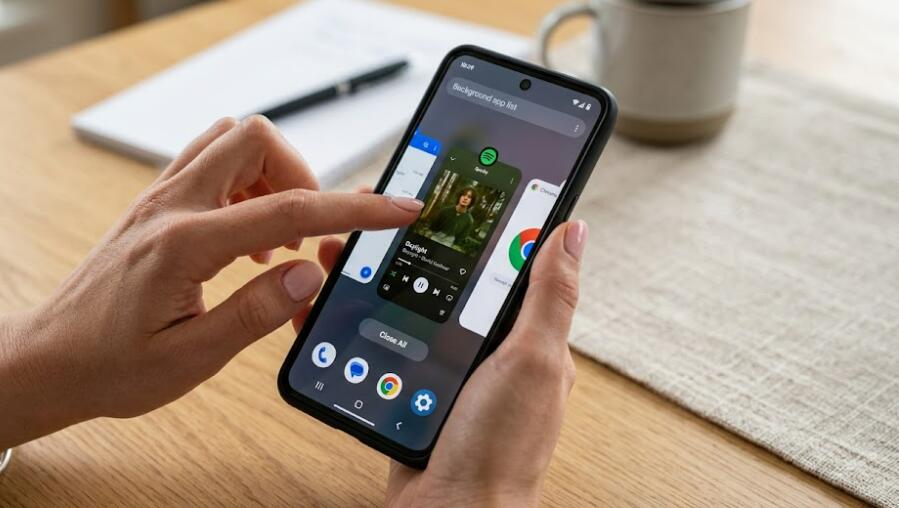
Close Recent Apps on Android
The easiest way to close applications that you are no longer using is through the Recent Apps screen. This removes the apps from the recent-apps list and can help when an application is stuck or behaving incorrectly.
- Unlock your Android phone.
- Open the Recent Apps screen. With gesture navigation, swipe up from the bottom of the screen and hold briefly. With three-button navigation, tap the Recent Apps button.
- Review the applications currently shown on the screen.
- Swipe an unwanted app upward or sideways, depending on your phone's interface.
- Repeat the process for other applications you want to remove.
- If your phone provides a “Close all” button, tap it to remove all available recent apps at once.
Force Stop an Android App
If an application continues running incorrectly, repeatedly crashes, becomes unresponsive, or appears to consume an unusual amount of resources, you can use Android's Force Stop feature. Unlike simply removing an app from the recent-apps screen, Force Stop explicitly terminates the application's current processes.
- Open the Settings app on your Android phone.
- Tap “Apps,” “Apps & notifications,” “Applications,” or a similarly named option.
- Select the application you want to stop.
- Open the app's information page.
- Tap “Force stop.”
- Confirm the action when Android asks whether you want to force-stop the application.
After force-stopping an app, it will generally remain stopped until you launch it again or the system starts an associated process when appropriate. Force stopping should mainly be used for problematic applications rather than as a routine way to manage every app on your phone.
How to Completely Close Background Apps on iPhone
iPhone uses a different approach to multitasking. iOS automatically manages many background processes and may suspend applications when they are not actively being used. Therefore, seeing an app in the App Switcher does not necessarily mean that the app is continuously consuming significant battery or processing power.
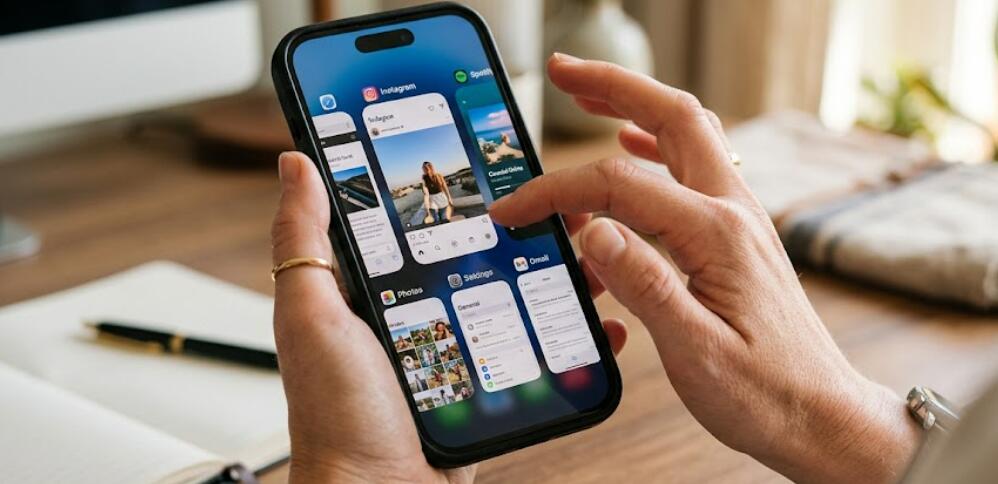
Close Apps on an iPhone With Face ID
On iPhones without a Home button, you can access the App Switcher with a simple gesture. From there, you can manually remove applications that you want to close.
- Unlock your iPhone or wake the screen.
- Swipe upward from the bottom edge of the screen and pause near the center.
- Keep your finger on the screen briefly until the App Switcher appears.
- Swipe left or right to find the application you want to close.
- Swipe the app's preview upward and off the top of the screen.
- Repeat the gesture for any other application you want to close.
Close Apps on an iPhone With a Home Button
Older iPhone models equipped with a physical or Touch ID Home button use a different method to display recently used applications.
- Press the Home button twice quickly.
- Wait for the App Switcher to appear.
- Swipe left or right until you find the application you want to close.
- Swipe the app preview upward to remove it from the App Switcher.
- Continue until you have closed the applications you no longer need.
How to Stop Apps From Running in the Background
Closing recent apps is not always the best solution if your primary concern is battery or data consumption. Both Android and iPhone provide settings that control background activity more directly. These settings can be particularly helpful for applications that frequently refresh content even when you are not actively using them.
Control Background Activity on Android
Android devices often provide battery-management and background-data options for individual applications. The exact names vary by manufacturer, but you can usually find them through the application's information or battery settings.
- Open Settings.
- Go to Apps and select the application you want to manage.
- Look for Battery, Mobile data, Data usage, or a similar option.
- Review the available background-activity or background-data settings.
- Restrict background activity if the application does not need to update when you are not using it.
Be careful when restricting background activity for messaging, email, navigation, security, or other applications that you expect to provide timely notifications. Excessive restrictions can prevent an app from updating normally.
Turn Off Background App Refresh on iPhone
iPhone also includes a Background App Refresh feature that allows compatible applications to update content in the background. If you want to reduce background activity, you can adjust this setting instead of repeatedly force-closing applications.
- Open the Settings app.
- Tap “General.”
- Select “Background App Refresh.”
- Choose whether background refreshing should be available through Wi-Fi and mobile data, Wi-Fi only, or disabled.
- You can also turn Background App Refresh off for individual applications when the option is available.
Should You Close Every Background App?
Not necessarily. Modern Android phones and iPhones are designed to manage memory and background processes automatically. An application shown in the recent-apps or App Switcher interface is not automatically using maximum processing power. In many situations, repeatedly closing and reopening applications can actually be less efficient because the phone has to reload them from scratch when you use them again.
Closing an app makes the most sense when it has stopped responding, is displaying an error, is using resources abnormally, or needs to be restarted. If your phone is running normally, you generally do not need to manually close every application after each use. Instead, allow the operating system to manage memory and background processes.
What to Do If Closing Apps Does Not Improve Performance
If your phone remains slow after closing problematic applications, the underlying issue may be unrelated to the number of apps in the recent-apps list. Low available storage, outdated software, excessive notifications, battery degradation, or a poorly optimized application can all affect performance.
- Restart the phone to refresh system processes.
- Install available operating-system and application updates.
- Remove applications that you no longer use.
- Check available storage and free up unnecessary files when storage is nearly full.
- Review battery-usage statistics to identify unusually active applications.
- Uninstall and reinstall an application that repeatedly crashes or behaves incorrectly.
- If problems continue, check the manufacturer's troubleshooting recommendations.
Final Thoughts
Completely closing background apps on Android and iPhone is straightforward, but it is important to understand the difference between removing an app from the recent-apps screen, force-stopping an application, and restricting its background activity. Android generally gives users more direct controls for stopping individual applications, while iPhone relies heavily on automatic system management. For everyday use, you usually only need to close an app when it is malfunctioning or causing a specific problem.
For the best overall performance, use app-closing features as a troubleshooting tool rather than something you must do constantly. Keep your phone's software updated, monitor applications that consume unusual amounts of battery or data, and adjust background permissions when necessary. Whether you use an Android phone or an iPhone, understanding these controls gives you a practical way to manage troublesome apps without unnecessarily interfering with the operating system's built-in resource management.