How to block and unblock someone on Messenger on a phone without them knowing?
Welcome to Blackview (World's well-known brand of rugged smartphones, including rugged phone with projector, rugged phone with FLIR thermal camera, and rugged phone with eSIM, etc.) blog. Hope the guide helps.
Managing unwanted conversations on Facebook Messenger can sometimes be uncomfortable, especially when you want to create distance from someone without causing unnecessary conflict. Whether you are dealing with persistent messages, unwanted calls, spam, or simply need some privacy, Messenger provides several options to control who can contact you. Blocking someone is one of the most effective ways to stop unwanted communication, and the good news is that Messenger does not send a direct notification when you block or unblock someone.
- Read also: How to know if someone muted you on Messenger?
- How to appear offline on Messenger on Android?
- How to send location in Messenger?
- How to fix Messenger not responding on your phone?
- How to check if your Messenger was hacked?
However, blocking someone does affect how both people can interact on the platform. Understanding what happens before changing your settings can help you avoid misunderstandings and choose the right privacy option. This guide explains how to block and unblock someone on Messenger using an iPhone or Android phone, what the other person can see, whether they can discover your actions, and how to manage your privacy discreetly.
What Happens When You Block Someone on Messenger?
Before blocking someone, it is important to understand exactly what this action does. Messenger offers controls that can prevent a person from contacting you while allowing you to maintain control over your existing conversations and Facebook connections.
When you block someone's messages and calls on Messenger, the following changes generally take effect:
- They cannot message you: The blocked person cannot send you new messages through your Messenger conversation.
- They cannot call you: Voice and video calls through Messenger from that account will be blocked.
- Your previous conversations remain: Blocking someone does not automatically erase your existing chat history.
- You will not receive new messages from them: Their attempts to contact you through Messenger will not reach your inbox normally.
- They are not directly notified: Messenger does not send an alert saying that you have blocked them.
- Your Facebook connection may remain: Blocking messages and calls is different from blocking someone's entire Facebook profile.
It is worth distinguishing between blocking messages and calls and blocking someone's Facebook profile. The first option restricts communication through Messenger, while the second applies broader restrictions across Facebook, including profile visibility and interactions.
How to Block Someone on Messenger Without Them Knowing
If you want to stop someone from contacting you without directly informing them, you can block their messages and calls from the Messenger mobile app. The process is similar on Android and iPhone, although some menu labels may vary depending on your app version.
Method 1: Block Someone Directly From a Conversation
This is usually the quickest way to block someone when you already have an existing conversation with them.
- Open the Messenger app on your iPhone or Android phone.
- Find the conversation with the person you want to block.
- Tap their name or profile picture at the top of the conversation.
- Scroll through the available settings until you find the blocking option.
- Tap Block.
- Select Block messages and calls if Messenger provides separate blocking options.
- Confirm your choice when prompted.
Once completed, that person will no longer be able to contact you through Messenger messages or calls using the blocked account. They will not receive a direct notification about your decision.
Method 2: Block Someone Through Their Messenger Profile
If you prefer to access someone's profile before blocking them, you can use this alternative method.
- Launch Messenger on your phone.
- Search for the person's name using the search bar.
- Open their profile or conversation.
- Tap their name to access their contact information and settings.
- Locate the Block option.
- Choose the option to block messages and calls.
- Confirm the action.
This method is particularly useful when you want to locate a person before taking action. Remember that blocking messages and calls does not necessarily remove them from your Facebook friends list.
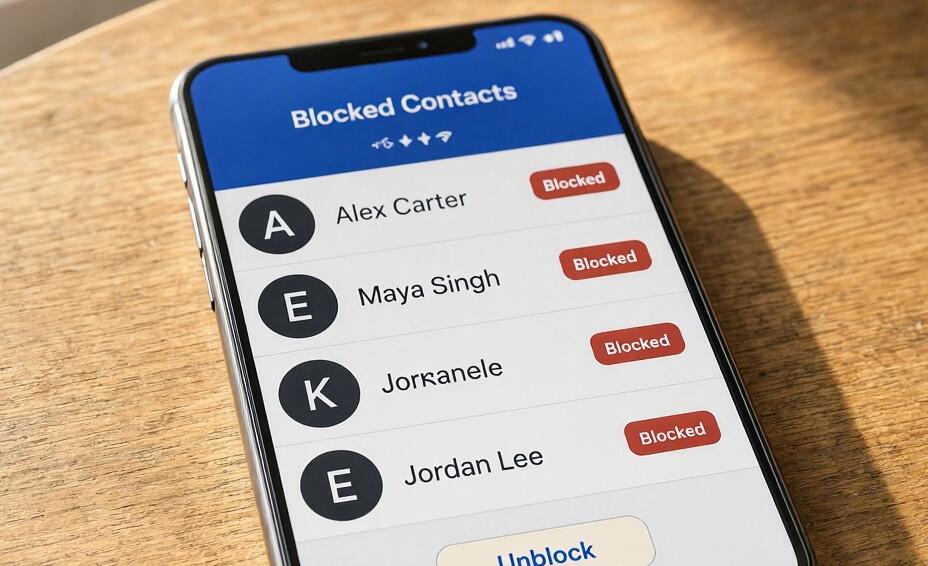
How to Unblock Someone on Messenger on a Phone
If you have changed your mind or want to communicate with someone again, Messenger allows you to unblock previously restricted accounts. Unblocking restores their ability to contact you, subject to your other privacy settings.
Steps to Unblock Someone on Android and iPhone
Follow these steps to find your blocked contacts and restore messaging access:
- Open the Messenger app on your phone.
- Tap your profile picture or the menu icon to open the settings area.
- Navigate to Privacy and safety.
- Look for Blocked accounts or Blocked people.
- Find the person you want to unblock in the list.
- Tap their name or profile entry.
- Select Unblock messages and calls or the corresponding unblock option.
- Confirm your decision if Messenger requests confirmation.
After unblocking, the person can generally send you messages and call you again. However, unblocking does not automatically restore deleted conversations, resend messages they attempted to send while blocked, or re-establish a Facebook friendship that was previously removed.
Will Someone Know If You Block or Unblock Them on Messenger?
One of the most common concerns about Messenger blocking is whether the other person can find out what happened. The short answer is that Messenger does not send a direct notification when you block or unblock an account.
Nevertheless, the person might notice indirect signs that communication has been restricted.
- They may be unable to send messages to your account.
- They may encounter a message indicating that the person is unavailable or cannot be contacted.
- Messenger calls may no longer connect successfully.
- They may notice changes in your availability or interaction.
These signs do not necessarily prove that someone has been blocked. Account deactivation, technical problems, privacy restrictions, and other circumstances can produce similar experiences.
When you unblock someone, Messenger does not normally send them an announcement either. However, they may realize they can contact you again if they try sending a message or making a call.
Blocking Someone on Messenger vs. Restricting Them
Blocking is not the only way to manage unwanted interactions. Messenger also provides a Restrict feature, which can be useful when you want to limit someone's presence without completely preventing communication.
- Blocking: Prevents the selected account from messaging or calling you through Messenger.
- Restricting: Moves the conversation out of your main chat list and limits notifications and visibility of interactions.
- Muting: Stops notifications from a particular conversation without preventing the person from sending messages.
- Ignoring a conversation: Helps move unwanted messages away from your main inbox, depending on the available app features.
If you are trying to avoid an uncomfortable conversation without completely cutting off communication, restricting someone may be a more suitable choice. If you want to prevent further messages and calls, blocking is generally more effective.
Does Blocking Someone Delete Your Messenger Conversation?
No. Blocking someone does not automatically delete your previous Messenger conversation. Your existing chat history generally remains available unless you manually delete it or another account or message-management action affects its availability.
There are several important details to remember:
- Previous messages are not automatically erased from your chat history.
- The other person may still have access to their copy of the previous conversation.
- Messages sent while the person is blocked generally will not be delivered to you.
- Unblocking someone does not automatically restore messages they attempted to send during the blocking period.
If you want to remove an old conversation from your inbox, you must manage or delete that conversation separately. Deleting a conversation from your inbox does not necessarily delete the other person's copy. Read more: How to see and recover deleted messages on Messenger on phone?
Common Problems When Blocking or Unblocking Someone
Sometimes, users cannot find the blocking option or discover that an account remains inaccessible after being unblocked. Understanding the possible causes can help resolve these issues.
The Block Option Is Missing
If you cannot find the Block option, update Messenger to the latest available version and check the person's profile settings again. You can also review Facebook's blocking settings, as some controls may be managed through your main Facebook account.
You Cannot Find Someone in Your Blocked List
Make sure you are checking the correct account and blocking settings. Messenger message-and-call restrictions and Facebook profile blocking are separate settings, so the relevant person may appear in a different list.
You Unblocked Someone but Still Cannot Message Them
Unblocking does not guarantee that communication will immediately resume. The other person may have blocked you, deactivated their account, or changed their privacy settings. Check your internet connection and confirm that you have removed the correct blocking restriction.
Tips for Managing Your Messenger Privacy Discreetly
If your goal is to maintain a more private Messenger experience, consider combining different privacy settings instead of relying entirely on blocking.
- Review who can send you message requests.
- Adjust your active status if you do not want others to see when you are online.
- Use Restrict for conversations you want to keep out of your main inbox.
- Mute notifications from conversations that interrupt your daily activities.
- Review your blocked accounts periodically and remove restrictions only when appropriate.
- Keep your Messenger and Facebook apps updated to access the latest privacy controls.
These settings can help you maintain greater control over your online interactions without unnecessarily exposing your personal preferences or creating unwanted conversations.
Final Thoughts
Blocking and unblocking someone on Messenger using a phone is a straightforward process on both Android and iPhone. By opening a conversation, accessing the person's profile settings, and selecting the appropriate blocking option, you can prevent unwanted messages and calls without Messenger sending a direct notification to the other person. When you are ready to communicate again, you can access your blocked accounts list and restore messaging permissions.
Although Messenger does not explicitly notify someone when you block or unblock them, indirect signs may allow them to suspect that their access has changed. If maintaining privacy is important, take time to understand the differences between blocking, restricting, and muting. Choosing the right option will help you manage your conversations more comfortably while keeping control over your digital boundaries.