How do I know if my phone supports WiFi calling?
Welcome to Blackview (World's well-known brand of rugged smartphones, including rugged phone with projector, rugged phone with eSIM, and best phones for construction workers, etc.) blog. Hope the guide helps.
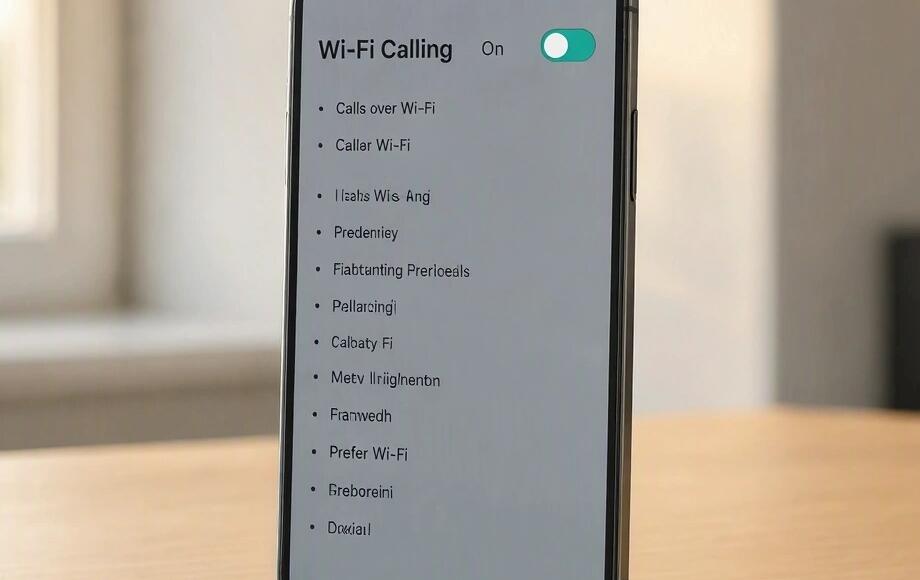
WiFi calling lets you make and receive regular phone calls over a wireless internet connection instead of relying entirely on your mobile network's cellular signal. It can be especially useful when you're at home, in an office, or in a building where mobile reception is weak but WiFi works well. Depending on your carrier and plan, the feature may also support text messaging and other standard communication services.
- Read also: How to know which WiFi version my phone is currently using?
- Why is my SIM card not showing a network? How to fix it?
- How to find the VPN server address on my phone?
The good news is that many modern smartphones support WiFi calling, including numerous iPhone and Android models. However, having a compatible phone does not automatically mean the feature is available on your account. Your carrier, SIM or eSIM, software version, and regional settings can all affect availability. This guide explains how to check your phone, find the relevant settings, and troubleshoot common problems.
What Is WiFi Calling and How Does It Work?
WiFi calling uses an available WiFi connection to route calls through your mobile carrier's calling service. Unlike internet-based apps such as WhatsApp, it generally allows you to call ordinary phone numbers using your existing phone number and calling plan.
To use it, you typically need a compatible phone, a carrier that supports the feature, and an eligible mobile account. Some carriers also require WiFi calling to be enabled in your account settings or emergency address information to be registered.
How to Check Whether Your iPhone Supports WiFi Calling
Most relatively recent iPhones support WiFi calling, but availability depends on the carrier and country. Follow these steps to check:
- Open the Settings app on your iPhone.
- Tap Mobile Service or Cellular, depending on your iOS version.
- If you use multiple SIMs, select the mobile line you want to check.
- Look for the WiFi Calling option.
- Tap WiFi Calling and check whether you can enable WiFi Calling on This iPhone.
- Follow any instructions to accept the terms or register an emergency address.
If the option appears and can be enabled, your iPhone and carrier configuration likely support the feature. If you cannot find it, update iOS, restart your phone, and check with your carrier to confirm availability for your specific model and plan.
How to Check WiFi Calling on an Android Phone
Android menus differ between manufacturers, so the setting may have a slightly different name or location on Samsung, Google Pixel, and other devices.
- Open Settings on your Android phone.
- Tap Connections, Network and Internet, or a similar network-related menu.
- Open Mobile Networks or SIMs and select your active SIM if necessary.
- Look for WiFi Calling or a similarly named option.
- Turn on the feature if it is available and follow any on-screen setup instructions.
- Restart the phone if requested, then reconnect to a reliable WiFi network. Read more: How to restart phone without power button?
On some Samsung devices, you may also find WiFi Calling in the Phone app's settings. If the option is missing, do not assume your phone is incompatible; your carrier may control whether the setting is displayed.
How to Confirm That WiFi Calling Actually Works
Finding the setting is a useful first step, but testing the feature provides stronger confirmation that it works with your current service.
- Connect your phone to a stable WiFi network.
- Enable WiFi Calling in your phone settings.
- Check the status bar or call interface for an indicator such as WiFi Calling or a carrier-specific WiFi symbol.
- Make a test call to a number you are authorized to contact.
- Check whether the call connects successfully and whether the audio is clear.
The indicator varies by phone and carrier, and some devices switch between WiFi and cellular networks automatically. Therefore, a missing icon does not always mean the feature is unavailable. For a more controlled test, temporarily disable cellular service only if you understand how to restore it and can still contact emergency services by an appropriate alternative if needed.
What to Do If Your Phone Does Not Show WiFi Calling
If the setting is missing or WiFi calls fail, work through these troubleshooting steps before replacing your phone.
- Install the latest compatible operating system update.
- Restart your phone and reconnect to WiFi.
- Check that your SIM or eSIM and mobile plan are active.
- Contact your carrier to verify that WiFi calling is supported for your phone model, account, and location.
- Ask whether the feature must be activated by the carrier or whether your emergency address needs to be registered.
- If the option is enabled but calls fail, test another reliable WiFi network and check for router restrictions.
Remember that public WiFi networks, VPN configurations, or restrictive network settings can sometimes interfere with calling. Avoid resetting your phone to factory settings unless other troubleshooting steps have failed and your important data is backed up.
Final Thoughts
The easiest way to determine whether your phone supports WiFi calling is to check the calling settings on your iPhone or Android device. If the option appears, enable it and perform a test call. However, true compatibility also depends on whether your carrier supports the feature for your particular device and account.
If you still cannot find the setting, contact your mobile provider with your phone model and software version. A quick confirmation can help you determine whether you need a settings adjustment, carrier activation, or a compatible device. Once configured correctly, WiFi calling can make staying connected much easier in places where cellular reception is unreliable.