How do I fix Telegram not responding on my phone?
Welcome to Blackview (World's well-known brand of rugged smartphones, including rugged phone with projector, rugged phone with eSIM, and Android 16 rugged phone, etc.) blog. Hope the guide helps.
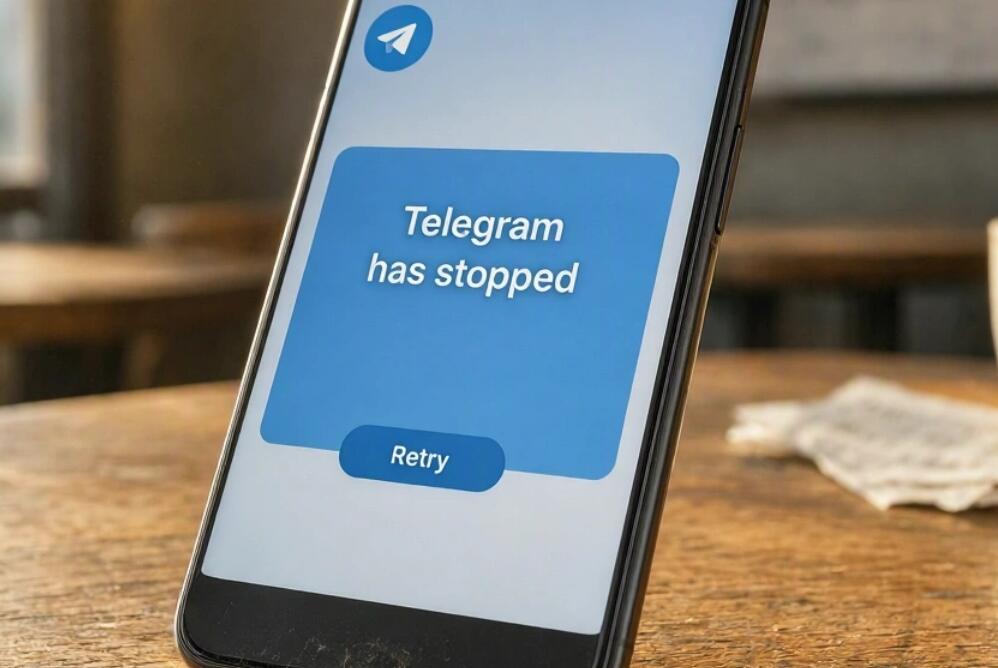
Telegram is a popular messaging app, but it can sometimes freeze, become unresponsive, crash unexpectedly, or remain stuck on the loading screen. You might tap a chat without getting a response, find that messages are not loading, or discover that the app closes immediately after opening. These problems can interrupt conversations and make it difficult to access important messages. Fortunately, most Telegram performance issues can be resolved with a few simple troubleshooting steps.
- Read also: How to hide Last Seen and online status on Telegram?
- How to fix Telegram not receiving SMS?
- How to check if someone read your message on Telegram?
- How to know if someone blocked you on Telegram without messaging them?
The key to fixing Telegram is identifying what causes the problem before making major changes to your phone. An unstable internet connection, insufficient storage, outdated software, corrupted cached files, or a temporary app glitch can all affect performance. This guide explains the common causes and provides step-by-step solutions for Android and iPhone users, along with practical tips to prevent Telegram from becoming unresponsive again.
Why Is Telegram Not Responding on Your Phone?
Before trying different fixes, consider when the problem occurs. If Telegram freezes while opening a chat, crashes immediately after launch, or stops responding alongside other apps, the underlying causes may be different.
- Unstable internet connection: Weak Wi-Fi, mobile data interruptions, or network restrictions can prevent Telegram from loading messages and media.
- Insufficient storage or memory: When your phone has little free storage or too many demanding apps running, Telegram may slow down or freeze.
- Outdated software: An older version of Telegram or your phone's operating system may contain compatibility issues or bugs.
- Cached data problems: Temporary files can consume storage or contribute to performance issues, particularly when large amounts of media have accumulated.
- Temporary application glitches: Background processes or an unexpected error may cause Telegram to stop responding.
- Server-side problems: A Telegram service disruption can affect message delivery or connectivity even when your phone works normally.
Identifying whether the issue affects only Telegram or your entire phone can help you choose the most effective solution.
How to Fix Telegram Not Responding on Android
Android users can troubleshoot Telegram by following these steps in order. Menu names may vary slightly depending on your phone manufacturer and Android version.
- Force stop Telegram. Open Settings, select Apps or App management, choose Telegram, and tap Force stop. Reopen the app to see whether it responds normally.
- Check your internet connection. Switch between Wi-Fi and mobile data. If Telegram starts working on another connection, investigate your original network.
- Clear the app cache. Go to Settings, open Apps, select Telegram, and choose Storage or Storage and cache. Tap Clear cache. Avoid selecting Clear storage or Clear data unless necessary, because this can remove local app data and require you to sign in again.
- Update Telegram. Open Google Play Store, search for Telegram, and tap Update if available. Also check Settings for an Android system update.
- Free up storage. Remove unnecessary unused apps, downloads, or large files. Restart your phone after freeing up space.
- Restart your phone. Restarting can clear temporary system glitches and release resources used by background processes.
- Reinstall Telegram if necessary. If the app remains unresponsive, uninstall and reinstall it from an official source. Make sure you can access your account's phone number and login verification method before doing so.
Test Telegram after each step so you can identify which fix works.
How to Fix Telegram Not Responding on iPhone
On an iPhone, start with the least disruptive fixes before deleting the app. These steps apply to most recent iOS versions, although menu layouts may differ.
- Force close Telegram. Swipe up from the bottom of the screen and pause in the middle to open the App Switcher. On an iPhone with a Home button, double-click the Home button. Find Telegram and swipe its preview upward, then reopen the app.
- Test your connection. Switch between Wi-Fi and cellular data. If necessary, enable Airplane Mode briefly, turn it off, and reconnect.
- Restart your iPhone. Power off your device, wait a moment, and turn it back on. If the entire phone is frozen, follow Apple's instructions for a force restart for your specific model.
- Update Telegram. Open the App Store, search for Telegram, and install an available update. Check Settings for an iOS update as well.
- Check iPhone storage. Open Settings, tap General, and select iPhone Storage. If space is running low, remove unnecessary files or apps.
- Reinstall the app. If Telegram still crashes, delete it and download it again from the App Store. Confirm that you can log back in before removing it.
Deleting Telegram may remove local data, and logging out or reinstalling can cause Secret Chats to be lost. Review your account access and important local content before taking this step.
Check Whether Telegram Is Experiencing an Outage
Sometimes the problem is not your phone. If Telegram stops loading on multiple devices or other users report similar issues, a service disruption may be responsible.
- Try opening Telegram on another device or network.
- Check reputable outage-reporting websites for a sudden increase in user reports.
- Visit Telegram's official website or support resources for relevant updates.
- Wait for the service to recover before repeatedly reinstalling the app or changing phone settings.
If Telegram works on another device but not on your phone, focus on local app, network, or system troubleshooting instead.
Clear Telegram Cache Without Losing Your Chats
Telegram stores downloaded media and temporary files to make content easier to access. Clearing its cache can free up space without normally deleting cloud-based conversations.
- Open Telegram and go to Settings.
- Select Data and Storage, then Storage Usage.
- Review the cached media categories and select the items you want to remove.
- Clear the cache and reopen Telegram to check its performance.
Cached photos, videos, and documents can generally be downloaded again when needed. However, do not confuse clearing the cache with clearing app data or deleting an account. Secret Chats and other locally stored content may have different retention rules.
Prevent Telegram From Freezing Again
A few regular maintenance habits can reduce the chance of recurring problems.
- Keep Telegram and your phone's operating system updated.
- Maintain sufficient free storage space for app data and system operations.
- Clear unnecessary cached media periodically, especially if you receive many videos and large files.
- Use a stable internet connection and check whether VPNs or network restrictions interfere with connectivity.
- Restart your phone occasionally if you notice persistent performance problems.
- Download Telegram only from official sources to reduce security risks.
These steps cannot prevent every software bug, but they can help maintain a more reliable messaging experience.
When Should You Contact Telegram Support?
If Telegram continues to freeze after you have updated the app, restarted your phone, checked your connection, and freed up storage, the issue may require further investigation. Record your phone model, operating system version, Telegram version, and the circumstances under which the app stops responding.
Visit the official Telegram FAQ for troubleshooting information or use Telegram's official support options. Never share your login code, two-step verification password, or other account credentials with someone claiming to provide technical support.
Final Thoughts
When Telegram is not responding on your phone, start by checking your internet connection, closing and reopening the app, and restarting your device. Android users can also try clearing the Telegram cache through system settings, while iPhone users should check available storage and install app updates. These straightforward solutions often resolve temporary glitches without requiring more drastic changes.
If the problem persists, investigate possible service outages and consider reinstalling Telegram only after checking your account access and important local data. By following the troubleshooting steps in order and keeping your app and phone updated, you can identify the cause more efficiently and get back to messaging with fewer interruptions.