How to log out of your WhatsApp on all devices?
Welcome to Blackview (Well-known brand of rugged phone and tablet) blog. Hope the guide helps.
WhatsApp is designed to keep your conversations accessible across multiple devices, making it convenient to use the same account on a phone, computer, tablet, or web browser. However, this convenience can become a privacy concern if you have connected your WhatsApp account to a device that you no longer use, have signed in on a public computer, or suspect that someone else may still have access to your account. In these situations, knowing how to log out of WhatsApp on all connected devices is an important security step.
- Read also: How to do if I can't open WhatsApp on Android/iPhone?
- How to know if someone muted you on WhatsApp?
- How to know if someone archived you on WhatsApp?
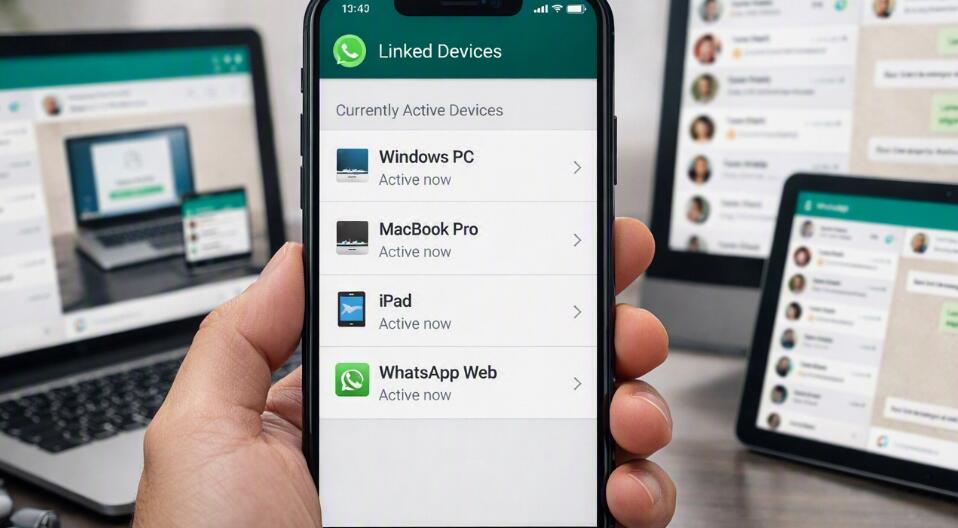
WhatsApp provides a built-in Linked Devices feature that lets you review and manage computers, browsers, and other supported devices connected to your account. From your primary phone, you can see active sessions and disconnect devices individually. If you want to secure your account quickly, you can check this list and log out of unfamiliar or unused sessions. The exact menu wording can vary slightly between Android and iPhone, but the general process is straightforward and can usually be completed within a few minutes.
What Does Logging Out of WhatsApp on All Devices Mean?
When you use WhatsApp on a computer through WhatsApp Web or the desktop application, your phone can authorize that device as a linked session. Depending on the version and device configuration, WhatsApp can allow linked devices to remain available even when your phone is not continuously connected. This makes multi-device access useful, but it also means that an old computer or browser session may remain connected if you forget to sign out.
Logging out means removing access from the selected linked device. Once a device has been logged out, anyone trying to use WhatsApp there will need to link or authorize it again. If you are concerned that an unknown person has access to your account, reviewing linked devices and removing anything unfamiliar should be one of your first security measures.
How to Log Out of WhatsApp on All Linked Devices
The safest approach is to use the Linked Devices section in WhatsApp on your main smartphone. This allows you to see which devices are currently connected and disconnect them directly from your account.
Steps on an Android Phone
Android users can manage connected WhatsApp sessions directly from the WhatsApp application. Follow these steps:
- Open WhatsApp on your Android phone.
- Tap the three-dot menu in the upper-right corner.
- Select Linked devices.
- Review the list of computers, browsers, or other devices connected to your account.
- Tap the device you want to remove.
- Select Log out and confirm the action if prompted.
- Repeat the process for every linked device you want to disconnect.
If several devices are listed and you do not recognize them, it is a good idea to remove all unfamiliar sessions rather than leaving them connected. Pay attention to the device type and the last active time shown by WhatsApp, as these details can help you identify sessions you no longer use.
Steps on an iPhone
The process on an iPhone is similar, although the location of the Linked Devices option is different from Android.
- Open WhatsApp on your iPhone.
- Tap Settings in the bottom navigation area.
- Select Linked Devices.
- Look through the list of currently connected devices.
- Tap the device that you want to disconnect.
- Choose Log Out.
- Repeat these steps for any other device that should no longer have access.
After you log out a linked computer or browser, the WhatsApp session on that device should no longer provide access to your account. If you later need to use WhatsApp on that computer again, you can link it as a new device.
Can You Log Out of Every Device at Once?
WhatsApp's device-management system is primarily designed around individual linked-device sessions. In practice, you should open Linked Devices and remove every session that you do not want to remain active. There may not be a single universal button labeled “Log out of all devices” in every version of WhatsApp, so the most reliable method is to review the device list and log out of the sessions individually.
This approach also has an important security advantage: you can distinguish between devices that you recognize and devices that appear suspicious. For example, you may want to keep your personal laptop connected while immediately removing a session belonging to an unfamiliar computer.
What to Do If You See an Unknown Device
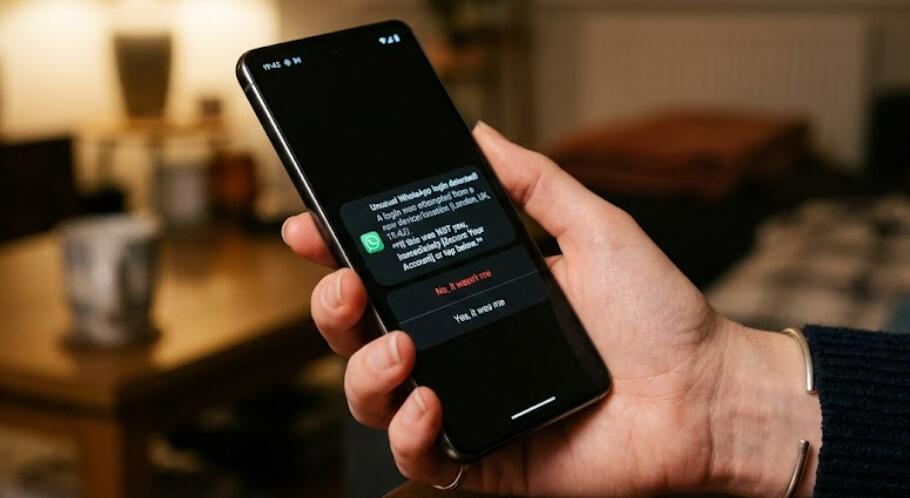
An unfamiliar linked device should be treated seriously, particularly if you do not remember connecting your account to it. Do not assume that the device is harmless simply because your phone is still working normally. Disconnect it immediately and then review your account security settings.
- Open WhatsApp and check Linked Devices.
- Identify any device you do not recognize.
- Log out of the unfamiliar session immediately.
- Review your account for unexpected activity.
- Enable two-step verification if it is not already enabled.
- Never share your WhatsApp registration code or two-step verification PIN with another person.
If you believe someone may have gained access to your phone number or WhatsApp account itself, logging out linked devices is only one part of the security process. You should also secure the phone number and consider changing passwords for important accounts associated with your device.
How to Prevent Unwanted WhatsApp Sessions
Once you have removed unwanted devices, a few simple habits can reduce the possibility of unauthorized access in the future. Avoid linking WhatsApp on public computers unless necessary, and always sign out when using a shared or temporary computer.
Check Linked Devices Regularly
Make it a habit to open the Linked Devices section occasionally. A quick review can reveal old computers or browsers that you have forgotten about.
Use Two-Step Verification
Two-step verification adds an additional layer of protection to your WhatsApp account. Choose a PIN that is difficult for other people to guess and keep recovery information secure.
Protect Your Phone
Your primary phone is central to your WhatsApp account, so use a strong device passcode and appropriate biometric security. Do not leave an unlocked phone unattended in public or shared environments.
What Happens After You Log Out?
Logging out a linked device does not delete your WhatsApp account or erase your conversations from your primary phone. Instead, it removes that particular device's active access to the account. If you log out of a computer, WhatsApp will generally require that computer to be linked again before it can be used with your account.
This makes logging out particularly useful when you sell or replace a laptop, use WhatsApp temporarily on another person's computer, forget to sign out from an office computer, or simply want to reduce the number of active sessions connected to your account.
Final Security Checklist
If your goal is to completely secure your WhatsApp account after using multiple computers or browsers, work through the following checklist carefully.
- Open WhatsApp on your primary phone.
- Go to Linked Devices.
- Review every connected session.
- Log out of devices you no longer use.
- Remove every unfamiliar device immediately.
- Enable two-step verification.
- Keep your phone protected with a secure passcode or biometric lock.
- Check Linked Devices again whenever you suspect unusual account activity.
Logging out of WhatsApp on all unwanted devices is a simple but effective way to maintain control over your account. The Linked Devices section gives you a central place to review active sessions and disconnect computers or browsers that should no longer have access. Whether you are dealing with an old laptop, a shared computer, or a device you do not recognize, removing unnecessary sessions can significantly improve your account security.
Remember that the most important step is to check Linked Devices directly from your primary phone and remove every session you no longer trust. If you notice an unfamiliar device, act promptly rather than waiting to see what happens. Combined with two-step verification, a secure phone lock, and careful handling of verification codes, regular device management can help keep your WhatsApp account private and under your control.