What to do if I can't open WhatsApp on my phone?
Welcome to Blackview (Well-known brand of military grade rugged smartphone and tablet) blog. Hope the guide helps.
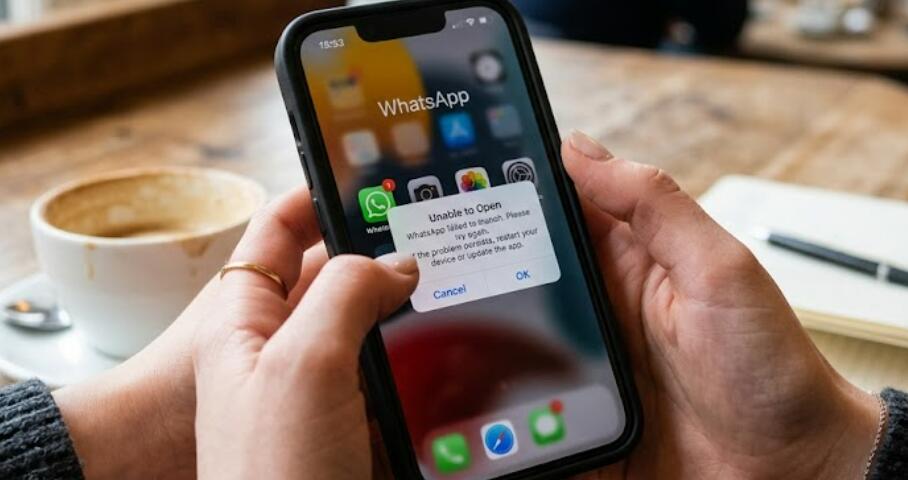
WhatsApp is one of the most widely used messaging applications, allowing people to send messages, make voice and video calls, and share locations, photos, videos, and documents instantly. When the app suddenly refuses to open, it can interrupt personal conversations, business communication, and access to important information. The issue may occur after a software update, because of insufficient storage, corrupted app data, or temporary system glitches.
- Read also: How to know if someone archived you on WhatsApp?
- How to know if someone muted you on WhatsApp?
- How to recover deleted WhatsApp messages?
- How can I know if my WhatsApp is hacked?
Fortunately, most WhatsApp startup problems can be resolved without advanced technical knowledge. Whether you use an Android phone or an iPhone, there are several troubleshooting methods that can help restore normal functionality. This guide explains the most common causes, provides step-by-step solutions, and offers practical tips to prevent the problem from happening again.
The exact reason why WhatsApp cannot open varies from device to device. In some cases, the application crashes immediately after launching, while in others it gets stuck on the loading screen or displays an error message. Identifying the possible cause makes it much easier to choose the right solution and avoid unnecessary troubleshooting.
Common Reasons Why WhatsApp Won't Open
Several factors can prevent WhatsApp from launching properly. Understanding these causes helps determine the most effective fix.
Software or System Glitches
Temporary operating system bugs may prevent apps from opening correctly, especially after a recent software update or unexpected phone restart.
Outdated WhatsApp Version
An older version of WhatsApp may become incompatible with the latest operating system or server requirements, causing the app to crash during startup.
Insufficient Storage Space
If your phone is running low on available storage, WhatsApp may fail to load because it cannot access the space needed for temporary files and cached data.
Corrupted Cache or App Data
Damaged cache files or corrupted application data can interfere with the normal startup process and prevent WhatsApp from opening successfully.
Steps to Fix WhatsApp That Won't Open
Follow these troubleshooting steps in order. After completing each step, try opening WhatsApp again to see whether the issue has been resolved.
- Restart your smartphone to clear temporary system errors.
- Verify that your phone has sufficient battery power.
- Check that enough storage space is available on the device.
- Update WhatsApp to the latest version through the official app store.
- Update your phone's operating system if a new version is available.
- Force close WhatsApp and reopen the application.
- Clear the WhatsApp cache if you are using an Android device.
- Restart your internet connection by switching between Wi-Fi and mobile data.
- Disable VPN services temporarily if one is enabled.
- Restart the phone again after making changes.
- Uninstall and reinstall WhatsApp after backing up your chats if possible.
- Restore your chat backup during the setup process if prompted.
How to Check for WhatsApp Server Problems
Sometimes the problem is not caused by your phone. WhatsApp servers may experience temporary outages that affect users around the world. During these periods, the application may fail to load properly or stop working as expected. Waiting for the service to recover is often the only solution if a widespread outage is confirmed.
Preventing Future WhatsApp Problems
Regular maintenance can reduce the likelihood of WhatsApp failing to open in the future.
Keep the App Updated
Installing updates promptly ensures compatibility with your phone's operating system and provides important bug fixes and security improvements.
Maintain Available Storage
Delete unnecessary files, photos, videos, and unused applications to keep enough free space for WhatsApp and other essential apps.
Restart Your Phone Regularly
Occasional restarts help clear temporary system processes and improve overall device performance.
Back Up Your Chats Frequently
Creating regular backups protects important conversations and media, making recovery much easier if WhatsApp must be reinstalled.
When to Contact Support
If none of the troubleshooting steps solve the problem, additional assistance may be necessary.
- Contact WhatsApp Support if the application continues crashing after reinstalling.
- Reach out to your phone manufacturer's customer support if multiple applications fail to open.
- Seek professional repair services if your phone has experienced physical damage or hardware issues.
- Prepare information about your device model, operating system version, and the exact error message before requesting assistance.
Most WhatsApp startup issues can be resolved by following a systematic troubleshooting process. Simple solutions such as restarting the phone, updating the application, clearing cached files, or freeing storage space are often enough to restore normal operation. Working through the steps one by one helps identify the cause while minimizing the risk of losing important data.
Keeping WhatsApp, your operating system, and your device storage well maintained is the best way to prevent future problems. Regular updates, frequent chat backups, and good device maintenance will help ensure that WhatsApp remains reliable, allowing you to stay connected with family, friends, and colleagues whenever you need it.