How to share your playlist with others on Spotify?
Welcome to Blackview (Well-known brand of rugged smartphones, AI smart glasses, and Android tablets) blog. Hope this guide has been helpful.
Sharing a playlist on Spotify is an easy way to introduce friends to your favorite music, exchange song recommendations, and create soundtracks for memorable occasions. Whether you have curated relaxing tracks, workout anthems, party hits, or personal favorites, Spotify offers convenient sharing options across mobile devices, desktop computers, and web browsers. With just a few taps or clicks, you can send your playlist through messaging apps, email, or social media.
However, sharing a playlist involves more than simply sending a link. You may want others to listen to your selections, follow your playlist, contribute their own songs, or participate in a collaborative music collection. Understanding these options helps you choose the right sharing method while maintaining control over your playlist and its content.
- Read also: How to listen to music on Spotify with friends?
- How to start or join a group session on Spotify?
- If your Spotify account is hacked, how to recover it?
- How to download music on your phone?
Spotify provides several ways to share playlists, depending on your device, privacy settings, and whether you want others to edit your music collection. The following guide explains each method step by step.
How to Share a Spotify Playlist Using Your Phone
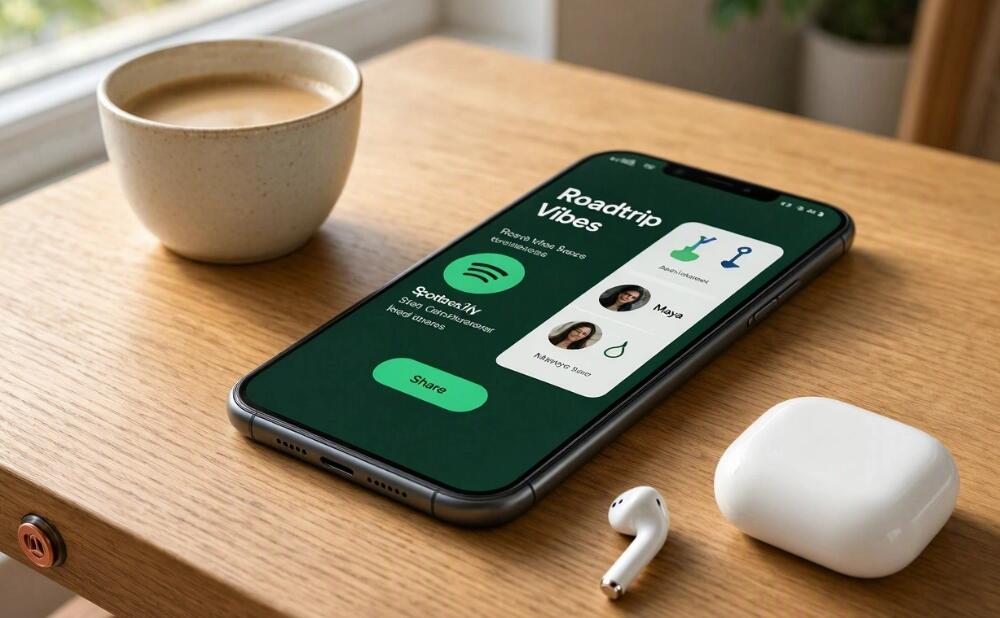
Sharing a playlist on an iPhone or Android device is straightforward. Spotify's built-in sharing menu allows you to copy a playlist link or send it directly through supported messaging and social media applications.
Follow these steps:
- Open the Spotify app and sign in to your account.
- Tap Your Library and find the playlist you want to share.
- Open the playlist by tapping its title or cover image.
- Tap the three-dot menu near the top of the screen.
- Select Share from the available options.
- Choose Copy Link or select a supported application.
- Paste the link into a message or post and send it to your intended recipients.
Once the recipient opens the link, Spotify will generally direct them to the playlist in the app or web player. They may need to sign in or choose to open Spotify if the link does not launch automatically.
How to Share a Spotify Playlist on Desktop
The Spotify desktop application and web player offer similar sharing features. This method is especially convenient when sending playlists through email, workplace messaging tools, or online communities.
To share a playlist from your computer:
- Open the Spotify desktop application or web player.
- Navigate to Your Library and select your playlist.
- Click the three-dot menu or right-click the playlist.
- Select Share from the menu.
- Click Copy Link or choose another available sharing option.
- Open your preferred messaging application, email service, or social media platform.
- Paste the playlist link and send it.
Make sure you share the playlist itself rather than an individual song. Otherwise, the recipient may open a single track instead of the complete collection. You can also include the link in a blog post or digital newsletter.
How to Share a Spotify Playlist on Social Media
Spotify makes it easy to share playlists through messaging services and social platforms. Depending on your device and installed applications, you may be able to select a destination directly from the Share menu.
Alternatively, copy the playlist link and paste it wherever you want to share it. This approach is useful when distributing the same playlist across multiple platforms.
- WhatsApp: Send the link to an individual, group chat, or community.
- Instagram: Share it in a direct message or another supported location.
- Facebook: Include the URL in a post or private conversation.
- Email: Add the link to an invitation, personal message, or newsletter.
The appearance of a shared link depends on the receiving platform. Some services display the playlist artwork and title, while others show only the URL. A missing preview does not necessarily mean the link is broken.
How to Create a Collaborative Spotify Playlist
If you want friends to add their favorite songs instead of simply listening, a collaborative playlist is an excellent choice. Spotify's collaborative features allow invited participants to contribute tracks and help organize a shared music collection.
Follow these steps to invite collaborators:
- Open a playlist you own in Spotify.
- Tap or click the three-dot menu.
- Select Invite Collaborators or the equivalent collaboration option available in your version of Spotify.
- Copy the invitation link or choose a supported sharing destination.
- Send the invitation to your friends.
- Ask them to open the link and join the playlist.
Collaborative playlists are ideal for road trips, parties, and group activities. However, collaborators may be able to add, remove, or reorder songs. Share invitations only with people you trust, and check Spotify's current collaboration settings if you want to manage access.
How to Share a Private Spotify Playlist
A private playlist can be useful when you want to keep a personal collection out of public view. However, making a playlist private and sharing it with selected people are different actions. A standard public playlist link may not provide access to a private collection.
To share a private playlist, open it, access the three-dot menu, and select Share. Follow the available prompts to generate or send a link if private-playlist sharing is supported for your account and app version.
- Check the playlist's privacy settings before sharing it.
- Send the link directly to the intended recipient.
- Generate a new link if an earlier invitation has expired.
- Review access permissions if the recipient cannot open the playlist.
Private playlist sharing options can change as Spotify updates its features. Consult Spotify Support for the latest information about link expiration, visibility, and access restrictions.
Common Spotify Playlist Sharing Problems and Solutions
Occasionally, recipients may encounter problems opening a shared playlist. Most issues can be resolved by checking the link, playlist permissions, or application settings.
- The link does not open: Copy it again from the playlist's Share menu and confirm that the entire URL was sent.
- The wrong content appears: Check that you shared the playlist rather than an individual track or album.
- A private playlist is inaccessible: Review its sharing settings and generate a fresh link if necessary.
- A friend cannot edit the playlist: Use the collaboration invitation option instead of a standard listening link.
- Some songs are unavailable: Track availability can vary because of licensing restrictions or regional catalog differences.
- No playlist preview appears: Open the URL directly in Spotify to check whether the link works.
When troubleshooting, test the link yourself and confirm that the recipient is opening the correct playlist. If the problem persists, consult Spotify's official support resources.
Conclusion
Sharing a Spotify playlist is a simple way to connect with others through music. Whether you use an iPhone, Android device, desktop application, or web player, you can generally open a playlist, select the three-dot menu, choose Share, and copy the link or send it through your preferred platform. This method is ideal for introducing friends to your musical taste and helping them discover new songs.
For a more interactive experience, choose the collaborative playlist option when friends should contribute their own tracks. If privacy matters, review the playlist's visibility and sharing permissions before sending invitations. By selecting the appropriate method and checking that your link works correctly, you can make sharing music on Spotify convenient, flexible, and enjoyable.