How to fix the Messenger app not responding on my phone?
Welcome to Blackview (World's well-known brand of rugged outdoor smartphones and tablets) blog. Hope the guide helps.
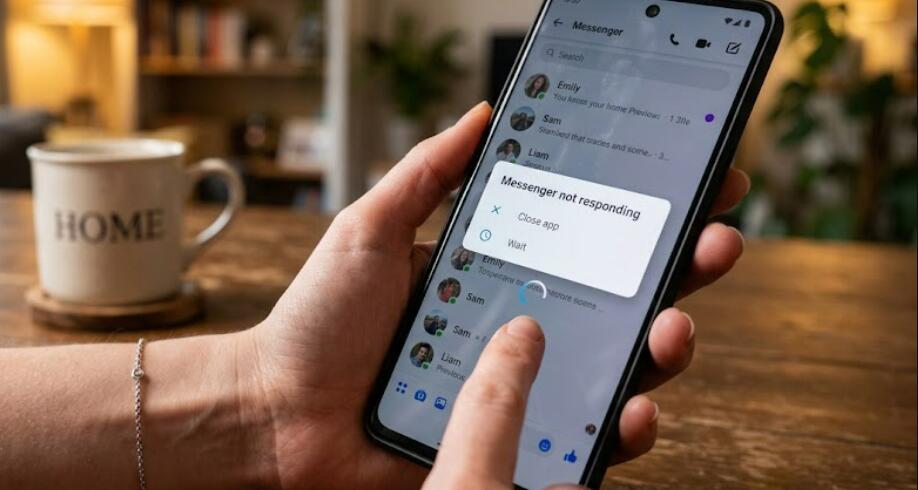
If the Messenger app suddenly stops responding, freezes on the loading screen, closes unexpectedly, or refuses to open conversations, the problem can be frustrating, especially when you need to send an important message. In many cases, however, Messenger can be restored without reinstalling the app or resetting your phone. The cause may be a temporary software glitch, an outdated application, corrupted cached data, insufficient storage, an unstable internet connection, or a problem with Messenger's servers.
- Read also: How to know if someone muted you on Messenger?
- Weather app or widget not working on your phone? Here's how to fix
- How to clear cache on Android devices?
Before trying advanced solutions, it is useful to identify what is causing Messenger to become unresponsive. Start with simple checks such as your internet connection, available storage, and whether other apps are working normally. If Messenger stopped responding immediately after an update, the new app version may also be responsible. Once you have identified the likely cause, follow the appropriate troubleshooting steps below for Android or iPhone.
Why is the Messenger app not responding?
Messenger may stop responding for several different reasons, and the correct solution depends on what is happening on your phone. A temporary app crash is one of the most common causes. Messenger runs several background processes, and a minor software error can cause the application to freeze even when the rest of the phone works normally.
Another common reason is an outdated version of Messenger. App developers regularly release updates to fix bugs, improve compatibility, and address security problems. If your phone has recently received an operating system update but Messenger has not been updated, compatibility problems may appear.
Cached or temporary data can also become corrupted. This is particularly relevant on Android, where clearing an app's cache can often resolve freezing and loading problems without deleting your account. On iPhone, there is no equivalent general cache-clearing button for individual apps, so offloading or reinstalling Messenger is usually the practical alternative.
A poor internet connection can make Messenger appear frozen when it is actually waiting for data. Try switching between Wi-Fi and mobile data to determine whether connectivity is responsible. Low device storage, excessive background activity, battery-saving restrictions, or a temporary Messenger service outage can also contribute to the problem.
How to fix Messenger on Android
If you use an Android phone, work through the following solutions in order. After each major step, open Messenger again and check whether it responds normally.
- Force close Messenger: Open the recent apps screen and swipe Messenger away. Then launch it again. If necessary, go to Settings, Apps, Messenger, and select Force Stop before reopening the app.
- Check your internet connection: Open another website or app that requires the internet. If it does not work properly, restart your Wi-Fi router or switch temporarily to mobile data. You can also turn Airplane Mode on for a few seconds and then turn it off.
- Restart your Android phone: Hold the power button and choose Restart. A complete restart can clear temporary system errors and release memory being used by stuck processes.
- Update Messenger: Open Google Play Store, search for Messenger, and install any available update. Also check for Android system updates under your phone's Settings menu.
- Clear Messenger's cache: Go to Settings, Apps, Messenger, Storage, and choose Clear Cache. Avoid selecting Clear Data unless necessary, because it may remove locally stored app information and require you to sign in again.
- Check available storage: Delete unnecessary videos, downloads, photos, or unused apps if your phone is nearly full. Messenger may behave unpredictably when the device has very little free storage.
- Check battery restrictions: If your Android phone aggressively restricts background activity, Messenger may not work correctly. Open Messenger's battery settings and allow appropriate background activity where your device provides that option.
- Reinstall Messenger: If the problem continues, uninstall Messenger, restart the phone, and install the latest version from Google Play Store. Make sure you know your account login details before doing this.
If Messenger remains unresponsive after reinstalling it, test other applications. If several apps are freezing, the problem may involve Android itself, insufficient storage, or another system-level issue rather than Messenger specifically.
How to fix Messenger on iPhone
iPhone users can follow a slightly different troubleshooting process because iOS handles application storage and cached data differently. Try the simplest solutions first, then move toward reinstalling the app if necessary.
- Close and reopen Messenger: Swipe up from the bottom of the screen and pause to open the app switcher. On an iPhone with a Home button, double-click the Home button. Find Messenger and swipe it away, then open it again.
- Check your connection: Try another website or application. If Wi-Fi is unreliable, switch to mobile data, or reconnect to a different Wi-Fi network. If Messenger works after changing networks, the original connection may be the problem.
- Restart the iPhone: Turn the iPhone off completely and turn it back on. This can resolve temporary iOS or application processes that have become stuck.
- Update Messenger: Open the App Store, tap your profile picture, and check for available updates. Install the latest Messenger update if one is available.
- Update iOS: Open Settings, select General, and choose Software Update. If an iOS update is available, install it when convenient, particularly if Messenger began malfunctioning after a recent system change.
- Check iPhone storage: Go to Settings, General, and iPhone Storage. If storage is nearly full, remove unnecessary files or unused applications. Freeing several gigabytes can improve overall device operation.
- Offload Messenger: In iPhone Storage, select Messenger and choose Offload App if the option is available. This removes the application while retaining certain documents and data, allowing you to reinstall the app without immediately deleting everything associated with it.
- Delete and reinstall Messenger: If offloading does not help, delete Messenger and download it again from the App Store. Sign in with your account after installation and test whether conversations load normally.
What if Messenger still does not respond?
If Messenger continues freezing after all of these steps, determine whether the issue is limited to your phone. Try accessing your messages through another supported device or browser. If Messenger also fails elsewhere, the problem may be related to your account or a temporary service-side issue rather than your phone.
It is also worth checking whether only one conversation is affected. If Messenger works normally except when you open a particular chat, the problem may be associated with content or media in that conversation. Avoid repeatedly tapping the screen while the application is frozen, because this can make the interface appear even less responsive.
For persistent problems, make sure your phone meets Messenger's current software requirements and that both the operating system and application are supported. If necessary, report the problem through the appropriate Meta support channels and describe exactly what happens, including whether Messenger crashes, freezes, displays a blank screen, or becomes stuck while sending a message.
How to prevent Messenger from freezing again
Once Messenger starts working again, a few simple habits can reduce the likelihood of similar problems. Keep Messenger and your phone's operating system reasonably up to date, maintain sufficient free storage, and restart the phone occasionally if it has been running continuously for a long time.
It is also helpful to monitor your internet connection. If Messenger frequently stops responding only on a particular Wi-Fi network, investigate the network rather than repeatedly reinstalling the app. Likewise, if multiple applications are crashing, focus on the phone's storage, system software, and overall performance instead of treating Messenger as an isolated problem.
Conclusion
When Messenger is not responding, there is usually no need to panic. Start by checking the internet connection and restarting the application or phone, then update Messenger and the operating system. Android users can additionally clear Messenger's cache, while iPhone users can try offloading the app before reinstalling it. These steps resolve many common freezing, crashing, and loading problems without affecting the Messenger account itself.
If none of the solutions works, consider the possibility of a wider service outage, an account-specific issue, or a deeper problem with the phone. By identifying whether Messenger alone is affected and following the troubleshooting steps in order, you can usually determine the source of the problem and get the app responding normally again.