How to download songs to SD card from my phone?
Welcome to Blackview (World's well-known brand of rugged phone and tablet) blog. Hope the guide helps.
Saving music directly to an SD card can be a practical way to free up internal phone storage while keeping your favorite songs available for offline listening. Whether you are downloading individual tracks, albums, podcasts, or other audio files, the process is usually straightforward when your Android phone supports expandable storage. Before beginning, make sure the SD card is properly inserted, recognized by the phone, and has enough available space for the music you want to save.
- Read also: How to change app size on Android?
- How do I turn off apps running in the background?
- How to know if someone muted you on WhatsApp?
There are several ways to move or download music to an SD card, depending on the music app and where the audio files come from. Some apps provide an SD-card storage option in their settings, while others require you to download the files to internal storage first and then move them with a file manager. The following methods explain the process clearly and help you choose the most suitable approach.
Check Your SD Card Before Downloading Music
First, confirm that your phone can recognize the SD card. Open the phone's storage settings and look for the SD card under available storage. If it does not appear, remove and reinsert the card or restart the phone. You should also check the available capacity because high-quality music files can consume considerably more storage than standard-quality tracks.
Make Sure the Card Has Enough Space
Check the storage information before starting a large download. If necessary, delete unwanted files or transfer existing photos, videos, or music to another storage location. Keeping some free space on the card can also help prevent download failures.
Download Music Directly to the SD Card
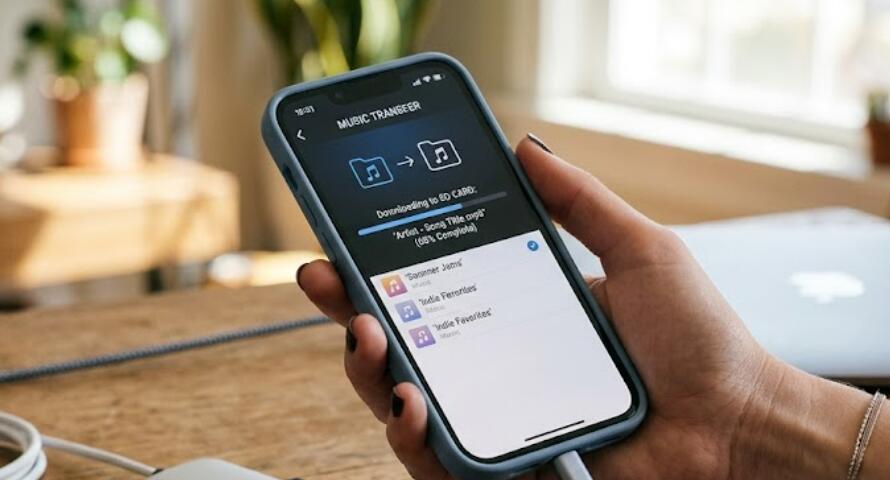
If your music application supports external storage, you may be able to select the SD card as the download location. This is generally the easiest method because new downloads can be saved there automatically instead of occupying internal phone storage.
- Open your music or audio application.
- Go to the app's Settings or Storage section.
- Look for an option such as Download Location, Storage Location, or Offline Storage.
- Select the SD card as the preferred storage location.
- Choose the music, album, playlist, or audio files you want to download.
- Start the download and wait until it finishes.
- Check the SD card's storage information afterward to confirm that space has been used.
When the App Does Not Offer an SD Card Option
Not every music service allows downloaded content to be stored as ordinary files on an SD card. Some streaming applications manage offline downloads internally and may restrict where those files are stored. In this situation, look through the application's official storage settings rather than attempting to manually copy protected downloads.
Move Existing Music Files to the SD Card
If your music files are already stored on the phone, you can usually transfer them using the built-in file manager. This is useful for MP3, FLAC, WAV, and other ordinary audio files that you own and can legally move.
- Open the phone's Files or File Manager application.
- Locate the folder containing your music files.
- Select the songs or folders you want to transfer.
- Tap Move or Copy.
- Select the SD card as the destination.
- Choose an appropriate folder, such as Music.
- Confirm the transfer and wait for it to complete.
- Open the SD card's Music folder to verify the files.
Keep Your Music Organized
Creating separate folders for artists, albums, or playlists can make a large music collection easier to manage. After transferring files, open your preferred music player and allow it to scan the SD card if the new songs do not appear immediately.
Important Things to Remember
Not all downloaded audio can be transferred freely. Music obtained through subscription services may use encryption or digital rights management, meaning the files are intended to be played only inside the corresponding application. Regular audio files that you own or have permission to use are generally much easier to move between storage locations. Also, avoid removing the SD card while files are being downloaded or transferred, as this can cause corrupted data.
Downloading music to an SD card is an effective way to manage storage on a compatible phone. When the music app supports SD-card downloads, changing its storage location is usually the simplest solution. For ordinary audio files already saved on the phone, a file manager can move them to the SD card in just a few steps.
Once everything has been transferred, verify that the songs play correctly and that the files are stored where you expect them to be. With the right storage settings and an organized folder structure, an SD card can provide a convenient way to keep a substantial offline music library without filling your phone's internal storage.