How do I add others on Telegram with a phone number?
Welcome to Blackview (World's well-known brand of rugged smartphones, including rugged phone with projector, rugged phone with eSIM, and best phones for construction workers, etc.) blog. Hope the guide helps.
Telegram makes it easy to connect with friends, family members, and colleagues through phone numbers. Unlike some social platforms that require usernames or profile links, Telegram allows you to find and add contacts directly using their mobile numbers. Whether you are new to Telegram or have been using it for a while, knowing how to add someone by phone number can make starting a conversation much easier. The process only takes a few moments and works on both Android and iPhone devices.
- Read also: How to check if someone read your message on Telegram?
- Why & how to fix Telegram not receiving SMS?
- How to hide Last Seen and online status on Telegram?
- How do I fix Telegram not working on my phone?
- How to know if someone blocked you on Telegram?
The best part is that you can add Telegram contacts directly from your smartphone. In this guide, you'll learn how to add someone on Telegram with a phone number step by step. We'll explain how to use Telegram's built-in contact feature, synchronize your phone contacts, troubleshoot common problems, and adjust privacy settings. You'll also discover alternative ways to connect with someone if searching by phone number doesn't work.
How to Add Someone on Telegram With a Phone Number
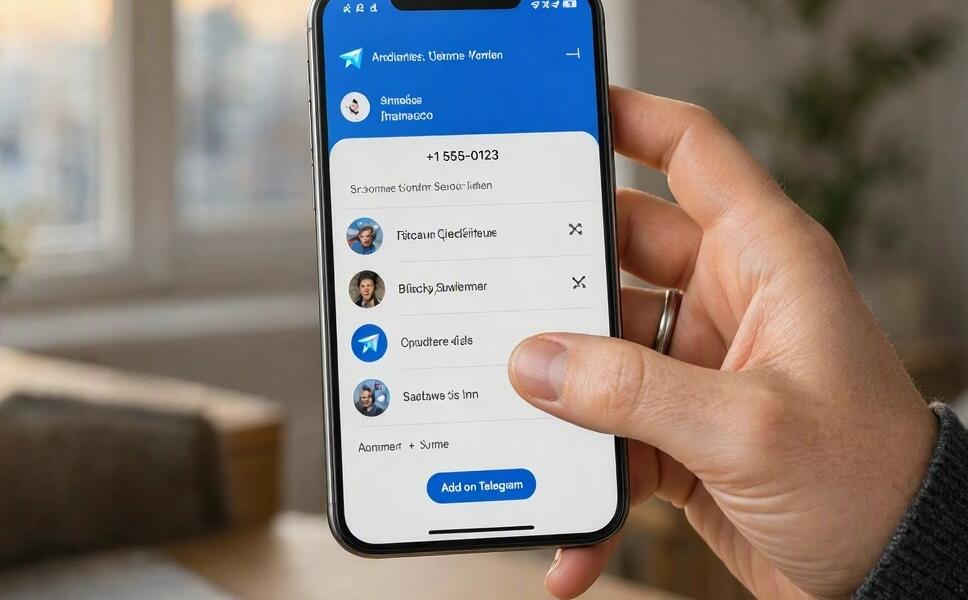
The easiest way to add someone on Telegram is to use the Contacts feature. Before starting, make sure you have the person's complete phone number, including the correct international country code.
Add Someone Directly Through Telegram
Follow these steps on your smartphone:
- Open the Telegram app on your Android phone or iPhone.
- Navigate to the Contacts section.
- Tap the Add Contact icon, usually represented by a plus sign.
- Enter the person's first name and last name.
- Type their complete phone number, including the country code, such as +1, +44, or +49.
- Double-check the number and tap Create or Save to confirm.
- If the person has a Telegram account and their privacy settings allow discovery, their profile should become available in your contacts.
- Tap their name to open the conversation and send a message.
Once the contact is saved successfully, you can return to your Telegram contact list whenever you want to start another conversation.
How to Add Someone on Telegram Using Your Phone Contacts
Another convenient method is to save the person's phone number directly in your smartphone's address book. Telegram can synchronize your phone contacts and identify which saved numbers are associated with Telegram accounts, provided contact synchronization is enabled.
For Android Users
Follow these instructions to add a Telegram contact using an Android phone:
- Open the Contacts app on your Android phone.
- Tap the plus icon to create a new contact.
- Enter the person's name and complete phone number, including the country code.
- Tap Save to store the contact.
- Open Telegram and navigate to Contacts.
- Allow Telegram to access your contacts if prompted.
- Refresh the contact list if necessary and look for the newly saved person.
- Tap the contact's name to open a chat.
For iPhone Users
If you use an iPhone, the process is similarly straightforward:
- Open the Contacts app on your iPhone.
- Tap the plus icon in the upper-right corner.
- Enter the person's name and phone number.
- Include the international dialing code to ensure the number is recognized correctly.
- Tap Done to save the contact.
- Open Telegram and select Contacts.
- If Telegram requests access to your contacts, allow the appropriate permission in iOS Settings.
- Return to Telegram and check whether the person appears in your contact list.
This method is particularly useful if you regularly communicate with people through different messaging applications because you only need to save their information once.
Why Can't I Find Someone on Telegram by Phone Number?
Sometimes, entering a phone number does not produce the expected result. This does not necessarily mean that the number is incorrect. Several factors can affect whether someone appears in your Telegram contacts.
- Incorrect country code: Make sure you enter the correct international dialing prefix before the phone number.
- The person doesn't use Telegram: If the number is not registered with Telegram, the account may not appear.
- Privacy restrictions: The person may have configured their phone number privacy settings to prevent others from finding their account using their number.
- Contact synchronization is disabled: Telegram may not automatically identify newly saved contacts.
- Missing contact permissions: Your phone's operating system may prevent Telegram from accessing your address book.
- Outdated application: An older version of Telegram may contain bugs or behave differently when synchronizing contacts.
To troubleshoot the problem, verify the number, check your app permissions, update Telegram, and refresh your contacts. If the person still does not appear, ask them whether they can share their Telegram username or a direct profile link instead.
Can You Add Someone on Telegram Without Saving Their Number?
Yes. If you do not want to save someone's phone number in your smartphone's address book, you can use alternative methods to connect on Telegram.
- Search by username: Enter the person's public Telegram username in the search bar if you know it.
- Use a Telegram link: Open a shared profile link, such as a t.me username link, to access the person's profile.
- Scan a QR code: If the person shares their Telegram profile QR code, scan it to open their account.
- Join a mutual group: If you share a Telegram group, you may be able to open their profile from the member list, depending on their privacy settings.
These options are especially helpful when you want to keep your phone address book organized or avoid sharing your personal phone number unnecessarily.
How to Protect Your Privacy When Adding Telegram Contacts
Adding someone through a phone number is convenient, but it is also important to understand how Telegram handles contact information. Your phone number visibility and discoverability are controlled by privacy settings, which you can adjust according to your preferences.
Check Your Phone Number Privacy Settings
To review your settings, follow these steps:
- Open Telegram on your phone.
- Go to Settings.
- Select Privacy and Security.
- Tap Phone Number.
- Review the options controlling who can see your phone number and who can find you using it.
- Choose the settings that best match your privacy preferences.
Depending on your configuration, other users may be unable to identify your account through your phone number even if they have saved it in their address books. You can still communicate through an existing chat, username, or shared invitation link.
Respect Other People's Contact Preferences
Having someone's phone number does not necessarily mean they want to communicate through Telegram. If you cannot find their account, consider asking them to share their username or Telegram contact link directly. Avoid repeatedly searching for or messaging people who have chosen not to be contacted.
Final Thoughts
Learning how to add someone on Telegram with a phone number is straightforward. You can enter the number directly through Telegram's Contacts section or save it in your smartphone's address book and let Telegram synchronize the information. Both Android and iPhone users can complete the process in just a few steps.
However, remember that finding someone depends on more than simply entering the correct number. Their Telegram registration status, privacy settings, and your contact permissions can all affect the result. If a phone number does not work, try searching by username or asking the person to share their Telegram profile link. By understanding these options, you can connect with people more easily while keeping control of your privacy and contact information.