How to turn off app auto-update on your phone?
Welcome to Blackview (World's well-known brand of rugged smartphones, including rugged phone with built-in projector, rugged phone with eSIM, and best phone for construction workers, etc.) blog. Hope the guide helps.
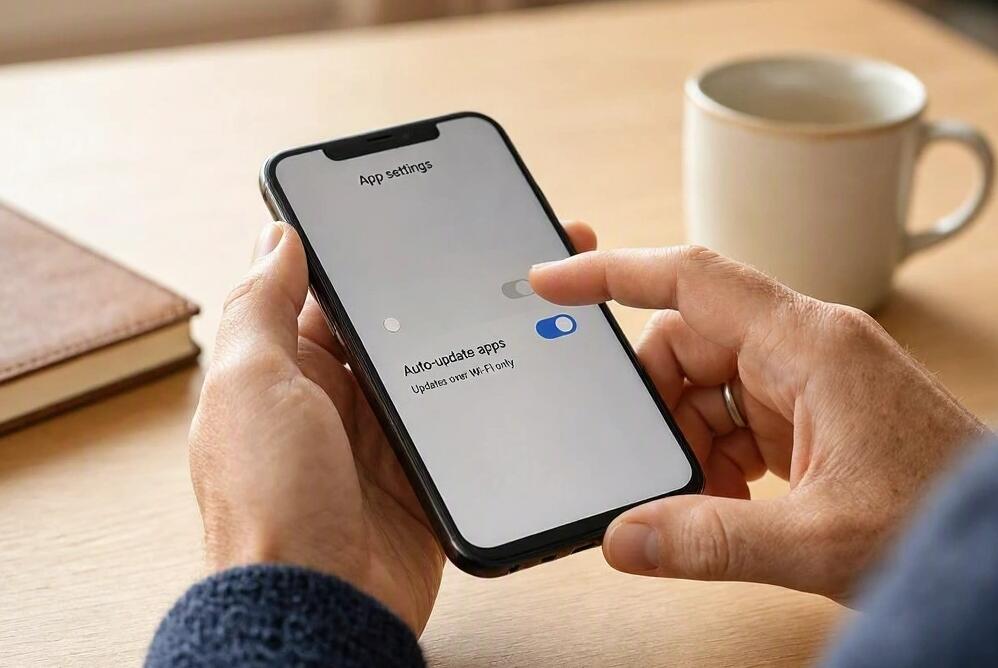
Automatic app updates are designed to keep your phone's applications up to date without requiring you to check for new versions manually. While this feature is convenient, it can sometimes cause unexpected problems, such as increased mobile data usage, reduced storage space, unwanted interface changes, or compatibility issues with older devices. If you prefer to decide when and which apps get updated, disabling automatic updates can give you greater control over your phone.
- Read also: How to change language in Android phone?
- How to update all apps on Android?
- How to turn on voice navigation on Android?
- How to free up storage space on your phone?
- How to delete manufacturer built-in apps in Android?
Whether you use an Android phone or an iPhone, turning off app auto-update is relatively straightforward. Both operating systems provide settings that allow you to manage automatic downloads and updates. In this guide, you'll learn how to turn off app auto-update on your phone, configure update preferences, and understand what happens after disabling this feature.
How to Turn Off App Auto-Update on Android
Android users can manage automatic app updates directly through the Google Play Store. The setting applies to apps downloaded through Google Play, allowing you to stop automatic updates and install new versions manually.
Disable Automatic Updates for All Apps
Follow these steps to turn off automatic updates across your Android apps:
- Open the Google Play Store on your Android phone.
- Tap your profile picture in the upper-right corner.
- Select Settings from the menu.
- Tap Network preferences.
- Select Auto-update apps.
- Choose Don't auto-update apps from the available options.
- Tap Done if prompted to confirm your selection.
Once completed, Google Play will no longer automatically install app updates. You can still check for new versions and update individual applications whenever you want.
Disable Automatic Updates for Individual Apps
If you only want to prevent certain applications from updating automatically, Android also allows you to manage update preferences individually.
- Open the Google Play Store.
- Search for the app you want to manage.
- Tap the app to open its details page.
- Tap the three-dot menu in the upper-right corner.
- Uncheck Enable auto-update if the option is available.
This approach is useful when you want to keep most applications updated while preventing a particular app from changing unexpectedly.
How to Turn Off App Auto-Update on iPhone
On an iPhone, automatic app updates are controlled through the iOS Settings app. You can disable automatic downloads and updates for applications installed through Apple's App Store.
Turn Off Automatic App Updates
Follow these instructions:
- Open the Settings app on your iPhone.
- Scroll down and tap Apps, then select App Store. On some older iOS versions, App Store appears directly in the main Settings menu.
- Find the App Updates option under Automatic Downloads.
- Turn off the toggle next to App Updates.
- Return to the Home Screen. Your preference will be saved automatically.
After disabling this option, your iPhone will stop automatically downloading available app updates. You can continue updating applications manually through the App Store.
Turn Off Automatic Downloads Over Mobile Data
If your main concern is mobile data consumption rather than automatic updates themselves, you can adjust the cellular download settings.
- Open Settings and select Apps.
- Tap App Store.
- Find the Cellular Data section.
- Turn off Automatic Downloads if this option is available in your iOS version.
This helps limit automatic downloads over cellular networks. Keep in mind that disabling cellular automatic downloads is not the same as turning off all app updates. The main App Updates setting controls automatic app updates regardless of the network connection.
Why Should You Turn Off Automatic App Updates?
Automatic updates are useful, but they are not necessarily the best choice for every phone user. Disabling them can offer several practical benefits.
- Save mobile data: Some app updates are large and may consume significant cellular data if downloaded automatically.
- Manage storage space: You can decide when to install updates, particularly when your phone has limited available storage.
- Avoid unexpected changes: Some updates introduce redesigned interfaces or modified features that you may not immediately like.
- Maintain compatibility: Certain app updates may perform poorly on older devices or conflict with existing workflows.
- Control update timing: You can choose to install updates when connected to Wi-Fi, charging, or not actively using your phone.
However, disabling automatic updates also means you need to remember to check for new versions yourself. Delaying important security updates can leave applications exposed to known vulnerabilities. For this reason, manually checking for updates regularly is recommended.
How to Update Apps Manually After Disabling Auto-Update
Turning off automatic updates does not prevent you from installing new app versions. You can still update applications whenever you choose.
Update Apps Manually on Android
- Open the Google Play Store.
- Tap your profile picture.
- Select Manage apps & device.
- Open the Updates available section.
- Tap Update next to an individual app, or choose Update all to install all available updates.
Update Apps Manually on iPhone
- Open the App Store.
- Tap your profile picture in the upper-right corner.
- Scroll down to view available app updates.
- Tap Update next to the application you want to update, or tap Update All.
It is a good idea to check for updates periodically, especially for applications that handle sensitive information, online payments, communication, or personal files.
Common Problems When Turning Off App Auto-Update
Sometimes, users discover that applications continue updating even after they have changed their settings. This can happen for several reasons.
Apps Still Update Automatically
First, check whether you changed the correct setting. Android's Google Play Store controls updates for apps installed through Google Play, while Apple's App Store settings control iPhone app updates. Other app stores or manufacturer-specific services may have separate update preferences.
Automatic Updates Return After Changing Settings
Some devices may have manufacturer software, enterprise management policies, or additional app stores that manage updates independently. Check your phone's system settings and any installed app-store settings if automatic updates continue.
System Updates Are Still Downloaded
Turning off app auto-update does not necessarily disable operating system updates. Android system updates and iOS software updates are managed separately from individual app updates. If you want to change system update preferences, you must access the relevant software update settings.
Important Updates Are Missing
When automatic updates are disabled, apps may continue running older versions until you update them manually. Check the app stores regularly and prioritize updates that address security problems, compatibility issues, or important bugs.
Final Thoughts
Turning off app auto-update on your phone is a simple way to gain more control over downloads, mobile data usage, storage, and application changes. Android users can manage this preference through the Google Play Store, while iPhone users can find it in Settings under App Store. Both platforms also provide options for updating applications manually whenever needed.
Although disabling automatic updates can be convenient, remember that keeping your apps secure and functional is equally important. Make a habit of checking for updates regularly, especially for applications that contain personal or sensitive information. By choosing when to update your apps and keeping track of important releases, you can enjoy a more controlled and predictable smartphone experience.