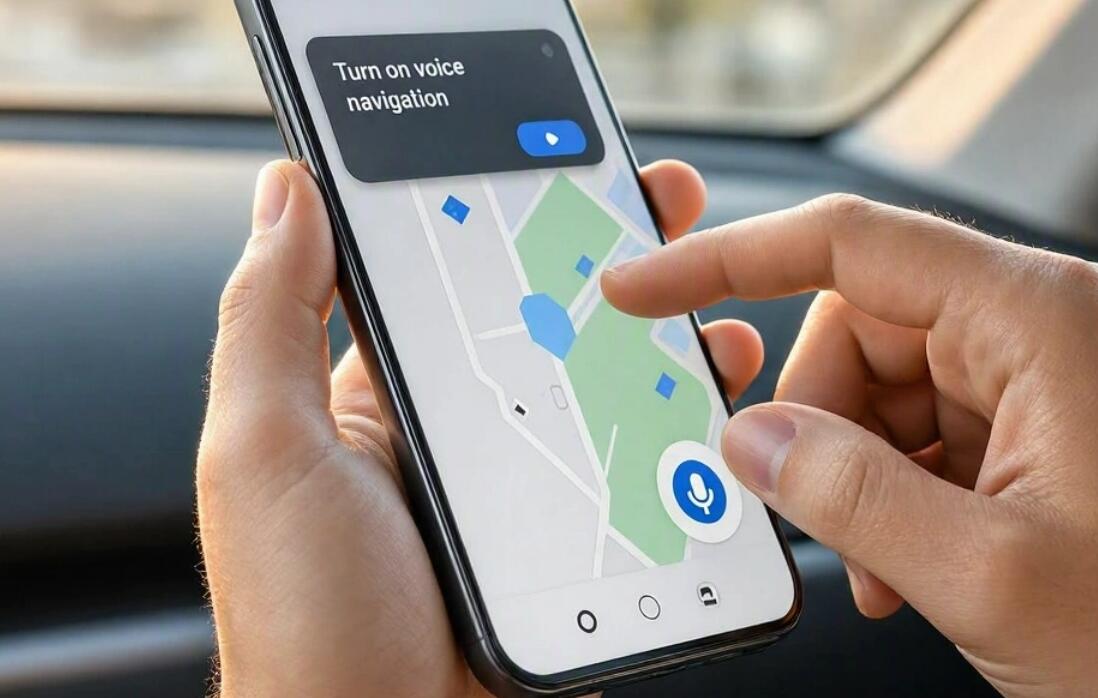
How to enable & disable voice navigation on Android phones/tablets?
Welcome to Blackview (Well-known Chinese brand of rugged phone and tablet, including tablet with GPS, tablet with NFC, and rugged phone with eSIM, etc.) blog. Hope the guide helps.
Voice navigation makes it easier to find your way while driving, cycling, or walking. Instead of constantly looking at your screen, you can listen to turn-by-turn directions, traffic updates, and route changes on your Android phone or tablet. Whether you're using Google Maps for everyday travel or exploring accessibility features, enabling voice guidance can make navigation more convenient and help you stay focused on your surroundings.
However, voice navigation doesn't always work as expected. You might accidentally mute directions, hear only traffic alerts, or want to silence spoken instructions when you no longer need them. Fortunately, Android devices provide several ways to control voice navigation. This guide explains how to enable and disable voice navigation, adjust its volume, troubleshoot common problems, and customize the experience on your phone or tablet.
- Read also: [Full Guide] How to hide the navigation bar on Android
- How to change default browser on Android?
- How to change app icons on Android?
- How to Do If I Forgot My Phone Password and Lock Pattern?
- How to turn off power saving mode on Android?
- How do I turn off NFC on my phone (Android/iPhone)?
How to Enable and Disable Voice Navigation on Android
Google Maps provides built-in controls for spoken directions. Follow these steps to turn voice navigation on or off while using the app.
Enable voice navigation
- Open Google Maps on your Android phone or tablet.
- Search for your destination and tap Directions.
- Select your preferred transportation method, such as driving, walking, or cycling, if available.
- Tap Start to begin navigation.
- Locate the Sound icon on the navigation screen. If voice guidance is muted, tap the icon and select the unmuted sound option.
- Follow the spoken directions as you travel. Increase your device's volume if the instructions are difficult to hear.
Disable voice navigation
- Open Google Maps and start navigation if it is not already active.
- Find the Sound icon on the navigation screen.
- Tap the icon to display the available sound options.
- Select Mute to stop spoken directions, or choose Alerts if you still want to hear certain traffic and incident notifications.
- To end the entire navigation session, tap Close instead of merely muting the sound.
These controls affect navigation audio rather than every spoken feature on your device. If you want to change how Android reads screen content aloud, you may need to adjust a separate accessibility setting.
Understand the Difference Between Voice Navigation and TalkBack
Before changing your settings, identify which voice feature you want to control. Google Maps voice navigation and Android TalkBack serve different purposes, even though both use spoken feedback.
- Google Maps voice navigation: Provides spoken driving, walking, or cycling directions while you follow a route. You can mute or unmute these instructions directly within navigation.
- TalkBack: An Android accessibility service that reads screen elements aloud and helps users navigate the device using gestures and spoken feedback.
- Text-to-speech settings: Control aspects of synthesized speech, such as the voice, language, and speaking rate. Changes may affect multiple applications.
If your phone announces every button you touch or reads menu items aloud, TalkBack may be enabled. Muting Google Maps will not disable TalkBack because it is a separate accessibility feature.
Customize Voice Navigation Volume and Language
You don't have to choose between hearing every instruction clearly and having the audio become distracting. Google Maps includes settings that let you adjust the navigation experience to suit your environment.
Adjust the guidance volume
- Open Google Maps and tap your profile picture or account icon.
- Select Settings, then Navigation.
- Find Guidance volume.
- Choose Softer, Normal, or Louder, depending on your preference.
- Start a navigation session to check whether the new volume is comfortable.
Change the navigation voice or language
- Open Google Maps and navigate to Settings, then Navigation.
- Look for Voice selection under the sound and voice settings.
- Select an available language or voice option.
- Return to the map and test the directions.
Available languages and voice options depend on the app and region. Your device's text-to-speech engine may also influence how spoken content sounds.
How to Turn TalkBack On or Off
If your goal is to enable or disable spoken feedback across the Android interface, use TalkBack settings instead of Google Maps' sound controls.
Enable TalkBack
- Open your device's Settings app.
- Tap Accessibility. On some devices, the option may appear under a differently named accessibility menu.
- Select TalkBack.
- Turn on Use TalkBack and confirm the request if prompted.
Disable TalkBack
- Open Settings and navigate to Accessibility.
- Select TalkBack.
- Turn off Use TalkBack and confirm if necessary.
- If TalkBack is difficult to navigate, use the device's configured accessibility shortcut or ask Google Assistant for help if supported.
When TalkBack is active, a single tap typically focuses an item and a double-tap activates it. Scrolling also uses different gestures. Follow the instructions shown on your device to avoid accidentally activating the wrong setting. Menu names and shortcuts vary by manufacturer and Android version. Read Google's official TalkBack instructions for more information.
Troubleshoot Common Voice Navigation Problems
If voice navigation remains silent after you enable it, check the following settings before reinstalling the app.
- Check the device volume: Start navigation and raise the volume using your phone's volume buttons. Make sure the relevant audio channel is not muted.
- Check the Maps sound setting: Confirm that navigation is unmuted rather than set to Alerts or Mute.
- Check Bluetooth connections: Audio may be routed to a connected headset or vehicle sound system. Verify the Bluetooth connection and audio source.
- Check the guidance volume: Open Google Maps settings and select a louder guidance volume.
- Check your internet connection: Some voice directions may need to download. Open Google Maps with a stable connection and allow the app to load the required audio.
- Update the app: Install available Google Maps updates and restart the app if the problem continues.
If these steps do not resolve the issue, consult the official Google Maps voice navigation troubleshooting guide.
Final Thoughts
Enabling and disabling voice navigation on Android is straightforward once you know which settings control spoken directions. For Google Maps, start navigation and use the Sound icon to unmute or mute instructions. If you want to change how your device reads screen elements aloud, manage TalkBack through the Accessibility settings instead.
Take a moment to customize your guidance volume, language, and audio output so they suit your daily routine. If directions suddenly become silent, check the app's sound mode, device volume, and Bluetooth connections first. With the right settings, your Android phone or tablet can provide a more convenient navigation experience while helping you keep your attention on the road or path ahead.