I can't open WhatsApp on my tablet. How do I fix it?
Welcome to Blackview (Well-known Chinese brand of Android tablet, including tablet with GPS, tablet with NFC, and rugged tablet with projector, etc.) blog. Hope the guide helps.
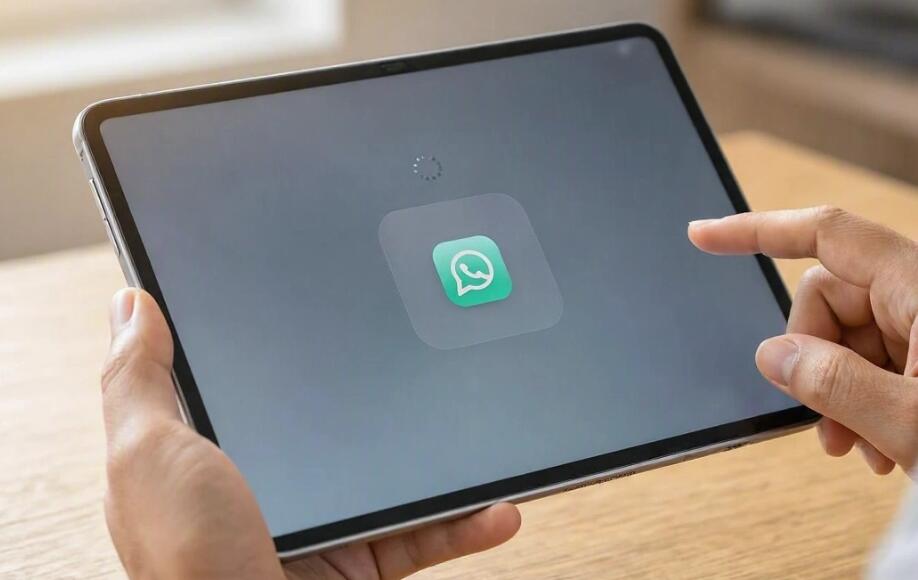
Having trouble opening WhatsApp on your tablet can be frustrating, especially when you need to read messages, join conversations, or share files. The app might crash immediately, remain stuck on the loading screen, display an error message, or refuse to open after an update. These problems can occur on Android tablets, iPads, and other supported devices for several reasons, including software compatibility issues, corrupted cache files, network problems, or outdated app versions.
- Read also: How to fix WhatsApp not working on WiFi but working on mobile data (Android/iOS)?
- How to share location on WhatsApp?
- How to record WhatsApp video call with audio automatically?
- How to tell if someone muted you on WhatsApp?
- How to recover deleted WhatsApp messages?
The good news is that you can troubleshoot most WhatsApp startup problems without immediately resetting your tablet or losing your conversations. The right solution depends on your situation: perhaps your tablet is your only device, WhatsApp works on your phone and computer but not your tablet, or the problem started after an update. Follow the steps below to identify the cause, protect your chat history, and get WhatsApp working again.
Basic Troubleshooting Steps to Try First
Before trying more advanced solutions, work through these basic checks. They can resolve common app startup problems on both Android tablets and iPads.
- Restart your tablet. Power off the device, wait a few seconds, and turn it back on. This can resolve temporary system errors that prevent apps from launching.
- Check your internet connection. Open a website in your browser to confirm that Wi-Fi works. If necessary, switch to another network or restart your router.
- Check available storage. Open your tablet's storage settings and make sure sufficient space is available. Low storage can interfere with app operations and updates.
- Update WhatsApp. Open the Google Play Store or Apple App Store, search for WhatsApp, and install an available update if your device supports it.
- Update your operating system. Check for available Android or iPadOS updates. Older operating systems may no longer support the latest version of WhatsApp.
- Set the correct date and time. Enable automatic date and time settings to avoid potential connection and authentication issues.
- Check whether WhatsApp is experiencing an outage. If the app suddenly stops connecting across multiple devices, a temporary service problem may be responsible.
After completing these steps, open WhatsApp again. If it still fails, identify which of the following situations best describes your problem.
When WhatsApp Is Your Only Device and Won't Open on Your Tablet
If you only have a tablet and cannot open WhatsApp, troubleshooting requires extra care. You may not have another device available to verify your account, receive messages, or complete the initial setup. Start by determining whether the app is installed correctly and whether your tablet meets its requirements.
Check Whether Your Tablet Supports WhatsApp
Not every tablet supports every WhatsApp feature. Compatibility depends on the operating system, device model, app version, and current WhatsApp requirements.
- Open your tablet's settings and check its Android or iPadOS version.
- Visit the official WhatsApp listing in the relevant app store.
- Confirm whether the app is compatible with your device and whether an update is available.
- If the app is unavailable, consult the official WhatsApp website for supported installation options rather than downloading an unknown APK or modified app.
Also distinguish between a tablet that cannot launch WhatsApp and one that launches successfully but cannot complete account registration. These are different problems and may require different solutions.
Repair the App Without Losing Your Chats
If WhatsApp opens briefly and then crashes, try clearing temporary files on Android or reinstalling the app only after checking your backup situation.
- On Android, open Settings, select Apps, choose WhatsApp, and tap Force stop.
- Open Storage or Storage and cache, then select Clear cache if that option is available.
- Restart the tablet and try opening WhatsApp again.
- On an iPad, close the app, restart the device, and check for app and system updates.
Avoid selecting Clear storage or Clear data on Android unless you understand the consequences. These actions can remove local app data and may require you to set up WhatsApp again. If you have no other device and no accessible backup, do not uninstall WhatsApp until you have considered the risk of losing chat history.
When WhatsApp Works on Your Phone and Computer but Not Your Tablet
If WhatsApp runs normally on your phone and computer, your account is probably functioning, and the issue may be specific to the tablet. Potential causes include an incompatible app version, a device-specific software problem, a corrupted cache, or an unsupported tablet configuration.
Check the Tablet's WhatsApp Setup
First, determine whether you installed the official WhatsApp application or are trying to access WhatsApp Web through a browser. The available setup options differ between tablets and operating systems.
- Confirm that you are using the official WhatsApp app or the official WhatsApp Web website.
- Update the app through your tablet's app store.
- If you are using a browser, update it and try opening WhatsApp Web in a supported browser.
- Temporarily disable a VPN or restrictive network filter if one is active, then test the connection again.
- Check whether the tablet's security settings, parental controls, or network restrictions are blocking the app.
If WhatsApp opens but displays a message asking you to link a device, follow the instructions shown on the tablet. On a linked-device setup, you may need to scan a QR code using WhatsApp on your primary phone. If the tablet is configured for direct account registration, follow the registration process provided by the official app instead.
Clear the Cache or Reinstall the App Carefully
If the app still refuses to launch, clearing the cache on Android is a reasonable next step. On an iPad, restarting the device and reinstalling the app may be necessary if other fixes fail.
- Force stop WhatsApp on Android and clear its cache.
- Check that your tablet has enough free storage and restart it.
- On iPad, check for updates and close any unnecessary background apps.
- Before reinstalling WhatsApp, verify that your chat history is backed up and that you can access the relevant account and verification method.
If the same account works elsewhere but the tablet remains unable to launch WhatsApp, record any error message and your device model. This information can help WhatsApp Support identify a device-specific issue.
When WhatsApp Stops Opening After an Update
If WhatsApp worked normally on your tablet before an update and stopped opening afterward, the update may have exposed a compatibility problem, left temporary files in an inconsistent state, or introduced a bug. The timing is an important clue, but it does not automatically mean the update itself is defective.
Install Available Fixes and Restart the Tablet
Developers sometimes release follow-up updates to resolve problems discovered after a rollout. Check for a newer version before attempting more disruptive fixes.
- Open the Google Play Store or Apple App Store and check for another WhatsApp update.
- Restart the tablet to complete any pending system operations.
- Check for an operating system update, especially if the tablet is running an older version of Android or iPadOS.
- On Android, clear WhatsApp's cache and reopen the app.
- If the problem persists, check official WhatsApp support resources for known compatibility issues or service announcements.
Avoid Downgrading WhatsApp Without a Clear Reason
Installing an older WhatsApp version from an unofficial website may expose your tablet to malware, account risks, and compatibility problems. Older versions may also be blocked from connecting to the service. Use official app stores and supported installation channels whenever possible.
If the latest version is incompatible with your tablet's operating system, check whether the device can receive a supported system update. If it cannot, you may need to use another supported device or WhatsApp Web where available.
Protect Your Chats and Know When to Contact Support
Before performing major repairs, consider whether your messages are backed up. WhatsApp chat backups depend on your device, account configuration, and available backup service. A backup is not guaranteed simply because WhatsApp works on another device.
- Confirm the date of your most recent available chat backup, if you can access that information.
- Make sure you know which phone number is associated with your account and can receive any required verification code.
- Avoid clearing app data, factory-resetting your tablet, or reinstalling WhatsApp before understanding the potential impact on local chats.
- Contact official WhatsApp Support if the app continues crashing after basic troubleshooting or displays a persistent error.
- Provide your tablet model, operating system version, WhatsApp version if known, and a description of when the problem started.
Never share verification codes or two-step verification PINs with someone claiming to repair your account. Use official support channels and avoid third-party tools that promise to recover messages by requesting your login credentials.
Final Thoughts
When WhatsApp won't open on your tablet, the most effective solution depends on the circumstances. If your tablet is your only device, start with compatibility checks and low-risk troubleshooting to protect your messages. If WhatsApp works on your phone and computer, focus on the tablet's app installation, browser, network, and linked-device setup. If the issue started after an update, check for follow-up releases and system compatibility before considering reinstallation.
Work through the solutions one at a time, testing WhatsApp after each change. Avoid deleting app data or reinstalling the application until you understand your backup options. If the problem continues despite these steps, official WhatsApp Support can help you investigate device-specific errors. With a careful approach, you can often restore access without unnecessary resets or avoidable data loss.