How to clear WhatsApp cache on my phone?
Welcome to Blackview (World's well-known brand of rugged phone and tablet) blog. Hope the guide helps.
WhatsApp can gradually build up a large amount of cached data as you send and receive photos, videos, voice messages, documents, stickers, and other media. Although cache files are designed to make apps load faster and work more smoothly, an excessive amount of temporary data can consume valuable storage space. If your phone is running low on storage or WhatsApp seems unusually slow, clearing its cache can be a useful maintenance step.
- Read also: How to know if someone archived you on WhatsApp?
- How to know if someone muted you on WhatsApp?
- How to stop apps running in background on Android?
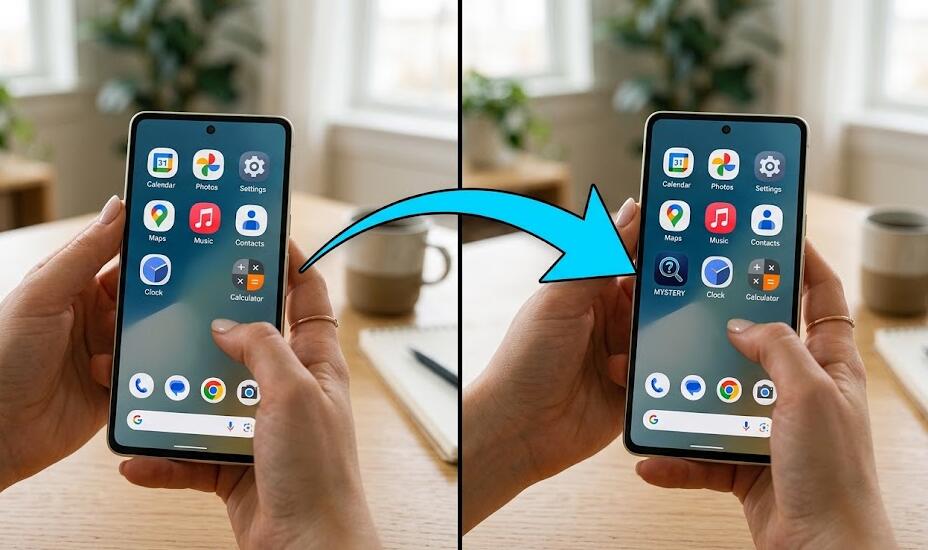
- How to find missing app icon on my phone?
Clearing the cache is generally different from deleting your chats or removing your WhatsApp account. On most Android phones, you can clear the app cache directly through the phone's settings. On an iPhone, however, iOS does not normally provide a simple system-level button for clearing an individual app's cache, so you may need to manage WhatsApp's storage from within the app or reinstall it after making sure your chats are backed up. The exact menus can also vary depending on your phone model and operating-system version.
What does clearing the WhatsApp cache do?
Cache consists largely of temporary files that an application stores so that frequently used information can be accessed more quickly. In WhatsApp, these files may include temporary images, thumbnails, previews, and other data generated while you use the application. Clearing this temporary information can free some storage without necessarily removing your conversations or your personal account information.
It is important to distinguish cache from WhatsApp media and chat data. If you delete photos, videos, documents, or conversations through WhatsApp's storage-management tools, those items may be permanently removed depending on what you select. Clearing an Android app cache is normally a much less destructive operation. Afterward, WhatsApp can recreate the temporary files it needs as you continue using it.
How to clear WhatsApp cache on an Android phone
Android provides a straightforward way to remove an app's cached files. The wording and location of the options may differ slightly between Samsung, Google Pixel, Xiaomi, OnePlus, Motorola, and other Android devices, but the general process is similar.
Step-by-step instructions
Follow these steps to clear the WhatsApp cache without intentionally deleting the app's stored data:
- Open the Settings app on your Android phone.
- Tap Apps, Applications, or a similarly named option.
- Find and select WhatsApp from the list of installed applications.
- Tap Storage or Storage & cache.
- Look for the Clear cache button.
- Tap Clear cache and wait for the cache size to decrease.
- Return to the home screen and open WhatsApp again.
If you see both Clear cache and Clear storage or Clear data, be careful to choose the cache option. Clearing app storage or data is a much more significant action and can reset the application. Depending on your device and WhatsApp's configuration, it may require you to set up the app again or restore information from a backup.
How to clear WhatsApp storage on Android
Sometimes the problem is not the cache itself but the amount of media saved by WhatsApp. If WhatsApp is consuming several gigabytes, clearing only the Android cache may make little difference. In this situation, WhatsApp's own storage-management feature can help you identify large files and conversations that are using the most space.
Steps for managing large WhatsApp files
Use WhatsApp's storage controls when you want to review and remove unnecessary media rather than simply delete temporary cache files:
- Open WhatsApp.
- Open Settings.
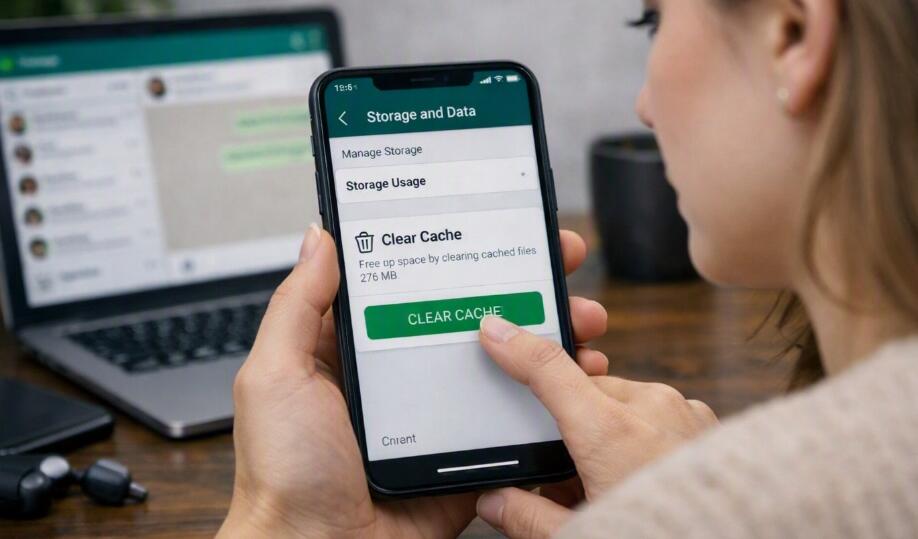
- Tap Storage and data.
- Select Manage storage.
- Review categories such as large files or frequently forwarded content.
- Open a category or conversation to review the files.
- Select only the photos, videos, documents, or other media you no longer need.
- Delete the selected items and confirm the action.
This approach gives you more control than clearing all application data. Before deleting important media, check whether you have another copy of it, especially if the files contain photographs, work documents, or other information you may need later.
How to clear WhatsApp cache on an iPhone
iPhones work differently from most Android phones. iOS generally does not offer the same universal Clear cache button for individual applications. Instead, you can use WhatsApp's storage-management options to remove unwanted media, or you can offload or delete and reinstall the application when appropriate.
Use WhatsApp's storage-management feature
For many users, managing large files inside WhatsApp is the safest first option:
- Open WhatsApp on your iPhone.
- Tap Settings.
- Choose Storage and Data.
- Tap Manage Storage.
- Review large files and media associated with individual chats.
- Select unnecessary items.
- Delete only the files you are certain you no longer need.
Another option is to use iPhone's storage settings to inspect WhatsApp. Go to Settings, then General, followed by iPhone Storage, and select WhatsApp. Depending on the iOS version, you may see options such as offloading or deleting the app. Offloading can remove the application while retaining certain app-related data, whereas deleting the app is more extensive.
Reinstall WhatsApp when necessary
If WhatsApp continues to behave poorly and ordinary storage management does not solve the problem, reinstalling the application can provide a cleaner reset. However, do not delete WhatsApp impulsively. First make sure your chats and important information are backed up and that you know the account details required to restore your WhatsApp data. After confirming your backup, delete the application, reinstall it from the App Store, and follow WhatsApp's restoration process when prompted.
What should I check before clearing WhatsApp data?
The safest approach is to identify exactly what you want to remove. If your objective is simply to recover a small amount of temporary storage on Android, Clear cache is normally the appropriate option. If WhatsApp is using a large amount of storage because of thousands of videos and photos, use WhatsApp's storage manager instead. If you are considering deleting or reinstalling the app, verify your backup first.
- Want to remove temporary files? Use Android's Clear cache option.
- Want to remove large videos and photos? Use WhatsApp's Manage storage feature.
- Using an iPhone? Manage WhatsApp storage or consider offloading/reinstalling rather than looking for an Android-style cache button.
- Planning to delete the app? Confirm that your WhatsApp backup is current first.
- Need more free space? Check other large apps, downloaded files, photos, and videos as well.
What happens after clearing the cache?
After an Android cache is cleared, WhatsApp may initially need to recreate some temporary files. This is normal. You might notice that certain thumbnails or previews take slightly longer to appear the first time you access them. As you continue using WhatsApp, temporary data will gradually accumulate again.
Clearing the cache is therefore not a permanent solution for a phone that is consistently running out of storage. If media files are responsible for most of WhatsApp's storage usage, regularly reviewing large files and unnecessary downloads will usually have a greater effect. You can also adjust WhatsApp's media auto-download settings so that your phone does not automatically download every available photo, video, or document over mobile data or Wi-Fi.
Final tips for keeping WhatsApp storage under control
Keeping WhatsApp manageable is easier when you periodically review its storage instead of waiting until your phone is almost full. Delete duplicate or unnecessary media, pay particular attention to large videos, and avoid removing important files without checking whether you need them. If a conversation contains valuable photographs or documents, consider saving important copies elsewhere before cleaning it.
In short, Android users can usually clear WhatsApp's temporary cache directly from the phone's app settings, while iPhone users generally need to manage WhatsApp's stored media or use iOS's app-management options. Most importantly, distinguish between clearing cache and clearing app data: the former is designed to remove temporary information, while the latter can have much more significant consequences. When in doubt, back up important WhatsApp content before performing any major cleanup.
With these steps, you can safely reduce unnecessary WhatsApp storage usage and troubleshoot minor performance or storage issues without immediately deleting your conversations. A quick storage review every so often can also help prevent WhatsApp media from quietly consuming a large portion of your phone's available space.