How to convert unsupported video files to a format your phone can play?
Welcome to Blackview (World's well-known brand of rugged phone and tablet) blog. Hope the guide helps.
Downloading a movie or video from an app or a website does not always mean that your phone will be able to play it. A video may appear to download successfully but then fail to open, show a black screen, produce an error message, or play without sound. This often happens because the downloaded file uses a video format, codec, audio format, or combination of settings that the phone's built-in video player does not support.
- Read also: How do you download music on your phone?
- How to download Apps not available in your country?
- How to check UFS storage type in my phone?
- How do I turn off NFC on my phone?
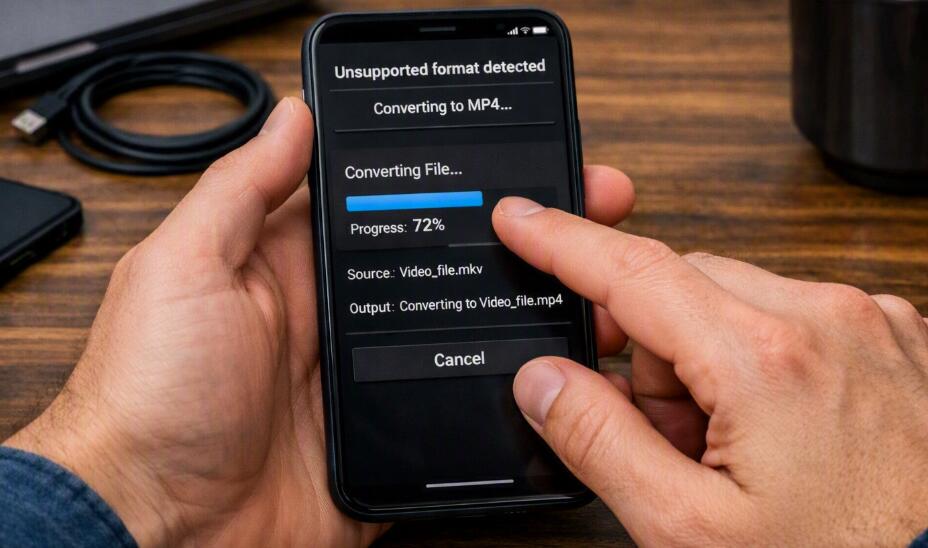
Fortunately, an unplayable video is not necessarily a damaged video. In many cases, the simplest solution is to convert it into a widely supported format before playing it again. For most phones, MP4 with H.264 video and AAC audio is a practical compatibility choice. You can perform this conversion with a video-conversion app installed on your phone or through a reputable browser-based conversion service, depending on the size and privacy requirements of the video.
Why can a downloaded video fail to play?
The word “format” can be slightly misleading because a video file has several technical components. The filename extension, such as MP4, MKV, MOV, WebM, or AVI, identifies the container, but the actual video and audio inside that container are encoded using codecs. A phone may support the MP4 container but still fail to play a particular MP4 file if its video codec, audio codec, resolution, frame rate, or other parameters are unsupported.
A common example is a video downloaded in WebM or MKV format. Some Android devices and third-party players can handle these files, while other phones or default gallery applications may not. Similarly, a file encoded with a less commonly supported codec can cause playback problems even when the extension looks familiar. Before converting anything, therefore, it is useful to identify what type of file you actually downloaded.
Check the downloaded video's format first
Start by checking the video's filename and file information. On many phones, you can open the Files or File Manager application and locate the downloaded video. The extension after the final period in the filename can provide an initial clue.
- Open your phone's Files, My Files, or File Manager application.
- Find the video in the Downloads, Movies, or relevant app folder.
- Check the filename extension, such as .mp4, .mkv, .webm, .mov, or .avi.
- If your file manager provides a Details or Information option, check the file size and technical information.
- Try opening the file with another compatible video player if one is already installed.
If another video player can open the file, conversion may not actually be necessary. The problem could simply be that the phone's default player has limited codec support. However, if you want the video to work reliably with common gallery and media applications, converting it to a broadly supported format can still be useful.
Choose a phone-friendly output format
For general compatibility, MP4 is usually a sensible target container. A particularly practical combination is H.264 for video and AAC for audio. This combination is widely supported and provides a good balance between compatibility, quality, and file size.
Recommended conversion settings
When a converter gives you control over the output settings, you do not necessarily need the highest possible quality. Matching the original video's resolution can avoid unnecessary enlargement and reduce processing time.
- Container: MP4
- Video codec: H.264/AVC
- Audio codec: AAC
- Resolution: Keep the original resolution when practical
- Frame rate: Keep the original frame rate unless there is a specific reason to change it
- Quality: Choose a medium or high setting rather than automatically selecting maximum quality
These settings are intended as a compatibility-oriented starting point rather than a universal requirement. If your phone supports newer codecs, you may be able to retain a smaller file at similar visual quality. For troubleshooting, however, a conventional H.264/AAC MP4 is often easier to work with.
Convert the video directly on your phone
If the downloaded video is stored locally on your phone, you can use a video converter app. Search your device's official app store for a reputable video converter and choose one that clearly states which input and output formats it supports. Avoid installing unknown applications simply because they promise extremely fast conversion or unlimited downloads.
Steps to convert a video with a mobile converter app
- Install a reputable video-conversion application from your phone's official app store.
- Open the application and select the downloaded video from your device.
- Choose MP4 as the output format.
- If codec options are available, select H.264/AVC for video and AAC for audio.
- Keep the original resolution and frame rate unless you need a smaller file.
- Choose an appropriate quality or bitrate setting.
- Start the conversion and wait for the process to finish.
- Open the converted file using your phone's normal video player.
Conversion can require substantial processing power, especially for long or high-resolution videos. Keep sufficient free storage available because the original and converted files may temporarily exist at the same time. If the phone becomes hot during conversion, avoid running other demanding applications simultaneously.
Convert a video using a website on your phone
A browser-based converter can be convenient when you do not want to install another application. You can open the conversion website in your mobile browser, upload the downloaded video, select the desired output format, and download the converted result. This approach can be especially convenient for short, non-sensitive videos.
Steps for browser-based conversion
- Open a reputable video-conversion website in your mobile browser.
- Tap the option to select or upload a video.
- Choose the downloaded video from your phone's Files or media picker.
- Select MP4 as the output format.
- Choose compatible video and audio settings if the website provides them.
- Start the conversion and wait for processing to complete.
- Download the converted MP4 file to your phone.
- Open the downloaded result and test both video and audio playback.
Be careful when using online converters because uploading a video means sending the file to a third-party service. Do not upload private recordings, confidential work materials, personal documents embedded in videos, or other sensitive content unless you fully trust the service and understand its privacy practices.
What if the converted video still does not play?
If an MP4 file encoded with commonly supported settings still refuses to play, the original file may be incomplete or corrupted rather than simply incompatible. Check the file size and try downloading it again from the original source. A partially downloaded file can sometimes have a normal-looking extension while being unusable.
Also check whether the issue affects one video or every video. If only one downloaded file fails, the file itself is the more likely cause. If many unrelated videos fail to play, the problem may involve the phone's media player, available storage, operating system, or another software issue. Restarting the phone and updating the relevant application can be reasonable troubleshooting steps.
How to avoid playback problems in the future
When possible, choose a download option that provides a format known to work with your device. If a website offers several formats, MP4 with broadly supported codecs is generally a safer choice than selecting an unusual format simply because it offers a higher resolution or smaller download size.
It is also worth remembering that changing the filename extension does not convert a video. Renaming “video.webm” to “video.mp4,” for example, does not change the underlying codec or container. A genuine conversion requires the video and audio streams to be processed into the selected output format.
In the end
If a video downloaded from an app or mobile website cannot be played, first determine whether the problem is the file format, codec compatibility, or an incomplete download. If the file itself is intact but unsupported, converting it to an MP4 file using H.264 video and AAC audio is a practical compatibility solution. For a small, non-sensitive video, a browser-based converter may be convenient; for private or large files, processing the video locally with a trusted mobile application is generally preferable.
The most important point is to avoid assuming that every unplayable video is broken. In many cases, the video simply uses a combination of container and codecs that the phone's default player does not understand. By checking the file information, selecting sensible output settings, and testing the converted copy before deleting the original, you can usually make downloaded videos much easier to play on your phone.