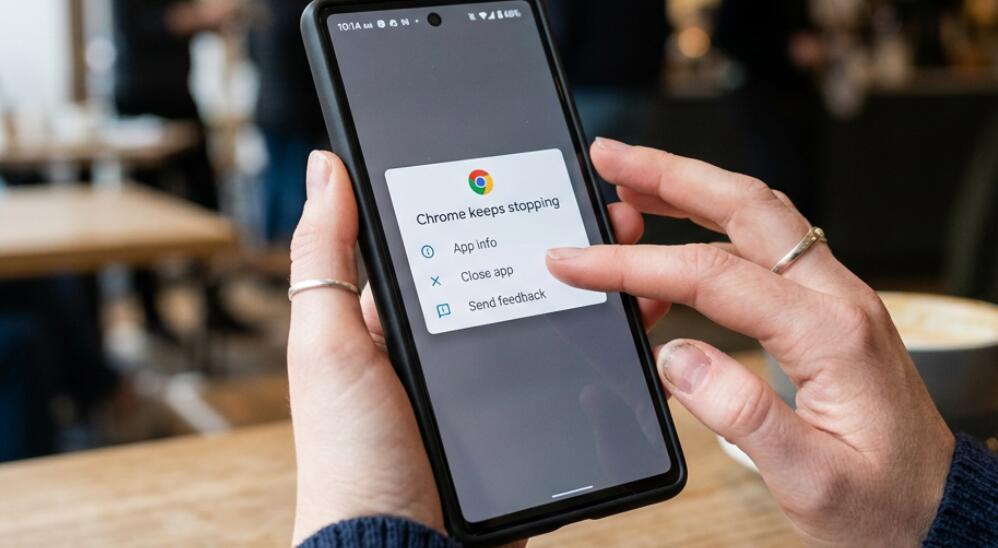
How to fix a Chrome app keep crashing on Android phone/tablet?
Welcome to Blackview (World's well-known brand of rugged phone and tablet) blog. Hope the guide helps.
Google Chrome is one of the most widely used browsers on Android phones and tablets, but it can occasionally crash, freeze, close unexpectedly, or refuse to open. The problem may happen when launching Chrome, loading a particular website, switching between tabs, or performing an ordinary action such as downloading a file. Because several different factors can produce similar symptoms, the most effective solution is to identify the likely cause before trying increasingly advanced fixes.
- Read also: How to change app size on Android?
- How do I change region on Android and Play Store?
- Weather widget not working? Here's how to fix
- How to stop apps running in background Android?
Chrome crashes on Android are commonly related to insufficient memory or storage, corrupted temporary data, an outdated Chrome or Android version, problematic extensions or website data, background processes, or a software conflict. In some cases, the issue is caused by a particular Chrome update or by a system component such as Android System WebView. The following guide starts with diagnosis and then moves from low-risk solutions to more comprehensive troubleshooting methods.
1. Analyze why Chrome keeps crashing
Before changing settings, pay attention to exactly when Chrome crashes. If it closes immediately after opening, corrupted app data, an incompatible update, or a system-level problem may be involved. If Chrome crashes only when opening a specific website, the website itself or data stored for that site may be responsible. If crashes occur after opening many tabs, limited RAM or excessive resource usage becomes more likely.
- Crashes immediately: suspect corrupted cache, app data, or an update problem.
- Crashes on one website: investigate site data, cookies, or browser compatibility.
- Crashes with many tabs: reduce memory pressure by closing unnecessary tabs and apps.
- Crashes across several apps: investigate Android storage, memory, system updates, or broader device instability.
- Started after an update: an app or system compatibility issue may be involved.
Also check whether your Android device is nearly full. Very low free storage can interfere with normal application operation and may cause problems beyond Chrome itself.
2. Step-by-step fixs:
Restart the Android phone or tablet
A restart is simple, but it can eliminate temporary memory pressure and background-process conflicts. Chrome may crash because another application or system process has consumed an unusual amount of RAM or has temporarily entered an unstable state. Restarting gives Android an opportunity to terminate those processes and start them again cleanly.
- Press and hold the device's Power button.
- Select Restart if that option is available.
- Wait for Android to completely restart.
- Open Chrome before launching many other applications.
- Test several websites to determine whether the crashes continue.
If Chrome works normally after restarting but begins crashing again later, the underlying issue may involve a particular application, excessive memory usage, or a recurring background process rather than Chrome alone.
Update Chrome and Android
An outdated browser can contain bugs that have already been corrected in a newer release. Conversely, a recently updated Android system may require newer versions of applications to maintain compatibility. Keeping both Chrome and Android reasonably current is therefore an important troubleshooting step.
- Open the Google Play Store.
- Search for Chrome.
- If an Update button appears, install the available update.
- Open Android's Settings and look for System update or Software update.
- Install an available system update if your device supports it.
- Restart the device and test Chrome again.
If the crashes began immediately after a Chrome update, avoid assuming that the newest version is automatically the cause. First restart the device and check for another Chrome update, because developers may release a follow-up fix for newly discovered problems.
Clear Chrome's cache
Chrome stores temporary files to improve browsing performance. Over time, some cached information can become outdated or corrupted. Clearing the cache is therefore a useful next step because it removes temporary data without deliberately deleting all of Chrome's stored application information.
- Open Settings on your Android device.
- Tap Apps, Applications, or a similarly named option.
- Find and select Chrome.
- Tap Storage or Storage & cache.
- Select Clear cache.
- Open Chrome again and test it.
Do not confuse Clear cache with Clear storage or Clear data. The latter options are more extensive and can remove locally stored application information. If simple cache clearing does not help, move to the next troubleshooting method rather than immediately erasing Chrome's data.
Free up storage and reduce memory pressure
When a phone or tablet is overloaded with applications, downloads, photos, videos, and browser tabs, Android may have less room to operate comfortably. Chrome is particularly capable of consuming significant memory when many complex websites are open. Reducing resource pressure can therefore improve stability.
- Close unnecessary Chrome tabs.
- Close applications that you are not currently using.
- Delete unnecessary downloaded files.
- Remove unused applications.
- Move large photos and videos to another storage location if appropriate.
- Check the device's storage page and maintain a reasonable amount of free space.
Pay special attention to websites containing video, advertising, interactive graphics, or other demanding content. If Chrome crashes primarily after opening resource-intensive pages, reducing the number of simultaneously open tabs can be particularly helpful.
Reset Chrome's app data if crashes continue
If clearing the cache has no effect, corrupted stored application data may be contributing to the problem. Resetting Chrome's application data is more disruptive, so it should be treated as an advanced step. Before doing this, make sure important browser information such as bookmarks, passwords, or other synchronized data is available through your Google account if you rely on Chrome synchronization.
- Open Settings.
- Go to Apps and select Chrome.
- Open Storage or Storage & cache.
- Choose Clear storage, Clear data, or the equivalent option.
- Read the warning carefully and confirm only if you understand what will be removed.
- Launch Chrome and complete any required setup or sign-in.
- Test whether the crashing problem has disappeared.
The exact wording varies by Android manufacturer. If your device does not offer a clear-data option, do not force the process; continue with other troubleshooting methods or use the device manufacturer's support instructions.
Check Android system components and isolate conflicts
Chrome does not operate entirely independently. Android includes system components that support web content and application functionality, and problems involving these components can sometimes affect browsers. If Chrome started crashing after another application was installed or updated, that application may also be worth investigating.
- Check the Play Store for updates to Android System WebView when it is available on your device.
- Update related Google components through the Play Store.
- Think about whether the problem started after installing a new application.
- Temporarily remove or disable suspicious recently installed software when appropriate.
- Restart Android and test Chrome after each major change.
If several unrelated apps are crashing, the issue is less likely to be specific to Chrome. In that situation, investigate Android updates, available storage, recently installed software, and device-level errors. Keeping a record of when the crashes occur can make the problem much easier to diagnose.
Use a final recovery strategy
If Chrome still crashes after restarting, updating, clearing the cache, reducing resource usage, and resetting application data, the problem may require a deeper software diagnosis. Avoid repeatedly performing destructive actions without identifying whether the failure is limited to Chrome or affects the entire device. If other applications remain stable and only Chrome fails, reinstalling or repairing Chrome may be the logical next step when your Android version allows it.
- Confirm that Chrome and Android are fully updated.
- Back up important information before performing destructive troubleshooting.
- Use the Play Store to check whether Chrome can be updated or repaired.
- If appropriate, uninstall Chrome updates or reinstall the available version according to your device's options.
- Restart the device after making major changes.
- If multiple apps continue crashing, contact the device manufacturer or Android support.
- If Chrome alone remains unstable, report the issue through the appropriate Chrome support or feedback channel.
The key is to work from the least disruptive solution toward the most comprehensive one. Restarting and updating are low-risk, while clearing cache is generally straightforward. Clearing application data, uninstalling updates, or reinstalling software should come later because these actions can affect locally stored information or application settings.
Conclusion
Chrome repeatedly crashing on an Android phone or tablet is usually a symptom rather than a diagnosis. Start by determining whether the problem happens immediately, with a particular website, after opening many tabs, or across multiple applications. This distinction helps separate a Chrome-specific problem from broader Android performance or compatibility issues.
Once the likely cause is understood, proceed systematically: restart the device, update Chrome and Android, clear Chrome's temporary cache, free storage and memory, and only then consider clearing application data or using more advanced recovery steps. Taking this gradual approach minimizes the risk of losing useful data while giving each potential cause a clear opportunity to be resolved.