How to lock and unlock apps on Android phones?
Welcome to Blackview (World's well-known brand of rugged phone and tablet) blog. Hope the guide helps.
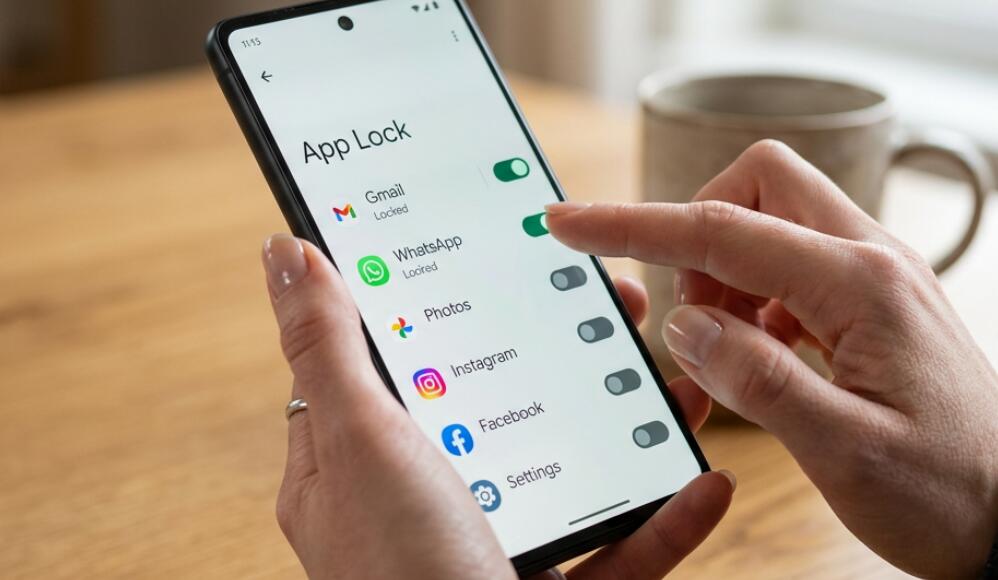
Locking apps on an Android phone is a practical way to add another layer of privacy, especially when you occasionally hand your phone to someone else. An app lock can help protect private messages, photographs, financial information, notes, documents, and other sensitive content even when the phone itself is already unlocked. Depending on the Android version and manufacturer, the feature may be built into the phone or provided through a separate security tool.
- Read also: How to hide apps on Android/iPhone?
- How to find hide apps on Android?
- How to make apps bigger or smaller on Android?
The exact method for locking an app varies between Samsung Galaxy, Google Pixel, Xiaomi, OnePlus, Motorola, and other Android devices. Some phones offer a dedicated App Lock feature, while others rely on Private Space, Secure Folder, screen pinning, or another privacy function. Before installing a third-party app locker, it is worth checking the security features already available on your phone because built-in tools generally integrate better with the operating system.
Check whether your Android phone has a built-in App Lock
The first step is to look through your phone's Settings app. Manufacturers often place app-lock controls under different sections, so the option may be located under Security, Privacy, Apps, or a similar category.
- Open the Settings app.
- Use the Settings search box and enter App Lock, Lock apps, or App protection.
- If the feature appears, open it and follow the setup instructions.
- Create a PIN, password, pattern, or other authentication method when requested.
- Select the applications you want to protect.
- Confirm your choices and test the lock by opening one of the protected apps.
Choose a strong authentication method
If your phone allows biometric authentication, you may be able to unlock protected applications with your fingerprint or face after enabling an app-lock feature. A separate PIN or password is still important because biometric authentication may not always be available. Avoid using an easily guessed code such as your birthday or a simple sequence of numbers.
Use Private Space on supported Android phones
Newer Android versions may provide Private Space, which creates a separate area for apps that you want to keep apart from your normal app environment. This can be particularly useful when your goal is broader privacy rather than simply putting a lock screen in front of an existing application.
- Open Settings and go to Security & privacy or the corresponding privacy section.
- Look for Private Space.
- Follow the setup process and choose an authentication method.
- Install or place the apps you want to keep private inside the space.
- Lock the Private Space whenever you finish using it.
- Adjust visibility and automatic-lock settings if your Android version provides those options.
Private Space can be preferable to relying on an ordinary third-party app locker because it is integrated into Android's security model. However, availability and features depend on the Android version and device configuration.
Samsung Galaxy: consider Secure Folder
On supported Samsung Galaxy devices, Secure Folder provides a protected environment for apps and files. Rather than simply placing a password in front of an existing app, it can maintain a separate protected copy of an application and its associated content.
- Open Settings.
- Go to Security and privacy or search Settings for Secure Folder.
- Set up Secure Folder and choose the available authentication method.
- Open Secure Folder and add the apps or files you want to protect.
- Lock Secure Folder when you are finished.
What if your Android phone has no App Lock feature?
If your device does not provide a built-in app-lock function, you can investigate reputable third-party security applications through the official app store. Be selective, however. An app locker may require extensive permissions, accessibility access, or other privileges that could create additional privacy and security risks. Check the developer, reviews, permissions, update history, and privacy information before installing one.
Use screen pinning for temporary access
If you only want to let somebody use one particular application without giving them access to everything else on your phone, screen pinning can be useful. It is not a replacement for a permanent app lock, but it can restrict the phone to a single app until you authenticate to exit the pinned session.
- Open Settings and search for Screen pinning.
- Enable the feature if it is available.
- Open the application you want the other person to use.
- Open the recent-apps screen and select the pin option.
- Require your PIN, pattern, or password when unpinning if that option is available.
Best practices after locking your apps
App locking works best as part of a broader security strategy. Keep Android and your applications updated, use a strong device lock, enable biometric authentication where appropriate, and avoid installing security tools from unknown websites. Also remember that an app lock does not necessarily hide notifications, recent-app information, or data displayed elsewhere on the phone. Review your notification privacy settings if messages or other sensitive information could appear on the lock screen.
How to unlock apps
Unlocking a protected app on an Android phone is usually straightforward once the app-lock feature has been configured. Depending on your device, you may be asked to enter an app-lock PIN, password, or pattern, or use fingerprint or face authentication. The unlocking process normally affects access to the protected application rather than removing the security settings permanently.
Unlock an app with a PIN, password, or pattern
If your phone uses a traditional authentication method for app locking, follow these steps:
- Open the locked application from your Android home screen or app drawer.
- Wait for the app-lock authentication screen to appear.
- Enter your configured PIN, password, or pattern.
- After successful authentication, the application will open normally.
- Close the application when finished if you want it to require authentication again the next time you access it.
Unlock apps with fingerprint or face authentication
Many Android phones allow biometric authentication for protected apps. If fingerprint or face unlocking has already been enabled, open the locked app and follow the on-screen prompt. Place your registered finger on the fingerprint sensor or look at the phone so that facial recognition can authenticate you. If biometric recognition fails, you can usually use the backup PIN, password, or pattern instead.
How to remove an app lock permanently
If you no longer want an application to be protected, you generally need to change the settings of the feature that created the lock. The exact menu names differ between manufacturers, but the process is usually similar.
- Open Settings on your Android phone.
- Search for App Lock or open the relevant security or privacy section.
- Authenticate with your current PIN, password, pattern, or biometric method.
- Find the application you no longer want to lock.
- Turn off the lock for that application.
- Open the app again to confirm that it no longer requests app-lock authentication.
If the application is protected through Private Space or Secure Folder rather than a conventional App Lock feature, you need to manage the protection from that environment instead. For example, you may need to unlock the private area first and then adjust its security or app settings.
What if I forgot my app-lock password?
Forgetting an app-lock PIN or password can be more complicated because manufacturers use different recovery systems. First, look for options such as Forgot password, Reset, or account-based recovery on the authentication screen. Some devices may allow recovery through a linked account or another verification method.
Do not immediately clear app data or uninstall a security application simply to bypass the lock. Depending on the feature, doing so could remove locally stored information or reset associated settings. If the protected application contains important conversations, photographs, documents, or other personal information, verify your backups before taking any destructive action.
When the fingerprint or face unlock does not work
If biometric unlocking suddenly stops working, try the backup authentication method first. Make sure the fingerprint sensor or front camera is clean, your finger or face is properly positioned, and the phone is not preventing biometric authentication for security reasons. Restarting the phone can also help with temporary software problems, although some Android devices require the primary PIN or password after a restart before biometric unlocking becomes available again.
Unlocking apps is different from uninstalling app locks
There is an important difference between unlocking an app and disabling its protection. Unlocking normally gives you access for the current session, while disabling App Lock removes or changes the protection so that the app can be opened without additional authentication. If you only need to check something quickly, simply authenticate rather than changing the security configuration.
For better privacy, keep app protection enabled for applications containing sensitive information, especially when other people may occasionally use your unlocked phone. If you decide to remove an app lock, make sure your phone itself still has a strong screen lock enabled.
Final thoughts
The best way to lock apps on Android depends on your phone and its software version. Start by searching Settings for a built-in App Lock feature. If your device supports Private Space or Samsung Secure Folder, those options can provide a stronger and more integrated privacy solution. For temporary access to one application, screen pinning may be enough.
Most importantly, choose the least complicated security feature that meets your needs, protect it with a strong authentication method, and keep your phone's software current. With the right built-in tools and sensible privacy settings, you can significantly reduce the risk of someone casually accessing your private applications and information.






