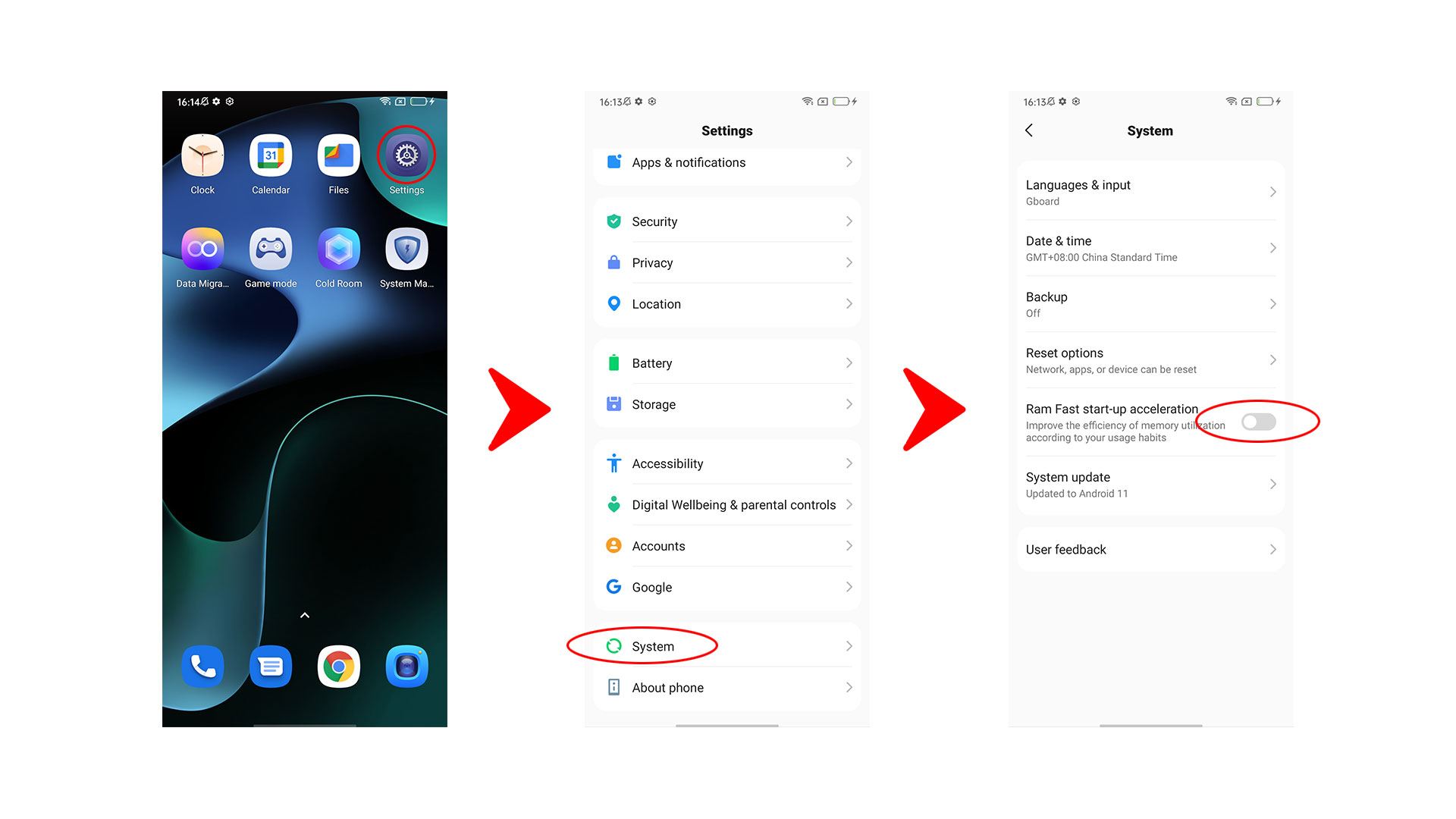
[Full Guide] How to hide the navigation bar on Android
Welcome to Blackview (Well-known brand of rugged smartphone, such as rugged phone with eSIM, rugged phone with projector, and rugged phone with satellite messaging, etc.) blog. Hope this guide has been helpful.
Hiding the navigation bar on Android can make your phone's screen look cleaner, provide more space for apps and games, and create a more immersive viewing experience. Whether you want to remove the traditional Back, Home, and Recent Apps buttons, enjoy videos in full screen, or customize the appearance of a particular application, Android offers several ways to manage navigation controls. However, the exact method depends on your phone manufacturer, Android version, and whether you use gesture navigation or the traditional three-button layout.
- Read also: How to keep phone screen from rotating?
- How to hide a folder or a file on Android?
- How to hide videos on Android?
- How to change country in Amazon app?
- How to enable back button in Redmi?
In this guide, you will learn how to hide the navigation bar through system settings, use full-screen mode, control navigation visibility within individual apps, and implement immersive navigation programmatically. Some Android devices provide a direct option for hiding navigation buttons, while others rely on gesture navigation or app-specific full-screen features. Understanding these differences will help you choose the safest and most effective solution for your device or development project.
How to Hide Navigation Bar on Android
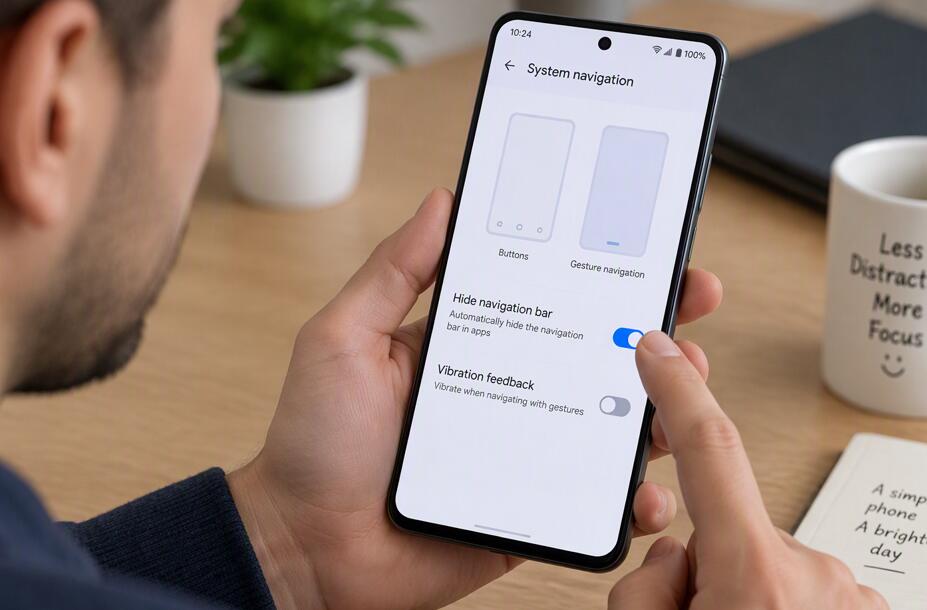
The easiest way to hide or minimize the navigation bar is to check your phone's system navigation settings. Many Android phones allow you to switch from three-button navigation to gesture navigation. Although gesture navigation does not always permanently remove the navigation indicator, it replaces the traditional buttons with gestures and gives the screen a more streamlined appearance.
Hide the navigation buttons through system settings
Follow these steps to change the navigation method on your Android phone:
- Open the Settings application on your phone.
- Navigate to Display, Home screen, or System navigation, depending on your device.
- Look for an option named Navigation bar, Navigation mode, or System navigation.
- Select Gestures or Gesture navigation instead of the three-button navigation layout.
- Follow any on-screen instructions to learn how to return Home, switch apps, and go Back using gestures.
- Open an application and check whether the traditional navigation buttons have disappeared.
On Samsung Galaxy phones, the relevant setting is commonly found under Settings, Display, and Navigation bar. Depending on the software version, additional options may control gesture hints or other navigation indicators. On Google Pixel devices, look under Settings, System, and Navigation mode. Other manufacturers may place the same feature in a different menu.
What if the navigation bar is still visible?
If gesture navigation leaves a small horizontal indicator at the bottom of the screen, your phone may not provide a standard setting to remove it completely. Check the available navigation settings for an option to hide gesture hints or the gesture indicator. If no such option exists, the indicator may be controlled by the operating system and cannot be removed through ordinary settings.
Be cautious when considering third-party applications that promise to remove system navigation controls. Some require accessibility permissions, special privileges, or computer-assisted ADB commands. Granting unnecessary permissions can introduce privacy or security risks, and unsupported modifications may behave differently after system updates.
How to Hide Navigation Bar in Fullscreen
Full-screen mode is useful when watching videos, playing games, reading digital books, or viewing photographs. Android supports immersive experiences in which the status bar, navigation bar, or both can temporarily disappear. Depending on the application and operating-system version, users can often reveal the hidden controls with a swipe from the edge of the screen.
Enable full-screen viewing
To hide navigation controls while using a full-screen application, try the following steps:
- Open the video player, game, gallery, or other application you want to use.
- Look for a Full screen, Expand, or Immersive view option within the application.
- Enable full-screen mode if the application supports it.
- Rotate your phone to landscape orientation when appropriate, especially for videos and games.
- If navigation controls remain visible, check your phone's display settings for an app-specific full-screen option.
- To reveal hidden system controls, swipe inward from the bottom edge or another screen edge, depending on the device.
Some Android manufacturers include settings that allow individual applications to expand into the available screen area. These settings may be particularly useful for games or video applications that do not automatically use the entire display. However, full-screen compatibility varies, and an app may retain system bars to prevent accidental actions or accommodate its interface.
Keep in mind that immersive mode is not necessarily permanent. Android may temporarily reveal navigation controls when users interact with the screen, receive certain system prompts, or invoke system gestures. This behavior is intentional and helps preserve access to essential device functions.
How to Hide Navigation Bar While Playing Games
Hiding the navigation bar while playing games on Android can provide a more immersive experience, prevent accidental touches, and allow games to use more of the available screen space. Whether you play action games, racing games, or role-playing games, you can try your phone's full-screen settings, switch to gesture navigation, or use built-in immersive mode features. The exact options depend on your Android version and phone manufacturer.
Enable full-screen mode for games
Many Android phones allow you to configure individual games to use full-screen display mode. Follow these steps to check whether your device supports this feature:
- Open Settings on your Android phone.
- Search for Full screen apps, Full screen display, or a similar setting.
- Open the list of applications and locate the game you want to play.
- Enable the full-screen option if it is available.
- Launch the game and check whether the navigation bar is hidden.
- If necessary, open the game's own settings and look for display or immersive-mode options.
Menu names vary across manufacturers, and some Android devices do not offer a separate full-screen setting for every game. Certain games automatically hide system bars when gameplay begins, so you may not need to change any settings.
Use gesture navigation while gaming
If your phone continues to display the traditional Back, Home, and Recent Apps buttons, switching to gesture navigation may create a less intrusive gaming interface. Open Settings, find the navigation settings, and select Gesture navigation. Follow the on-screen instructions to learn how to navigate using swipes.
Gesture navigation does not guarantee that the navigation indicator will disappear completely. However, it can reduce the prominence of navigation controls and provide a cleaner display. Keep in mind that swiping from the edge may trigger system navigation or reveal system bars, depending on the game and Android version.
Prevent accidental navigation during gameplay
For games that require frequent touches near the bottom or edges of the screen, check whether your phone offers a gaming mode or game assistant. Some manufacturers provide features that reduce accidental gestures, block notifications, or adjust touch sensitivity while a game is running.
- Open your phone's built-in gaming application or game assistant, if available.
- Add the game to the gaming tools list if it is not already included.
- Review options for accidental-touch prevention, gesture restrictions, or notification blocking.
- Enable only the features you need and start the game again.
- Test the controls to ensure that important in-game buttons remain responsive.
These gaming features differ by device and may not completely hide the navigation bar. Avoid granting unnecessary permissions to third-party applications that claim to lock navigation controls.
For the best results, first enable the game's native full-screen mode, then check your Android display settings and gaming tools. If the navigation bar remains visible, the game or operating system may not support permanently hiding it. Choosing the appropriate combination of full-screen display, gesture navigation, and accidental-touch protection can help you enjoy a more immersive gaming experience without compromising access to essential phone functions.
How to Hide Navigation Bar in App
If you want to hide the navigation bar only while using a particular application, the available options depend on whether you are an ordinary user or the app developer. Regular users should first check the application's own display settings and any full-screen controls offered by the phone manufacturer. Developers can implement immersive experiences directly in their applications.
Hide navigation controls for a specific application
For everyday users, try these steps:
- Open your phone's Settings application.
- Search for Full screen apps, Full screen display, or a similar option.
- Open the available application list, if your phone provides one.
- Select the application you want to display in full screen.
- Enable the relevant full-screen setting, if available.
- Launch the application again to check whether the navigation area has changed.
Not every Android device provides per-app navigation-bar controls. If your phone does not offer this feature, you may need to rely on the application's built-in full-screen mode or gesture navigation instead. Avoid assuming that an app advertised as a navigation-bar hider can override all system restrictions.
For application developers, immersive mode can be appropriate for games, media viewers, and other experiences in which system bars would interrupt the content. However, navigation controls should remain easy to access when users need them, and applications should not attempt to obstruct essential system interactions.
How to Hide Navigation Bar Programmatically
Android developers can hide the navigation bar programmatically by configuring the window's system-bar behavior. On modern Android versions, the recommended approach is to use the AndroidX WindowInsetsControllerCompat API. It offers a consistent way to control system bars across supported versions without relying on older, deprecated system UI flag combinations.
Implement immersive mode in Kotlin
In an Android application using AndroidX Core, you can configure immersive mode in an Activity as follows:
```kotlin
import android.os.Bundle
import androidx.appcompat.app.AppCompatActivity
import androidx.core.view.WindowCompat
import androidx.core.view.WindowInsetsCompat
import androidx.core.view.WindowInsetsControllerCompat
class MainActivity : AppCompatActivity() {
override fun onCreate(savedInstanceState: Bundle?) {
super.onCreate(savedInstanceState)
WindowCompat.setDecorFitsSystemWindows(window, false)
val controller = WindowInsetsControllerCompat(
window,
window.decorView
)
controller.hide(
WindowInsetsCompat.Type.navigationBars()
)
controller.systemBarsBehavior =
WindowInsetsControllerCompat
.BEHAVIOR_SHOW_TRANSIENT_BARS_BY_SWIPE
}
}
```
This example hides the navigation bar for the Activity while allowing users to reveal system bars temporarily by swiping from the screen edge. If you also want to hide the status bar, replace the navigation-bar type with WindowInsetsCompat.Type.systemBars(). That change hides both the status bar and navigation bar.
Restore the navigation bar when necessary
Applications should restore system navigation controls whenever an immersive presentation ends or when the interface requires them. You can show the navigation bar using the same controller:
```kotlin
controller.show(
WindowInsetsCompat.Type.navigationBars()
)
```
In production applications, consider the Activity lifecycle, edge-to-edge layouts, window insets, and compatibility with current Android releases. Modern Android versions increasingly encourage applications to draw appropriately around system bars rather than treating those areas as permanently unavailable. Test your implementation on multiple devices and API levels to ensure that important buttons, text, and interactive elements are not covered by system gestures or display cutouts.
Also remember that hiding system bars is not equivalent to gaining unrestricted control over the operating system. Android retains control over essential system interactions, and behavior can vary according to application type, system version, and device policy. Use immersive mode only when it genuinely improves the user experience.
Final Thoughts
Hiding the navigation bar on Android can improve screen space and create a cleaner interface, but the best method depends on your needs. Switching to gesture navigation is usually the simplest option for everyday users, while full-screen settings can improve video playback and gaming. If you want to customize only one application, check whether your device supports per-app display settings before attempting more advanced solutions.
For developers, AndroidX WindowInsetsControllerCompat provides a modern approach to hiding navigation controls and implementing immersive experiences. Whichever method you choose, make sure you can still navigate comfortably and access essential system functions. By understanding the differences between gesture navigation, full-screen mode, app-specific settings, and programmatic immersive mode, you can tailor your Android screen to your preferences without unnecessarily compromising usability or security.