How to block and unblock someone on WhatsApp?
Welcome to Blackview (World's well-known brand of rugged smartphones, AI smart glasses, and tablets) blog. Hope this guide has been helpful.
WhatsApp makes it easy to stay connected with friends, family members, colleagues, and people around the world. However, there may be times when you want to stop receiving messages or calls from a particular person. Whether you are dealing with unwanted messages, spam, repeated interruptions, or someone you no longer wish to communicate with, WhatsApp provides a blocking feature that gives you greater control over your conversations and privacy.
- Read also: How to know if someone blocked you on WhatsApp?
- How to mute and unmute someone on WhatsApp?
- How to know if someone muted you on WhatsApp?
- How to archive and unarchive someone on WhatsApp?
- How to know if someone archived you on WhatsApp?
- How to retrieve deleted WhatsApp messages?
Learning how to block and unblock someone on WhatsApp is straightforward, whether you use an Android phone or an iPhone. Blocking someone restricts their ability to contact you directly through WhatsApp, while unblocking restores the possibility of communication. Understanding what happens before, during, and after blocking someone can help you make informed decisions, protect your privacy, and manage your contacts without accidentally losing important conversations.
How to Block Someone on WhatsApp
You can block a contact directly from an existing conversation or through WhatsApp's privacy settings. The first method is convenient when someone has recently messaged you, while the second is useful when you want to manage several blocked contacts.
Block Someone from an Existing Chat
Follow these steps to block a person from your WhatsApp conversation:
- Open WhatsApp on your Android phone or iPhone.
- Go to the Chats tab and open the conversation with the person you want to block.
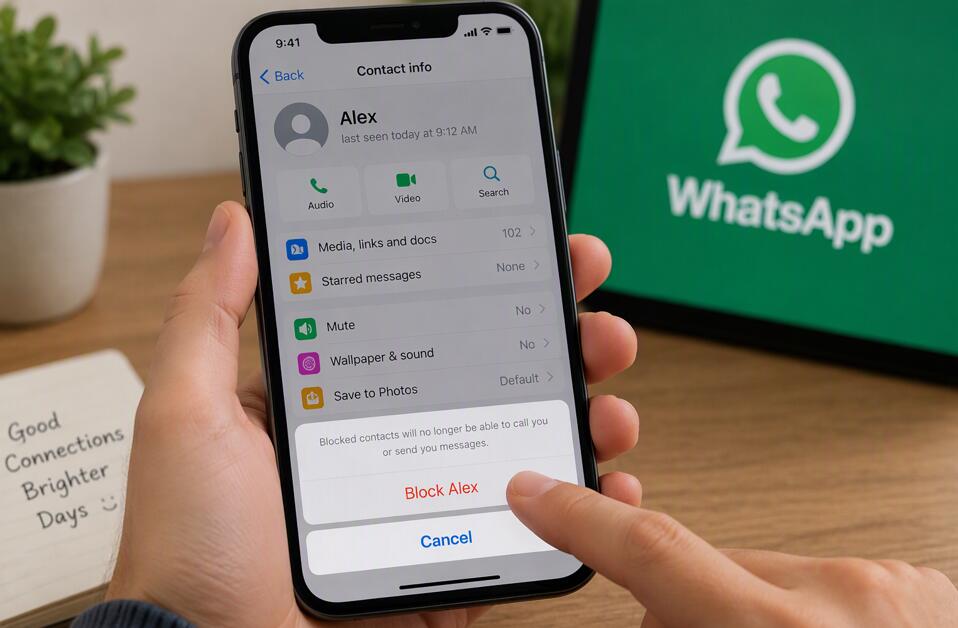
- Tap the person's name or phone number at the top of the screen to open their contact information.
- Scroll down through the contact details until you find the Block Contact option.
- Tap Block and confirm your choice if WhatsApp asks you to do so.
Once the action is completed, WhatsApp will prevent that contact from sending you direct messages or making WhatsApp calls to you. The existing conversation generally remains in your chat list unless you choose to delete or archive it separately.
Block Someone Through Privacy Settings
If you want to block someone without opening their conversation, you can use WhatsApp's settings:
- Open WhatsApp and go to Settings. On some Android versions, you may need to tap the three-dot menu before selecting Settings.
- Select Privacy.
- Find and open the Blocked contacts or Blocked section.
- Tap the option to add a contact, usually represented by an add-contact icon.
- Select the person you want to block from your contact list.
The contact will be added to your blocked list. Menu names and layouts may vary slightly depending on your operating system and WhatsApp version, but the overall process remains similar.
How to Unblock Someone on WhatsApp
If you change your mind or want to resume communication, you can unblock a person at any time. Unblocking removes the restriction you previously placed on that contact, allowing future direct messages and calls to reach you, subject to your other privacy settings.
Steps to Unblock a Contact
Use the following procedure to unblock someone:
- Open WhatsApp on your phone.
- Navigate to Settings and select Privacy.
- Open the Blocked contacts or Blocked section.
- Find the contact you want to unblock.
- Tap the person's name or phone number.
- Select Unblock and confirm the action if prompted.
After unblocking the contact, you can communicate with them again. However, messages they sent while they were blocked will not automatically appear in your chat. If you want to recover any information they attempted to send during that period, you may need to ask them to send it again.
What Happens When You Block Someone on WhatsApp?
Blocking someone affects several aspects of communication and visibility. Understanding these changes can help you decide whether blocking is the most suitable option for your situation.
- Messages: Messages sent directly by the blocked person will not be delivered to you while the block remains in place.
- Voice and video calls: WhatsApp calls from the blocked contact will not reach you normally.
- Last seen and online information: The blocked person will no longer be able to see your last seen and online status in the usual way.
- Status updates: Your status updates will not be visible to the blocked contact in the normal course of WhatsApp use.
- Profile information: Certain profile updates and information may no longer be visible to the blocked person.
- Existing conversations: Blocking does not automatically delete your previous messages or remove the conversation from your chat list.
WhatsApp does not ordinarily send a direct notification telling someone that you have blocked them. However, they may infer that they have been blocked from changes in message delivery, calls, or profile visibility. These signs are not necessarily conclusive on their own because privacy settings, network problems, and account changes can produce similar effects.
Can You Block Someone Without Saving Their Number?
Yes. You do not always need to save a phone number as a contact before blocking it. If an unfamiliar number sends you a message, WhatsApp may provide Block and Report options directly within the conversation or through the contact information screen.
To block an unknown sender, open the chat, review the available contact or conversation options, and select Block. If the message appears to be spam, fraudulent, threatening, or otherwise suspicious, consider using the Report option as well. Reporting helps WhatsApp review potentially abusive or unwanted activity, while blocking prevents further direct contact through the blocked account.
Be cautious when interacting with unknown senders. Avoid opening suspicious links, downloading unexpected attachments, or sharing verification codes and sensitive personal information. Blocking is useful, but safe messaging habits remain an important part of protecting your account.
How to Manage Your Blocked Contacts
Your blocked contacts list provides a central place to review people you have restricted. You can return to this list whenever you need to unblock someone, confirm whether a contact remains blocked, or adjust your communication preferences.
To manage the list, open WhatsApp's Settings, select Privacy, and navigate to Blocked contacts. Depending on your version, you may be able to tap a contact to unblock them or use an editing option to manage multiple entries. Review the list periodically, particularly if you blocked someone temporarily or no longer remember why a particular number was added.
Remember that blocking someone on WhatsApp does not necessarily block their phone number across your entire device. Regular cellular calls, SMS messages, and communication through other applications may still be possible. If you also want to prevent ordinary phone calls or text messages, use your phone's built-in blocking features separately.
Common Problems When Blocking or Unblocking Someone
Although the process is usually simple, you may occasionally encounter difficulties. If you cannot find the relevant option, first check that WhatsApp is updated to the latest version available for your device. Then reopen the application and look under Privacy settings or the contact information screen.
If a person still cannot contact you after you unblock them, verify that the unblocking action was completed and check your internet connection. Remember that unblocking does not restore messages sent during the blocked period. The other person may need to send a new message for the conversation to resume.
If you continue receiving unwanted contact from another number or account, you may need to block that account separately. If the behavior involves harassment, threats, or attempts to obtain your personal information, preserve relevant evidence and consider reporting the account through WhatsApp's available safety tools.
Final Tips for Protecting Your WhatsApp Privacy
Blocking and unblocking are useful tools, but they work best alongside thoughtful privacy settings. Review who can see your profile photo, About information, last seen status, online status, and status updates. Depending on your preferences, you can limit the visibility of these details to your contacts or choose more restrictive options where available.
You can also adjust group privacy settings to control who can add you to WhatsApp groups. Keeping the application updated, enabling two-step verification, and avoiding suspicious links can provide additional protection. If someone repeatedly makes you uncomfortable, you do not need to continue a conversation simply to be polite. Blocking is a legitimate way to establish boundaries and control who can contact you.
Conclusion
Learning how to block and unblock someone on WhatsApp gives you greater control over your digital communication. To block a person, open their conversation or navigate to your privacy settings, select the contact, and confirm the blocking action. To unblock them, return to the blocked contacts list, select the person, and choose Unblock. These steps work similarly on Android and iPhone, although the exact menu labels may vary.
Ultimately, blocking is designed to help you manage unwanted communication without automatically deleting your existing conversations. Unblocking allows future communication to resume, but it does not restore messages sent during the period when the contact was blocked. By understanding these differences and combining WhatsApp's blocking tools with appropriate privacy settings, you can create a safer, more comfortable messaging experience and decide for yourself who is able to reach you.