How to reset your TV box?
Welcome to Blackview (World's well-known brand of rugged smartphone and tablet) blog. Hope the guide helps.
Resetting a TV box is one of the most effective ways to fix persistent issues such as freezing, slow performance, app crashes, or network problems. Whether you use an Android TV box, cable provider box, or streaming device, a reset can restore normal functionality by clearing corrupted data and refreshing the system.

- Read also: How to fix an Android TV box keeps buffering?
- How to fix an Android TV box keeps freezing?
- How to fix an Android TV box that keeps flashing on and off?
However, a reset should be performed with care. While it can solve many problems, it also erases certain settings or data depending on the reset type. Understanding what happens during a reset—and when it is appropriate—helps you maintain your device without unnecessary data loss.
What happens when you reset your TV box?
Resetting a TV box can mean two different things: a soft reset or a factory reset. Each has different effects on your device.
Soft Reset
A soft reset simply restarts the system without deleting any personal data. It clears temporary files and refreshes the operating system.
- Stops background processes causing slowdowns
- Clears temporary cache files
- Fixes minor glitches and freezes
Factory Reset
A factory reset restores the TV box to its original state when you first bought it. This is a more drastic step and should be used only when necessary.
- Deletes all installed apps
- Removes saved Wi-Fi networks
- Clears user accounts and login data
- Resets system settings to default
When should you reset your TV box?
Resetting is helpful in several situations, but it’s important to choose the right type of reset.
Soft Reset is recommended when:
- The device is frozen or unresponsive
- Apps are crashing occasionally
- The TV box feels slow after long use
- You experience temporary network issues
Factory Reset is recommended when:
- Severe system errors occur repeatedly
- Apps fail to open even after updates
- The device is infected with malware
- You plan to sell or give away the TV box
- Settings are corrupted and cannot be fixed
How to reset your TV box (step-by-step)
Below are the general steps for performing both soft and factory resets. The exact menu names may vary depending on your device model.
Soft Reset Steps
- Unplug the TV box from the power outlet.
- Wait 10–15 seconds to allow the system to fully shut down.
- Plug the device back in.
- Turn it on and check if the issue is resolved.
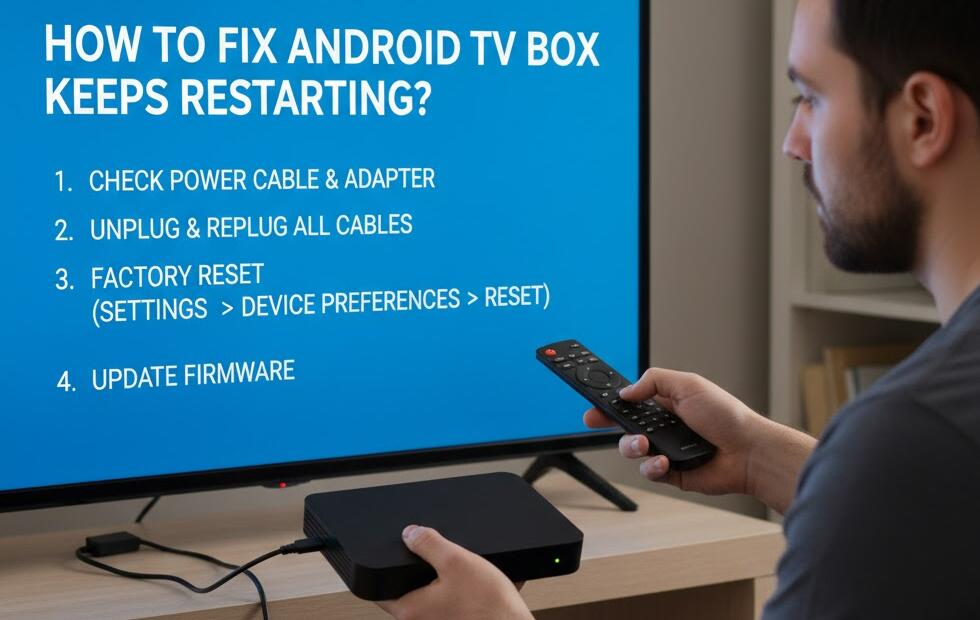
Factory Reset Steps (via Settings Menu)
- Go to Settings on your TV box.
- Select Device Preferences or System.
- Choose Reset or Factory Reset.
- Select Erase Everything or Restore to Default.
- Confirm your choice and wait for the device to reboot.
Factory Reset Steps (using Reset Button)
- Turn off the TV box.
- Locate the small reset hole (usually on the back or bottom).
- Insert a pin or toothpick into the hole.
- Hold for 5–10 seconds until the reset menu appears.
- Select Wipe Data/Factory Reset using the remote.
- Confirm and wait for the process to complete.
Tips to follow after resetting your TV box
Once your device has been reset, you’ll need to set it up again. Following these tips ensures smooth performance.
After a Soft Reset
- Check for system updates
- Restart your router if network issues persist
- Close unused apps to keep performance stable
After a Factory Reset
- Reconnect to your Wi-Fi network
- Reinstall your favorite apps
- Log back into your streaming accounts
- Adjust display and audio settings
- Enable automatic updates for better stability
Conclusion
Resetting your TV box is a powerful troubleshooting method that can resolve many performance issues. A soft reset is quick and safe, while a factory reset provides a deeper fix for more serious problems. Understanding the differences helps you choose the right solution for your situation.
By following the steps above and knowing what to expect after a reset, you can keep your TV box running smoothly and extend its lifespan. Whether you’re fixing glitches or preparing the device for a new user, a proper reset ensures a clean and efficient system.