How to fix the HDMI port that stopped working on a smart TV?
Welcome to Blackview (World's well-known brand of rugged smartphone, mini PC, best budget laptop for students, and tablet) blog. Hope the guide helps.
HDMI ports are among the most important components of modern smart TVs. They allow users to connect gaming consoles, streaming devices, Blu-ray players, soundbars, laptops, and cable boxes through a single cable that carries both audio and video signals. When an HDMI port suddenly stops working, it can be frustrating because connected devices may display a "No Signal" message, show a blank screen, or fail to produce sound. Fortunately, many HDMI issues can be resolved without replacing the television.
- Read more: How to fix HDMI no sound issue on TV from laptop?
- How to fix no sound on smart TV?
- How to fix weak signal on smart TV?
- How to fix a Google TV wifi keeps turning off?
- What to do if there is sound but no picture after connecting my phone to an HDMI TV?
- How do I fix the incorrect resolution when connecting a phone to a monitor via HDMI?
Before assuming the HDMI port is physically damaged, it is important to understand that many connection problems are caused by loose cables, incorrect input settings, software glitches, HDMI handshake errors, or faulty external devices. By following a systematic troubleshooting process, users can identify the cause of the problem and restore normal functionality. This guide explains general HDMI troubleshooting steps and provides brand-specific solutions for Samsung, Vizio, Panasonic, Hisense, Hitachi, JVC, TCL Roku, LG, Philips, and Realme smart TVs.
HDMI problems can appear in several ways. The television may not detect the connected device, the picture may flicker continuously, the audio may disappear, or the screen may remain black even though the device is powered on. Understanding the symptoms helps narrow down the root cause and makes troubleshooting much easier.
Common Causes of HDMI Port Problems
Several factors can prevent an HDMI port from functioning properly. Identifying these causes can help you avoid unnecessary repairs.
- Damaged or worn HDMI cable.
- Loose HDMI connection.
- Incorrect TV input selection.
- HDMI handshake failure between devices.
- Outdated TV firmware.
- Power supply glitches.
- External device malfunction.
- Bent or damaged HDMI port pins.
- Internal motherboard issues.
- Dust accumulation inside the HDMI port.
Basic HDMI Troubleshooting Steps
Before trying brand-specific fixes, perform these general troubleshooting procedures.
- Turn off the TV and unplug it from the power outlet.
- Disconnect all HDMI devices.
- Inspect the HDMI cable for visible damage.
- Clean the HDMI port carefully using compressed air.
- Reconnect the HDMI cable firmly.
- Turn on the TV and external device.
- Select the correct HDMI input source.
- Test the device using another HDMI cable.
- Try a different HDMI port on the TV.
- Check whether the external device works on another display.
Samsung TV HDMI Port Fix
Samsung smart TVs occasionally experience HDMI recognition or handshake issues that can often be solved through a reset procedure.
- Power off the TV completely.
- Unplug the television for at least 60 seconds.
- Hold the power button on the remote for several seconds.
- Reconnect power and restart the TV.
- Open Settings and check for software updates.
- Enable or disable HDMI-CEC (Anynet+).
- Reconnect the HDMI device and test the connection.
Vizio TV HDMI Port Fix
Vizio televisions may encounter HDMI detection problems after software updates or power interruptions.
- Disconnect all HDMI devices.
- Perform a power cycle by unplugging the TV for one minute.
- Reconnect only one HDMI device initially.
- Verify the correct HDMI input is selected.
- Update the TV firmware.
- Test with a certified high-speed HDMI cable.
Panasonic TV HDMI Port Fix
Panasonic TVs often recover HDMI functionality through system resets and connection verification.
- Turn off the TV and connected device.
- Disconnect the HDMI cable.
- Wait approximately two minutes.
- Reconnect all cables securely.
- Restart both devices.
- Check the TV input source menu.
- Install any available firmware updates.
Hisense Smart TV HDMI Port Fix
Hisense smart TVs can occasionally lose HDMI communication because of software conflicts or temporary system glitches.
- Unplug the TV from power.
- Press and hold the TV power button for 30 seconds.
- Reconnect power after one minute.
- Update the TV operating system.
- Disable and re-enable HDMI-CEC settings.
- Reconnect the HDMI source device.
- Test all available HDMI ports.
Hitachi TV HDMI Port Fix
Hitachi televisions generally benefit from a complete hardware reset when HDMI inputs stop responding.
- Disconnect the TV from electrical power.
- Remove all HDMI-connected devices.
- Wait one minute before reconnecting power.
- Select the correct HDMI source.
- Use a different HDMI cable for testing.
- Verify the external device is functioning properly.
JVC Smart TV HDMI Port Fix
JVC smart TVs may require both a reset and firmware verification when HDMI issues occur.
- Restart the television.
- Disconnect external HDMI devices.
- Reconnect devices one at a time.
- Check for software updates.
- Try alternative HDMI ports.
- Confirm HDMI cables meet current standards.
TCL Roku TV HDMI Port Fix
TCL Roku TVs include built-in diagnostics that can help identify HDMI signal problems.
- Go to Settings and restart the Roku TV.
- Remove power for one minute.
- Reconnect HDMI devices.
- Verify the correct input is selected.
- Update Roku system software.
- Use another HDMI cable for testing.
- Test the device on a different HDMI input.
LG Smart TV HDMI Port Fix
LG televisions often resolve HDMI recognition issues after a power reset and firmware update.
- Turn off the TV.
- Unplug the power cord for 60 seconds.
- Reconnect and restart the television.
- Navigate to software update settings.
- Install any available updates.
- Enable HDMI Deep Color if required.
- Reconnect the source device and test.
Philips Smart TV HDMI Port Fix
Philips smart TVs can occasionally experience HDMI compatibility problems with newer devices.
- Power cycle the television.
- Disconnect and reconnect the HDMI cable.
- Check input source settings.
- Update the TV firmware.
- Disable HDMI control features temporarily.
- Reconnect devices and verify signal detection.
Realme TV HDMI Port Fix
Realme smart TVs generally use Android TV-based systems, making software updates an important troubleshooting step.
- Restart the TV completely.
- Disconnect the HDMI device.
- Reconnect after the TV has fully booted.
- Install available system updates.
- Check HDMI-CEC settings.
- Test another HDMI cable.
- Verify the external device output resolution is supported.
How to Determine Whether the HDMI Port Is Physically Damaged
In some situations, troubleshooting will not restore HDMI functionality because the port itself has been damaged. Physical damage usually requires professional repair.
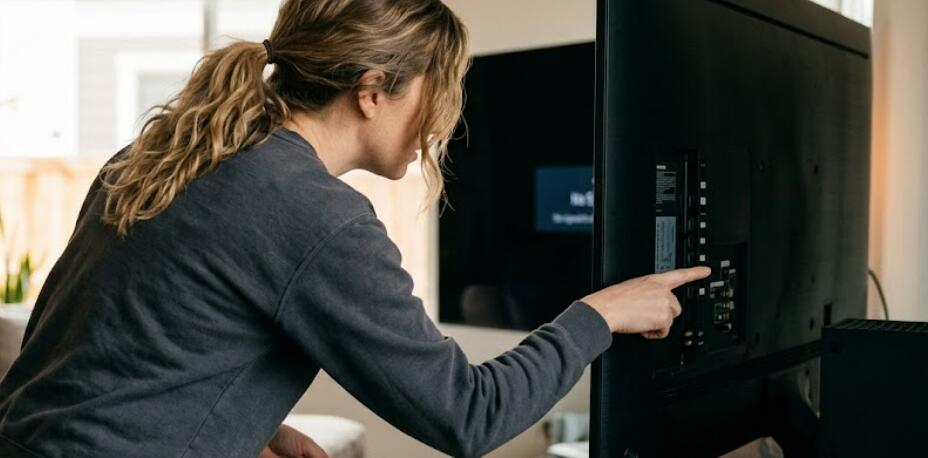
- Inspect the HDMI port using a flashlight.
- Look for bent, broken, or missing connector pins.
- Check whether the port feels loose.
- Look for signs of corrosion or debris.
- Test multiple devices and cables to eliminate other causes.
- If every device fails on the same port, hardware damage may exist.
Preventing Future HDMI Problems
Proper maintenance can significantly extend the lifespan of HDMI ports and reduce the likelihood of future failures.
- Avoid forcing HDMI connectors into ports.
- Use high-quality certified HDMI cables.
- Keep ports free from dust and debris.
- Do not frequently plug and unplug devices unnecessarily.
- Update TV firmware regularly.
- Protect the television from power surges using a surge protector.
Most HDMI port issues on smart TVs are caused by connection problems, software glitches, faulty cables, or HDMI handshake failures rather than permanent hardware damage. Performing a complete power cycle, checking cables, updating firmware, and testing alternative inputs can often restore the connection within minutes. Following a structured troubleshooting process helps eliminate potential causes one by one and increases the chances of a successful fix.
If none of the troubleshooting steps resolve the issue and multiple devices fail to work on the same HDMI port, the port may have suffered physical damage or an internal circuit board failure. In such cases, professional repair or manufacturer service may be required. By maintaining your television properly and using quality HDMI accessories, you can minimize future connectivity problems and keep your smart TV operating reliably for years to come.