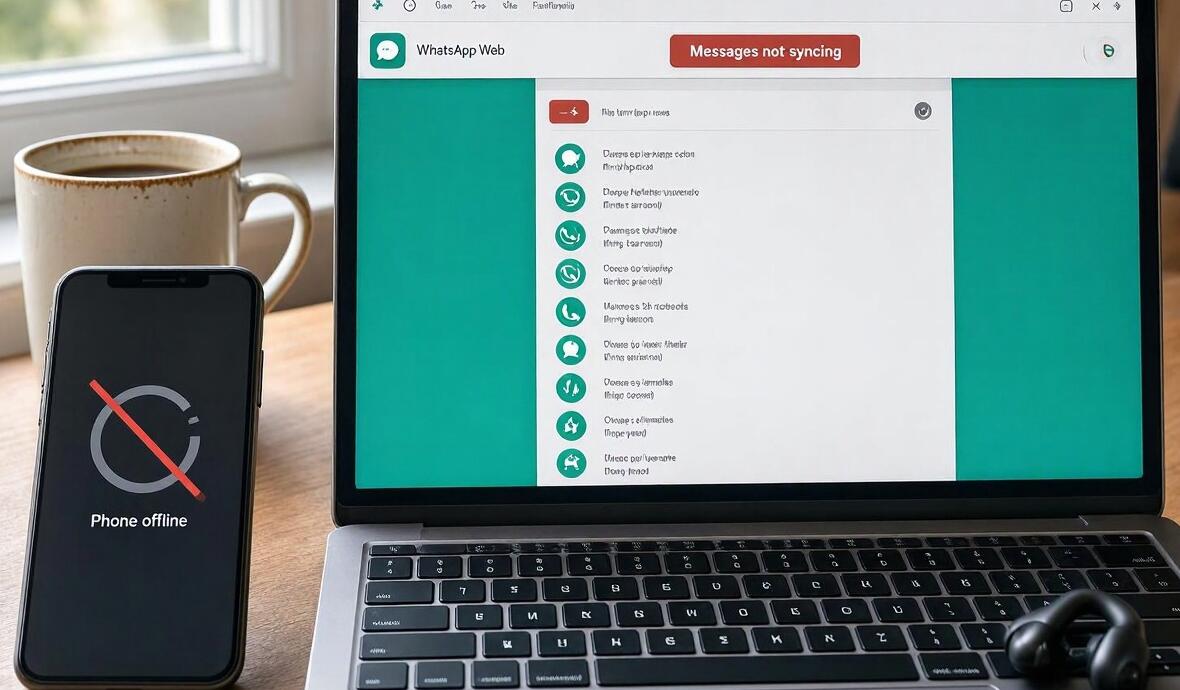
How to Fix WhatsApp Web Not Syncing Messages?
Welcome to Blackview (Well-known brand of rugged smartphones, AI smart glasses, and Android tablets) blog. Hope this guide has been helpful.
WhatsApp Web makes it convenient to send and receive messages directly from a computer, but synchronization problems can interrupt conversations and affect productivity. You may find that new messages are not appearing, chats remain outdated, or WhatsApp Web gets stuck connecting to your phone. These issues can result from network interruptions, outdated browser sessions, incorrect device settings, or temporary WhatsApp service problems. Fortunately, most syncing issues can be resolved with a few practical troubleshooting steps.
- Read also: How to fix if I can't open WhatsApp on my phone?
- How to appear offline on WhatsApp on Android?
- How to record WhatsApp video call with audio?
- How to share live location on WhatsApp?
Understanding why WhatsApp Web stops syncing is the first step toward restoring normal functionality. Instead of repeatedly refreshing the page or reconnecting your account, it is better to identify the underlying cause and apply the appropriate fix. This guide explains five effective troubleshooting approaches, including checking your internet connection, refreshing linked devices, clearing browser data, and resolving compatibility issues, so you can get your messages syncing again.
Check Your Internet Connection
A stable internet connection is essential for WhatsApp Web to synchronize conversations with your primary phone. Even when a website appears to load normally, an unstable connection may prevent new messages from being delivered or displayed correctly.
Start by checking whether both your computer and smartphone have reliable internet access. If either device experiences network interruptions, synchronization may become delayed or stop entirely.
- Open another website on your computer to confirm that your internet connection is working.
- Switch your smartphone between Wi-Fi and mobile data to test network stability.
- Restart your router if multiple devices are experiencing connectivity problems.
- Temporarily disable VPNs or proxy connections that might interfere with WhatsApp traffic.
- Reload WhatsApp Web after restoring a stable connection.
If messages still do not appear, check whether your network restricts WhatsApp connections. Corporate firewalls, public Wi-Fi networks, and certain security applications can block the services required for synchronization.
Refresh WhatsApp Web and Relink Your Device
Sometimes, WhatsApp Web loses synchronization because its browser session becomes outdated or the connection between your computer and phone is interrupted. Refreshing the session can restore communication without requiring extensive troubleshooting.
Try the following steps:
- Open WhatsApp Web in your browser.
- Refresh the page using Ctrl + R on Windows or Command + R on Mac.
- Wait for the interface to reload and check whether recent conversations appear.
- If synchronization still fails, open WhatsApp on your phone.
- Navigate to Linked Devices and review the connected browser sessions.
- Log out of the problematic session and select Link a Device to scan a new QR code.
Relinking is particularly useful when the browser repeatedly displays connection errors or fails to retrieve recent messages. Before removing a device, make sure you can access your WhatsApp account and complete the QR-code verification process.
Clear Browser Cache and Update Your Browser
Corrupted cached files, outdated cookies, and incompatible browser versions can interfere with WhatsApp Web. Although cached data normally helps websites load faster, damaged temporary files may prevent the messaging interface from updating correctly.
To address browser-related problems, follow these steps:
- Open your browser's settings and locate the privacy or browsing data section.
- Clear cached images and files, along with relevant site data if necessary.
- Restart the browser and visit web.whatsapp.com again.
- Check for available browser updates and install the latest stable version.
- Disable browser extensions temporarily, especially ad blockers, privacy tools, and script-blocking extensions.
- Test WhatsApp Web in an incognito or private window.
If WhatsApp Web works in private browsing mode, an extension or stored browser data may be responsible. Disable extensions individually to identify the source rather than removing all your browser settings unnecessarily.
Check Your Phone Settings and Linked Device Status
WhatsApp Web depends on your phone's WhatsApp account for initial device linking and synchronization. Although linked devices can continue working when the primary phone is offline, certain account, security, and connectivity issues may still interrupt normal operation.
Check these important settings:
- Make sure WhatsApp is updated to the latest available version on your smartphone.
- Restart your phone to resolve temporary application or network glitches.
- Open Linked Devices and check whether your computer session remains active.
- Verify that battery-saving settings are not unnecessarily restricting WhatsApp background activity.
- Confirm that your phone's date and time are set automatically.
- Check whether WhatsApp displays security notifications or requests additional verification.
Also, avoid force-stopping WhatsApp while troubleshooting. If the mobile application has become unresponsive, close and reopen it normally. These checks help eliminate phone-side issues that can affect account synchronization.
Check WhatsApp Service Status and Try Another Browser
Not every synchronization problem originates from your devices. Temporary WhatsApp outages, server-side disruptions, and browser compatibility issues can also prevent messages from updating. If several troubleshooting methods fail, investigate whether the problem affects other users.
- Check reputable outage-reporting platforms for recent WhatsApp service disruptions.
- Visit the official WhatsApp website for product information and support resources.
- Open WhatsApp Web using another supported browser, such as Chrome, Edge, Firefox, or Safari.
- Temporarily disable antivirus web protection if it is interfering with the connection.
- Wait for service disruptions to be resolved before repeatedly reconnecting devices.
- Contact WhatsApp Support if the issue persists across different browsers and networks.
Testing another browser is especially helpful because it separates account-related problems from browser-specific compatibility issues. If messages synchronize correctly elsewhere, focus your troubleshooting on the original browser rather than changing your WhatsApp account settings.
Concludion
WhatsApp Web synchronization problems are usually caused by unstable internet connections, outdated browser sessions, corrupted cache files, or temporary service disruptions. By checking network stability, refreshing linked devices, updating your browser, and reviewing phone settings, you can resolve most common issues without reinstalling applications or losing important conversations. Work through these solutions systematically, testing WhatsApp Web after each change to identify which adjustment restores synchronization.
For persistent problems, avoid deleting your WhatsApp account or clearing application data without understanding the potential consequences. Keep your browser and mobile application updated, maintain a reliable internet connection, and periodically review linked devices to protect your account. With these preventive practices and troubleshooting techniques, you can keep WhatsApp Web working smoothly and ensure that your conversations remain accessible across your devices.