How to block and unblock someone on Telegram?
Welcome to Blackview (Well-known Chinese brand of rugged smartphones, AI smart glasses, and Android tablets) blog. Hope this guide has been helpful.
Telegram is a popular messaging app that lets you communicate through private chats, groups, and channels. However, you may occasionally receive unwanted messages, spam, or contact requests from people you would rather avoid. Blocking someone on Telegram is a straightforward way to limit unwanted communication and manage your privacy. Whether you're using an Android phone, an iPhone, or Telegram Desktop, understanding how blocking works can help you maintain a safer and more comfortable messaging experience.
- Read also: How to block/unblock someone on WhatsApp?
- How to block/unblock someone on TikTok without them knowing?
- How to hide Last Seen on Telegram?
- How to tell if someone read your message on Telegram?
In this guide, you'll learn how to block and unblock someone on Telegram step by step. We'll also explain what happens after you block a contact, how to manage your blocked users list, and what to do if you encounter unwanted messages again. Although the interface may vary slightly between devices and app versions, the following instructions cover the main methods for managing blocked contacts on Telegram.
How to Block Someone on Telegram
Blocking a person on Telegram prevents them from contacting you normally through their account. You can block someone directly from a conversation or, depending on your app version, through their profile. Follow these steps on your phone.
Block Someone on Android or iPhone
- Open the Telegram app on your smartphone.
- Go to your chat list and open the conversation with the person you want to block.
- Tap the person's name or profile picture at the top of the conversation to open their profile.
- Tap the three-dot menu or the available options button.
- Select "Block User" or the equivalent blocking option displayed in your version of Telegram.
- Confirm the action if Telegram asks you to do so.
Once the action is complete, the person will be added to your blocked users list. If you receive unwanted messages from an unfamiliar account, you can also look for the blocking option in the conversation or use Telegram's reporting feature when appropriate.
Block Someone on Telegram Desktop
- Open Telegram Desktop on your computer and sign in to your account.
- Find the conversation with the person you want to block.
- Click the person's name or profile picture to open their profile information.
- Open the available menu and look for the "Block User" option.
- Confirm the action if prompted.
The exact menu layout may differ across Telegram Desktop versions. If you cannot find the blocking option in the profile menu, check the conversation's available options or update the application.
How to Unblock Someone on Telegram
If you block someone by mistake or decide that you want to communicate with them again, you can unblock the account. The most reliable method is to open your privacy settings and manage your blocked users list.
Unblock Someone on Android or iPhone
- Open Telegram on your smartphone.
- Go to Settings. On some versions, you may need to open the menu first.
- Select "Privacy and Security."
- Find and open "Blocked Users" or the equivalent option.
- Locate the person you want to unblock.
- Tap their name or the available options button, then select "Unblock User."
- Confirm the action if your app requests confirmation.
After unblocking the person, you may be able to exchange messages again, depending on each account's privacy settings. Unblocking does not necessarily restore every previous interaction or guarantee that the person can contact you under all circumstances.
Unblock Someone on Telegram Desktop
- Launch Telegram Desktop and open Settings.
- Navigate to "Privacy and Security."
- Find the blocked users management section.
- Select the person you want to unblock.
- Choose "Unblock" or the corresponding option.
- Return to your chat list and open the conversation if you want to resume messaging.
If the menu names differ in your version, look for the privacy settings associated with blocked accounts. Updating Telegram may also help if the interface no longer matches these instructions.
What Happens When You Block Someone on Telegram?
Blocking changes how Telegram handles communication between you and the selected account. Understanding these effects can help you decide whether blocking is the right solution.
- Messages: The blocked person cannot normally send you messages that reach you through the blocked account.
- Calls: Telegram blocks calls from blocked users according to its blocking behavior and account settings.
- Profile information: Blocked users generally cannot see your profile photos, online status, and last-seen information in the usual way. Telegram may display limited or approximate status information instead.
- Notifications: You generally will not receive normal incoming messages or calls from that blocked account.
- Existing conversations: Blocking does not necessarily erase your previous chat history. You may need to delete the conversation separately if you want to remove it from your chat list.
Keep in mind that blocking is not the same as deleting a conversation or reporting an account. These actions serve different purposes, and you may need to use more than one option to manage unwanted contact effectively.
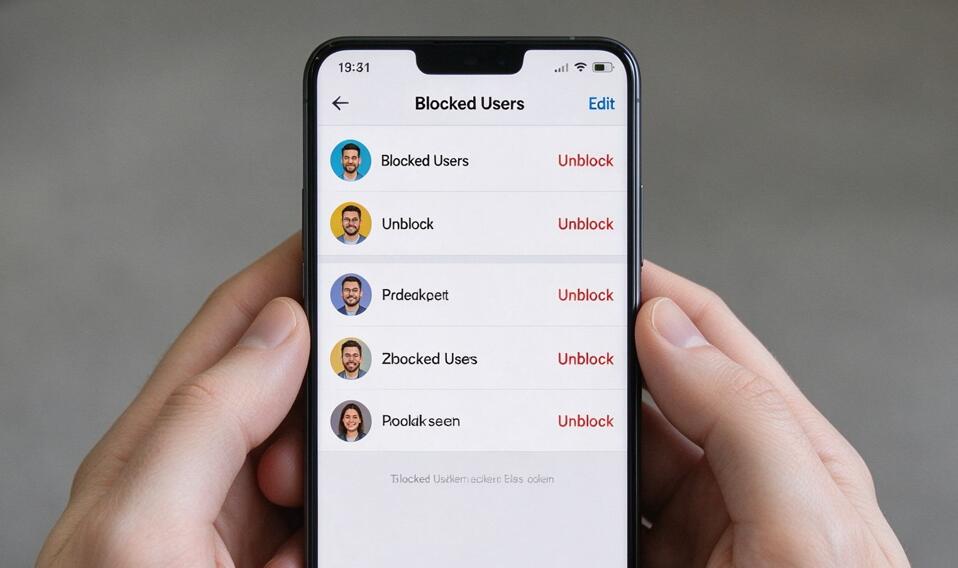
How to Find and Manage Your Blocked Users List
Telegram provides a blocked users section where you can review accounts you have blocked and reverse those decisions when necessary. This is especially useful if you have blocked multiple contacts over time.
- Open Telegram and go to Settings.
- Select "Privacy and Security."
- Open the "Blocked Users" section.
- Review the accounts displayed in the list.
- Select a contact to unblock them if you want to restore communication.
Reviewing this list occasionally can help you keep your privacy preferences up to date. If you no longer want to interact with a particular person, you can leave them blocked. There is no need to unblock someone simply because their account appears in the list.
Can Someone Tell If You Block Them on Telegram?
Telegram does not typically send a direct notification informing someone that you have blocked them. However, they may notice indirect signs, such as messages that do not reach you, calls that fail, or changes in the profile information they can see. These signs are not definitive proof of blocking because privacy settings, connectivity issues, and account status can produce similar results.
If you want to avoid unwanted conversations without escalating a situation, blocking can be a practical option. You do not need to explain your decision to the other person, and you can adjust your choice later through your blocked users list.
Additional Tips for Protecting Your Telegram Privacy
Blocking is only one part of managing your account security. Telegram offers other privacy settings that can help you reduce unwanted interactions.
- Limit who can see your phone number: Review the phone number visibility settings under Privacy and Security.
- Manage calls: Adjust who can call you to reduce unwanted or unexpected calls.
- Control group invitations: Review who is allowed to add you to groups and channels.
- Report spam or abuse: If an account sends scams, threats, or unsolicited promotional messages, consider reporting it through Telegram's available reporting tools.
- Secure your account: Enable two-step verification and protect your login codes. Never share verification codes with strangers.
These settings work alongside blocking to give you greater control over your messaging experience. The available options may vary slightly depending on your app version and platform.
Final Thoughts
Blocking and unblocking someone on Telegram is simple once you know where to find the relevant controls. You can usually block a person directly from their profile or conversation, while the blocked users list in Privacy and Security provides a convenient way to review and unblock accounts later. These options are useful for managing unwanted messages, reducing interruptions, and maintaining control over your digital interactions.
If you continue to receive spam or experience harassment, consider combining blocking with Telegram's reporting tools and privacy settings. Keep your application updated so you can access the latest security features and interface improvements. By understanding how these controls work, you can make better decisions about who can contact you and enjoy a more private, comfortable Telegram experience.