How to fix WhatsApp Web not working on Chrome, Windows laptop, PC, or MacBook?
Welcome to Blackview (Well-known brand of rugged smartphones, AI smart glasses, and Android tablets) blog. Hope this guide has been helpful.
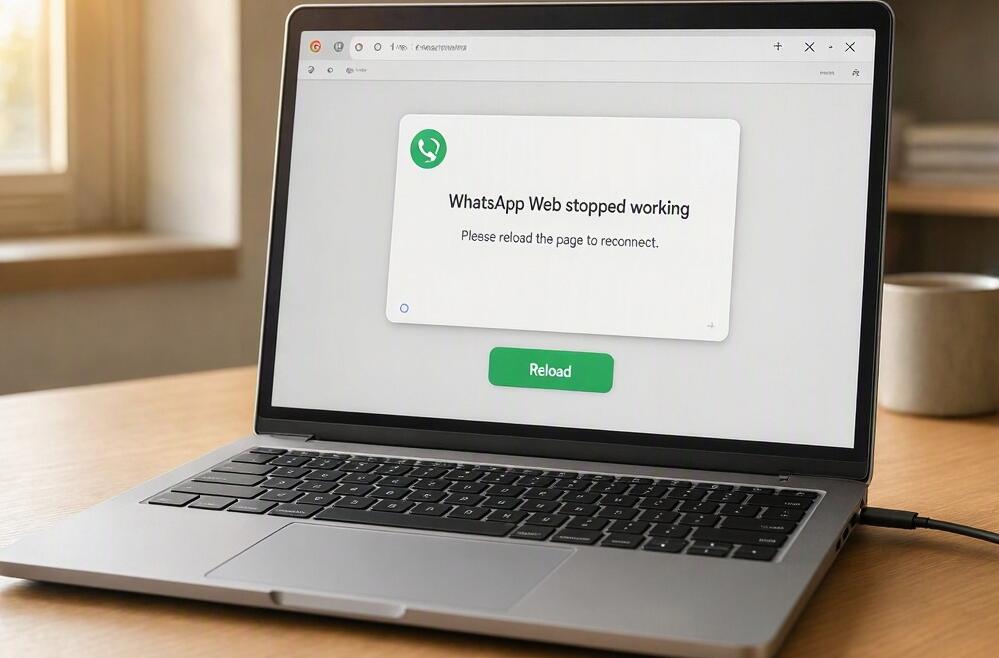
WhatsApp Web makes it convenient to send messages, share files, and manage conversations directly from a computer. However, sometimes it may stop working unexpectedly. You might encounter a blank screen, endless loading, a QR code that refuses to scan, messages that fail to synchronize, or an error saying that the browser cannot connect. These problems can interrupt your workflow, especially when you rely on WhatsApp for daily communication. Fortunately, most WhatsApp Web issues are related to browser settings, network connections, outdated software, or corrupted website data and can be resolved with a few troubleshooting steps.
- Read also: How to turn off disappearing messages on WhatsApp?
- How to clear browser cookies and cache on Android?
- If you archive someone on WhatsApp, can you see their status?
- How to know if someone muted you on WhatsApp?
- How to fix WhatsApp not working on WiFi but working on mobile data?
Whether you are using Google Chrome, a Windows 11 laptop, an older Windows 7 computer, or a MacBook, this guide explains how to identify and fix common WhatsApp Web problems. You will learn practical troubleshooting methods for different operating systems, how to reconnect your WhatsApp account, and how to prevent similar issues from happening again. Follow the instructions below and try the solutions in order, starting with the simplest fixes before moving on to more advanced troubleshooting. So, let's dive in.
Fix WhatsApp Web QR Code Not Working
The QR code is used to link your computer browser to your WhatsApp account. If your phone cannot scan the code, or the linking process repeatedly fails, the problem may involve an expired QR code, camera issues, an unstable connection, or an outdated WhatsApp application.
- Refresh the QR code: Reload WhatsApp Web to generate a new code. Avoid repeatedly scanning an old QR code.
- Clean your phone camera: Remove fingerprints or dirt from the camera lens so it can focus clearly.
- Adjust the scanning distance: Hold your phone at a suitable distance from the computer screen and make sure the entire QR code is visible.
- Increase screen brightness: A brighter display can make the QR code easier for your phone camera to recognize.
- Update WhatsApp: Open the Google Play Store or Apple App Store and check whether a newer WhatsApp version is available.
- Check linked devices: Open WhatsApp on your phone, navigate to Linked devices, and review existing sessions. Remove unfamiliar or outdated sessions before trying again if necessary.
- Try phone-number linking: If the option is available on your WhatsApp Web login screen, choose Link with phone number and follow the instructions.
Never scan a QR code sent by an unknown person or use a linking code provided by an untrusted source. Only link your account through the official WhatsApp website.
Fix WhatsApp Web Stop Working on Chrome
If WhatsApp Web is not loading or responding in Google Chrome, the problem may be caused by outdated browser software, conflicting extensions, cached website data, or restricted cookies. Try these steps to restore normal functionality.
- Refresh WhatsApp Web: Open https://web.whatsapp.com/ in Chrome and press Ctrl + R to reload the page. If the website is stuck loading, press Ctrl + Shift + R to perform a hard refresh.
- Update Google Chrome: Click the three-dot menu in the upper-right corner, select Help, and choose About Google Chrome. Allow Chrome to check for updates, install any available version, and restart the browser.
- Try Incognito mode: Press Ctrl + Shift + N to open an Incognito window. Visit WhatsApp Web and check whether the page works. If it does, an extension or existing browser data may be responsible.
- Disable problematic extensions: Enter chrome://extensions/ in the address bar. Temporarily turn off ad blockers, privacy extensions, script blockers, and other browser add-ons. Reload WhatsApp Web to test the connection.
- Clear WhatsApp website data: Open WhatsApp Web, click the site information icon beside the address bar, and select Site settings. Find the option to delete or clear site data, then reload the page. You may need to scan the QR code again.
- Allow cookies and JavaScript: Open Chrome's privacy and site settings. Make sure WhatsApp Web is not blocked from using essential website data or JavaScript.
- Check VPN and proxy settings: Temporarily disconnect your VPN or proxy and reload WhatsApp Web. Some network configurations can interfere with the connection.
- Restart Chrome: Close all Chrome windows, reopen the browser, and visit WhatsApp Web again.
If WhatsApp Web works in Incognito mode but not in your regular browser, focus on extensions and stored website data rather than reinstalling Chrome immediately.
Fix WhatsApp Web Stop Working on Windows 11 Laptop
On a Windows 11 laptop, WhatsApp Web may fail because of unstable Wi-Fi, firewall restrictions, incorrect system settings, or browser compatibility problems. The following methods can help identify the cause.
- Check your internet connection: Open another website to see whether your laptop can access the internet. If other websites also fail to load, restart your Wi-Fi router or reconnect to your network.
- Restart your laptop: Click Start, select Power, and choose Restart. After Windows starts again, open your browser and revisit WhatsApp Web.
- Check Windows date and time: Open Settings, go to Time & language, and select Date & time. Enable Set time automatically and Set time zone automatically if appropriate. Incorrect system time can cause secure connection problems.
- Allow your browser through Windows Firewall: Open Windows Security, select Firewall & network protection, and review the allowed applications. Make sure your browser is permitted on the appropriate network. Avoid disabling the firewall entirely.
- Clear browser cache and cookies: Open your browser's privacy settings and remove the stored data associated with WhatsApp Web. Restart the browser and sign in again.
- Temporarily disable conflicting extensions: Turn off browser extensions that filter advertisements, scripts, or website connections. Test WhatsApp Web again.
- Reset network settings if necessary: Open Settings, select Network & internet, and locate Advanced network settings. Use Network reset only if other connection troubleshooting methods fail, because it may remove saved network configurations.
- Check for Windows updates: Open Settings, select Windows Update, and install available updates. Restart the laptop if required.
If you use WhatsApp Web frequently, consider testing another supported browser. If the website works elsewhere, the problem is more likely related to your original browser than Windows itself.
Fix WhatsApp Web Stop Working on Windows 7 PC
Windows 7 is an older operating system, and compatibility is an important consideration when troubleshooting WhatsApp Web. Modern browser versions and security technologies may no longer support this operating system. Google Chrome no longer provides regular security updates for Windows 7, so some newer website features may not work correctly.
- Check your browser version: Open Chrome and visit its About page to identify the installed version. Keep in mind that an old browser may not support current WhatsApp Web requirements.
- Verify your internet connection: Open several websites to determine whether the problem affects your entire internet connection or only WhatsApp Web.
- Check system date and time: Open Control Panel, select Clock and Region, and check the date, time, and time zone. Incorrect settings can interfere with secure website connections.
- Restart your computer: Close the browser, restart Windows 7, and try accessing WhatsApp Web again.
- Check browser cookies and JavaScript: Review the browser's website settings and make sure essential website functions are not blocked.
- Try another compatible browser: If you have another browser that still receives security updates and supports your operating system, test WhatsApp Web with it. Avoid downloading outdated or unofficial browser installers.
- Review security software: Check whether your antivirus or firewall is blocking the browser's connection. Do not permanently disable security protection.
- Consider upgrading Windows: If WhatsApp Web continues to fail because of browser incompatibility, moving to a currently supported operating system is the more reliable long-term solution.
It is important to understand that Windows 7 is no longer supported by Microsoft. Microsoft ended regular support in January 2020. Therefore, troubleshooting cannot guarantee compatibility with modern versions of WhatsApp Web. For security and reliability, upgrading to a supported Windows version is strongly recommended.
Fix WhatsApp Web Not Working on MacBook
MacBook users may experience WhatsApp Web problems because of Safari or Chrome settings, outdated macOS software, VPN connections, or website permission restrictions. Try the following solutions to identify and resolve the issue.
- Reload WhatsApp Web: Open your browser and visit https://web.whatsapp.com/. Press Command + R to refresh the page.
- Update your browser: If you use Chrome, open its About Google Chrome page and install available updates. If you use Safari, check for macOS updates through System Settings.
- Test Private Browsing: In Safari, select File and choose New Private Window. In Chrome, press Command + Shift + N. Open WhatsApp Web and check whether it loads correctly.
- Clear website data: In Safari, open Settings, select Privacy, and choose Manage Website Data. Search for WhatsApp and remove its stored data if necessary. In Chrome, open Privacy and security settings and clear the relevant website data.
- Check browser extensions: Temporarily disable content blockers, ad blockers, and privacy extensions. Reload WhatsApp Web to see whether one of them is interfering with the page.
- Review network settings: Disconnect any VPN or proxy temporarily and test your internet connection again.
- Check firewall settings: Open System Settings, select Network, and review Firewall settings if enabled. Make sure your browser is not being unnecessarily restricted.
- Restart your MacBook: Choose Apple menu and select Restart. After restarting, reopen the browser and reconnect to WhatsApp Web.
If you use Safari and encounter persistent compatibility issues, try a current version of Chrome or another supported browser. WhatsApp Web may behave differently depending on the browser version and available website features.
Check Whether WhatsApp Is Experiencing a Service Outage
Sometimes WhatsApp Web stops working because of a temporary service interruption rather than a problem with your computer. If the page suddenly stops loading across multiple browsers and devices, check whether WhatsApp is experiencing a wider outage.
- Open WhatsApp on your smartphone and check whether messages can be sent and received.
- Visit a reputable service-status or outage-reporting website to see whether other users are reporting similar problems.
- Check official WhatsApp communication channels for announcements about service interruptions.
- Try opening WhatsApp Web again after some time if a temporary outage is suspected.
- Avoid repeatedly clearing browser data or reinstalling applications when the problem is caused by a service outage.
Identifying a service interruption early can save time and prevent unnecessary changes to your browser or computer.
When to Use WhatsApp Desktop Instead of WhatsApp Web
If browser troubleshooting does not solve the problem, the official WhatsApp Desktop application may be a convenient alternative. A dedicated application can provide a different experience from accessing WhatsApp through a browser, although it still depends on a compatible operating system and working network connection.
- Visit the official WhatsApp download page at https://www.whatsapp.com/download/.
- Choose the appropriate Windows or macOS version for your computer.
- Check the minimum operating system requirements before downloading.
- Install the official application and open it.
- Follow the on-screen instructions to link your WhatsApp account.
- Test messaging, file sharing, and other available features.
According to WhatsApp's current download information, its Windows desktop application requires Windows 10 64-bit version 1903 or later, while its Mac application requires macOS 11 or later. Older operating systems may need to use WhatsApp Web in a compatible browser instead. Check the official requirements before installing.
How to Prevent WhatsApp Web Problems in the Future
After fixing WhatsApp Web, a few maintenance habits can help reduce the likelihood of encountering the same problems again. Regular browser updates, stable internet access, and careful account management are particularly important.
- Keep your browser updated: Install security and compatibility updates whenever they become available.
- Maintain a stable internet connection: Avoid switching between unstable Wi-Fi networks while sending important messages or transferring files.
- Manage browser extensions: Remove unnecessary extensions and only install add-ons from trustworthy sources.
- Clear problematic website data: If WhatsApp Web repeatedly freezes or fails to load, clear its stored website data rather than immediately deleting all browser information.
- Keep your phone updated: Install available WhatsApp updates to maintain compatibility and improve account security.
- Review linked devices regularly: Remove old or unfamiliar devices from your WhatsApp account.
- Avoid unsupported operating systems: Use a computer and browser that receive regular security updates.
These simple habits can help maintain a more reliable WhatsApp Web experience while protecting your account and personal information.
Final Thoughts
When WhatsApp Web is not working on Chrome, a Windows PC, or a MacBook, the cause is often related to browser compatibility, network connectivity, stored website data, or security settings. Starting with basic troubleshooting methods such as refreshing the page, checking your internet connection, updating your browser, and testing in private browsing mode can resolve many common issues. More advanced solutions, including clearing website data, reviewing firewall settings, and reconnecting your account, can help when simpler methods are unsuccessful.
However, not every problem can be fixed through browser settings alone. Older operating systems such as Windows 7 may no longer meet modern security and compatibility requirements, while temporary WhatsApp service interruptions can affect users across different devices. Identify the source of the problem before making major changes, and always download applications from official sources. By following the steps in this guide and keeping your devices and browsers updated, you can enjoy a more stable, secure, and convenient WhatsApp Web experience.