How to turn on/turn off disappearing messages on WhatsApp?
Welcome to Blackview (World's well-known brand of rugged smartphones, including rugged phone with projector, rugged phone with eSIM, and Android 16 rugged phone, etc.) blog. Hope the guide helps.
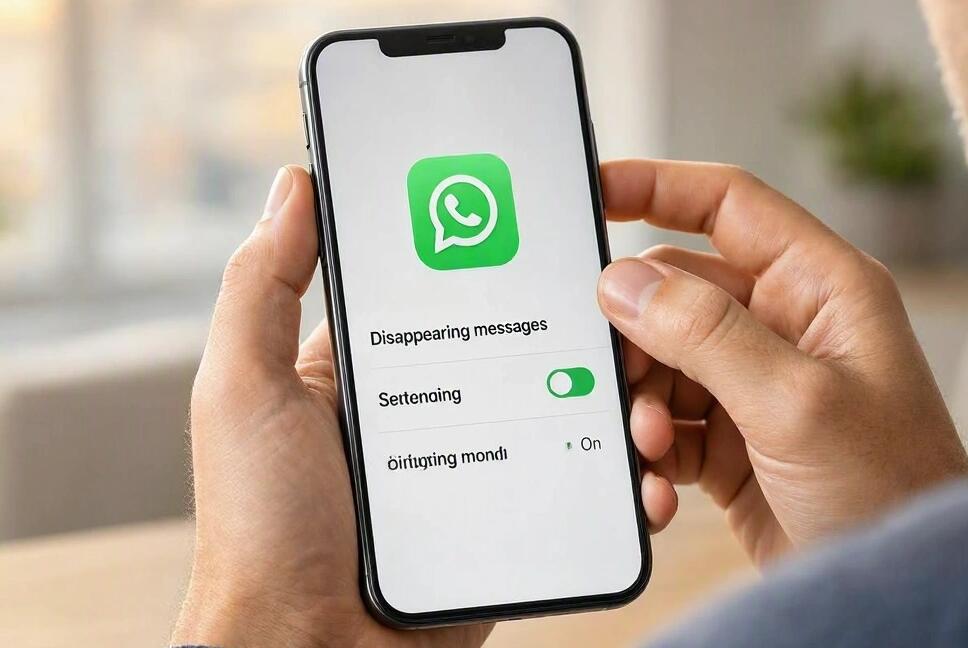
WhatsApp disappearing messages is a privacy feature that automatically removes eligible new messages from a conversation after a selected period. Whether you're sharing personal information, discussing temporary plans, or simply trying to keep your chats organized, this feature gives you more control over how long messages remain visible. You can enable it for individual conversations or group chats and choose a message timer that suits your needs.
Knowing how to turn disappearing messages on or off is useful when you want more privacy without manually deleting every message. WhatsApp offers three main durations: 24 hours, 7 days, and 90 days. The steps are similar on Android and iPhone, although some menu labels may vary slightly depending on your app version. This guide explains how to manage the setting, whether other participants will know when you change it, and what you should understand before relying on it for privacy.
- Read also: How to retrieve deleted WhatsApp messages?
- Can't send a live location to friends on WhatsApp? Here's why & how to fix
- How to know if someone archived you on WhatsApp?
- How to know if someone muted you on WhatsApp?
- How to mute/unmute someone on WhatsApp?
What Are Disappearing Messages on WhatsApp?
Disappearing messages allow WhatsApp to automatically remove eligible new messages from a chat after a selected period. The timer begins when a message is sent, rather than when the recipient reads it. The feature applies to both sides of the conversation, helping reduce the amount of message history retained in the chat.
There are several reasons why people choose to enable this feature:
- Improve privacy: Reduce how long everyday conversations remain visible in your chat history.
- Keep chats organized: Automatically clear temporary discussions, such as travel arrangements or shopping lists.
- Reduce message clutter: Avoid accumulating old messages that are no longer useful.
- Manage information retention: Choose a time limit that suits the nature of a conversation.
However, disappearing messages do not guarantee that a conversation will be permanently erased from every device or copy. Recipients may save information elsewhere, take screenshots, or retain content through certain backups or message interactions. Treat this feature as a way to limit message persistence, not as a substitute for careful sharing.
How to Turn On or Turn Off Disappearing Messages on Android
On Android, you can manage disappearing messages directly from the information screen of an individual or group chat. Follow these steps to enable or disable the feature.
Turn On Disappearing Messages on Android
- Open WhatsApp on your Android phone.
- Open the individual conversation or group chat where you want to enable disappearing messages.
- Tap the contact's name or group name at the top of the screen to open the chat information page.
- Select Disappearing messages. If a confirmation screen appears, follow the on-screen instructions.
- Choose the message timer: 24 hours, 7 days, or 90 days.
- Return to the conversation and check the chat information or system notice to confirm that the setting is enabled.
Once enabled, eligible new messages will disappear after the selected duration unless they are kept using WhatsApp's supported message-retention feature.
Turn Off Disappearing Messages on Android
- Open WhatsApp and enter the conversation where disappearing messages are enabled.
- Tap the contact's name or group name at the top.
- Select Disappearing messages.
- Choose Off from the available timer options.
- Return to the chat and confirm that the setting now displays Off.
Turning off the feature stops the timer from applying to new messages sent under the chat's previous disappearing-message setting. It does not restore messages that have already disappeared, and it does not automatically remove or change the history of older messages that remain visible.
How to Turn On or Turn Off Disappearing Messages on iPhone
The process on an iPhone is almost identical to Android. You can access the setting through the contact or group information screen without changing your phone's general privacy settings.
Turn On Disappearing Messages on iPhone
- Open WhatsApp on your iPhone.
- Tap the Chats tab and open the conversation you want to manage.
- Tap the contact's name or group name at the top of the screen.
- Find and tap Disappearing messages.
- Select 24 hours, 7 days, or 90 days, depending on how long you want eligible new messages to remain available.
- Return to the conversation and check that the setting has been applied.
The selected timer applies to eligible new messages in that conversation. Messages sent before the setting was enabled are not automatically converted into disappearing messages.
Turn Off Disappearing Messages on iPhone
- Open WhatsApp and navigate to the relevant conversation.
- Tap the contact's name or group name to open the chat information screen.
- Tap Disappearing messages.
- Select Off.
- Return to the conversation and verify that the timer is disabled.
If you cannot find the option, make sure WhatsApp is updated and that you are opening the correct chat information screen. In group chats, an administrator may have restricted who can change this setting.
Will Others Know When You Turn Off Disappearing Messages?
Yes. Other participants can generally see an in-chat system notice when disappearing messages are turned off. WhatsApp makes changes to this feature visible within the conversation, so disabling it is not a completely hidden action.
Here is what to expect when you change the setting:
- When you turn it on: WhatsApp displays a notice indicating that disappearing messages have been enabled.
- When you turn it off: The conversation can display a system notice indicating that disappearing messages have been disabled.
- In individual chats: Either participant can generally change the setting, and the other person may see the corresponding notice.
- In group chats: Participants can see changes to the setting, subject to the group's permissions and administrator restrictions.
Keep in mind that disabling disappearing messages does not mean WhatsApp will notify everyone about every message that remains in the conversation. The system notice concerns the setting change itself. If you need certain information to remain available, consider saving it appropriately before its timer expires.
How to Set a Default Disappearing Message Timer
If you want disappearing messages to be enabled automatically for new individual chats, WhatsApp also provides a default message timer. This saves you from configuring every new conversation separately.
Steps to Set the Default Timer
- Open WhatsApp on your phone.
- On Android, tap the three-dot menu and select Settings. On iPhone, tap Settings in the bottom navigation bar.
- Open Privacy.
- Select Default message timer.
- Choose 24 hours, 7 days, 90 days, or Off.
- Return to Settings after making your selection.
This default setting applies to new individual chats rather than automatically changing every existing conversation or group. You can still configure individual chats separately when you need a different duration.
What Happens to Messages When the Timer Expires?
When the selected duration expires, eligible disappearing messages are removed from the conversation for the sender and recipients. However, several important exceptions can affect what remains accessible.
- Older messages: Enabling disappearing messages does not automatically delete messages sent before the setting was changed.
- Quoted replies: A quoted portion of an earlier disappearing message may remain visible in a reply after the original message disappears.
- Forwarded messages: If a disappearing message is forwarded to a chat where disappearing messages are disabled, the forwarded copy may remain available.
- Backups and saved content: A message included in a backup created before it disappears may remain in that backup until the backup is handled according to WhatsApp's restoration rules.
- External copies: Screenshots, copied text, and other independently saved records may remain outside the original conversation.
These limitations are important if you share sensitive information. Disappearing messages help manage your chat history, but they cannot guarantee that recipients will be unable to preserve a copy.
Can You Use Disappearing Messages in Group Chats?
Yes. WhatsApp supports disappearing messages in group conversations as well as individual chats. The basic process is the same: open the group, tap its name, select Disappearing messages, and choose a duration or Off.
However, group administrators can restrict who is allowed to change group settings. If you cannot enable or disable disappearing messages, check whether the group has limited this permission. Also remember that a group may contain many participants, making it especially important to consider whether information should be shared in the first place.
Tips for Managing Disappearing Messages Safely
To get the most out of this feature, choose a timer based on how you use each conversation rather than automatically selecting the shortest option.
- Choose 24 hours for temporary discussions that do not need to remain accessible for long.
- Choose 7 days when you may need to refer to a conversation during the following week.
- Choose 90 days when you want a longer retention period while still limiting how long messages remain in the chat.
- Use Off for conversations where you need messages to remain available in the chat history.
- Save important information securely before the timer expires, provided you have permission to retain it.
- Review the setting after changing phones or adjusting your privacy preferences.
Always check whether a conversation uses a specific timer or your default message timer. This helps prevent important information from disappearing earlier than expected.
Final Thoughts
Turning disappearing messages on or off in WhatsApp is straightforward on both Android and iPhone. Open the relevant conversation, tap the contact's or group's name, select Disappearing messages, and choose a duration or Off. If you prefer automatic expiration in new individual chats, you can also configure the default message timer through your privacy settings.
Remember that other participants can generally see when the setting changes, and disabling it will not restore messages that have already disappeared. Most importantly, disappearing messages are a useful privacy and chat-management feature, not a guarantee that every copy of a message will be permanently erased. By choosing the right timer and understanding its limitations, you can manage your WhatsApp conversations with greater confidence.