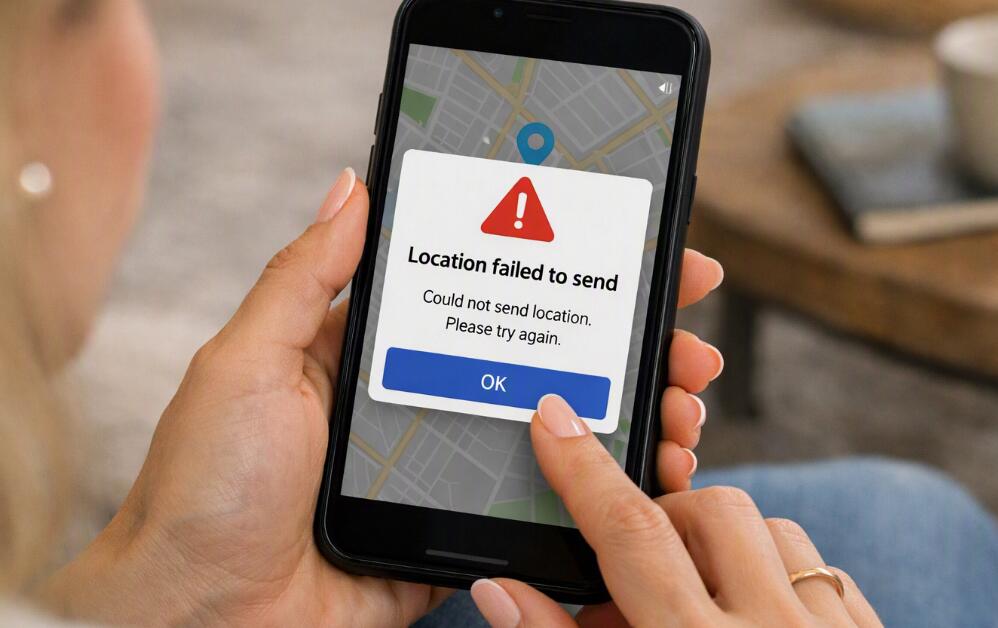
I can't send my location/live location to my friend on WhatsApp. Why & how to fix?
Welcome to Blackview (Well-known brand of rugged smartphones, AI smart glasses, and tablets) blog. Hope this guide has been helpful.
WhatsApp location sharing is useful when you want a friend to find you, coordinate a meeting, or follow your journey in real time. However, location sharing can fail for several different reasons. You may see an error when trying to send your current location, the location option may not work at all, your friend may receive an incorrect location, or live location may stop updating after you have already shared it.
- Read also: How to completely stop apps running in background on Android?
- How to appear offline on WhatsApp on Android?
- How to know if someone muted me on WhatsApp?
- How to know if someone archived me on WhatsApp?
- How to record WhatsApp a video call with audio automatically?
The problem is usually related to location permissions, GPS or device settings, an unstable internet connection, battery-saving restrictions, outdated software, or WhatsApp itself. The quickest way to solve the issue is to identify which part of the location-sharing process is failing and then check the relevant settings. The following guide explains the common causes first and then provides practical steps for Android and iPhone users.
Why can't I send my location on WhatsApp?
Before changing settings, it helps to understand why WhatsApp may be unable to share your location. Location sharing depends on several services working together: WhatsApp needs permission to access your location, the phone needs access to positioning services, and WhatsApp needs an internet connection to transmit the location information to your contact.
- Location permission is disabled: WhatsApp may not have permission to access your device's location.
- Location services are turned off: Your phone may be preventing apps from obtaining your position.
- Weak GPS signal: Buildings, underground areas, tunnels, and enclosed spaces can make positioning less accurate.
- Internet connection problems: WhatsApp needs a working connection to send location information and update live location.
- Battery restrictions: Power-saving features can limit background location updates, especially for live location.
- Outdated WhatsApp or operating system: Compatibility bugs can sometimes affect location-related features.
- Temporary app problems: WhatsApp may occasionally experience a software glitch that can be resolved by restarting the app or phone.
- Incorrect date, time, or system settings: Certain device-level configuration problems can interfere with location services and network communication.
There is also an important distinction between current location and live location. Sending your current location normally shares a snapshot of where you are at that moment. Live location is designed to update your position for a selected period. Consequently, live location can be affected by additional restrictions such as background activity, battery optimization, and intermittent connectivity.
Check WhatsApp's location permission first
The first troubleshooting step is to make sure WhatsApp is actually allowed to access your location. If permission was previously denied, restricted, or automatically changed by the operating system, WhatsApp may not be able to obtain your current position.
On Android
Android menus vary between manufacturers, but the general process is similar:
- Open Settings on your phone.
- Tap Apps or Applications.
- Find and select WhatsApp.
- Tap Permissions.
- Select Location.
- Allow WhatsApp to access your location while using the app, or choose an appropriate background option if your Android version provides one and you need live location to continue updating.
- Open WhatsApp again and try sending your location.
On iPhone
On an iPhone, location access is controlled through iOS settings:
- Open Settings.
- Go to Privacy & Security.
- Tap Location Services.
- Make sure Location Services is enabled.
- Find WhatsApp in the app list.
- Choose an appropriate location-access option.
- Make sure Precise Location is enabled if you want WhatsApp to use your more precise position.
- Return to WhatsApp and test location sharing again.
If WhatsApp does not appear to have the expected location permission, restarting WhatsApp and checking for an available app update may help the operating system refresh the app's permission state.
Make sure Location Services and GPS are working
Even when WhatsApp has permission, the phone's location service itself must be available. If your device cannot determine where you are, WhatsApp may be unable to provide an accurate location.
- Turn on your phone's Location Services.
- Move outdoors or near a window if you are currently inside a large building.
- Wait several seconds for the device to obtain a stronger location signal.
- Open another legitimate map application and check whether it can determine your current position.
- If other apps also cannot determine your location, restart the phone and test again.
If a map application can locate you accurately but WhatsApp cannot, the problem is more likely to be related to WhatsApp permissions, app settings, or the WhatsApp installation rather than the phone's positioning hardware.
Check your internet connection
Location services and internet connectivity perform different jobs. Your phone may know exactly where you are, but WhatsApp still needs network access to send that information to your friend. A weak or unstable connection can therefore cause location sharing to fail or prevent live location from updating reliably.
- Check whether other websites or apps can connect to the internet.
- Switch between Wi-Fi and mobile data if possible.
- If you are using public Wi-Fi, try mobile data temporarily.
- Move to an area with stronger cellular coverage if your signal is weak.
- Temporarily disable and re-enable Wi-Fi or mobile data.
- Reopen WhatsApp and try sending the location again.
For live location, a stable connection is particularly important because the feature needs to communicate location updates rather than sending only one position. If your connection repeatedly drops, your friend may see an old position or experience gaps in the updates.
Fix live location that stops updating
If you can send a normal location but live location does not update properly, investigate background restrictions. Live location can require WhatsApp to continue accessing location information while you are moving, and aggressive battery-management settings can interfere with that process.
Android battery settings
Android manufacturers use different names for battery-management features. Look for settings associated with battery optimization, background activity, or unrestricted battery usage.
- Open Settings.
- Open Apps and select WhatsApp.
- Look for Battery or Battery usage.
- Check whether WhatsApp is being heavily restricted in the background.
- If available, choose an option that allows WhatsApp to operate appropriately in the background.
- Disable an extreme system-wide power-saving mode temporarily and test live location again.
iPhone background restrictions
On iPhone, check WhatsApp's location permission and system settings rather than looking for Android-style battery optimization controls. Avoid repeatedly force-closing WhatsApp while testing live location, because doing so can interfere with normal background operation.
Restart WhatsApp and your phone
A temporary software or network-state problem can sometimes prevent location sharing from working even when all permissions appear correct. Restarting is a simple troubleshooting step because it can refresh the app's connection and several device services.
- Close WhatsApp normally.
- Wait a few seconds.
- Open WhatsApp again.
- Try sending your current location.
- If the problem remains, restart your phone.
- After the phone starts again, verify Location Services and test WhatsApp.
If location sharing begins working after a restart but repeatedly stops later, pay particular attention to battery restrictions, software updates, and network stability rather than repeatedly restarting the phone.
Update WhatsApp and your phone
Location-sharing problems can sometimes result from software bugs or compatibility issues. Keeping WhatsApp and your phone's operating system reasonably up to date can eliminate problems that have already been addressed by later releases.
- Open the App Store on iPhone or the Google Play Store on Android.
- Search for WhatsApp.
- Install an available WhatsApp update.
- Check your phone's system settings for available operating-system updates.
- Install updates only after ensuring your phone has sufficient battery and storage.
- Restart WhatsApp and test location sharing after updating.
Check whether WhatsApp is allowed to use mobile data
If location sharing works over Wi-Fi but fails when you are using cellular data, check whether WhatsApp has been restricted from using mobile data. Some phones also provide system-level data-saving features that can limit an app's network activity.
- Turn off Wi-Fi temporarily.
- Confirm that mobile data is enabled.
- Check whether WhatsApp is allowed to use cellular data.
- Temporarily disable an aggressive data-saving mode if one is active.
- Try sending your current location again.
This test is useful because it separates a WhatsApp problem from a particular network problem. If WhatsApp consistently works on Wi-Fi but not cellular data, investigate the mobile-data permissions, carrier connection, or device data-saving settings.
Check WhatsApp's storage and app health
If WhatsApp has been running for a long time without maintenance, unusually high storage use or a problematic app state can contribute to broader performance issues. This does not mean that deleting WhatsApp data is the first solution. Start by reviewing the application's storage and removing unnecessary media if your phone is nearly full.
- Open WhatsApp's storage-management section.
- Review large videos, photos, and documents.
- Remove files you no longer need.
- Keep important media backed up before deleting it.
- Make sure your phone has sufficient free storage.
- Restart WhatsApp after cleaning up storage.
On Android, clearing the app's cache may also be worth trying if the problem appears to be temporary. Avoid choosing Clear storage or Clear data unless you understand the consequences and have confirmed that your important WhatsApp information is backed up.
What if only one friend cannot receive my location?
If you can share your location successfully with other WhatsApp contacts but one particular friend cannot receive it, the problem may not be your phone's location service. Test another WhatsApp chat to determine whether the issue is specific to one conversation.
- Open a different WhatsApp chat.
- Send your current location as a test.
- If it works, return to the original conversation.
- Ask your friend to check their internet connection and WhatsApp status.
- Try sending a normal location instead of live location.
This comparison can help identify whether the problem is on your device, within a particular chat, or on the recipient's side. If location sharing fails in every conversation, focus on your phone and WhatsApp settings first.
When you should reinstall WhatsApp
Reinstalling WhatsApp should generally be considered a later troubleshooting step rather than the first one. Before removing the app, make sure your chats and other important information are backed up and that you understand how your device will restore WhatsApp data afterward.
- Confirm that your WhatsApp backup is current.
- Verify that you can access the account information needed to sign in again.
- Update WhatsApp before considering removal.
- Restart the phone and test location sharing again.
- If the issue persists, uninstall and reinstall WhatsApp only after confirming your backup.
- Open WhatsApp and complete the restoration process when prompted.
A reinstall can help when the application's installation or local state has become corrupted, but it should not be used as a substitute for checking permissions, location services, network access, and battery restrictions first.
Quick troubleshooting checklist
If you want to diagnose the problem as quickly as possible, work through the following checklist in order. Testing after each major change can help you identify the setting that actually solved the problem.
- Confirm that the phone's Location Services are enabled.
- Confirm that WhatsApp has location permission.
- Enable Precise Location on iPhone when appropriate.
- Check whether WhatsApp can access mobile data or Wi-Fi.
- Turn off restrictive battery-saving features temporarily.
- Restart WhatsApp.
- Restart the phone.
- Update WhatsApp and the operating system.
- Test another WhatsApp conversation.
- Review WhatsApp's storage if the phone is nearly full.
- Confirm a backup before deleting or reinstalling WhatsApp.
If you cannot send your location to a friend on WhatsApp, start with the simplest explanations: location permission, Location Services, internet access, and temporary app problems. If ordinary location works but live location fails, focus on background activity, battery restrictions, and network stability. Testing the feature in another chat can also reveal whether the problem is specific to one conversation or affects WhatsApp more generally.
Once the relevant setting has been corrected, reopen WhatsApp and test location sharing again. Avoid clearing app data or reinstalling WhatsApp until you have checked your backup and exhausted the less disruptive fixes. This approach lets you troubleshoot the location feature while reducing the risk of accidentally removing chats or media that you still need.