How to fix YouTube not working on my Android TV?
Welcome to Blackview (Well-known brand of rugged smartphones, AI smart glasses, and tablets) blog. Hope this guide has been helpful.
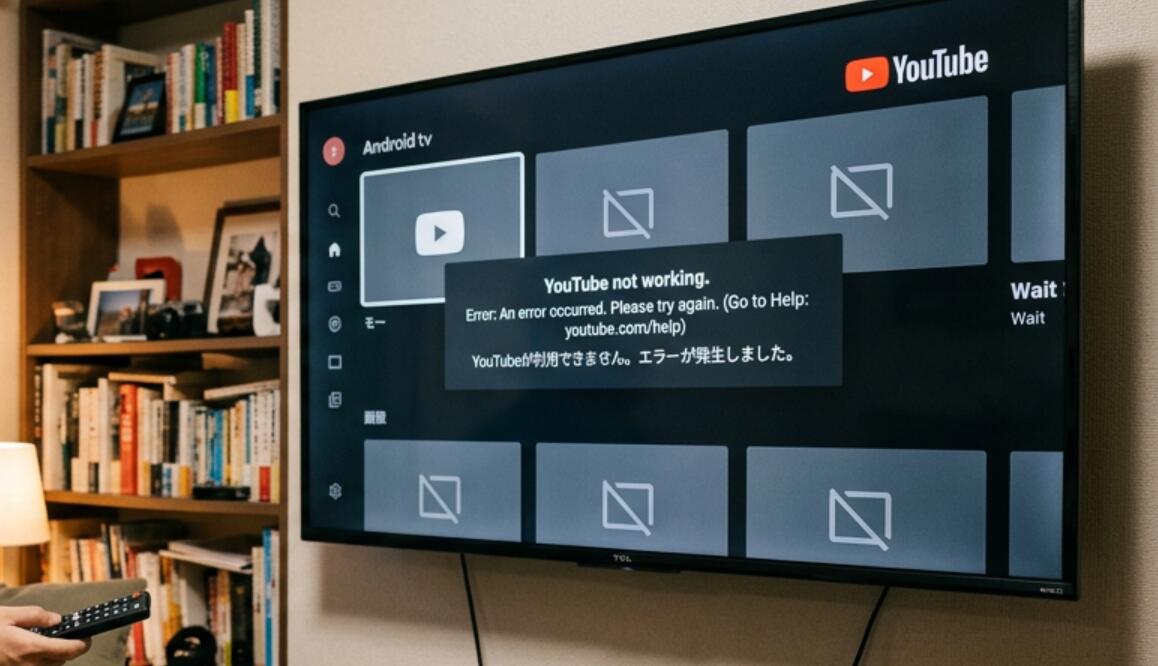
YouTube is one of the most commonly used streaming apps on Android TV, but it can occasionally stop working properly. The app may refuse to open, freeze on the loading screen, close unexpectedly, display a black screen, or play videos without sound or with constant buffering. These problems can be caused by a temporary app error, an unstable internet connection, outdated software, corrupted cache files, or insufficient storage on the TV.
- Read also: How to fix YouTube stopped responding on a phone?
- How to fix Android 4.1.2/4.4.2/4.4.4 YouTube not working?
- How to lock YouTube on smart TV?
- How to fix Google Assistant not working on a Hisense TV?
Fortunately, most YouTube problems on Android TV can be resolved without resetting the television. The best approach is to start with simple fixes and gradually move to more advanced troubleshooting. Follow the steps below in order, testing YouTube after each major change to determine whether the problem has been resolved.
Restart your Android TV and check the internet connection
A temporary system or network problem is often enough to prevent YouTube from loading correctly. Start with a complete restart before changing any settings.
- Turn off your Android TV using the remote.
- Unplug the TV's power cable from the wall outlet.
- Wait about 60 seconds.
- Plug the TV back in and turn it on.
- Open YouTube and try playing a video.
- If YouTube still does not work, restart your Wi-Fi router and wait for the connection to become available again.
- Test another streaming app on the TV to determine whether the problem affects YouTube only or the entire internet connection.
If other streaming services also have trouble connecting, the issue may be related to your network rather than YouTube. If other apps work normally but YouTube does not, continue with the app-specific troubleshooting steps.
Clear YouTube cache and app data
Corrupted temporary files can cause YouTube to freeze, crash, or behave unexpectedly. Android TV normally provides options for clearing an app's cache and stored data.
- Open Settings on your Android TV.
- Select Apps or Apps & notifications.
- Find and select YouTube.
- Choose Clear cache.
- Open YouTube and test it again.
- If the problem remains, return to the YouTube app settings.
- Select Clear data or Clear storage, if available.
- Open YouTube again and sign in if necessary.
Clearing the cache removes temporary files, while clearing app data is more extensive and may reset application settings or account-related information stored locally. If you use the data-clearing option, make sure you are prepared to sign in again.
Update YouTube and Android TV
Older versions of YouTube or the Android TV operating system may contain bugs or compatibility problems. Installing available updates can restore normal operation and improve compatibility with current YouTube services.
- Open the Google Play Store on your Android TV.
- Search for YouTube.
- If an Update button appears, select it.
- Wait for the installation to finish.
- Open the TV's Settings menu.
- Look for System, About, or Device Preferences.
- Check for a System update and install an available update.
- Restart the TV and test YouTube again.
Menu names can vary by television manufacturer and Android TV version, so the exact location of the update controls may be different on your device.
Check storage, date, time, and account settings
Limited storage can affect app performance, while incorrect system date and time settings can sometimes interfere with online services. Check these areas if YouTube continues to malfunction.
- Open Settings and check the TV's available storage.
- Remove unused apps or unnecessary downloaded files if storage is nearly full.
- Open the TV's date and time settings.
- Enable automatic date and time if the option is available.
- Open YouTube and check whether the correct Google account is signed in.
- If necessary, sign out and sign back in to YouTube.
These checks are particularly useful when YouTube opens normally but displays account errors, fails to load personalized content, or repeatedly returns to the sign-in screen.
Why YouTube may show a black screen
A black screen does not always mean that the YouTube app itself is broken. It can result from a temporary playback error, an HDMI-related issue, an outdated TV system, or problems with a connected external device. If YouTube menus appear normally but videos remain black, restart both the TV and any connected streaming, sound, or HDMI equipment.
What to do when YouTube keeps buffering
Constant buffering usually points toward network conditions, although the TV's Wi-Fi connection may not always reflect the actual speed available elsewhere in the home. Move the router closer to the TV if practical, reduce heavy network activity on other devices, and test the TV using another network when possible. If YouTube works normally on a different connection, investigate the original network rather than repeatedly reinstalling the app.
When reinstalling YouTube can help
If clearing the cache, updating the app, and restarting the TV do not solve the problem, reinstalling or uninstalling updates for YouTube may be available depending on how the app is integrated into your Android TV. System apps can have different options from ordinary downloaded applications. If YouTube is preinstalled, you may see an option to uninstall updates rather than completely remove the application.
When a factory reset is worth considering
A factory reset should generally be treated as a last-resort troubleshooting measure because it removes installed apps, personal settings, accounts, and other locally stored configuration. Before using it, make sure simpler solutions have failed and that you know the information needed to set up your television again. If several unrelated apps are malfunctioning and the TV has persistent system problems, consulting the television manufacturer's support documentation may also be appropriate.
Final troubleshooting checklist
Most YouTube problems can be narrowed down by determining whether the failure affects only YouTube or the entire TV. Start with a power restart and network check, then clear the YouTube cache, update the app and TV software, and review storage and account settings. These steps cover many common causes without immediately making major changes to the television.
If YouTube still does not work after completing the troubleshooting process, note the exact symptom—such as crashing, buffering, a black screen, an error message, or failed sign-in. That information can help identify whether the next step should focus on the network, YouTube app, Android TV software, or the television hardware itself.
By working through the fixes systematically rather than changing several settings at once, you can identify the likely cause while minimizing the risk of unnecessary resets or data loss.