How to log in to two Messenger accounts on one phone?
Welcome to Blackview (World's well-known brand of rugged smartphones, including rugged phone with projector, rugged phone with eSIM, and rugged phone with satellite messaging, etc.) blog. Hope the guide helps.
Managing multiple Facebook Messenger accounts on one phone can make everyday communication much easier, especially if you want to keep personal conversations separate from work, business, or other social activities. Instead of carrying two phones or repeatedly logging out and logging back in, you can use several practical methods to access different Messenger accounts on the same device. The best approach depends on whether you use an Android phone or an iPhone, as well as the features supported by your device and Messenger version.
- Read also: How to recover deleted messages on Messenger on phone?
- How to block and unblock someone on Messenger without them knowing?
- How to know if someone logged into your messenger?
- How to know if someone muted you on Messenger?
- How to know if your Messenger was hacked?
Fortunately, there are ways to switch between Messenger accounts without losing access to your conversations. Messenger includes built-in account management features, while some Android manufacturers offer additional app-cloning tools. iPhone users can also manage multiple accounts through Messenger's account-switching feature. This guide explains the available methods step by step, highlights important security considerations, and provides troubleshooting advice to help you manage two Messenger accounts conveniently on one phone.
Can You Log In to Two Messenger Accounts on One Phone?
Yes. Facebook Messenger supports multiple account management, allowing users to add more than one account and switch between them without completely signing out each time. This is particularly useful for people who maintain separate personal and professional Facebook profiles or manage communications for different purposes.
However, accessing two accounts does not necessarily mean that both will receive notifications in exactly the same way. Notification settings, background activity, and device restrictions can affect how messages are delivered and displayed.
There are three main approaches:
- Messenger's built-in account switching: Add multiple accounts to Messenger and switch between them when needed.
- Android app cloning: Create a second Messenger installation using your phone's supported dual-app feature.
- Alternative account access: Use Messenger and a supported browser session to access different accounts separately.
The first method is generally the simplest option because it does not require installing additional applications.
How to Use Two Messenger Accounts on Android
Android devices offer several ways to manage multiple Messenger accounts. The exact steps may vary depending on your Android version, phone manufacturer, and Messenger application version.
Method 1: Add Two Accounts Through Messenger
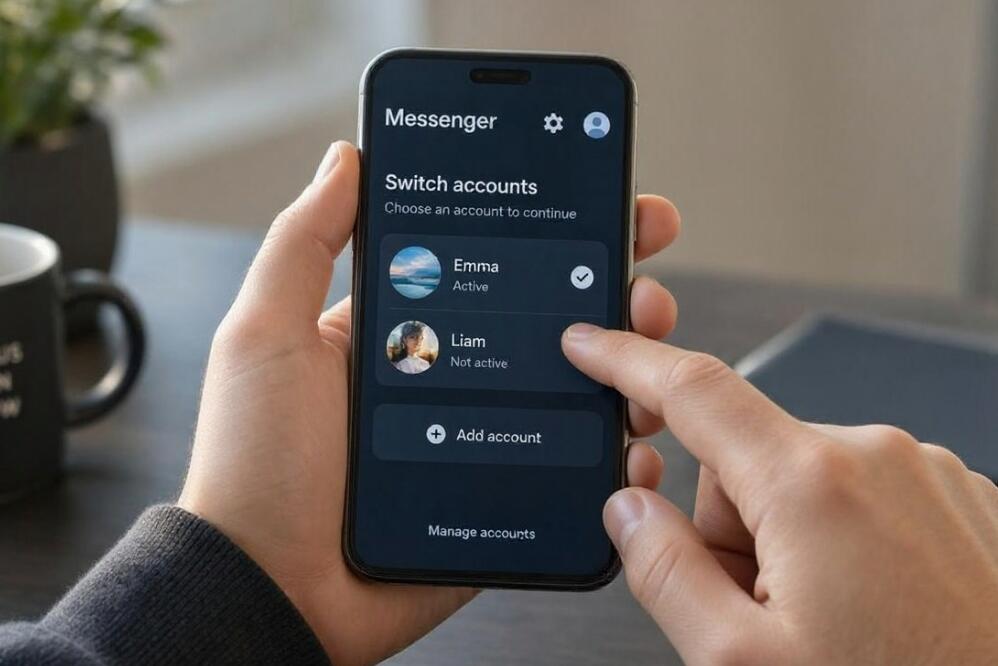
Messenger's account management feature allows you to add another account directly to the application. Follow these steps:
- Open the Messenger application on your Android phone.
- Tap your profile picture or the menu icon in the upper-left corner.
- Open the account management or account switching section. The wording may differ between versions.
- Look for the option to add another account.
- Enter the login details for your second Facebook account.
- Complete any required identity verification.
- Once the second account has been added, return to the account menu.
- Select the account you want to use.
After completing these steps, you should be able to switch between your two Messenger accounts without repeatedly entering your login information. Depending on the current app version, Messenger may require authentication when you switch accounts.
Method 2: Use the Dual Messenger or App Clone Feature
Some Android manufacturers provide built-in features that duplicate supported applications. Samsung, Xiaomi, OnePlus, and other manufacturers may offer options with names such as Dual Messenger, Dual Apps, App Cloner, or Parallel Apps.
Here is how to use this feature on a compatible Android phone:
- Open your phone's Settings application.
- Find the Apps, Advanced Features, or Special Features section.
- Look for Dual Messenger, Dual Apps, or App Cloner.
- Check whether Messenger appears in the list of supported applications.
- Enable the cloning option if Messenger is supported.
- Wait for the phone to create a second Messenger application.
- Open the cloned application and sign in using your second Facebook account.
- Keep the original Messenger application signed in to your first account.
This method can be particularly convenient because each application maintains a separate login session. However, not every Android device supports Messenger cloning, and some manufacturers restrict which applications can be duplicated.
How to Use Two Messenger Accounts on iPhone
Unlike some Android phones, iPhones do not generally provide a built-in feature for cloning applications. Nevertheless, you can manage multiple Messenger accounts through the application's account management functionality.
Method 1: Add Another Account in Messenger
For iPhone users, the easiest option is to use Messenger's built-in account switching feature.
- Open Messenger on your iPhone.
- Tap your profile picture or the menu icon.
- Navigate to the account management section.
- Select the option to add an account, if available.
- Enter the email address or phone number and password associated with your second Facebook account.
- Complete any security checks requested by Facebook.
- After successfully adding the account, return to the account menu.
- Choose the account you want to access.
Once both accounts are registered, you can switch between them whenever necessary. Remember that the exact menu layout may change following Messenger updates.
Method 2: Use Messenger and a Web Browser
Another option is to use the Messenger application for one account and a web browser for the other. This approach can be useful if you do not want to switch accounts frequently.
- Open the Messenger application and sign in to your primary account.
- Open Safari or another browser on your iPhone.
- Visit the official Facebook or Messenger website.
- Sign in using your second Facebook account.
- Access your messages through the available web interface.
- Keep the browser session separate from your Messenger application.
Browser functionality may be more limited than the dedicated application. Some features, including notifications and calling, may not work identically. You may also need to request the desktop website or use Facebook's available messaging interface.
Tips for Managing Two Messenger Accounts Efficiently
Having two Messenger accounts on one phone is convenient, but managing both properly can prevent confusion and missed messages. Consider the following tips:
- Use different notification settings: Customize notification sounds and preferences where supported so you can distinguish personal messages from work conversations.
- Check the active account: Before sending a message, confirm which account is currently selected to avoid contacting someone from the wrong profile.
- Keep both applications updated: Install official Messenger updates to benefit from security improvements and account management features.
- Protect your login information: Use strong, unique passwords and enable two-factor authentication on both accounts.
- Manage background permissions: On Android, review battery optimization and notification permissions to reduce the likelihood of delayed alerts.
- Avoid unofficial cloning applications: Third-party tools may request unnecessary permissions or expose your account credentials.
These small adjustments can make managing two accounts much more organized, especially if you receive messages throughout the day.
Common Problems and How to Fix Them
Although Messenger supports multiple account management, users may occasionally encounter login errors, notification problems, or difficulties switching between profiles. Most issues can be resolved with a few basic checks.
Unable to Add a Second Messenger Account
If you cannot find the option to add another account, update Messenger through the official Google Play Store or Apple App Store. Then restart the application and check the account menu again. If the feature is unavailable, you can try the browser method or a supported Android cloning feature.
Not Receiving Notifications From Both Accounts
Check Messenger's notification settings and your phone's system permissions. On Android, review background data and battery restrictions. On iPhone, check notification permissions under Settings and make sure Focus mode is not blocking alerts.
Experiencing Repeated Login Requests
Repeated authentication requests may occur because of security checks, expired sessions, or application problems. Verify your login information, update Messenger, and complete any security verification requested by Facebook. Avoid clearing application data unless you understand that doing so may remove locally stored login sessions.
Accidentally Sending Messages From the Wrong Account
Make it a habit to check your profile picture and account identity before starting a conversation. If you use cloned applications on Android, consider placing them in separate folders or arranging their icons clearly to avoid confusion.
Final Thoughts
Logging in to two Messenger accounts on one phone is entirely possible, and the best method depends on your device and personal preferences. Android users can take advantage of Messenger's built-in account switching feature or supported app-cloning functions to maintain separate sessions. iPhone users can use Messenger's account management feature or access a second account through a web browser. Both approaches can make it easier to balance personal and professional communication without carrying multiple devices.
Ultimately, choosing the right method comes down to convenience, compatibility, and security. Start with Messenger's built-in account management option, as it is usually the easiest solution. If you need two separately installed applications, check whether your Android phone supports app cloning. Regardless of your chosen method, keep your accounts secure, review notification permissions, and always confirm the active profile before sending messages. With the right setup, managing two Messenger accounts on a single smartphone can become a simple and efficient part of your daily routine.