How to block and unblock someone on Snapchat?
Welcome to Blackview (Well-known brand of AI smart glasses, rugged smartphones and Android tablets) blog. Hope this guide has been helpful.
Snapchat has become one of the most popular social media platforms for sharing photos, videos, messages, and everyday moments. However, not every online interaction is welcome. Whether someone is sending unwanted messages, repeatedly viewing your content, or making you uncomfortable, blocking them can help you regain control of your privacy. Fortunately, Snapchat provides straightforward tools that allow users to block accounts, review their blocked contacts, and restore access whenever they change their minds.
- Read also: How to tell if your Snapchat was hacked & what to do after been hacked?
- How to know if someone muted you on Snapchat?
- How to know if someone logged into your Snapchat account?
- How can I see friends location on Snapchat?
Understanding how Snapchat's blocking and unblocking features work is important before making changes to your Friends list. Blocking someone affects more than just private conversations: it can change what they see on your profile, whether they can contact you, and how your shared interactions work. This guide explains what happens when you block someone, provides detailed instructions for managing blocked accounts, and explores several important privacy considerations users should know.
What Happens When You Block Someone on Snapchat?
Blocking someone on Snapchat immediately restricts most direct interactions between the two accounts. It is designed to prevent unwanted communication while giving users greater control over their social media experience.
Once you block someone, several changes take effect:
- They cannot send you Snaps or Chats: The blocked account can no longer contact you through private Snaps or messages.
- Your Stories become unavailable to them: They will no longer be able to view your regular Stories or Charms.
- Your Snap Map location is hidden: The blocked person will no longer see your location through Snap Map, even if you previously shared it with them.
- Your profile becomes harder to find: Your account will generally disappear from their usual Snapchat search and friend-related suggestions.
- Existing conversations may disappear: Your one-on-one conversation may no longer appear in your Chat feed. Some previous conversation history may also become unavailable.
- No direct notification is sent: Snapchat does not notify someone when you block them. However, they may eventually realize what happened.
There are some exceptions. If you and the blocked person belong to the same Group Chat, blocking them does not automatically remove either participant from that group. You may still see their messages in the shared conversation. Additionally, blocked users may still view content you publish publicly, including Public Stories and Spotlight posts.
How to Block Someone on Snapchat
Snapchat offers a simple blocking process through its Chat screen. You do not need to contact the person or explain your decision before restricting their account.
Follow these steps to block someone:
- Open the Snapchat application on your iPhone or Android device.
- From the Camera screen, swipe right to access the Chat screen.
- Find the username of the person you want to block.
- Press and hold their name to open the available options.
- Select Manage Friendship from the menu.
- Tap Block.
- Confirm your decision if Snapchat displays a confirmation message.
You can also block someone directly from an existing conversation:
- Open the Chat screen and select the conversation.
- Tap the person's profile icon at the top of the screen.
- Tap the three-dot menu in the upper-right corner.
- Select Manage Friendship.
- Choose Block and confirm if necessary.
After completing these steps, the account will be added to your blocked list. The restriction takes effect without requiring the other person to approve your decision.
How to See Your Blocked List on Snapchat
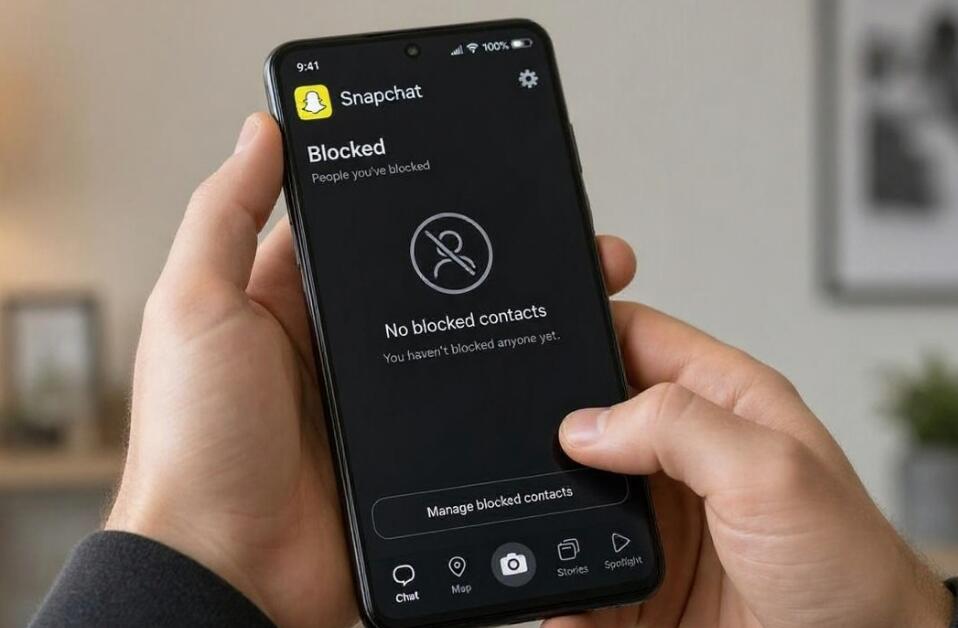
If you have blocked several accounts over time, you may eventually want to review the list. Snapchat provides a dedicated section in Settings where you can find every account you have blocked.
To view your blocked accounts, follow these instructions:
- Open Snapchat and tap your profile icon or Bitmoji in the upper-left corner.
- Tap the gear-shaped Settings icon in the upper-right corner.
- Scroll down through the Settings menu.
- Find and select Blocked.
- Review the usernames displayed on the screen.
This section allows you to check which accounts are currently restricted and decide whether any of them should regain access to your profile. Remember that this is your personal blocked list, not a list of people who have blocked you.
What Happens When You Unblock Someone on Snapchat?
Unblocking someone removes the restrictions you previously placed on their account. However, it does not necessarily restore your relationship to the way it was before blocking them.
After unblocking an account, the following changes may occur:
- Communication becomes possible again: The person can send you Snaps and Chats, subject to your privacy settings and friendship status.
- Story visibility may return: They can view your Stories and Charms when your sharing settings allow it.
- Your account may become searchable: They may be able to find your profile through Snapchat search again.
- Your previous friendship is not automatically restored: You may need to send a new friend request and wait for acceptance.
- Old conversations may not return: Unblocking does not guarantee that previously unavailable Chat history or saved messages will be restored.
It is also important to remember that unblocking does not automatically recover a lost Snapstreak. If maintaining a friendship is your goal, both users may need to reconnect and start exchanging Snaps again.
How to Unblock Someone on Snapchat
If you have reconsidered your decision or want to reconnect with someone, removing them from your blocked list only takes a few steps.
Here is how to unblock someone on Snapchat:
- Open the Snapchat application.
- Tap your profile icon in the upper-left corner of the Camera screen.
- Tap the gear icon to access Settings.
- Scroll down until you find the Blocked section.
- Tap Blocked to open your list of restricted accounts.
- Locate the username of the person you want to unblock.
- Tap the X next to their username.
- Confirm the action if Snapchat asks you to do so.
Once completed, the account will disappear from your blocked list. If you want to communicate privately again, check your Friends list and send a new friend request if necessary.
Blocking Someone vs. Removing a Friend
Many Snapchat users confuse blocking someone with simply removing them from their Friends list. Although both options can limit interactions, they serve different purposes.
Removing a friend only ends the existing friendship connection. Depending on your privacy settings, that person may still be able to find your account, view public content, or contact you through available communication options.
Blocking is a stronger restriction. It prevents the person from sending you private Snaps and Chats and limits their access to your private Snapchat activity. If your primary concern is unwanted contact, blocking is generally the more appropriate choice.
Can Someone Tell If You Block Them on Snapchat?
Snapchat does not send an alert when someone blocks another user. This means the person will not receive an official message stating that you have restricted their account.
Nevertheless, they may notice indirect signs. For example, your username might disappear from their Friends list, your profile may become difficult to find, and previous conversations may no longer be accessible.
These signs do not always prove that someone has blocked you. Account deletion, username changes, and other privacy-related circumstances can produce similar results.
Can You Block Someone Without Removing Them Permanently?
Blocking provides a way to stop unwanted interactions without having to permanently delete your Snapchat account. You can reverse the restriction whenever you feel comfortable reconnecting.
However, Snapchat does not provide a temporary blocking timer. You must manually unblock the person when you decide to restore access. If you simply want fewer notifications rather than a complete communication restriction, consider using the mute feature instead.
How to Protect Your Privacy Beyond Blocking
Blocking is only one part of managing your Snapchat privacy. Users can also review additional settings to reduce unwanted attention and control who can access their content.
- Adjust Story privacy: Choose which friends can view your Stories instead of sharing everything with a wider audience.
- Review Contact Me settings: Limit who can send you Snaps, Chats, and other communications.
- Check Snap Map settings: Enable Ghost Mode if you do not want others to see your location.
- Manage friend requests: Be selective about accepting requests from unfamiliar accounts.
- Report inappropriate behavior: If someone is harassing, threatening, or impersonating you, consider reporting their account to Snapchat rather than relying on blocking alone.
These additional precautions can help create a safer and more comfortable social media environment, particularly for users who regularly receive messages from unfamiliar accounts.
Final Thoughts
Knowing how to block and unblock someone on Snapchat gives you greater control over your online relationships and personal information. Blocking is a useful option when you want to stop unwanted messages, limit someone's access to your private content, or create distance from an uncomfortable interaction. The process is straightforward, and you can review your blocked accounts whenever necessary through the Settings menu.
Ultimately, managing your Snapchat connections should reflect your own privacy preferences and comfort level. Whether you choose to block someone permanently, temporarily restrict communication, or reconnect by unblocking them, understanding these features helps you make informed decisions. Remember to review your privacy settings regularly and use Snapchat's reporting tools whenever an interaction becomes threatening or inappropriate.