How to check the OS version on a phone?
Welcome to Blackview (World's well-known brand of rugged smartphones, including rugged phone with projector, Android 16 rugged phone, and rugged phone with eSIM, etc.) blog. Hope the guide helps.
Knowing which operating system (OS) version your smartphone is running is more important than many users realize. Whether you own an iPhone or an Android device, your operating system determines how your phone handles security updates, supports applications, manages system features, and interacts with connected devices. Checking the OS version is a simple process, but it can help you identify compatibility issues, troubleshoot technical problems, and determine whether your device needs an update. As smartphone manufacturers continue releasing new software versions, understanding how to locate this information has become an essential part of managing a mobile device.
- Read also: How to check UFS version in your phone?
- How to check how much RAM does my phone have?
- How to check how much storage does your phone have?
- How to change region on Android?
Although Apple and Android manufacturers use different settings interfaces, both platforms provide built-in tools that allow users to identify their current software versions. The process usually takes less than a minute and does not require additional applications, technical expertise, or an internet connection. However, knowing where to look—and understanding the difference between an operating system version, a security patch, and a device model number—can make the information much more useful.
How to check the OS version on an iPhone
Apple provides a centralized software information section in iOS settings. Users can find their installed operating system version without connecting their iPhones to a computer or installing third-party software.
Step-by-step instructions for iPhone users
- Unlock your iPhone and open the Settings application.
- Scroll down and select General.
- Tap About at the top of the menu.
- Locate the iOS Version or Software Version entry.
- Check the displayed number to identify the operating system currently installed on your device.
For example, a version number such as 26.1 indicates the major iOS release and its subsequent software update. Depending on the device and software interface, tapping the version entry may also reveal additional build information. This can be particularly useful when contacting Apple Support or investigating a software-related issue.
Users should also distinguish between the installed version and the latest version available for their particular iPhone. To check for updates, return to Settings, select General, and tap Software Update. The device will check whether a newer compatible release is available.
How to check the OS version on an Android phone
Android smartphones are manufactured by companies including Samsung, Google, Blackview, Xiaomi, OnePlus, and Motorola. Although these devices share the Android operating system, their settings menus can differ slightly because manufacturers apply their own interfaces and software customizations.
Step-by-step instructions for Android users
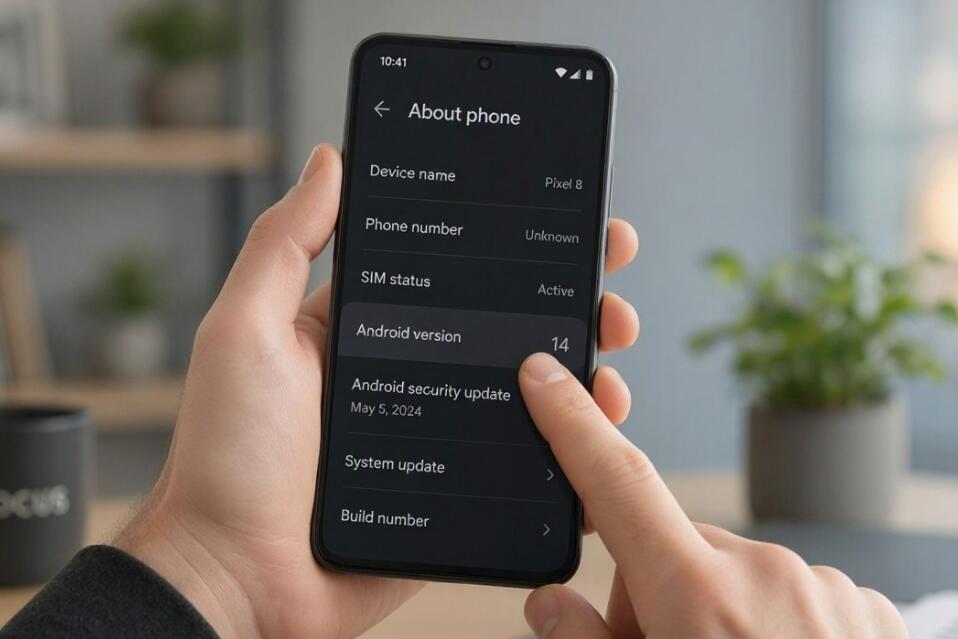
- Open the Settings application on your Android smartphone.
- Scroll down and look for About phone, About device, or a similarly named option.
- Tap the relevant menu to access your device information.
- Find the Android version entry.
- Check the displayed number to identify your current operating system release.
On Google Pixel devices, the Android version is generally available under Settings and About phone. Samsung users can usually find it under Settings, About phone, and Software information. Other manufacturers may organize these details differently, but the About phone section remains the most reliable starting point.
Some Android devices also display additional technical information, including the Android security update date, Google Play system update, kernel version, and build number. These details help users determine whether their smartphones have received recent maintenance and security improvements.
Why checking your phone's OS version matters
Checking the operating system version is not simply a technical exercise. It can have practical consequences for smartphone security, application compatibility, performance, and long-term usability.
1. Security and privacy protection
Operating system updates frequently introduce security patches designed to address newly discovered vulnerabilities. Running an outdated version may leave a device exposed to threats that have already been addressed in newer releases. Checking the installed version helps users determine whether their devices are receiving current security support.
2. Application compatibility
Application developers regularly update their software and may eventually discontinue support for older operating system versions. If an application cannot be installed, updated, or launched, checking the OS version can help identify whether the device meets its minimum requirements.
3. Technical troubleshooting
Customer support teams often request operating system information before diagnosing problems involving connectivity, battery consumption, unexpected crashes, or application failures. Providing the correct version number helps narrow down potential causes and identify relevant solutions.
4. Access to new features
Major software releases can introduce redesigned interfaces, improved accessibility, enhanced privacy controls, and new system capabilities. Knowing the installed version allows users to determine whether a particular feature should already be available on their devices.
What to do if your phone cannot update
Discovering that a smartphone runs an older operating system does not necessarily mean that an update is immediately available. Manufacturers gradually distribute software releases, and compatibility depends on the device model, region, carrier, and manufacturer support policies.
Before attempting an update, users should consider several practical precautions:
- Connect the phone to a stable Wi-Fi network.
- Ensure that the battery is sufficiently charged or connect the device to a power source.
- Check whether enough storage space is available.
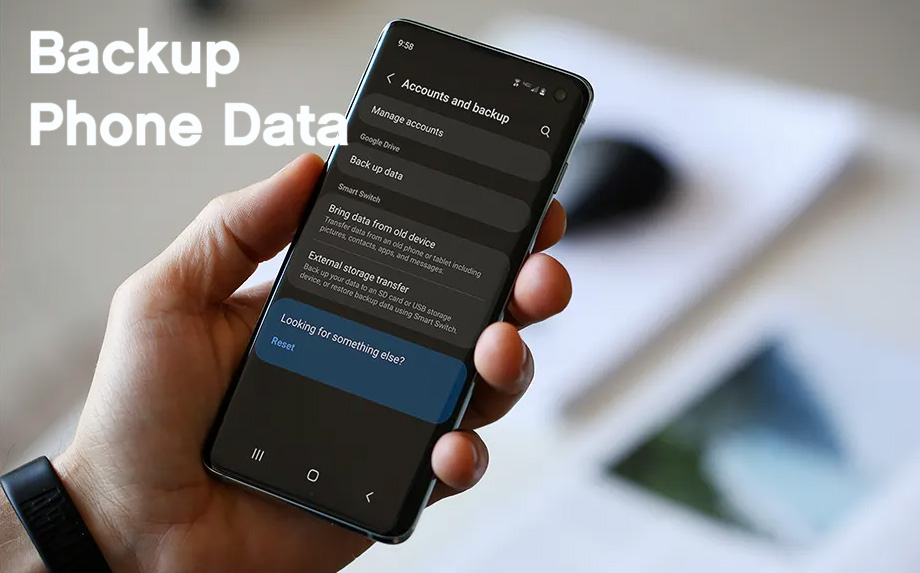
- Back up important photos, documents, and personal information.
- Review the manufacturer's official software support information if no update appears.
It is also important to avoid downloading unofficial operating system installation files from unfamiliar websites. Such files can introduce malware, compromise personal information, or make a device unstable. Official system settings and manufacturer support channels are generally the safest update sources.
Final thoughts
Checking the operating system version on a smartphone is a straightforward task that can provide valuable insight into the device's security, compatibility, and overall software condition. Whether using an iPhone or an Android smartphone, users can usually locate this information through the built-in Settings application in just a few steps. Making this a regular part of basic device maintenance can help prevent avoidable software problems and ensure that users understand their phone's capabilities.
As mobile technology continues to evolve, keeping track of software versions is becoming increasingly important. A quick visit to the About section can help users make better decisions about updates, troubleshoot technical difficulties, and maintain a safer, more reliable smartphone experience. Rather than waiting until an application stops working or a security problem appears, checking the OS version periodically is a simple preventive measure that every smartphone owner can adopt.