How to fix an Android TV box reset button that is not working?
Welcome to Blackview (Which offers best 4K projector for home, rugged phone with projector built in, and more) blog. Hope this guide helps.
An Android TV box that refuses to reset can be frustrating, especially when the device is frozen, stuck on the startup screen, experiencing repeated crashes, or unable to load Android properly. The physical reset button is usually designed to restore the device to its factory settings or activate recovery mode, but sometimes pressing it produces no response. Fortunately, this problem does not necessarily mean that your TV box is permanently damaged. Understanding the possible causes can help you identify the right troubleshooting method and avoid unnecessary repairs or replacement costs.
- Read also: Android TV box keeps restarting? Here's how to fix
- Android TV box won't turn on? See how to fix
- Android TV box keeps freezing? Here's how to fix
- Android TV box wifi keeps turning off? See how to fix
Before attempting to fix the reset button, it is important to determine whether the problem comes from the button itself, the power supply, the firmware, or another hardware component. Different Android TV box models may also use different reset procedures. This guide explains the most common reasons why an Android TV box reset button stops working and provides practical, step-by-step solutions to help restore normal functionality safely.
1. Common Reasons Why an Android TV Box Reset Button Is Not Working
Identifying the underlying cause is the first step toward an effective solution. A reset button that appears unresponsive may have a simple mechanical problem or indicate a more serious system issue. Consider the following possibilities before proceeding with repairs.
1.1 Physical Damage or a Stuck Reset Button
Many Android TV boxes have a small recessed reset button located inside the AV port or a separate opening on the device. Dust, dirt, excessive pressure, or accidental damage can prevent the internal switch from making proper contact. If the button feels loose, remains stuck, or produces no noticeable clicking sensation, physical damage may be responsible.
1.2 Incorrect Reset Procedure
Not every Android TV box uses the same reset method. Some models require the reset button to be held while connecting the power adapter, while others require pressing it after the device starts. Releasing the button too early or using an incorrect sequence can make the reset process appear unsuccessful.
1.3 Power Supply Problems
An unstable power adapter, damaged cable, or insufficient electrical output can prevent the TV box from entering recovery mode. Even when the indicator light turns on, the device may not receive enough consistent power to complete the reset procedure.
1.4 Firmware Corruption or Android System Errors
Corrupted firmware, incomplete updates, damaged system files, or incompatible software can cause the device to freeze during startup. In some cases, the recovery environment may also be damaged, preventing the physical reset button from triggering a factory reset.
1.5 Internal Hardware or Motherboard Failure
If the reset switch, internal connection, or motherboard circuit is damaged, pressing the button may have no effect. Previous overheating, liquid exposure, electrical surges, and accidental drops can contribute to these problems.
2. How to Fix an Android TV Box Reset Button That Is Not Working
Once you understand the potential causes, follow these troubleshooting steps in order. Start with simple external checks before attempting software recovery or hardware repairs.
2.1 Check and Clean the Reset Button
Inspect the reset opening carefully using a flashlight. If dust or debris is visible, disconnect the power adapter and gently clean the exterior opening with a soft, dry brush. Avoid inserting sharp metal objects or applying excessive force, as these actions can damage the internal switch or circuit board.
2.2 Perform the Correct Hard Reset Procedure
Try the following general reset sequence, provided it is compatible with your device model:
- Disconnect the Android TV box from its power source.
- Locate the recessed reset button, often positioned inside the AV port.
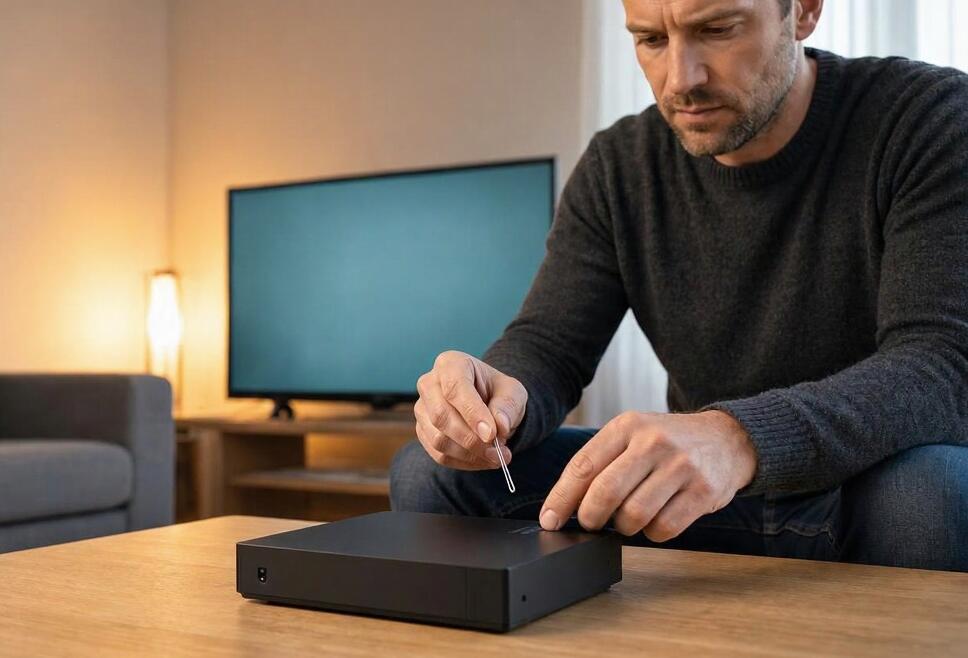
- Use a suitable non-metallic tool to press and hold the button gently.
- While holding the button, reconnect the power adapter.
- Continue holding the button for approximately 10–15 seconds, or follow the manufacturer's instructions.
- Release the button when the recovery screen or startup menu appears.
If the recovery menu appears, use the remote control or an attached USB keyboard to select the factory reset option. The exact menu names may vary by model.
2.3 Test the Power Adapter and Cable
Disconnect the existing adapter and inspect the cable for visible damage. If possible, test the TV box with a known-good replacement adapter that matches the manufacturer's specified voltage, polarity, connector, and required current rating. Never use an adapter with an incompatible voltage, as it may permanently damage the device.
2.4 Try an Alternative Factory Reset Method
If the physical reset button remains unresponsive but Android still loads, you may be able to restore factory settings through the system interface.
- Open the Android TV box settings menu.
- Navigate to Device Preferences, System, or About, depending on the Android version.
- Find the Reset or Factory Reset option.
- Confirm the operation and allow the device to restart.
Alternatively, some manufacturers provide recovery utilities or model-specific firmware tools. Only use official firmware intended for your exact hardware revision.
2.5 Use Recovery Mode or Firmware Reinstallation
If the device cannot boot normally, recovery mode may offer another way to resolve software problems. When supported, connect a USB keyboard or follow the manufacturer's recovery instructions to access the recovery environment. You may be able to clear the cache partition or perform a factory reset.
Firmware reinstallation should be considered a last resort. Downloading an incorrect firmware package can cause boot failures or permanently disable the TV box. Verify the model number, processor, motherboard revision, and firmware compatibility before proceeding.
2.6 Inspect the Internal Reset Switch
If none of the previous methods works, the internal reset switch or its connection may be faulty. A qualified technician can open the enclosure, inspect the switch, check its solder joints, and test the relevant motherboard connections. Avoid attempting soldering repairs unless you have appropriate electronics repair experience.
3. Prevent Future Reset Button Problems
Proper maintenance can reduce the likelihood of encountering similar problems again. Consider these preventive practices:
- Keep the TV box in a well-ventilated area to prevent overheating.
- Use the original or manufacturer-approved power adapter.
- Avoid pressing the recessed reset button with sharp or oversized objects.
- Keep dust and moisture away from the device's ports and openings.
- Install firmware updates only from trusted manufacturer sources.
- Avoid interrupting firmware updates or disconnecting power during system operations.
Conclusion
An Android TV box reset button that is not working can result from several issues, including physical damage, incorrect reset procedures, unstable power delivery, corrupted firmware, or internal hardware failure. Fortunately, many cases can be resolved through careful inspection, a proper hard reset sequence, or an alternative factory reset method. Working through the troubleshooting steps systematically is the best way to identify the problem without risking additional damage.
However, if the reset button remains completely unresponsive after checking the power supply and following the correct manufacturer-specific procedure, professional hardware inspection may be necessary. Always verify firmware compatibility before attempting software recovery, and avoid forcing the reset switch. With the right troubleshooting approach and routine maintenance, you can often restore your Android TV box and extend its useful lifespan.