How to change your profile on TikTok (region, age, birthday, email, username, phone number, profile picture)?
Welcome to Blackview (Well-known Chinese brand of rugged smartphones, AI smart glasses, and Android tablets) blog. Hope this guide has been helpful.
Want to update your TikTok profile but aren't sure where to find the right settings? Whether you need to change your username, update your profile picture, correct your birthday, replace your email address, or switch your phone number, TikTok provides several account management options. However, some information, such as your age and account region, may require additional verification or support from TikTok.
This comprehensive guide explains how to change your TikTok profile settings on an iPhone or Android phone, step by step. You'll learn where to find each setting, what restrictions to expect, and how to troubleshoot common problems. Before making changes, make sure you can access your account and any email address or phone number needed for verification.
- Read also: How to create TikTok account without phone number?
- How to block or unblock someone on TikTok without them knowing?
- Can you log into TikTok on two devices at the same time? Will it notify me?
- If I log into TikTok on another device, will my drafts be deleted?
- How to make a joint TikTok account with your friends?
- How do I change my country on Amazon app?
How to Change Your TikTok Profile Settings
Most profile edits begin in the TikTok mobile app. Open your profile and look for Edit profile to access your public-facing information. For account details such as your birthday, email, and phone number, you may need to open Settings and privacy instead.
Change Your TikTok Region
Your TikTok account region is not necessarily the same as your app language or the location displayed on your profile. Available region settings and eligibility requirements may vary by account and location.
- Open TikTok on your phone and tap Profile.
- Tap the Menu button (☰) in the upper-right corner.
- Select Settings and privacy.
- Look for Account or account-related settings and check whether an account region option is available.
- If TikTok offers a region change, follow the on-screen instructions and complete any required verification.
- If no region option appears, consult TikTok's official Help Center or contact support to ask about the options available for your account.
Changing your app language does not necessarily change your account region. TikTok may consider factors such as your location and account activity when determining regional eligibility. Avoid using false account information to bypass regional restrictions.
Change Your Age or Birthday on TikTok
TikTok uses your date of birth to determine age eligibility and access to certain features. For this reason, birthday changes may require verification rather than a simple edit in your profile.
- Open TikTok and tap Profile.
- Tap the Menu button (☰), then select Settings and privacy.
- Open the Help Center or the available support section.
- Look for an account or age-related issue, or use the available option to report a problem.
- Explain that you need to correct your date of birth and provide the accurate information requested by TikTok.
- Follow any identity or age verification instructions provided by the support team.
If you entered the wrong birthday when creating your account, explain the mistake clearly. TikTok may request documentation or another approved form of age verification. Do not enter a false birth date to access age-restricted features.
Change Your TikTok Email Address
Your email address can help you sign in, recover your account, and verify important changes. Make sure you can access the email accounts involved before starting.
- Open TikTok and tap Profile.
- Tap the Menu button (☰) and select Settings and privacy.
- Tap Account, then User Information.
- Select Email to view or manage your linked email address.
- Choose Change email if the option appears, then enter your new email address.
- Request and enter the verification code according to the instructions on the screen.
- Confirm that the updated email address is displayed in your account information.
TikTok may require access to both the existing and new email addresses during the change process. If you cannot access your old email, follow the account recovery or support process rather than attempting to bypass verification.
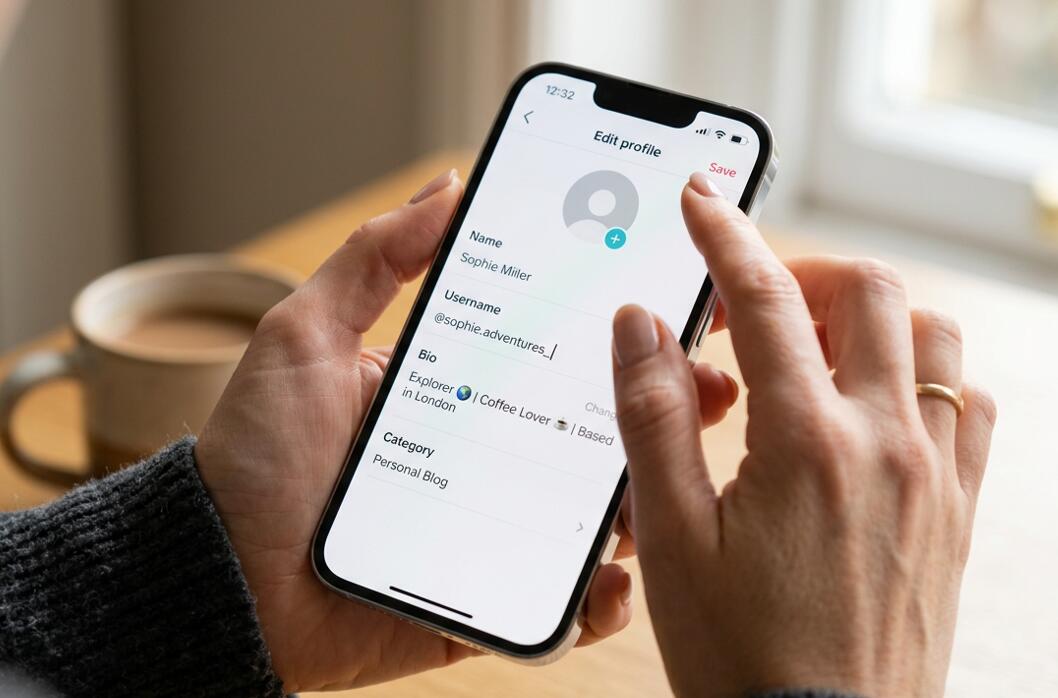
Change Your TikTok Username
Your username is the unique handle beginning with @, and it forms part of your TikTok profile link. It differs from your nickname, which is the display name shown to other users.
- Open TikTok and tap Profile.
- Tap Edit profile.
- Select Username.
- Enter your preferred username and check whether it is available.
- Tap Save to confirm the change.
- Visit your profile to verify that the new username appears correctly.
TikTok generally allows you to change your username once every 30 days. Usernames can contain letters, numbers, underscores, and periods, but a period cannot appear at the end. Changing your username also changes your profile link, so remember to update links you have shared elsewhere.
Change Your TikTok Phone Number
Keeping your phone number up to date helps you receive verification codes and recover your account if you lose access. TikTok may require verification of your existing or new number.
- Open TikTok and go to Profile.
- Tap the Menu button (☰), then select Settings and privacy.
- Tap Account, followed by User Information.
- Select Phone number.
- Choose Change phone if the option is available.
- Enter your new number, including the correct country code.
- Request the verification code and follow the on-screen instructions to confirm the change.
A phone number can generally be associated with only one TikTok account at a time. If you no longer have access to your old number, you may need to use an account recovery procedure or contact support.
Change Your TikTok Profile Picture
Your profile picture helps other users recognize your account. You can update it directly through the profile editing interface.
- Open TikTok and tap Profile.
- Tap Edit profile.
- Tap Change photo or the existing profile picture.
- Choose a photo from your phone's gallery or take a new picture if the option is available.
- Adjust the crop and positioning so your face, logo, or chosen subject is clearly visible.
- Tap Save or Confirm to apply the change.
- Return to your profile to make sure the new picture displays correctly.
For a professional appearance, use a clear, high-quality image with a simple background. If your account represents a brand, choose a recognizable logo that remains legible at a small size.
Understand the Difference Between Your TikTok Profile and Account Settings
Not every piece of information on TikTok can be edited from the same menu. Understanding the difference between public profile details and private account information makes the process easier.
- Public profile information: Your nickname, username, profile picture, and bio are generally managed through Edit profile.
- Account contact information: Your email address and phone number are usually managed through Settings and privacy, Account, and User Information.
- Age and birthday: Corrections may require support or an approved verification process.
- Account region: Availability depends on TikTok's current settings and eligibility requirements.
Menu names can vary slightly depending on your app version, device, and location. If the instructions do not match your screen, update TikTok and consult the official Help Center for the latest guidance.
What to Do If You Cannot Change Your TikTok Information
Sometimes, the option you need may be unavailable, a verification code may not arrive, or TikTok may reject your requested change. These problems do not necessarily mean your account is permanently restricted.
- Update the app: Install the latest available TikTok version and reopen it.
- Check verification details: Confirm that your email address or phone number is entered correctly and that you can receive messages.
- Review account restrictions: Some settings may be limited by age eligibility, security checks, or account-specific requirements.
- Use official support: Report the problem through the in-app support options and provide accurate information.
- Avoid repeated attempts: If a change is temporarily restricted, follow the stated waiting period instead of repeatedly submitting requests.
Never share your password or verification codes with someone claiming they can change your account information for you. Use TikTok's official app and support channels to protect your account.
Keep Your TikTok Account Secure After Making Changes
Profile updates are also a good opportunity to review your account security. After changing your email address or phone number, verify that the new information is correct and that you can still access your account.
- Keep your email address and phone number current.
- Use a strong, unique password.
- Enable two-step verification if available.
- Review trusted devices and remove any you do not recognize.
- Check your profile for outdated links or personal information you do not want to share publicly.
These precautions can reduce the risk of losing access to your account and help protect your personal information. For additional guidance, visit TikTok's official account safety resources.
Final Thoughts
Changing your TikTok profile is straightforward when you know which settings menu to use. You can generally update your username and profile picture through Edit profile, while email and phone number changes are managed through your account information. Birthday corrections and region changes may involve additional eligibility checks or support, so the available options can differ from one account to another.
Before finishing, review your updated details, confirm that your contact information works, and check that your profile looks the way you want it to. By following the appropriate steps and using TikTok's official verification procedures, you can keep your account accurate, accessible, and secure without unnecessary complications.