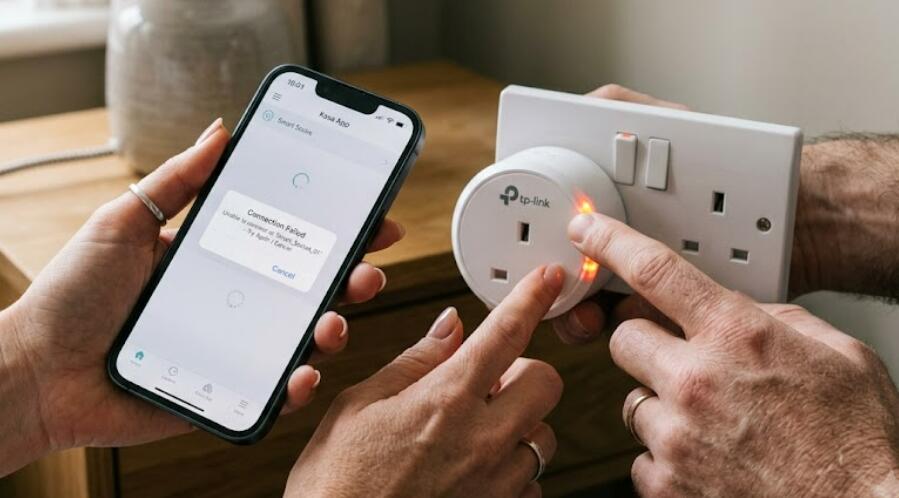
How to fix the issue of my phone not connecting to a smart socket?
Welcome to Blackview (World's well-known brand of rugged smartphones including phone with projector, eSIM rugged phone, FLIR thermal camera phone, phone for truck drivers, and more) blog. Hope the guide helps.
Smart sockets have become an essential part of modern smart homes, allowing users to control electrical devices remotely through their smartphones. Whether you want to schedule lights, monitor energy usage, or turn appliances on and off from anywhere, a smart socket offers both convenience and energy efficiency. However, one of the most common issues users encounter is that their phone fails to connect to the smart socket during setup or after it has been working normally. This problem can be frustrating, especially if it prevents you from controlling important household devices.
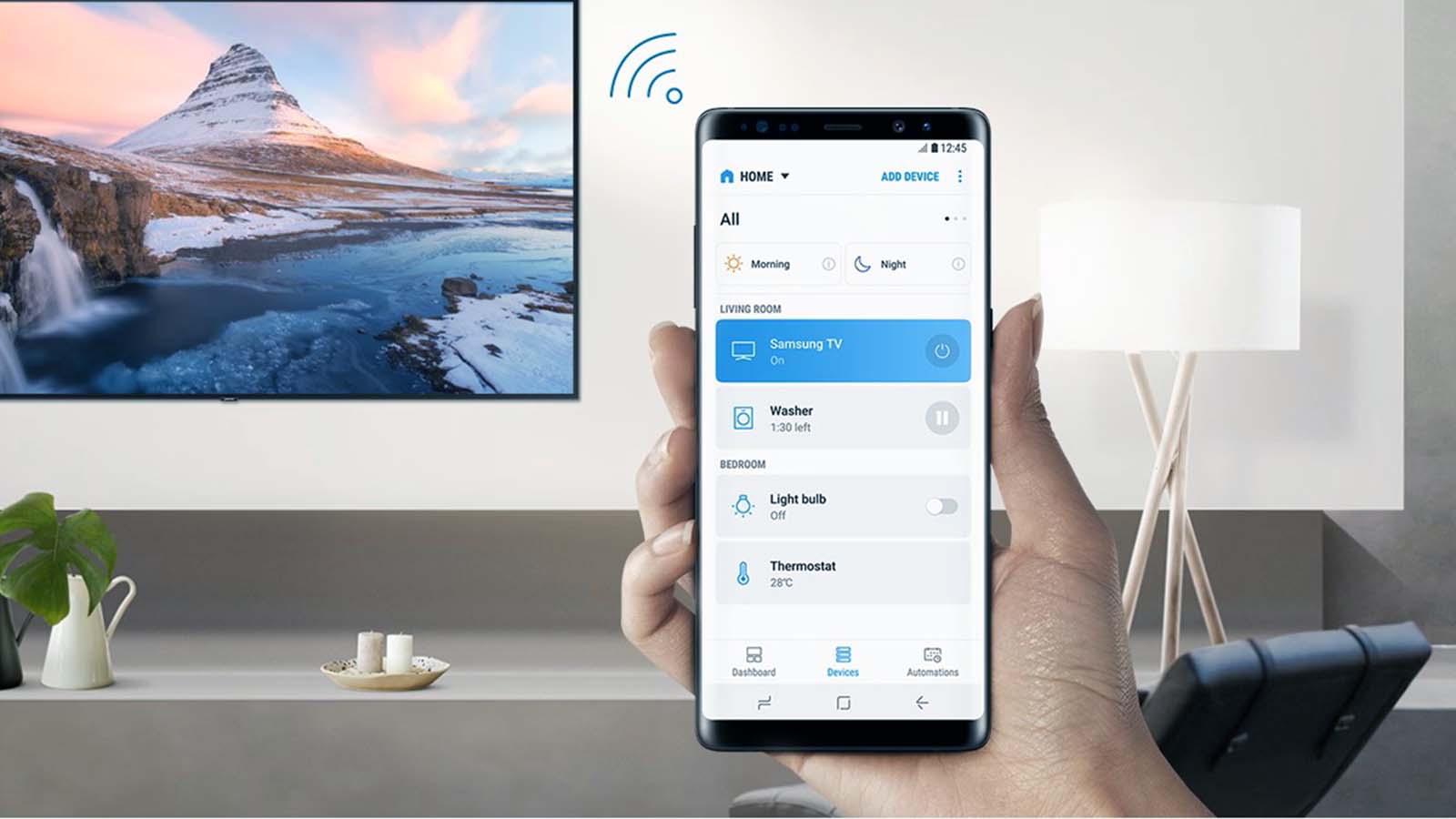
- Read also: How to make a smart home?
Fortunately, most phone-to-smart-socket connection problems can be resolved with a few simple troubleshooting steps. The issue may be caused by Wi-Fi settings, Bluetooth permissions, outdated software, app configuration errors, router compatibility, or even the smart socket itself. This guide explains the most common reasons why a phone cannot connect to a smart socket and provides detailed solutions to help restore the connection quickly and efficiently.
The troubleshooting process is suitable for most major smart socket brands and mobile operating systems, including Android and iPhone devices. By following the methods below in order, you can identify the source of the problem and improve the chances of successfully pairing your phone with the smart socket.
Common Reasons Why a Phone Cannot Connect to a Smart Socket
Understanding the possible causes of the issue makes troubleshooting much easier. Connection failures usually result from network, software, or device configuration problems rather than hardware defects.
- The phone is connected to a 5 GHz Wi-Fi network while the smart socket only supports 2.4 GHz.
- Bluetooth or location permissions are disabled.
- The smart socket is not in pairing mode.
- The smart home application is outdated.
- The Wi-Fi password was entered incorrectly.
- The router has network restrictions enabled.
- The smart socket firmware requires an update.
- The phone software contains temporary connection errors.
Check Your Wi-Fi Network
Most smart sockets only support 2.4 GHz Wi-Fi because it provides better range and compatibility with Internet of Things (IoT) devices. Connecting your phone to an unsupported network can prevent the setup process from completing successfully.
Verify the Network Frequency
Before pairing the device, confirm that your smartphone is connected to the correct wireless network.
- Open the Wi-Fi settings on your phone.
- Check the name of the connected network.
- Switch to the 2.4 GHz network if your router provides separate network names.
- Reconnect the smart socket using the mobile app.
Restart the Router
A router restart can eliminate temporary communication problems between your smartphone and the smart socket.
- Turn off the router.
- Wait about 30 seconds.
- Turn the router back on.
- Reconnect your phone to Wi-Fi.
- Attempt the pairing process again.
Put the Smart Socket into Pairing Mode
If the smart socket is not discoverable, your phone will not detect it during setup. Most models require pairing mode before they can connect.
- Plug the smart socket into a power outlet.
- Press and hold the power button for several seconds.
- Wait until the indicator light flashes rapidly.
- Open the smart home app.
- Start the device discovery process.
- Select the detected smart socket.
Check App Permissions
Many smart home applications require Bluetooth, location, and local network permissions to discover nearby devices. Missing permissions often cause connection failures.
Enable Required Permissions
Review your phone's application settings to ensure the app has all necessary permissions.
- Open the phone's Settings menu.
- Select Apps or Applications.
- Choose the smart socket app.
- Enable Bluetooth permission.
- Enable Location permission.
- Allow Local Network access if prompted.
- Restart the application.
Update the App and Device Software
Outdated software may contain bugs that interfere with device pairing or communication.
Update Everything
Keeping both your phone and the smart home application updated improves compatibility and security.
- Update the smart home app from the app store.
- Install the latest Android or iOS updates.
- Update the smart socket firmware if available.
- Restart both devices after the updates are complete.
Reset the Smart Socket
If the smart socket was previously connected to another phone or network, performing a factory reset may solve the issue.
- Press and hold the reset button for approximately 10–15 seconds.
- Wait until the indicator light changes or begins flashing.
- Open the smart home application.
- Add the smart socket as a new device.
- Complete the setup process from the beginning.
Additional Troubleshooting Tips
If the connection still fails after trying the primary solutions, consider these additional recommendations.
- Move the smart socket closer to the Wi-Fi router.
- Disable any VPN service running on your phone.
- Turn airplane mode on and then off.
- Restart your smartphone.
- Try pairing with another smartphone to identify whether the issue is device-specific.
- Check whether your router blocks new smart devices.
- Ensure your internet connection is stable.
How to Prevent Future Connection Problems
Taking a few preventive measures can reduce the likelihood of future connectivity issues and help maintain a reliable smart home system.
Best Practices
Regular maintenance improves both performance and stability.
- Keep your router firmware updated.
- Update the smart home application regularly.
- Use a strong and stable Wi-Fi signal.
- Avoid changing Wi-Fi names or passwords frequently.
- Keep the smart socket within good wireless coverage.
- Periodically check for firmware updates for all smart home devices.
Most phone connection problems with smart sockets can be resolved by checking Wi-Fi compatibility, enabling the correct permissions, updating software, and placing the smart socket into pairing mode. In many cases, a simple router restart or factory reset is enough to restore normal communication. Following a step-by-step troubleshooting process helps eliminate common causes without requiring technical expertise.
As smart home technology continues to evolve, maintaining updated devices and a reliable wireless network becomes increasingly important. By applying the solutions and preventive tips outlined in this guide, you can enjoy a stable connection between your phone and smart socket, ensuring convenient remote control, automation, and uninterrupted smart home functionality for years to come.