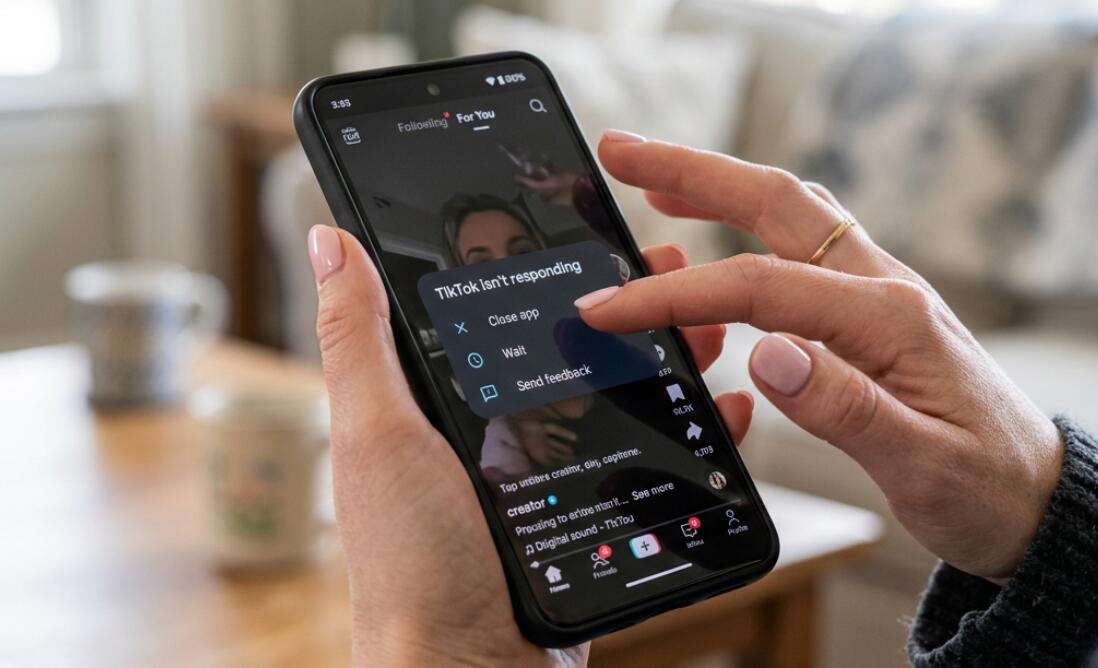
Your TikTok is not responding on an Android phone? Here's how to fix
Welcome to Blackview (World's well-known brand of rugged smartphone, such as eSIM rugged phone, FLIR thermal camera phone, Android 16 rugged phone, etc) blog. Hope the guide helps.
TikTok not responding on an Android phone can be frustrating, especially when the app freezes while watching videos, stops responding to taps, crashes immediately after opening, or becomes stuck on a blank screen. In many cases, the problem is not caused by a single serious fault. Temporary app data, insufficient storage, outdated software, excessive background activity, unstable network conditions, or a problematic TikTok update can all contribute to the issue. The key is to identify the likely cause before making changes so that you do not unnecessarily delete important app data.
- Read also: How to know if someone blocked you on TikTok?
- How to block & unblock a person on TikTok without them knowing?
- How to fix TikTok not responding on iPhone?
- How to create TikTok account without phone number?
- Can you log into TikTok on two devices at the same time?
Before moving on to more advanced solutions, start with simple checks such as restarting TikTok and your Android phone. If the problem keeps returning, work through the solutions in order, beginning with temporary fixes and gradually moving toward cache clearing, updates, storage management, and reinstalling the app. The following guide explains the most common reasons TikTok becomes unresponsive and provides practical steps for getting it working normally again.
Why is TikTok not responding on Android?
Understanding the cause can make troubleshooting much faster. TikTok may stop responding because its temporary files have become corrupted, the application has encountered a software bug, or your phone does not have enough free resources to keep the app running smoothly. TikTok is also a media-heavy application, so it can place considerable demands on memory, storage, graphics processing, and network connectivity.
Corrupted or excessive cache
Over time, TikTok stores temporary files to improve loading performance. If some cached data becomes corrupted or grows excessively large, the application may behave unpredictably. Symptoms can include freezing during startup, videos failing to load, delayed touch responses, or repeated crashes.
Limited RAM or storage
Android phones with many applications running simultaneously may have fewer resources available for TikTok. Low internal storage can also cause broader performance problems. If your phone is nearly full, TikTok may become slow or stop responding even though other applications appear to work normally.
Outdated TikTok or Android software
A compatibility problem can occur when TikTok, Android, Google Play services, or related system components are outdated. Conversely, a newly released TikTok version can occasionally contain a bug that affects certain Android devices. Checking for updates helps determine whether the issue is already addressed by the developer or device manufacturer.
Network or server problems
Not every TikTok problem originates on your phone. A weak Wi-Fi connection, unstable mobile data, restricted network access, or a temporary TikTok service disruption can make videos appear frozen or prevent the app from loading correctly. If other online applications are also having connection problems, investigate the network before changing TikTok settings.
How to fix TikTok not responding on Android
Once you understand the likely causes, work through the following troubleshooting steps in sequence. Test TikTok after each major step so you can identify which solution resolves the problem.
- Force close TikTok: Open Android's recent-apps screen and remove TikTok, or go to Settings, Apps, TikTok, and select Force stop. Then open TikTok again.
- Restart your phone: Restarting Android can clear temporary system problems and release memory being used by background processes. Related: How to restart phone without power button?
- Check your internet connection: Switch between Wi-Fi and mobile data to determine whether the problem is related to connectivity. If possible, test another reliable network. Related: Which network will your phone use when WiFi and mobile data both on?
- Clear TikTok's cache: Go to Settings, Apps, TikTok, Storage, and select Clear cache. Menu names vary between Android manufacturers.
- Free up storage: Delete unnecessary downloads, duplicate files, unused apps, or large media files if your phone is nearly full.
- Update TikTok: Open Google Play Store, search for TikTok, and install an available update.
- Update Android: Check your phone's System or Software Update settings and install an available stable update if appropriate.
- Close demanding background apps: Shut down games, video editors, browsers with many tabs, and other applications that may be consuming substantial memory.
- Check app permissions: Open TikTok's App info page and make sure necessary permissions have not been unintentionally restricted.
- Reinstall TikTok: If the problem continues, uninstall TikTok and install it again from Google Play. Before doing this, make sure you understand what local or unsynchronized TikTok data may be lost.
After each step, open TikTok and test the specific function that previously failed. For example, if the app froze while playing videos, watch several videos; if it stopped responding during startup, close and reopen it several times. This method prevents you from making unnecessary changes and helps isolate the underlying problem.
Check whether the problem affects only TikTok
An important diagnostic step is determining whether TikTok is the only application that has become unresponsive. Try opening several other apps, switching between screens, playing another type of video, and using basic Android functions. If multiple applications freeze or respond slowly, the problem is more likely to involve system resources, storage, overheating, or Android itself rather than TikTok alone.
Clear cache without deleting your account
Clearing TikTok's cache is one of the least disruptive troubleshooting options on Android. Cache files are temporary and can normally be recreated when the app needs them. This makes cache clearing useful when TikTok suddenly becomes sluggish after prolonged use or following an update.
Be careful not to confuse Clear cache with Clear storage or Clear data. The latter options are much more extensive and can reset the application. If you are simply trying to fix responsiveness, clear the cache first and leave app storage alone unless you have a specific reason to reset TikTok.
Make sure your phone has enough free space
Storage shortages can affect overall Android performance, not just the application that appears to be malfunctioning. Open your phone's storage settings and check how much space remains. If storage is almost full, remove content you no longer need, particularly large videos, downloaded files, offline content, and unused applications. Related: How to download music to SD card from phone?
Do not immediately delete TikTok's app data merely to free space. First identify what is consuming storage. Removing several large files or unused applications can often provide more meaningful free space while preserving your TikTok setup.
Consider overheating and heavy usage
Long periods of video playback, recording, gaming, charging, or use in a hot environment can make an Android phone warmer than usual. When a device becomes hot, it may reduce performance to control its temperature. TikTok can consequently feel slow, stutter, or stop responding temporarily.
If your phone feels unusually hot, stop intensive activity for a while and let the device return to a normal temperature. Avoid testing performance repeatedly while the phone is overheating. If severe overheating happens frequently even during light use, investigate the broader device problem rather than treating it as a TikTok-only issue.
What to do if TikTok still does not respond
If all basic troubleshooting steps fail, reinstalling TikTok can help when the installed application itself has become damaged or its local files are causing repeated failures. However, reinstalling should be treated as a later step rather than the first solution. Review anything you may need to preserve before removing the application, particularly drafts or other information that may not be synchronized with your account.
It is also worth checking whether the same TikTok account works correctly on another compatible device or whether other users are experiencing a similar outage. If TikTok works normally elsewhere but consistently freezes on one Android phone, the problem is more likely to be device-specific. If the service is broadly unavailable, changing settings on your phone may not solve the problem until the service issue is resolved.
Final troubleshooting advice
The best way to fix TikTok not responding on Android is to proceed from the simplest and least disruptive solution to the more advanced ones. Force-close the app, restart the phone, test the network, clear TikTok's cache, free up storage, and install available TikTok and Android updates. If the issue persists, examine overheating, background resource usage, permissions, and finally consider reinstalling the application after protecting any important unsynchronized content.
A single freeze does not necessarily indicate a serious problem. Temporary software glitches are common, and many can be resolved without resetting the phone or deleting personal information. If TikTok continues to freeze after a clean reinstall while other applications work normally, the issue may involve a TikTok compatibility bug or device-specific software problem. In that situation, keeping both Android and TikTok updated and reporting the recurring issue through the appropriate support channel is generally more useful than repeatedly clearing the same cache.