Ways to log out your TikTok account on other devices
Welcome to Blackview (World's well-known brand of rugged smartphones, AI smart glasses, and tablets) blog. Hope this guide has been helpful.
When you use TikTok on multiple phones, tablets, or computers, it can be easy to forget where your account is currently signed in. This may become a concern if you have used TikTok on a friend's phone, an old device, a shared computer, or a device that you no longer have access to. Fortunately, TikTok provides account and security controls that can help you review logged-in devices and remove access remotely.
- Read more: Why & how to fix TikTok is not working on an Android phone?
- How to log out of your WhatsApp on all devices?
- How to know if someone archived you on WhatsApp?
- How to know if someone blocked you on TikTok?
- How to block someone on TikTok without them knowing?
The exact names and locations of TikTok settings can vary depending on your app version, operating system, and account configuration. The most direct approach is usually to open TikTok on a device where you are still signed in and manage the list of devices connected to your account. If you no longer have your phone, however, there are other ways to protect the account, including changing your password and securing the email address or phone number associated with it. Now, let's take a look.
How to log out TikTok on other devices using your phone
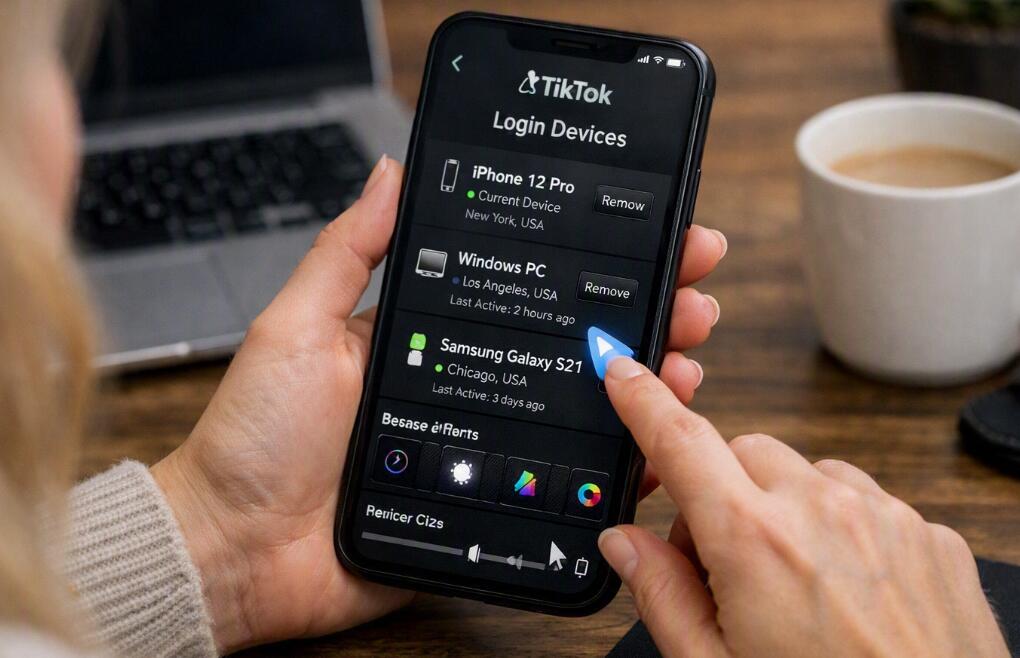
If you still have access to TikTok on your current phone, this is generally the most convenient way to remove another device. TikTok's security settings can show devices associated with your account, allowing you to identify sessions or devices that you no longer want to keep connected.
Steps to remove another device from TikTok
Follow these steps in the TikTok mobile app:
- Open the TikTok app on your phone and make sure you are signed in to the correct account.
- Tap Profile at the bottom of the screen.
- Tap the Menu button, usually represented by three horizontal lines.
- Open Settings and privacy.
- Go to Security & permissions or the similarly named security section.
- Look for Manage devices, Your devices, or an option that lists devices associated with your account.
- Review the displayed devices and identify the phone, tablet, or computer you want to remove.
- Select the unwanted device.
- Follow the on-screen instructions to remove or log out that device.
If you see a device that you do not recognize, treat it as a security issue rather than simply removing it and moving on. After removing the unfamiliar device, consider changing your TikTok password and checking your account's security settings. This can help prevent someone with existing credentials from signing back in.
How to log out TikTok without using your phone
If your phone is lost, unavailable, broken, or no longer signed in to your TikTok account, you can still take steps to protect your account. The most important alternative is to regain control through your account credentials. Changing the password can invalidate or disrupt access from devices using the previous credentials, depending on TikTok's current security behavior.
Change your TikTok password from another accessible device
If you can access TikTok through another device or account-recovery method, use the following general process:
- Open TikTok on an available device or access the TikTok sign-in page.
- Select the option to Log in.
- Choose the appropriate sign-in method, such as email, phone number, or username.
- Select Forgot password? if you cannot remember your current password.
- Choose whether to receive a verification code through your available recovery method.
- Enter the verification code when requested.
- Create a new, strong password that you have not used elsewhere.
- Sign in again using the new credentials if necessary.
If you cannot receive verification codes because you no longer have access to the associated phone number or email account, secure that recovery account first. Regaining access to the email address or phone number connected to TikTok may be necessary before you can successfully recover the TikTok account.
How to log out TikTok on a computer without using your phone
If you are currently using TikTok on a computer and do not have your phone available, you can secure the account through the web version where the relevant account and security options are available. The available controls may differ from those in the mobile app, so some account-management functions may still direct you toward additional verification.
Steps to secure your TikTok account from a computer
Try the following procedure:
- Open TikTok's official website in your computer browser.
- Sign in to the TikTok account you want to protect.
- Open your account menu or profile settings.
- Look for Settings, Security, or Account options.
- Review whether TikTok provides a device-management or security section on your account.
- If available, review the devices associated with the account.
- Remove any device or session that you no longer recognize or want to keep active.
- If direct device removal is unavailable, change your TikTok password from the account-security settings.
- After changing the password, review your account security and recovery information.
Do not assume that closing the browser window logs you out of every device. Closing a tab or browser only ends or hides the current browsing session in many circumstances; it does not necessarily remove access from another phone, tablet, or computer where your TikTok account remains signed in.
Other ways to protect your TikTok account
Removing an unfamiliar device is only one part of account security. If you suspect that another person has access to your TikTok account, you should take additional precautions. These methods are particularly useful when you cannot immediately identify every device associated with the account.
Enable two-step verification
Two-step verification adds another layer of protection when TikTok detects a login or security event requiring additional verification. The exact available verification methods can vary, so review the options offered in your account's security settings.
- Open TikTok's Settings and privacy.
- Enter the Security & permissions section.
- Find 2-step verification or a similarly named security option.
- Select the verification methods you can reliably access.
- Complete the verification setup and keep your recovery information current.
Two-step verification is especially useful if you are concerned that someone may know your old password. It does not replace the need for a strong password, but it can add another barrier to unauthorized access.
Secure your email and phone number
Your connected email address and phone number are important because they can be used for account recovery and verification. If another person controls one of these accounts, simply changing your TikTok password may not provide sufficient protection.
- Check which email address and phone number are associated with your TikTok account.
- Make sure you still control both recovery methods.
- Change the password of your email account if you suspect unauthorized access.
- Enable additional security measures on your email provider when available.
- Remove unfamiliar recovery information from your email account.
Keeping your recovery channels secure is particularly important after losing a phone or using TikTok on a public or shared device.
Check for suspicious account activity
Unexpected profile changes can sometimes indicate that another person has accessed your account. Review your profile, messages, videos, privacy settings, and other account information after removing an unfamiliar device.
- Check whether your username or profile information has changed.
- Review recent messages for activity you do not recognize.
- Check posted, drafted, or otherwise modified content.
- Review connected devices and security notifications when available.
- Change your password if anything appears suspicious.
What to do if you lost a phone with TikTok installed
If your phone has been lost or stolen, prioritize securing the account rather than waiting until you recover the device. Use another trusted device to change your TikTok credentials and review available security controls. You should also use the phone manufacturer's account-management features to lock or erase the missing phone when appropriate. This protects not only TikTok but also other applications and personal information stored on the device.
Why removing a device may not be enough
Device removal addresses an existing access point, but it does not necessarily explain how the other person obtained access in the first place. If an unknown device repeatedly appears after removal, check whether your password is being reused elsewhere, whether your recovery email is secure, or whether another person has access to a device where you remain logged in.
At the end
For most users, the simplest approach is to manage connected devices directly from TikTok's security settings while signed in on a trusted phone. If your phone is unavailable, changing your password and securing your recovery methods provide important alternatives. When using TikTok on a computer without your phone, review the account's available web security controls and use password recovery if necessary.
After completing the process, take a few minutes to review two-step verification, recovery information, and recent account activity. Keeping track of where your TikTok account is signed in can reduce the risk of unwanted access, particularly when you regularly switch between phones, tablets, and computers or use shared devices.