What should I do if there is video but no sound when connecting a phone to a TV via HDMI?
Welcome to Blackview (World's well-known brand of rugged smartphones, including rugged phone with projector, rugged phone with eSIM, and Android 16 rugged phone, etc.) blog. Hope the guide helps.
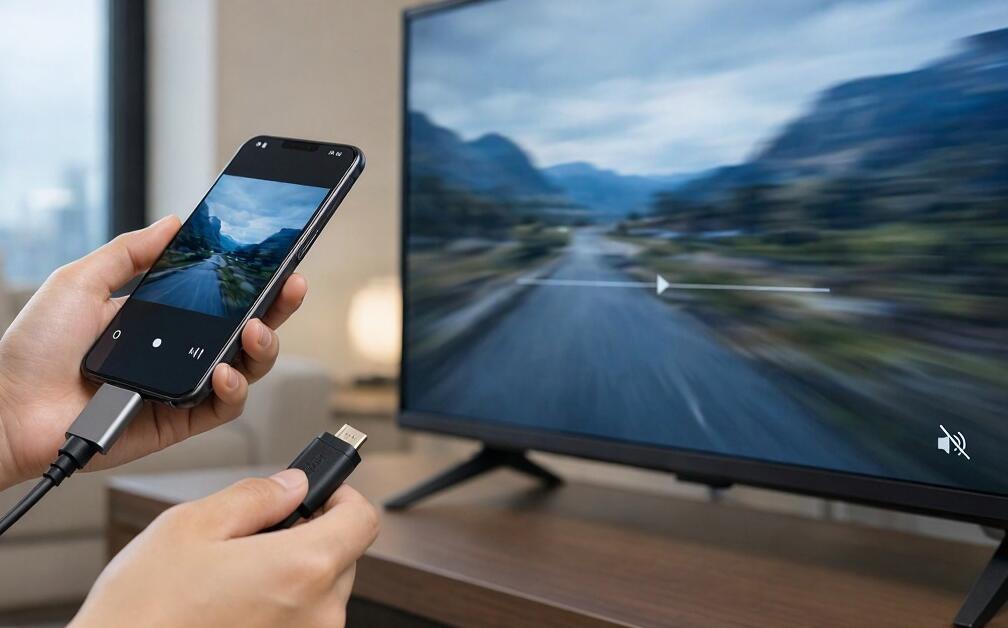
Connecting a smartphone to a television through an HDMI cable is a convenient way to enjoy movies, online videos, games, and other multimedia content on a larger screen. However, one common problem users encounter is that the video displays correctly on the TV, but no sound comes from the television speakers. This can be frustrating, especially when the phone appears to be connected successfully and the picture quality is normal. Fortunately, this issue is usually related to audio output settings, HDMI compatibility, connection problems, or software configuration rather than a serious hardware failure.
- Read also: How to fix Bluetooth speaker connected but no sound on Android?
- How to fix incorrect resolution when connecting a phone to a monitor via HDMI?
- How to connect phone to TV with USB without HDMI?
When a phone displays video on a TV without sound, it is important to identify the underlying cause before changing settings or purchasing additional accessories. Different smartphones, televisions, HDMI adapters, and streaming applications may handle audio transmission differently. This guide explains the most common reasons for HDMI audio problems and provides practical troubleshooting steps to help restore sound. Whether you are using an Android phone, an iPhone, or a USB-C-to-HDMI adapter, the following solutions can help you identify and resolve the problem efficiently.
Why Is There Video but No Sound When Connecting a Phone to a TV via HDMI?
Before attempting any fixes, understanding the possible causes can make troubleshooting much easier. If the television displays the phone's screen normally but produces no audio, consider the following possibilities:
- Incorrect TV audio output: The television may be configured to send sound to an external speaker, soundbar, Bluetooth device, or headphone output instead of its built-in speakers.
- Phone audio routing issues: Your smartphone may continue sending audio to connected Bluetooth headphones or another audio device rather than transmitting it through HDMI.
- Incompatible HDMI adapter: Some USB-C-to-HDMI or Lightning-to-HDMI adapters support video output but have limitations involving audio transmission or compatibility with particular phone models.
- Loose or damaged connections: A poorly connected HDMI cable, adapter, or converter can interrupt audio transmission even when video continues working.
- Incorrect audio format: Certain televisions cannot properly decode specific digital audio formats or audio signals transmitted by a connected smartphone.
- Application restrictions: Some streaming applications use content protection or device-specific playback settings that may affect external audio and video output.
- Temporary software errors: Outdated firmware, operating system bugs, or HDMI handshake problems can prevent audio from being transmitted correctly.
Check the Basic Connections and Volume Settings
The simplest troubleshooting measures should always come first. A minor connection problem or muted volume setting can easily explain why the TV displays video without sound.
Verify the HDMI Connection
Check every connection between your phone and television. If you use a USB-C-to-HDMI adapter, make sure the adapter is fully inserted into the phone and the HDMI cable is securely connected to the television.
- Disconnect the HDMI cable from both devices.
- Reconnect the adapter to your smartphone securely.
- Insert the HDMI cable into the correct TV port.
- Switch the television to the corresponding HDMI input.
- Try another HDMI port or cable if available.
If the audio returns after reconnecting the devices, the problem was likely caused by an unstable HDMI connection.
Adjust the Volume on Both Devices
Make sure neither the smartphone nor the television is muted. Increase the TV volume using its remote control and adjust the media volume on your phone. Remember that some smartphones have separate volume controls for media, notifications, calls, and other functions.
If you are using an external soundbar or home theater system, check its volume and input settings as well.
Change Audio Output Settings on Your Phone and TV
Audio routing is one of the most common reasons for missing sound during HDMI playback. Your smartphone may be displaying content on the TV while directing audio to another output device.
Disconnect Bluetooth Audio Devices
Bluetooth headphones, wireless speakers, and earbuds can sometimes take priority over HDMI audio output. To eliminate this possibility:
- Open the Bluetooth settings on your smartphone.
- Disconnect any connected headphones or wireless speakers.
- Check the phone's media output menu, if available.
- Select the appropriate HDMI or external display audio output.
- Play the video again and check whether sound comes from the TV.
Check the Television's Sound Settings
Open the TV's Settings menu and locate Sound or Audio Output. Select TV Speakers if you want audio to come directly from the television. If you use a soundbar, choose the appropriate external audio output instead.
Additionally, look for digital audio format settings. If the television offers options such as PCM, Auto, Dolby Digital, or Pass-Through, try selecting PCM. This can improve compatibility when a phone or adapter sends an audio format that the television cannot decode correctly.
Test the HDMI Adapter and Cable Compatibility
Not every HDMI adapter works with every smartphone. USB-C ports, for example, do not automatically support video output on all devices. Some phones require DisplayPort Alternate Mode or another supported video-output technology.
Check the following before replacing your equipment:
- Confirm that your smartphone supports wired video output.
- Check whether the adapter explicitly supports audio transmission.
- Use a compatible, reputable HDMI adapter rather than an unknown low-quality converter.
- Test the adapter with another compatible television or monitor.
- Try another HDMI cable to determine whether the original cable is defective.
For iPhones, use an appropriate Lightning or USB-C digital AV adapter, depending on the model. For Android phones, verify that the device supports HDMI video output through its USB-C port. Compatibility should be confirmed through the phone manufacturer's specifications.
Restart Devices and Update Their Software
Temporary software errors can interfere with HDMI communication. Restarting both devices can refresh their connection and resolve minor audio transmission problems.
- Disconnect the HDMI adapter and cable.
- Turn off the television and unplug its power cable for approximately one minute.
- Restart your smartphone.
- Reconnect the HDMI adapter and turn on the television.
- Select the correct HDMI input and test video playback.
- Check for available smartphone operating system and TV firmware updates.
After updating the software, reconnect the devices and test the audio again. Avoid performing a factory reset unless other troubleshooting methods have failed, as this may erase personal settings and data.
Determine Whether the Problem Comes from a Specific App
If sound works when displaying the phone's home screen, playing locally stored videos, or using another application, but disappears in one particular streaming app, the issue may be application-related.
- Play a video from a different application.
- Test a locally stored video to eliminate internet streaming issues.
- Update the application experiencing the problem.
- Check the application's audio, playback, and external display settings.
- Restart the application and try again.
Some streaming services impose restrictions on external playback because of digital rights management requirements. In such cases, using the application's officially supported TV-casting method may be more reliable than screen mirroring through an HDMI adapter.
When Should You Replace the Adapter or Seek Professional Help?
If none of the troubleshooting methods restores the sound, the problem may involve damaged hardware or an unsupported connection configuration. Test your phone, adapter, HDMI cable, and television separately whenever possible.
Consider replacing the adapter if it repeatedly fails to transmit audio across multiple compatible televisions. If other HDMI devices also produce no sound on the same TV port, the television may require inspection. Persistent problems involving the smartphone's USB-C or Lightning port should also be checked by a qualified technician.
Conclusion
When connecting a phone to a TV via HDMI results in video without sound, the most effective approach is to troubleshoot the connection systematically. Start by checking the HDMI cable, adapter, volume levels, and audio output settings. Then disconnect Bluetooth devices, test audio compatibility, restart both devices, and update their software.
In most cases, the issue can be resolved without replacing the television or smartphone. By identifying whether the problem originates from the phone, HDMI adapter, television, or playback application, you can restore normal audio output and enjoy videos on the big screen without unnecessary expense.