How do you check the Bluetooth version on your phone?
Welcome to Blackview (World's well-known brand of rugged smartphones, including rugged phone with projector, rugged phone with eSIM, and rugged phone with satellite messaging, etc.) blog. Hope the guide helps.
Bluetooth plays an essential role in everyday smartphone use, connecting wireless headphones, speakers, smartwatches, keyboards, and other accessories. However, not all Bluetooth versions offer the same capabilities. Newer versions generally bring improvements in power efficiency, connection stability, data transmission, and compatibility with modern devices. Knowing which Bluetooth version your phone supports can help you determine whether it meets the requirements of a particular wireless accessory.
- Read also: How to check the RAM version on your phone?
- How to check UFS storage version in your phone?
- How to check the OS version on a phone?
- How to fix a phone screen not responding to touch (iPhone/Android)?
Whether you use an Android phone or an iPhone, checking Bluetooth information is relatively straightforward, although the available methods differ between operating systems. Some phones display technical specifications directly, while others require you to consult the manufacturer's documentation or use a reliable device information tool. This guide explains several practical ways to identify your phone's Bluetooth version and understand what the information means.
How to Check Bluetooth Version on Android Phones
Android smartphones come from different manufacturers, including Samsung, Google, Xiaomi, OnePlus, and Motorola. As a result, the exact location of Bluetooth specifications may vary. Most Android devices do not display the Bluetooth version directly in the standard Bluetooth settings, but you can identify it through these methods.
Check Your Phone's Technical Specifications
The most reliable starting point is your phone's official technical specification page. Follow these steps:
- Open the Settings application on your Android phone.
- Scroll down and select About phone or About device.
- Find your phone's model name and model number.
- Open a browser and visit the manufacturer's official website.
- Search for your exact phone model and open its specifications page.
- Look for the Connectivity or Wireless Connectivity section.
- Find the Bluetooth entry to identify the supported version.
This method is particularly useful because manufacturers publish hardware specifications for individual models. Make sure you select the correct regional or model variant, as connectivity features can sometimes differ between versions.
Use a Device Information Application
If you cannot find the Bluetooth version on the manufacturer's website, a device information application may help. Applications designed to display hardware specifications can provide details about your phone's processor, memory, sensors, operating system, and wireless connectivity.
- Open Google Play Store on your Android phone.
- Search for a reputable device information application.
- Install the application and review its requested permissions.
- Open the application and navigate to the System, Hardware, or Connectivity section.
- Check whether Bluetooth information and the supported version are displayed.
Popular hardware information tools may show Bluetooth-related details, but not every application can identify the exact Bluetooth Core Specification version. If the information is missing or unclear, verify it using the manufacturer's documentation.
How to Check Bluetooth Version on an iPhone
Unlike some Android devices, iPhones generally do not provide a dedicated Bluetooth version indicator in the Settings application. Apple focuses on providing a simplified user interface rather than exposing every hardware specification. Nevertheless, you can identify the supported Bluetooth technology by checking your iPhone model.
Find Your iPhone Model
Follow these steps to identify your device:
- Open Settings on your iPhone.
- Tap General and select About.
- Locate the Model Name field.
- Note the model name and, if necessary, the model number.
- Visit Apple's official website and search for the technical specifications of your model.
- Review the Connectivity section for Bluetooth information.
Apple's technical specification pages provide information about wireless connectivity for individual iPhone generations. Checking the exact model is important because Bluetooth capabilities can change with each hardware generation.
Can You Check Bluetooth Version Through Settings?
Many users assume that the Bluetooth version appears alongside connected devices in the Bluetooth settings menu. Unfortunately, this is generally not the case. Android and iOS typically show available devices, pairing status, and connection options rather than the underlying Bluetooth hardware version.
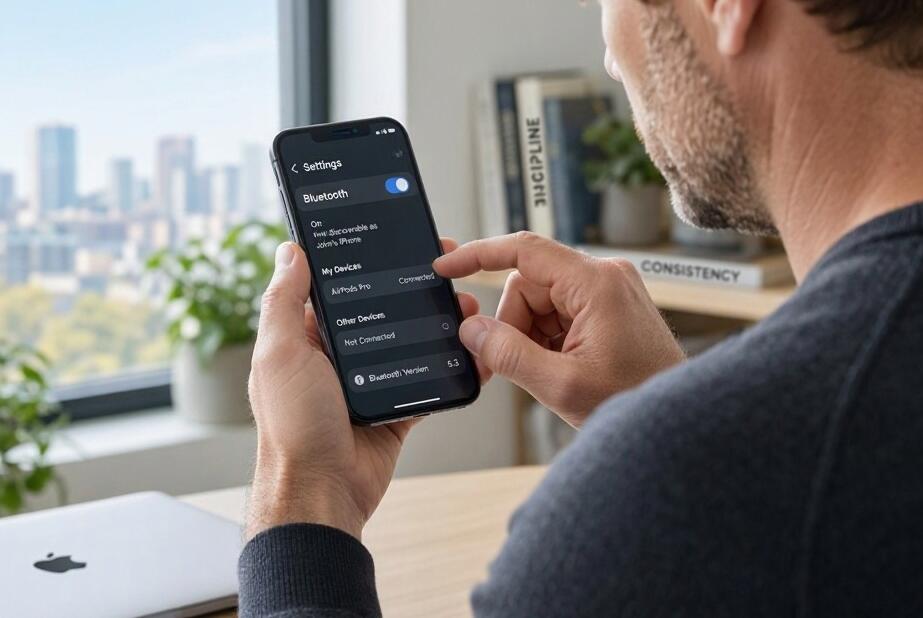
On Android, you can open Settings, select Connected Devices or Bluetooth, and review the available connection information. On iPhone, navigate to Settings and tap Bluetooth to see paired and nearby devices. These menus help you manage connections but usually cannot confirm the exact Bluetooth version.
It is also important to distinguish between the Bluetooth version supported by your phone and the version supported by a connected accessory. A device list may confirm that two products communicate successfully, but it does not necessarily reveal their individual Bluetooth specifications.
Understanding Different Bluetooth Versions
Bluetooth technology has evolved considerably, with each generation introducing improvements in performance, efficiency, or functionality. Understanding the differences can help you evaluate whether your smartphone is suitable for newer wireless accessories.
Bluetooth 4.0 and 4.2
Bluetooth 4.0 introduced Bluetooth Low Energy (BLE), making wireless communication more power-efficient. Bluetooth 4.2 improved security, data transfer capabilities, and support for connected devices. These versions remain suitable for many basic wireless accessories.
Bluetooth 5.0 and Newer Versions
Bluetooth 5.0 introduced improvements in range, speed, and broadcast capacity compared with earlier generations. Subsequent releases, including Bluetooth 5.1, 5.2, 5.3, and 5.4, added features such as direction finding, enhanced audio capabilities, and improved connection efficiency. Bluetooth 6.0 introduced Channel Sounding, enabling more precise distance awareness between compatible devices.
However, having a newer Bluetooth version does not automatically guarantee that every feature is available. Both connected devices must support the relevant functionality, and manufacturers may implement different optional features.
Why Knowing Your Phone's Bluetooth Version Matters
Checking your smartphone's Bluetooth version can help you make better decisions when purchasing accessories or troubleshooting wireless connections. It is particularly useful in several situations:
- Accessory compatibility: Determine whether your phone supports the Bluetooth requirements of headphones, speakers, smartwatches, and other accessories.
- Connection performance: Understand potential improvements in wireless range, stability, and data transmission.
- Battery efficiency: Identify support for technologies such as Bluetooth Low Energy, which can reduce power consumption for compatible devices.
- Wireless audio: Check whether your phone supports newer Bluetooth audio features required by specific headphones or earbuds.
- Future upgrades: Evaluate your phone's wireless capabilities before purchasing new accessories or replacing your device.
Remember that Bluetooth compatibility is generally designed to support communication between different generations. However, the connection will usually operate using mutually supported features rather than automatically providing every advantage of the newest version.
Checking your phone's Bluetooth version does not require advanced technical knowledge. Android users can start with their device information and manufacturer specifications, while iPhone users can identify their model through the About section in Settings. Third-party hardware information applications may provide additional details, although official documentation remains the most dependable reference.
Ultimately, knowing your smartphone's Bluetooth capabilities helps you choose compatible accessories, understand wireless performance, and make informed purchasing decisions. Before upgrading your headphones, smartwatch, or other wireless equipment, take a moment to verify your phone's specifications. This simple check can help you avoid compatibility surprises and get the most out of your Bluetooth-enabled devices.