How to transfer text messages from an old phone to a new phone?
Welcome to Blackview (World's well-known brand of rugged smartphones, including rugged phone with projector, rugged phone with eSIM, and rugged phone with satellite messaging, etc.) blog. Hope the guide helps.
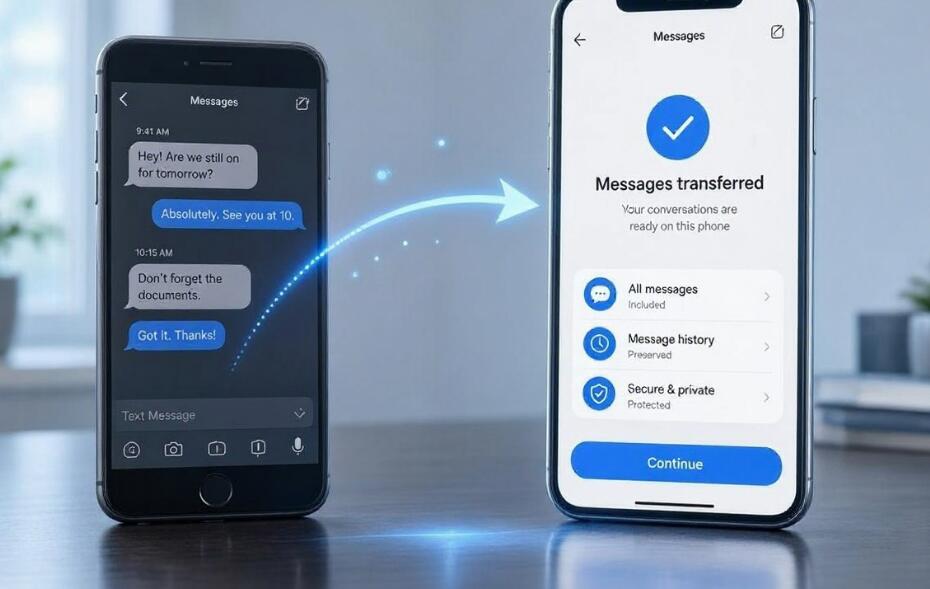
Getting a new smartphone is exciting, but transferring important text messages from your old phone can sometimes be challenging. Whether you are switching from Android to Android, Android to iPhone, iPhone to Android, or upgrading to a newer iPhone, keeping your SMS and MMS conversations is essential. Text messages often contain valuable personal information, business discussions, verification details, photos, and memories that you may not want to lose. Fortunately, there are several reliable ways to move your messages between devices without manually copying every conversation.
- Read also: How to fix a phone that failed to send SMS messages?
- How can you hide text messages on Android?
- How to send a text message without showing your number?
- How to check blocked messages on iPhone?
- How to get text messages on a smartwatch?
In this comprehensive guide, you will learn how to transfer text messages from an old phone to a new phone using built-in transfer tools, cloud backups, and third-party solutions. We will explain the steps for different operating systems, highlight important preparation tips, and discuss common transfer problems. By following the appropriate method for your devices, you can make the transition smoother and ensure that your important conversations remain accessible on your new smartphone.
Transfer Text Messages from Android to Android
Transferring text messages between Android phones is relatively straightforward because most Android manufacturers support data migration through Google backups or dedicated phone transfer applications. Depending on your device brand and Android version, you can use Google One backup, Samsung Smart Switch, or a built-in setup transfer feature.
Method 1: Use Google Backup
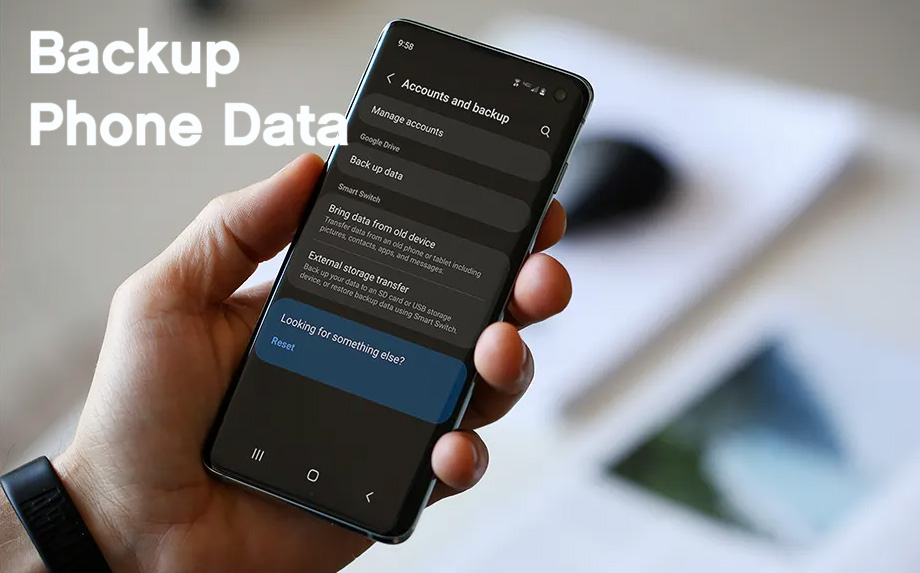
Google Backup allows you to save SMS messages and other essential information to your Google Account and restore them when setting up a new Android phone.
- On your old Android phone, open Settings and navigate to Google or System, depending on your device.
- Select Backup and check whether SMS and MMS messages are included in the backup options.
- Enable Google Backup and tap Back up now to create an updated backup.
- Turn on your new Android phone and connect it to a stable Wi-Fi network.
- During the initial setup, sign in using the same Google Account associated with your old device.
- Choose the option to restore data from your previous device or cloud backup.
- Select the appropriate backup and follow the instructions to restore your text messages.
- After setup is complete, open your messaging application and verify that your conversations have transferred successfully.
Method 2: Use Samsung Smart Switch
If both your old and new phones are Samsung devices, Smart Switch offers a convenient way to transfer messages, contacts, photos, and other data.
- Install or open Samsung Smart Switch on both devices.
- Connect the phones wirelessly or using a compatible USB cable.
- On your new Samsung phone, select Receive data and choose Galaxy or Android as the source device.
- On your old phone, select Send data and approve the connection request.
- Choose Messages from the available data categories.
- Tap Transfer and keep both devices connected until the process finishes.
- Open the Messages application on your new phone to confirm that your conversations are available.
Transfer Text Messages from Android to iPhone
Moving text messages from Android to iPhone requires a slightly different process because the two operating systems use different backup systems. Apple's Move to iOS application is the recommended solution for transferring SMS message history when setting up a new iPhone.
Method 1: Use Move to iOS
Move to iOS is Apple's official Android-to-iPhone migration application. It can transfer message history, contacts, photos, videos, and other supported information during the iPhone setup process.
- Download the Move to iOS application from Google Play on your old Android phone.
- Turn on your new iPhone and begin the initial setup process.
- When you reach the Transfer Your Apps & Data screen, select From Android.
- Open Move to iOS on your Android device and accept the terms and conditions.
- Tap Continue and enter the one-time code displayed on your iPhone.
- Allow the devices to establish a temporary connection.
- Select Messages, along with any other supported data you want to transfer.
- Tap Continue and wait until the transfer process is complete on both devices.
- Finish configuring your iPhone and open the Messages application to check your imported conversations.
It is important to note that Move to iOS generally works during the initial iPhone setup. If your iPhone has already been configured, you may need to erase it and start the setup process again to use this migration method. Back up any existing iPhone data before doing so.
Transfer Text Messages from iPhone to Android
Switching from an iPhone to an Android smartphone can require additional preparation because iMessage and Android messaging services handle conversations differently. Fortunately, many Android manufacturers provide migration tools that support message transfers directly from an iPhone.
Method 1: Use a USB Cable During Android Setup
Many modern Android phones support direct data migration from an iPhone through a compatible cable. This method is particularly useful when you want to transfer text messages without relying entirely on cloud backups.
- Charge both your old iPhone and new Android phone before starting.
- Turn on your Android device and begin the initial setup process.
- Choose the option to copy apps and data from an old device.
- Connect your iPhone to the Android phone using a compatible USB-C-to-Lightning or other supported cable.
- Unlock your iPhone and tap Trust if a trust confirmation appears.
- Select Messages or SMS conversations from the available transfer categories.
- Follow the on-screen instructions and wait for the migration to finish.
- Open the messaging application on your Android phone and check your transferred conversations.
Method 2: Use Samsung Smart Switch
Samsung users can also use Smart Switch to migrate supported message history from an iPhone.
- Open Smart Switch on your new Samsung phone.
- Select Receive data and choose iPhone or iPad.
- Connect your iPhone using a compatible cable or follow the supported wireless transfer instructions.
- Grant the necessary permissions and select Messages from the available content.
- Start the transfer and keep both devices connected throughout the process.
- Once completed, check the Samsung Messages application for your previous conversations.
Before switching permanently, remember to turn off iMessage and FaceTime on your old iPhone. This helps prevent future messages from being routed through Apple's messaging service instead of arriving as regular SMS or MMS messages on your Android device.
Transfer Text Messages from iPhone to iPhone
Apple provides several convenient options for transferring messages between iPhones. You can use Quick Start, iCloud Backup, or a computer backup through Finder or Apple Devices. These methods are especially useful because they can preserve message history alongside other personal information.
Method 1: Use Quick Start
Quick Start is one of the easiest ways to transfer messages directly from an old iPhone to a new one.
- Turn on your new iPhone and place it near your old iPhone.
- Make sure Bluetooth is enabled on your old device.
- A Quick Start notification should appear on the old iPhone.
- Tap Continue and use the old iPhone to scan the animation displayed on the new device.
- Enter your old iPhone's passcode when requested.
- Choose Transfer from iPhone when the data transfer options appear.
- Keep both devices close together and connected to power until the transfer finishes.
- Open Messages on the new iPhone and verify that your conversations are available.
Method 2: Restore Messages from iCloud
If you regularly back up your iPhone to iCloud, restoring your messages through your Apple Account is another effective option.
- On your old iPhone, open Settings and tap your Apple Account name.
- Navigate to iCloud and check whether Messages in iCloud is enabled.
- If you use iCloud Backup instead, create a fresh backup before switching devices.
- Turn on your new iPhone and sign in with the same Apple Account.
- Choose the appropriate iCloud restoration option during setup if restoring a device backup.
- If Messages in iCloud is enabled, connect to Wi-Fi and allow your conversations to synchronize.
- Open Messages and confirm that your previous conversations have appeared.
Important Tips Before Transferring Text Messages
Regardless of which devices you are using, preparing both phones before beginning the transfer can prevent data loss and unnecessary interruptions.
- Create a backup: Always create an updated backup of your old phone before starting. This provides a recovery option if something goes wrong.
- Charge both devices: Ensure both phones have sufficient battery power or keep them connected to chargers during migration.
- Use a stable connection: A reliable Wi-Fi connection can make cloud backups and wireless transfers more successful.
- Update your software: Install available operating system and transfer application updates to improve compatibility.
- Check available storage: Make sure your new phone has enough free space to accommodate your message history and attachments.
- Keep the old phone: Do not erase or trade in your previous device until you have verified that your important conversations have transferred successfully.
Common Text Message Transfer Problems and Solutions
Sometimes, text message transfers do not work as expected. Understanding common problems can help you resolve them without losing important conversations.
- Messages are missing: Check whether the correct backup was selected and whether message synchronization has finished. Some cloud services require additional time to download older conversations.
- Transfer keeps stopping: Restart both phones, check your internet connection, and ensure the devices have sufficient battery power.
- Not enough storage: Remove unnecessary files or applications from the new phone before trying again.
- Move to iOS cannot connect: Keep both devices near each other, disable features that may interrupt the temporary connection, and follow Apple's troubleshooting instructions.
- iPhone messages are not arriving on Android: Deregister iMessage and verify that your phone number is correctly activated for regular SMS messaging.
Conclusion
Transferring text messages from an old phone to a new phone does not have to be complicated. Whether you are moving between Android devices, switching from Android to iPhone, migrating from iPhone to Android, or upgrading to another iPhone, there are several reliable solutions available. Google Backup, Samsung Smart Switch, Move to iOS, Quick Start, and iCloud provide convenient ways to preserve important conversations during a device upgrade.
Ultimately, the best transfer method depends on your old and new phone models, operating systems, and available backup options. Always create a backup before starting, follow the appropriate migration instructions, and verify your message history before resetting or disposing of your old device. With the right preparation, you can move to your new smartphone confidently while keeping your valuable text messages and memories intact.