The Audio is not available on Instagram Story? Here's why and how to fix
Welcome to Blackview (World's well-known brand of rugged outdoor smartphone and tablet) blog. Hope this guide has been helpful.
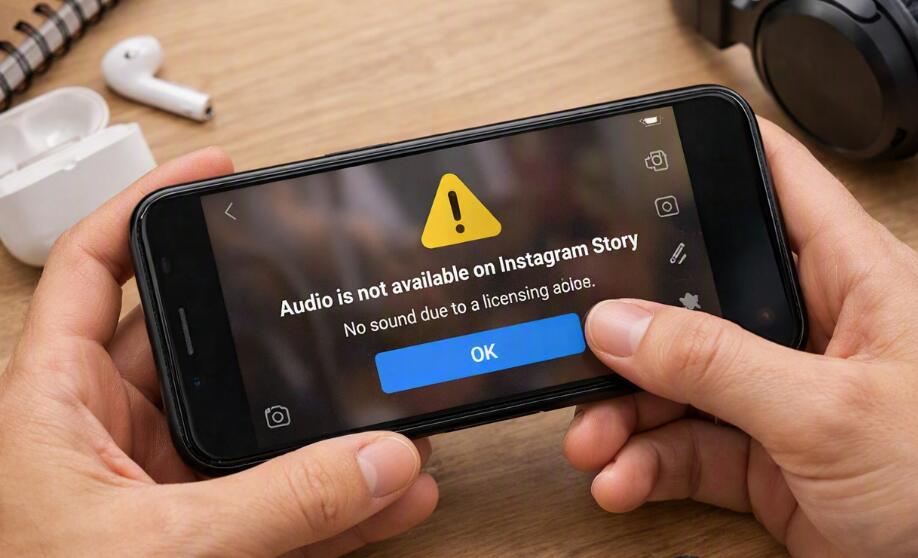
Instagram Stories are designed to combine photos and videos with music, original audio, voice recordings, and other creative effects. However, you may sometimes see the message “Audio is not available” when trying to view, add, or reuse sound in a Story. The problem can be confusing because the same audio may work in another Story, account, or device. In many cases, the issue is related to music licensing, regional availability, account type, an outdated application, temporary technical problems, or the way the original Story was created.
- Read also: How to know if someone muted your story on Instagram?
- How do I download movies to my phone?
- How to download music on an Android phone?
- How to download Apps not available in your country?
- How to tell if your Instagram was hacked?
Before assuming that your phone or Instagram account is broken, identify exactly where the audio fails. If you cannot add music from Instagram's Music library, the cause may differ from a situation where an existing Story says its audio is unavailable. Likewise, if only one particular song is affected while other tracks work normally, licensing or availability is more likely than a general app malfunction. The following methods cover the most common causes and provide practical steps for narrowing down the problem.
Check whether the audio is unavailable everywhere
The first step is to determine whether the problem affects one piece of audio or the entire Instagram music feature. Try opening another Story that contains music, then search for a different song in the Story music sticker. If several unrelated songs work but one specific track does not, repeatedly reinstalling Instagram is unlikely to solve the underlying problem.
- Open Instagram and create a new Story.
- Tap the sticker icon and select the Music option.
- Search for two or three different songs.
- Try adding a song that is currently popular or commonly available.
- Check whether the unavailable message appears for every track or only particular audio.
If only particular tracks are affected, the audio may have been removed, restricted, or made unavailable for your location or account. In that situation, choose another available track rather than treating the issue as a phone malfunction.
Update Instagram and restart the app
An outdated version of Instagram can behave differently from the current version, particularly when features or server-side changes are introduced. Updating the application is therefore one of the simplest troubleshooting steps. After updating, completely close Instagram rather than leaving it running in the background, then open it again.
- Open the App Store or Google Play Store.
- Search for Instagram.
- Install the latest available update if one is shown.
- Close Instagram completely after the update.
- Restart your phone.
- Open Instagram and test the Story audio again.
Check your internet connection
Instagram's music library and other media features depend on network communication, so an unstable connection can prevent audio information from loading correctly. A connection that appears fast enough for ordinary browsing may still experience temporary interruptions that affect Instagram.
- Switch between Wi-Fi and mobile data.
- Move to an area with a stronger signal if you are using cellular data.
- Temporarily disable a VPN or network-filtering service if one is active.
- Restart your router if the problem occurs only on Wi-Fi.
- Reopen Instagram and test the same Story again.
Clear Instagram's cache on Android
On Android, corrupted or excessive temporary application data can sometimes contribute to unusual app behavior. Clearing the cache does not have the same effect as clearing the application's complete data, so make sure you select the cache option rather than resetting the application.
- Open your phone's Settings.
- Go to Apps or Applications.
- Select Instagram.
- Tap Storage or Storage & cache.
- Select Clear cache.
- Open Instagram again and test the Story audio.
Menu names vary by Android manufacturer. Avoid selecting Clear data unless you understand what it will remove and are prepared to sign in again if necessary.
Reinstall Instagram if ordinary troubleshooting fails
If updating, restarting, changing networks, and clearing the Android cache do not help, reinstalling Instagram can replace damaged application files. On an iPhone, reinstalling can also serve as an alternative when there is no simple system-level cache-clearing option for the app.
- Make sure you know your Instagram login details.
- Confirm that any important drafts or locally stored content you need has been preserved.
- Uninstall Instagram from your phone.
- Restart the device if necessary.
- Install Instagram again from the official app store.
- Sign in and test the Music feature in a new Story.
Music licensing and regional restrictions
One of the most important explanations is that not every piece of music is available to every Instagram user. Music availability can depend on licensing arrangements, territory, account type, and changes made to the audio catalog. A song that was previously available may also become unavailable later.
This is particularly useful when troubleshooting a single song. If other music works normally but one track displays an unavailable-audio message, changing phone settings is unlikely to restore that specific track. Instead, search Instagram's music library for an alternative version or another track that is currently available.
Business and professional account limitations
Account type can also affect access to licensed music. Instagram's music availability is not necessarily identical across personal, creator, and business accounts because commercial use can involve different licensing considerations. If you manage a professional account and notice that the music library is significantly different from what another personal account can access, the account configuration may be relevant.
Do not switch account types solely as a first troubleshooting step. Instead, determine whether the missing audio is actually connected to the account. Testing the same music search on another account, when available, can help establish whether the restriction follows the account rather than the device.
The original Story's audio may have been removed
If you can see a Story but its audio is suddenly unavailable, the problem may originate with the content itself rather than your phone. Audio can become unavailable after licensing arrangements change or when content is subject to platform restrictions. In these cases, the original Story may remain visible while its sound no longer plays.
Try viewing other Stories from the same account. If other Stories play normally, the issue is probably specific to that particular piece of content. There may be nothing you can change locally to restore audio that Instagram no longer makes available.
When Instagram itself may be experiencing a problem
Sometimes the Music feature can malfunction temporarily because of an Instagram-side technical problem. If audio suddenly stops working across multiple accounts, devices, and songs, while your internet connection is functioning normally, the problem may not be something you can fix through phone settings.
In this situation, check whether other Instagram features are also behaving unusually and wait before repeatedly changing your account settings. If the issue persists, use Instagram's in-app reporting tools to submit a problem report and include details about the affected feature, device, application version, and the exact error message.
How to identify the real cause quickly
A systematic test is usually faster than trying random fixes. Start by checking another song, then another Story, and finally another account or device if one is available. This creates a simple comparison that can reveal whether the problem belongs to the audio track, your account, your phone, or Instagram's service.
- One song fails: check audio availability and licensing.
- Many songs fail on one account: investigate account or regional availability.
- Many songs fail only on one phone: update, restart, clear cache, or reinstall Instagram.
- Audio fails across devices and accounts: consider a temporary Instagram-side issue.
Keep Instagram audio working smoothly
Keeping Instagram updated, maintaining a stable internet connection, and periodically clearing unnecessary app data can reduce ordinary technical problems. It is also useful to remember that audio availability is controlled partly by Instagram's content and licensing systems, so not every unavailable track can be restored through device troubleshooting.
When Instagram says that audio is not available in a Story, the most effective approach is to identify the scope of the problem before changing anything major. Test another song, update the application, check your connection, clear the Android cache when applicable, and reinstall the app only after simpler methods have failed. If the problem affects only certain tracks or a particular Story, licensing or content availability may be the more relevant explanation.
If none of these methods works and the same audio problem appears across multiple accounts or devices, treat it as a possible Instagram-side issue rather than repeatedly resetting your phone. By separating app problems from account, regional, and licensing restrictions, you can usually determine why the audio is unavailable and choose the appropriate next step without risking unnecessary loss of app data.